Plan trips collaboratively with TREK (NOMAD)
TREK (previously NOMAD) is a self-hosted, real-time collaborative trip planner. It combines interactive maps, detailed itineraries, budgeting, packing lists, and team features into a single app. Running TREK on Olares keeps all your travel data private while letting you plan trips together with friends and family.
Learning objectives
In this guide, you will learn how to:
- Install and set up TREK on Olares.
- Build trip plans, including daily schedules, budgets, and packing lists.
- Invite friends and collaborate on travel plans in real time.
- Secure your account and back up your travel data.
- Configure advanced settings, such as third-party single sign-on (SSO) and map API keys.
Install TREK
Open Market and search for "TREK".
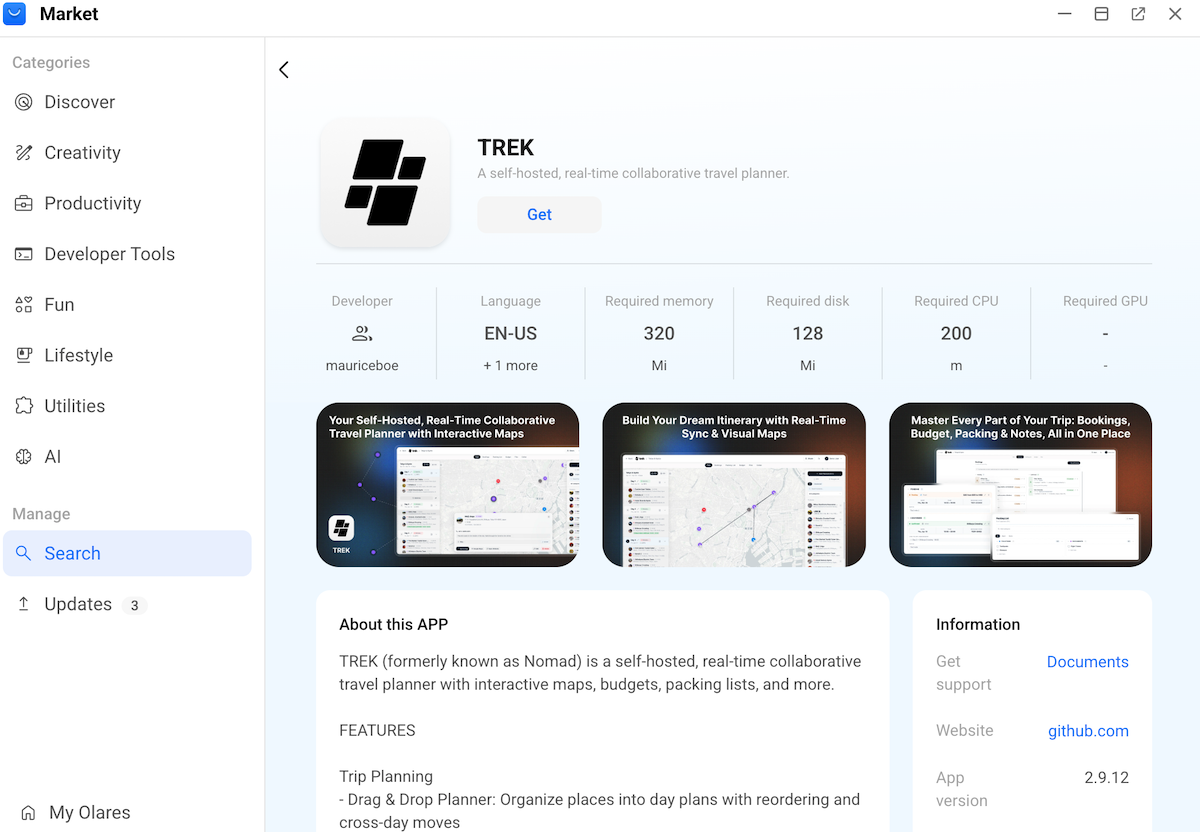
Click Get, and then click Install.
When prompted, set the environment variables:
- ADMIN_EMAIL: Your admin email address.
- ADMIN_PASSWORD: Your admin password.
Password requirements
The password must be at least 8 characters and include uppercase letters, lowercase letters, and numbers.
Click Confirm and wait for the installation to finish.
Set up TREK
Open TREK from the Launchpad, and then sign in with the email and password you set during installation.
On the first signin, TREK requires you to reset your password. Enter a new password, and then click Update password.
WARNING
Because TREK is a private, self-hosted application, it does not use an automated email password recovery system. If you forget your updated admin password, your account cannot be recovered. To prevent permanently losing access to your workspace and travel data, ensure you store your admin password securely, such as in a password manager.
Use TREK
Create a trip plan
On the home page, click Create First Trip.
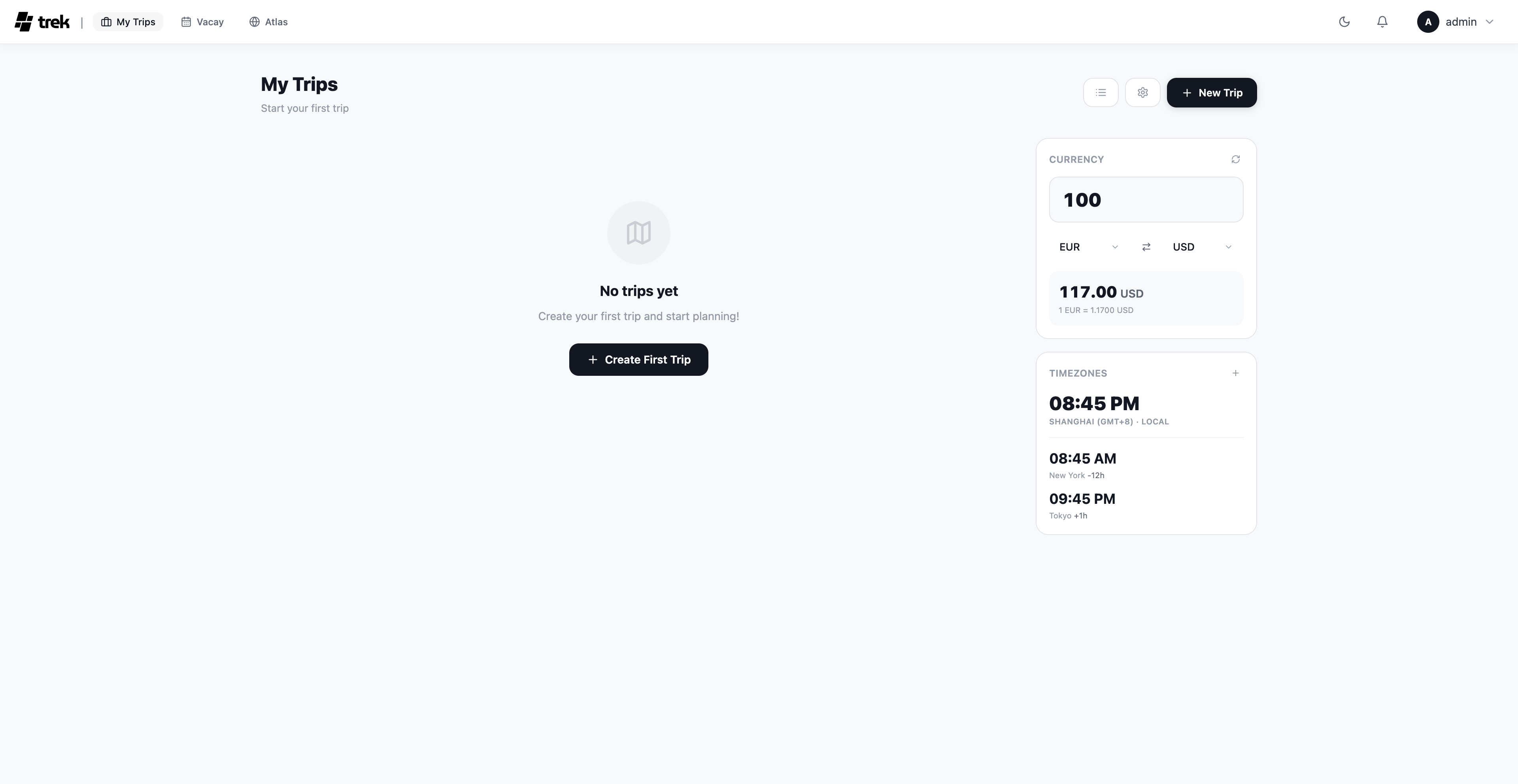
Specify the trip details.
- Cover Image: Upload a cover image for your trip.
- Title: Specify the name of the trip, such as
Paris Summer 2026. - Description: Enter a description for the trip, such as the overall theme or goal.
- Dates: Select the start and end dates for your trip.
- Number of Days: Select the duration of the trip.
Click Create New Trip. The trip appears on the My Trips page.
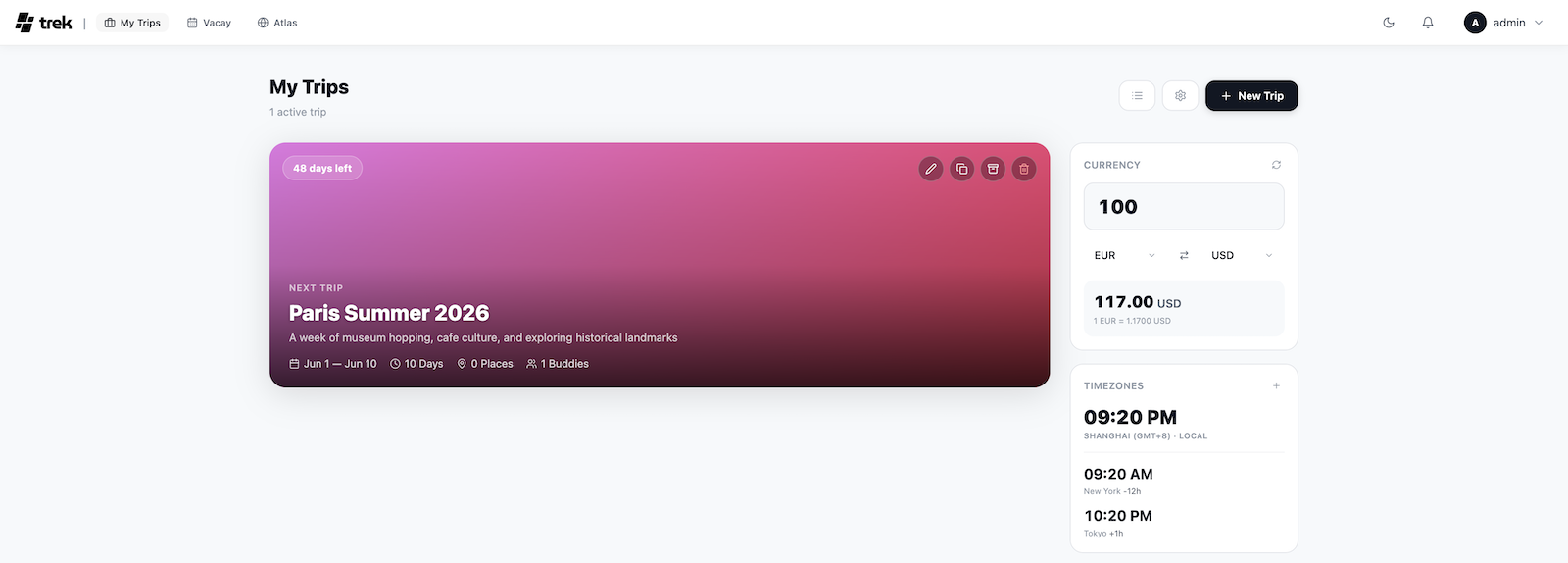
Plan your daily itinerary
Build a day-by-day plan by adding places and organizing them into each day's schedule.
Click the newly created trip to open the trip planner where you start adding places and activities.
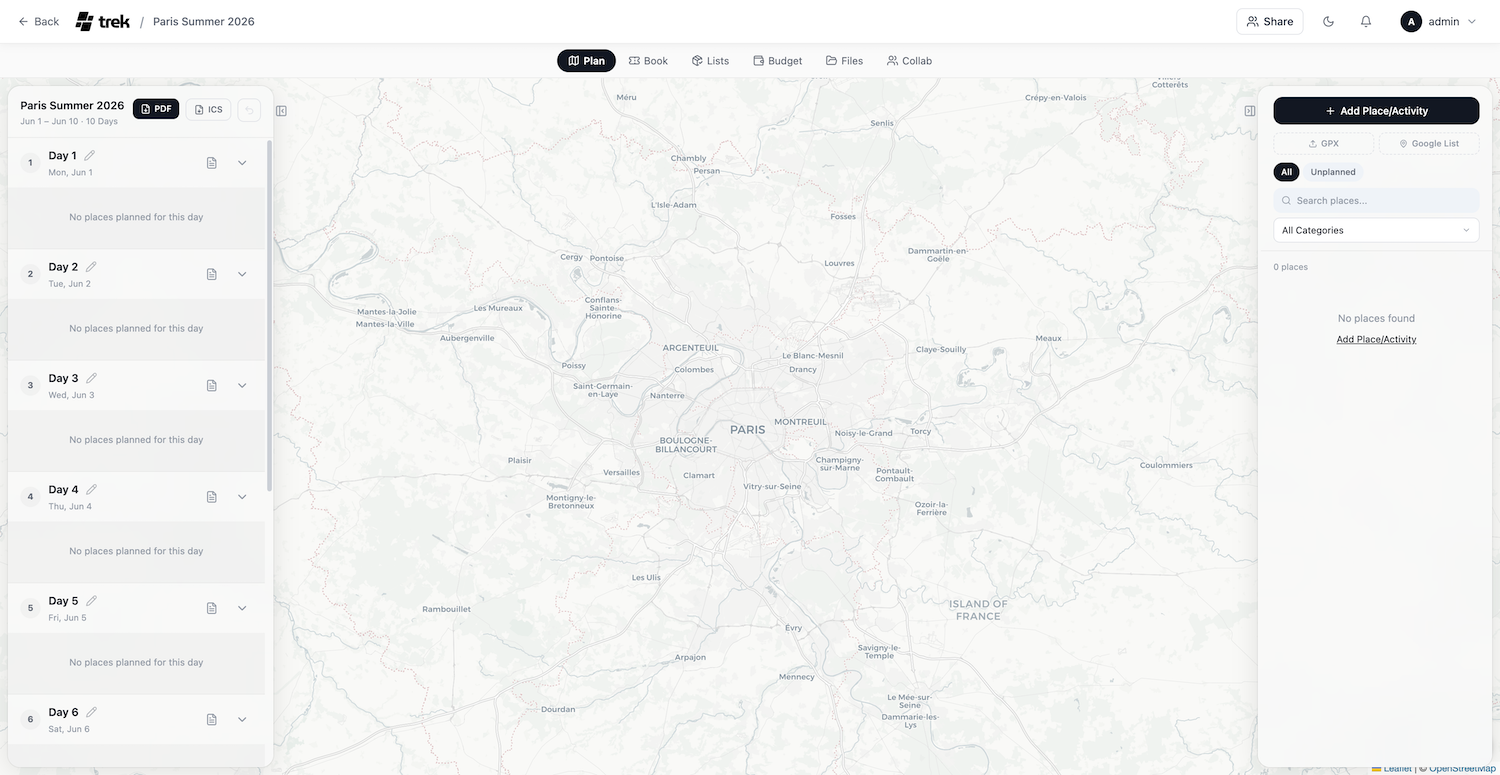
Click Add Place/Activity.
Enter the location to search such as
Eiffel Tower, click search, select the target one from the results list, and then click Add.The place appears on the right panel in the trip planner.
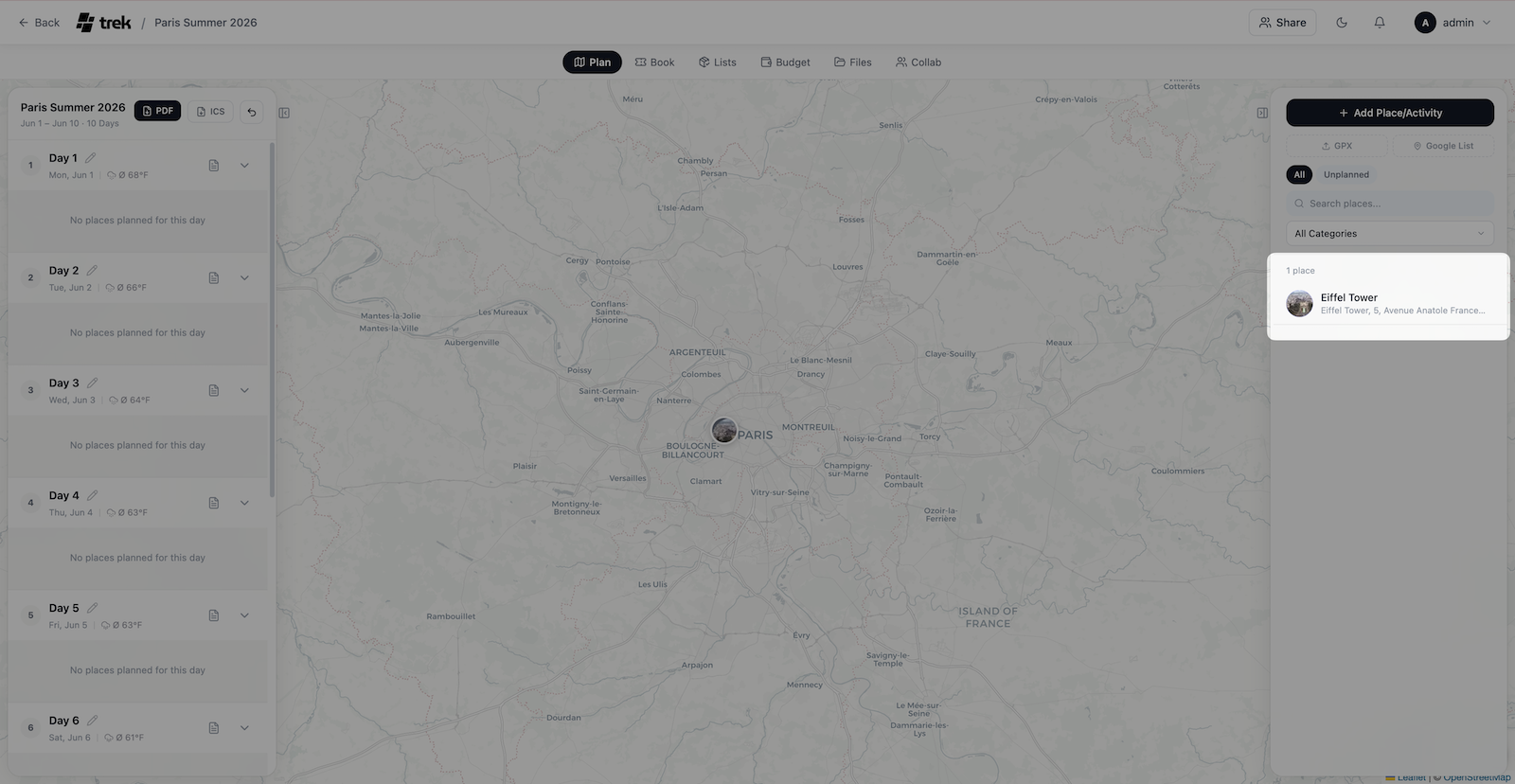
Drag the place into a specific day on your itinerary.
For example:
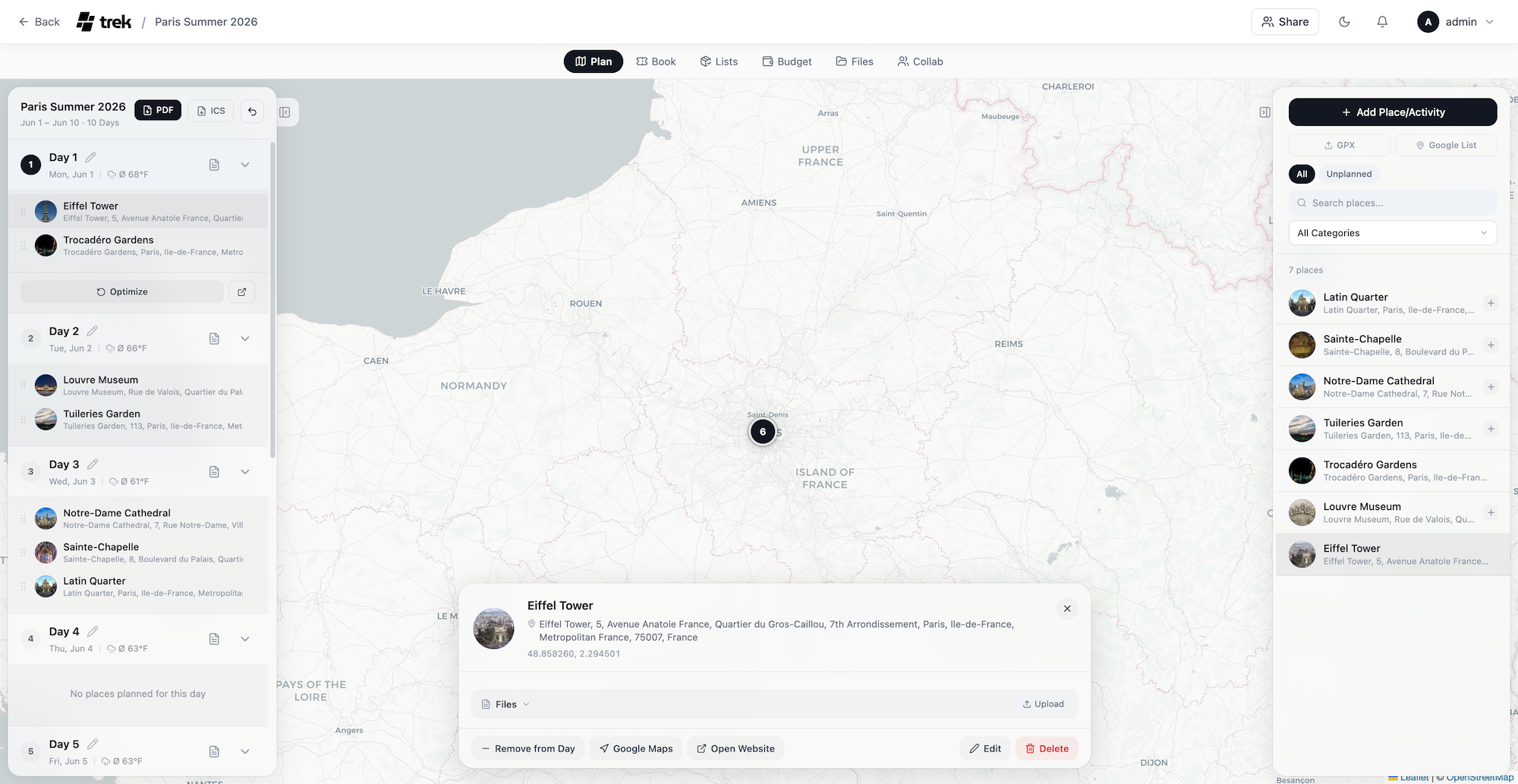
- Day 1: Eiffel Tower, Trocadero Gardens
- Day 2: Louvre Museum, Tuileries Garden
- Day 3: Notre-Dame Cathedral, Sainte-Chapelle, Latin Quarter
Reorder places within a day by dragging and dropping them.
Drag an activity across days to shift it to a new date.
Click a place to add notes or view it on the interactive map.
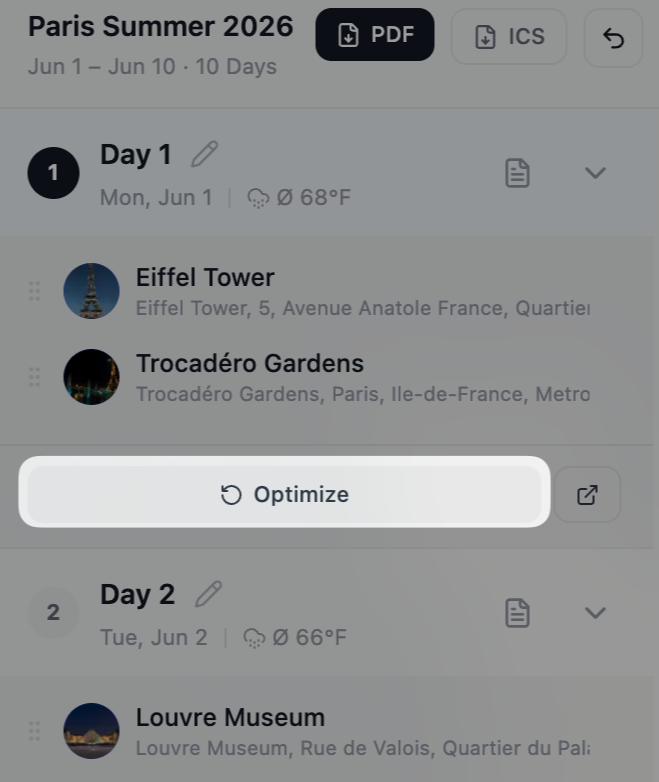
Route optimization
Select Optimize to automatically reorder places within a day for the most efficient path. You can also export the route to Google Maps for navigation.
Add trip notes
Jot down daily reminders, travel ideas, or specific plans on your itinerary.
In your trip planner, click the Plan tab.
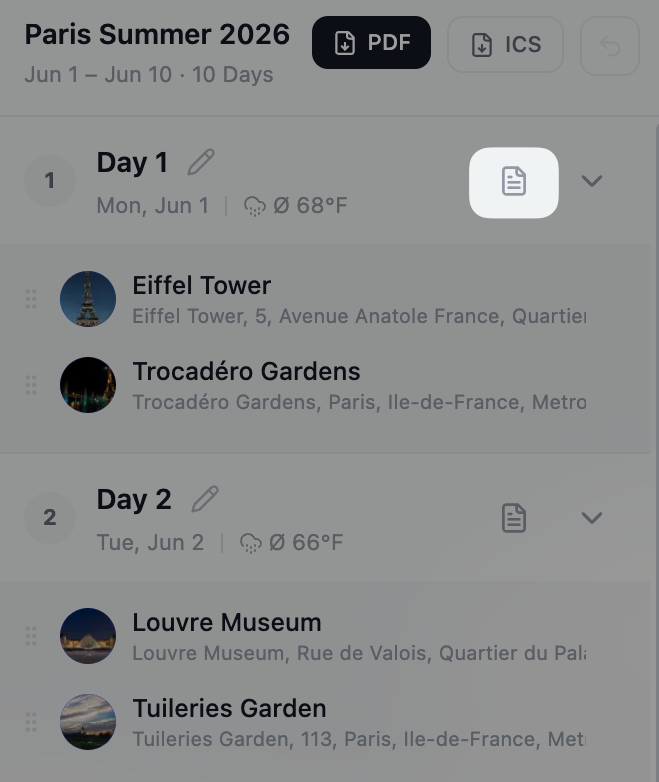
Locate the specific day where you want to add a note, and then click docs.
Select an icon that matches the theme of your note.
In the Note field, enter a short title or summary, such as
Buy Metro tickets.In the Daily Note field, enter additional details, such as
Get a carnet of 10 tickets at the station before heading to the Louvre.Click Add.
Check weather forecasts
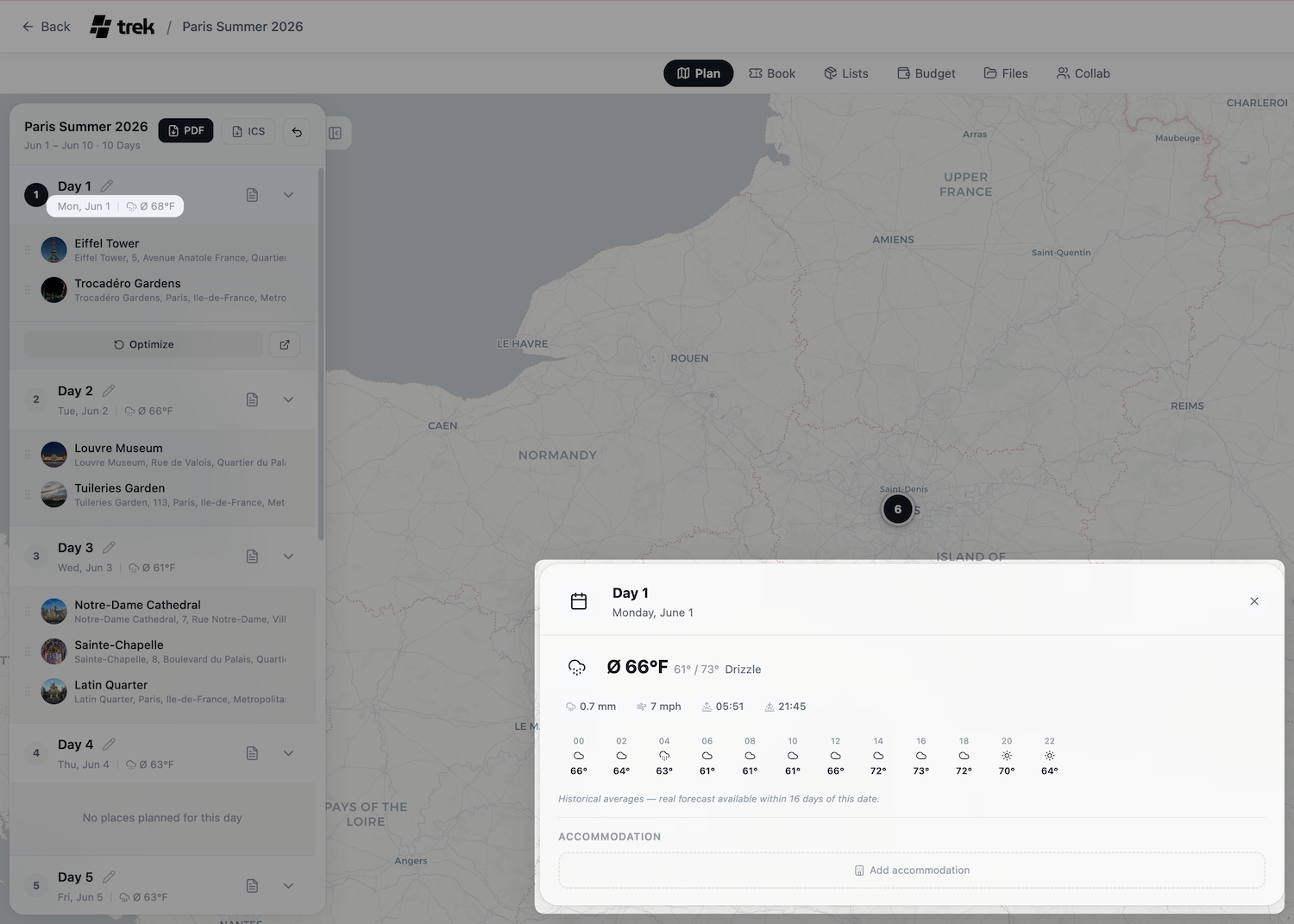
Click a date in your itinerary to view the weather forecast for that destination. TREK provides up to 16-day forecasts through Open-Meteo (no API key needed), with historical climate averages as a fallback for dates further out.
Log reservations
Keep track of your flights, accommodations, restaurants, and tour bookings in one place.
In your trip planner, click the Book tab.
Click Manual Booking to open the New Reservation window.
Select a BOOKING TYPE, such as Flight.
Specify the reservation details. For example, for a hotel stay:
- TITLE: Enter the name of the reservation, such as Hotel Le Meurice.
- LINK TO DAY ASSIGNMENT: Select a specific day in your itinerary to link this booking.
- DATE and END DATE: Specify your check-in and check-out dates.
- STATUS: Select the current state of the booking, such as Pending or Confirmed.
- LOCATION / ADDRESS: Enter the hotel's address.
- BOOKING CODE: Enter your confirmation number.
- FILES: Select Attach file to upload your booking confirmation or e-ticket.
- PRICE and BUDGET CATEGORY: enter the total cost to automatically sync this reservation with your trip budget.
Click Add.
Attach travel documents
Keep booking confirmations, e-tickets, and travel insurance documents organized by attaching them directly to your itinerary items, places, or reservations. Each file supports a maximum size of 50 MB.
In your trip planner, click the Files tab.
Upload the files to attach.
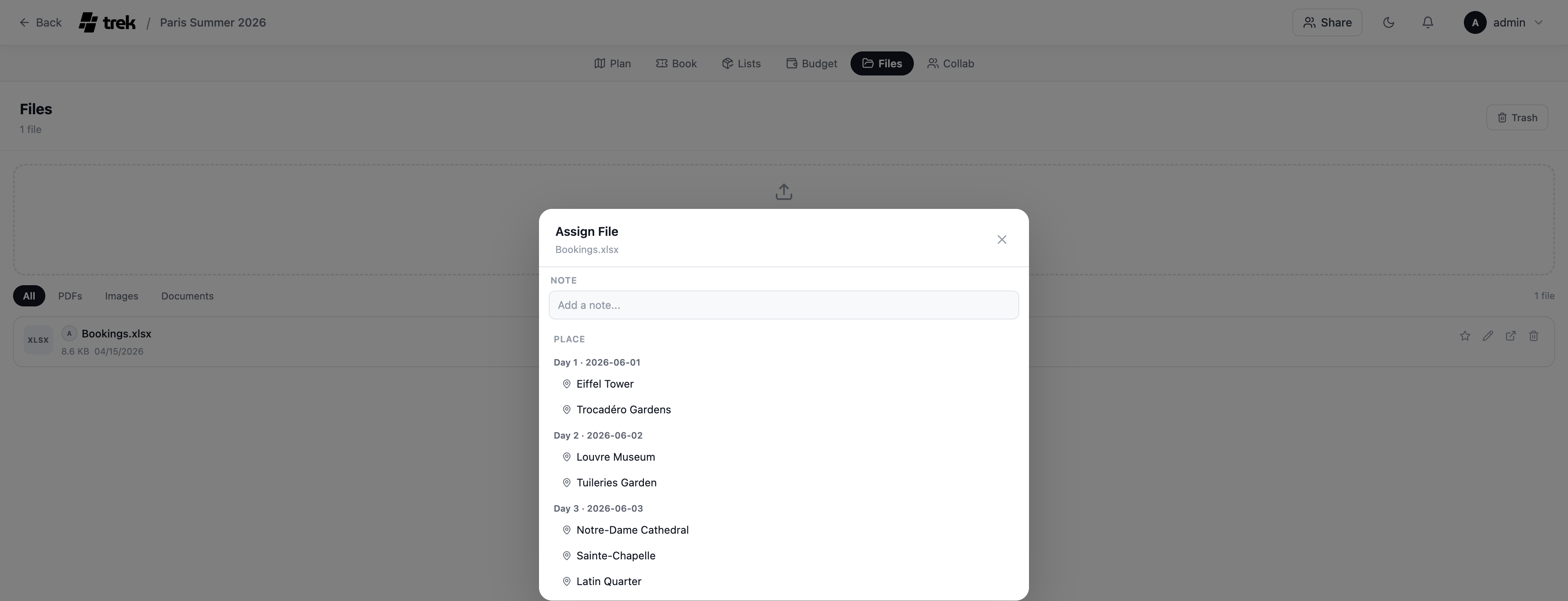
In the Assign File window, add a note for file, and then select where to link the document, such as a specific day or place.
Close the window.
Track trip expenses
Keep track of trip expenses with category-based budgeting and multi-currency support.
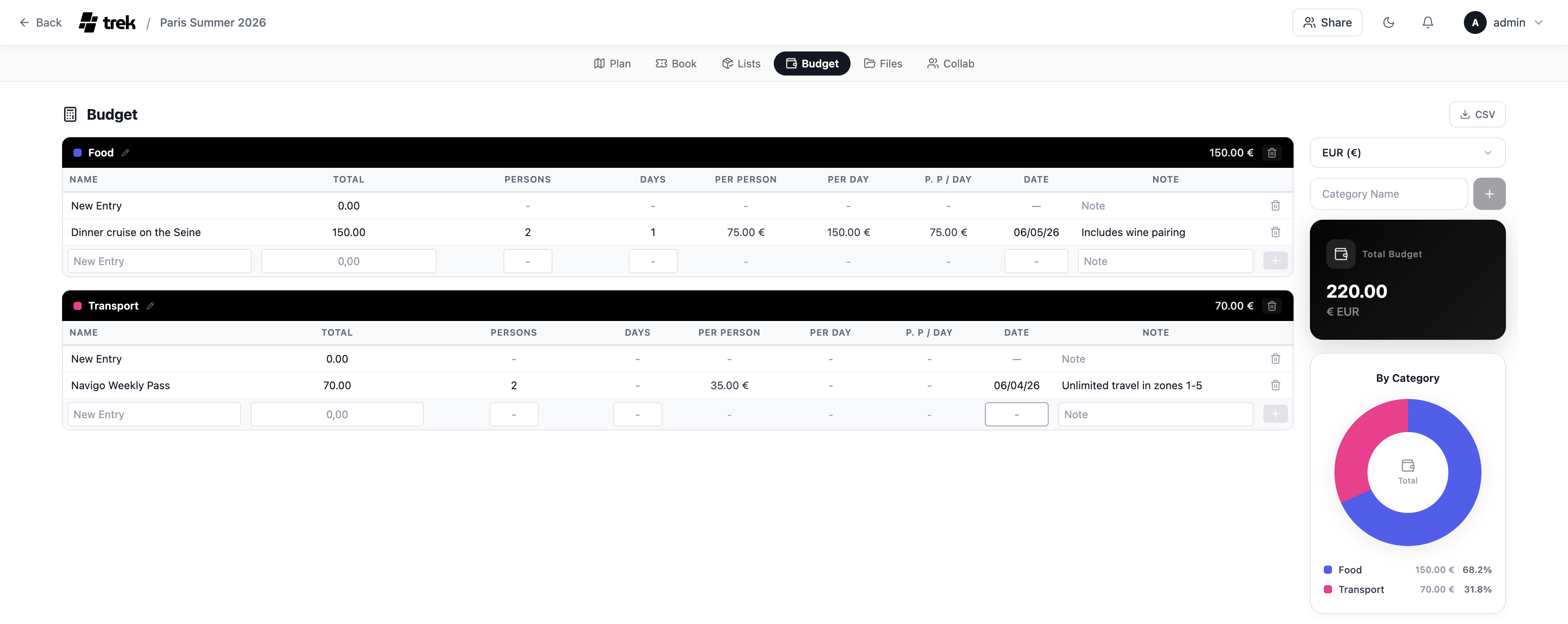
In your trip planner, click the Budget tab.
Enter a category name for your expenses, such as
Food,Transport,Accommodation, orActivities.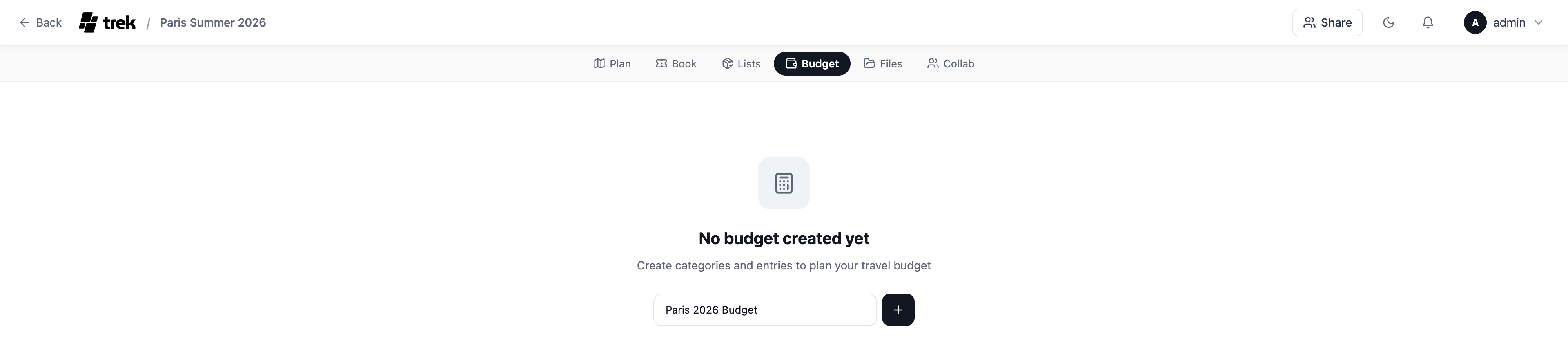
Click add_2. The budget planner is displayed.
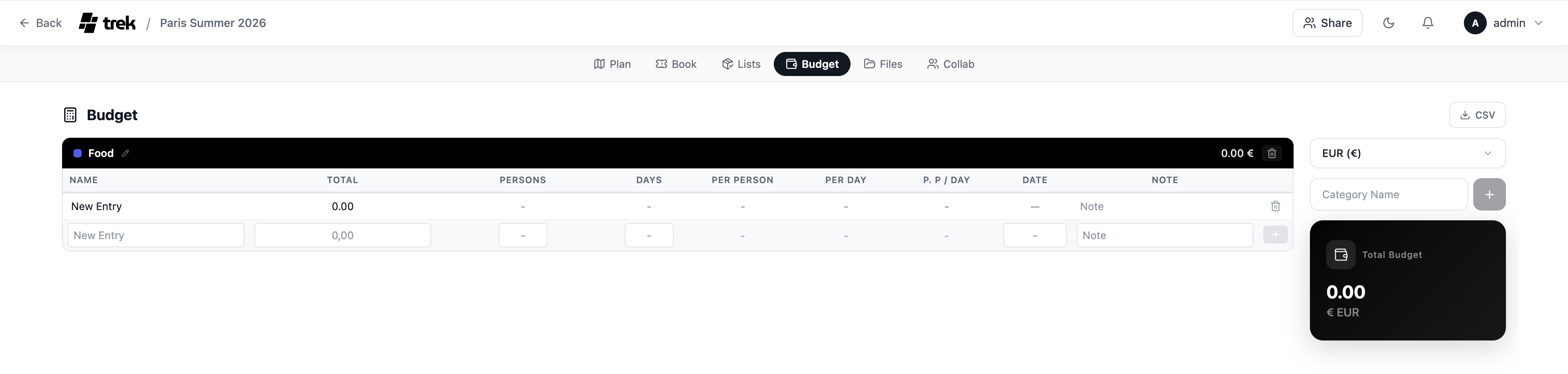
Specify your preferred currency from the drop-down menu in the top-right corner.
Specify the details for the expense:
- NAME: Enter the item name, such as
Dinner cruise on the Seine. - TOTAL: Enter the total cost.
- PERSONS: Enter the number of people sharing the cost.
- DAYS: Enter the duration of the expense.
- DATE: Enter the date of the expense.
- NOTE: Enter additional context.
- NAME: Enter the item name, such as
Select add at the end of the row to add the entry.
TREK automatically calculates the PER PERSON, PER DAY, and P. P / DAY amounts, and updates your total budget on the right.
To add more expense category, enter the category name on the right panel, and then click add next to it.
TREK displays a pie chart breakdown of your spending by category.
Build packing lists
Create categorized packing lists, assign responsibilities, and track your packing progress.
In your trip planner, click the Lists tab.
Click Add category, enter a catetory name such as
Clothing,Electronics, orToiletries, and then click check at the end of the row.Under your new category, enter the items to pack such as
Walking shoesand specify the quantity for each item.To assign the category to a specific travel companion, click person_add.
Select the checkbox next to an item as you pack it. TREK updates your overall packing progress at the top of the page.
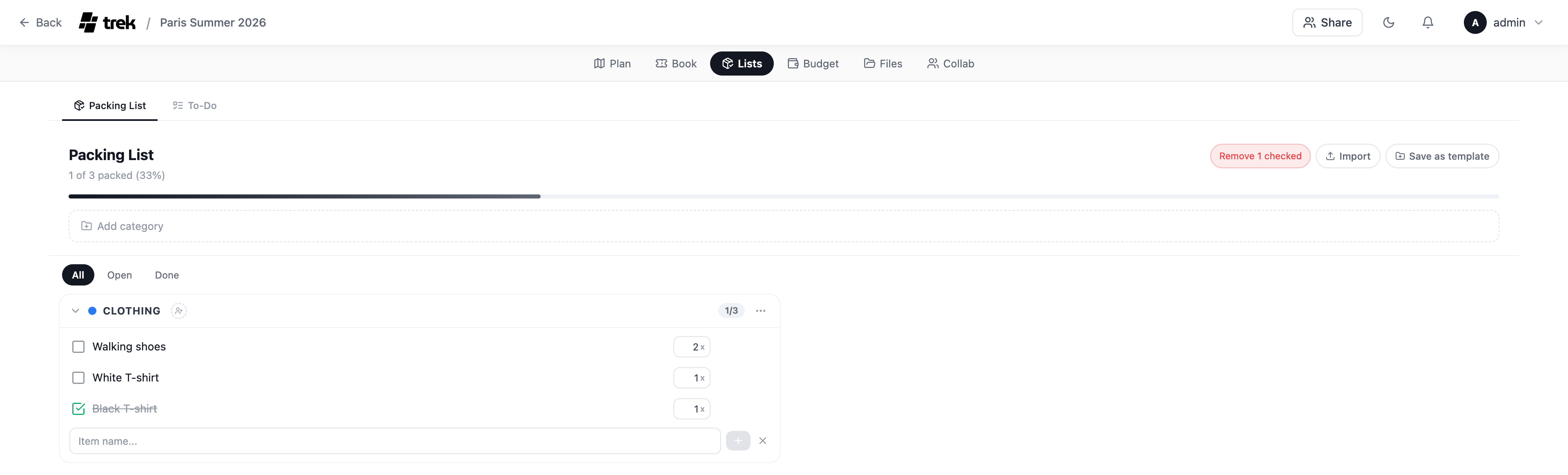
To save time on future trips, select Save as template in the top-right corner to save your current list. When planning your next trip, click Apply template to load a saved template to start with a pre-populated checklist.
Export your itinerary as PDF
After your plan is ready, export it as a PDF to share with travel companions or print for offline reference.
Open the trip you want to export.
Click PDF at the top of your itinerary.
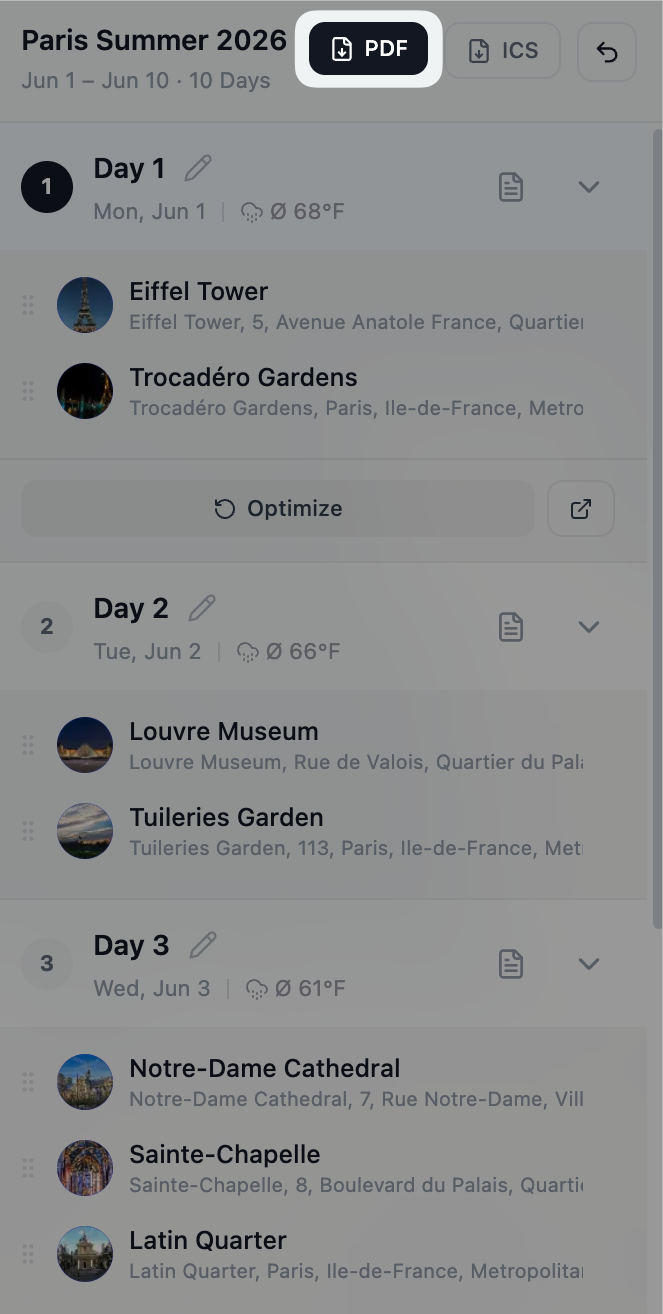
In the popup window, click Save as PDF.
TREK generates a PDF with a cover page, your day-by-day itinerary, images, and notes.
Collaborate with others
Invite members to a trip
Share your trip with friends and family: generate a public link for read-only viewing, or set up user accounts for your travel companions to collaborate on the trip.
External access and security
To invite people outside your Olares network, first set the Authentication level of the app to Public in Settings > Applications > TREK.
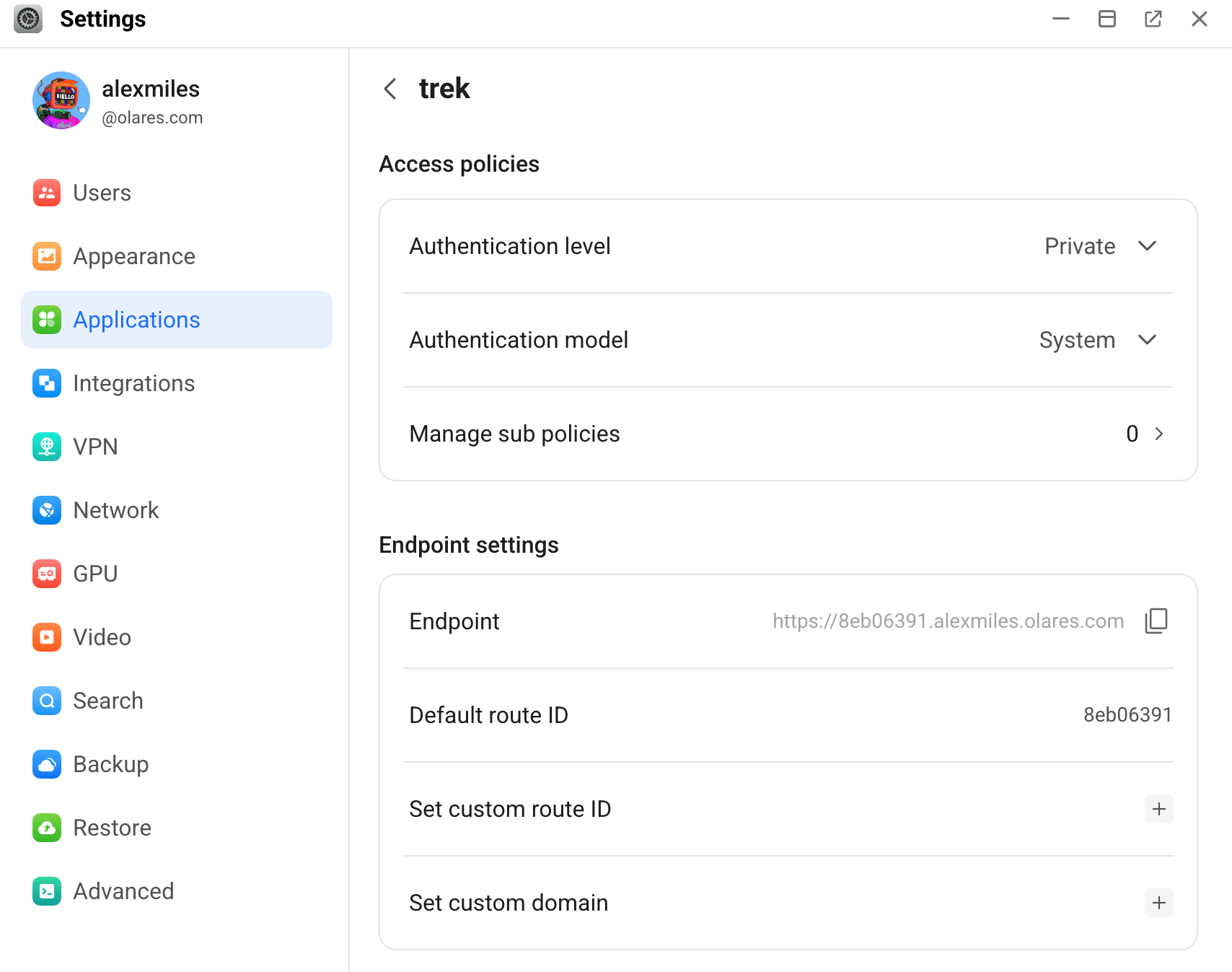
Setting the entrance level to Public makes your TREK login page accessible from anywhere on the Internet. Your data remains private, but it relies entirely on the TREK account credentials for protection. Ensure all users set strong passwords.
Collaborate in real time
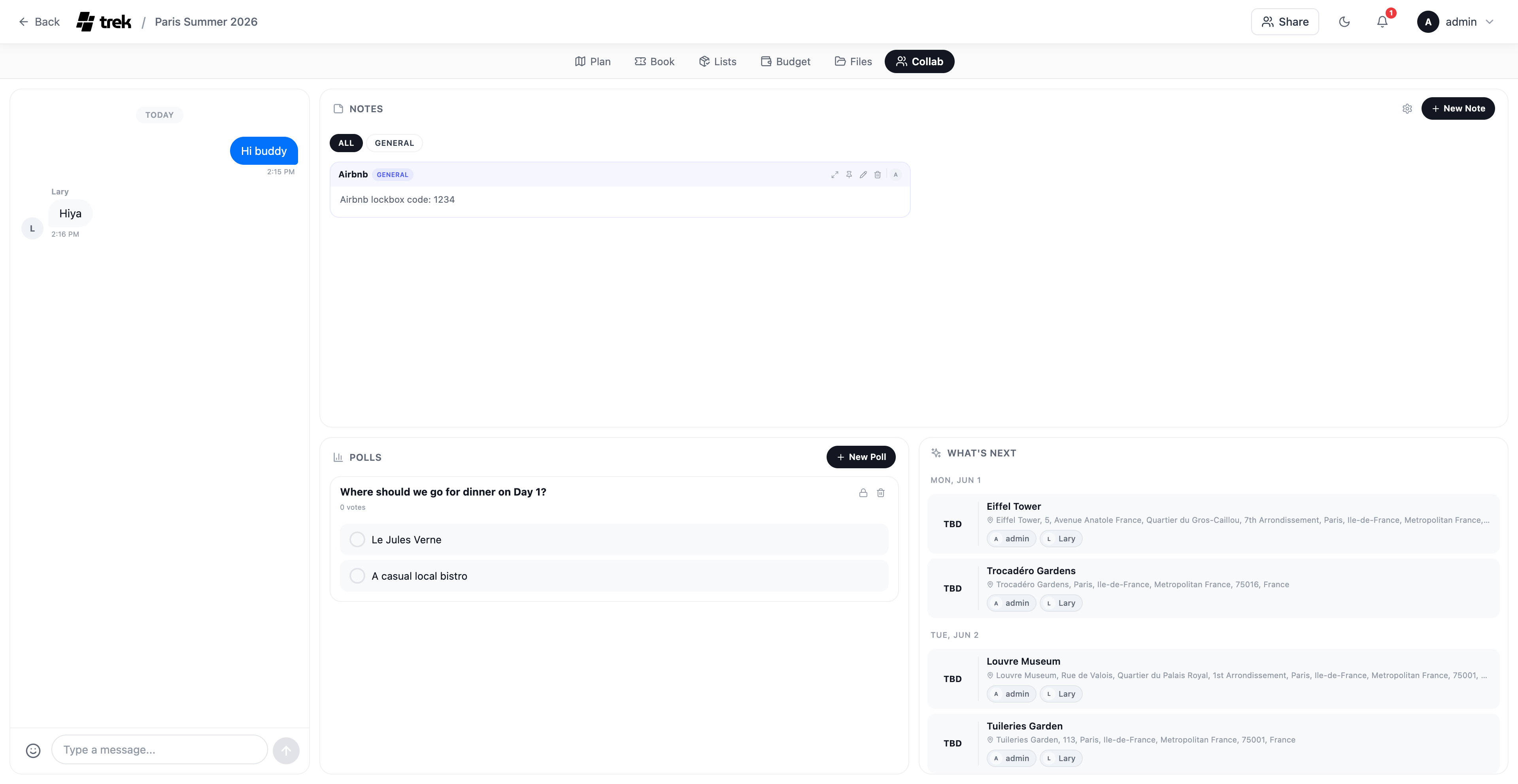
When members join a trip, all changes sync instantly. Go to the trip's Collab tab to access your team dashboard:
- Chat: Send real-time messages to your travel group.
- Notes: Post notes visible to all trip members.
- Polls: Create polls to vote on group decisions.
- What's next: View your upcoming itinerary.
Next steps
FAQs
I forgot my TREK password. How do I reset it?
The recovery process depends on the role of your account.
For a member
Contact your TREK admin. The admin can log in to TREK and assign you a new password by going to Admin > Users.
For an admin
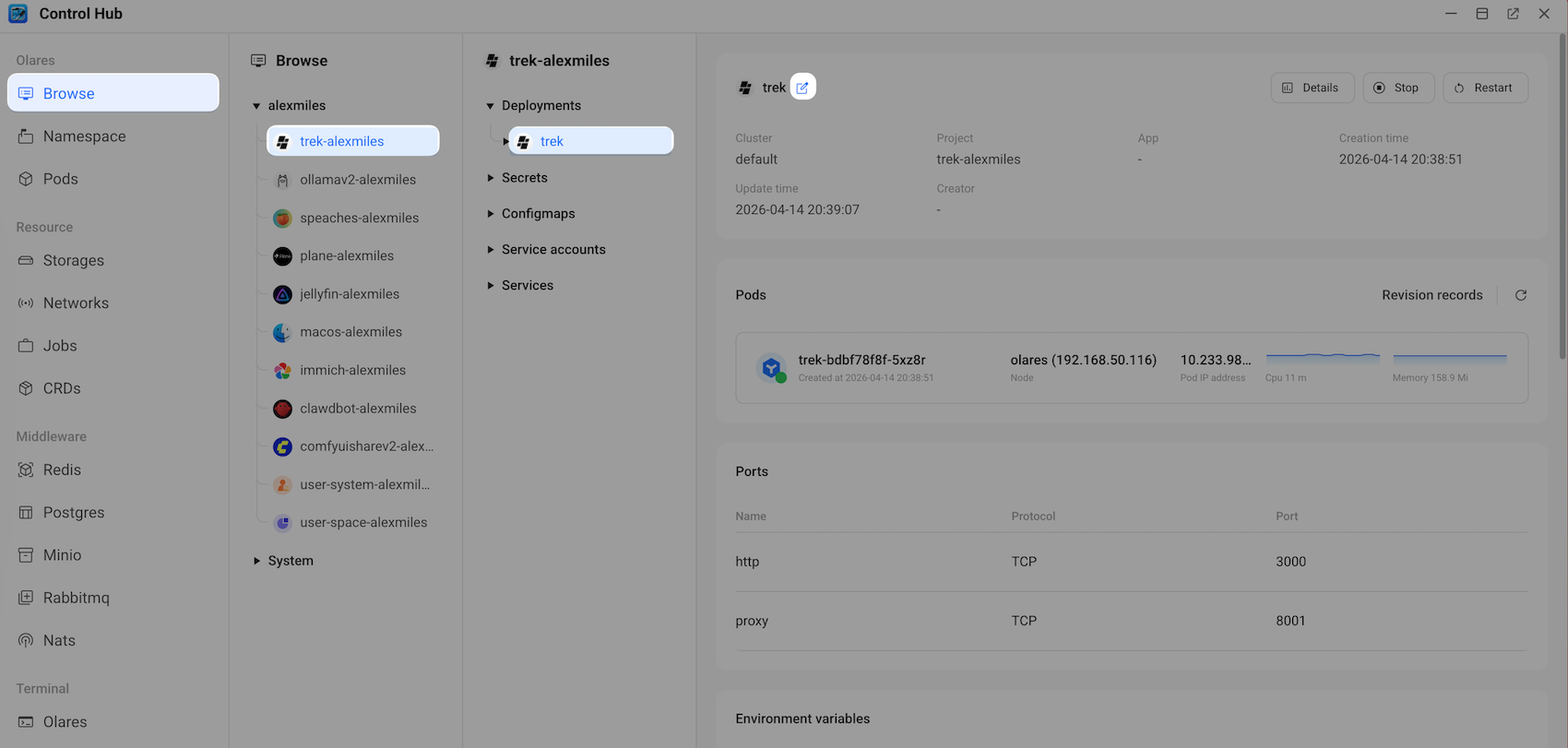
If you have not changed the initial password, you can view the original credentials you set during installation in Control Hub:
a. Go to Browse > trek-{username} > Deployments > trek, and then click edit_square.
b. In the YAML editor, find the
containerssection and locate theADMIN_EMAILandADMIN_PASSWORDenvironment variables.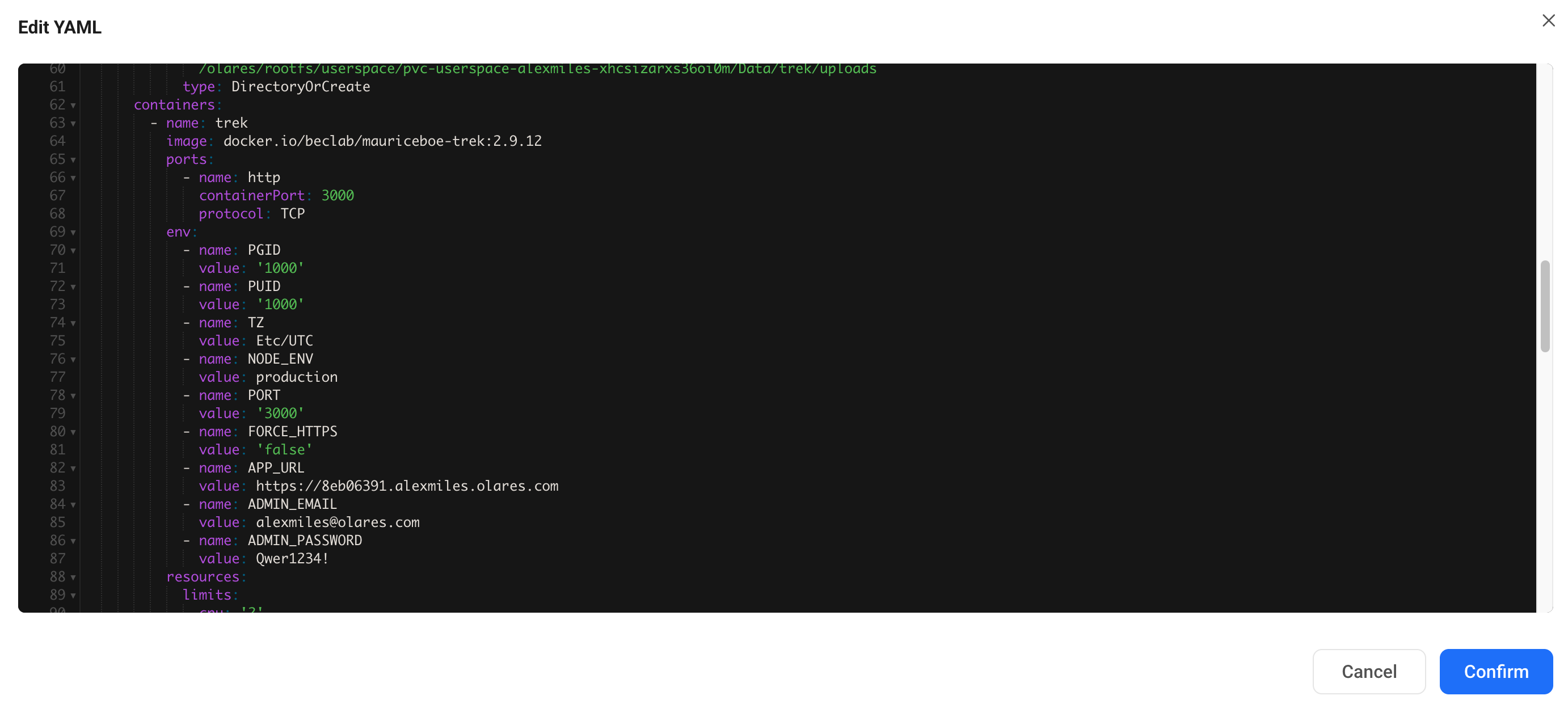
If you have changed your initial password, it canont be recovered. To prevent losing access to your workspace and travel data, ensure you store your admin password securely, such as in a password manager.
Map search returns no results
TREK uses OpenStreetMap by default. For more comprehensive search results, add a Google Places API key under Admin > Settings > API Keys. For more information, see Improve map search with Google API keys.
What is the file upload size limit?
Each file supports a maximum size of 50 MB.
Supported formats include .jpg, .jpeg, .png, .gif, .webp, .heic, .pdf, .doc, .docx, .xls, .xlsx, .txt, and .csv.