Clone voices with IndexTTS2
IndexTTS2 is a zero-shot text-to-speech (TTS) system that generates natural-sounding speech from a short audio reference. It separates speaker identity from emotion, giving you independent control over voice timbre, speaking style, and speech duration.
Running IndexTTS2 on Olares keeps your voice data and generated audio entirely on your own hardware.
Use this guide to quickly test IndexTTS2 with a built-in example voice, clone speech from your own reference audio, or adjust emotion settings for the generated result.
Learning objectives
In this guide, you will learn how to:
- Install IndexTTS2.
- Generate speech from text by using either a built-in example voice or your own reference audio.
- Adjust emotion settings to change the emotional tone of the generated speech.
Prerequisites
- Olares is running on a device with an NVIDIA GPU (minimum 9 GB VRAM).
- The device uses an x86_64 (amd64) processor.
- You have a stable network connection for the initial model download.
Install IndexTTS2
Open Market and search for "IndexTTS2".
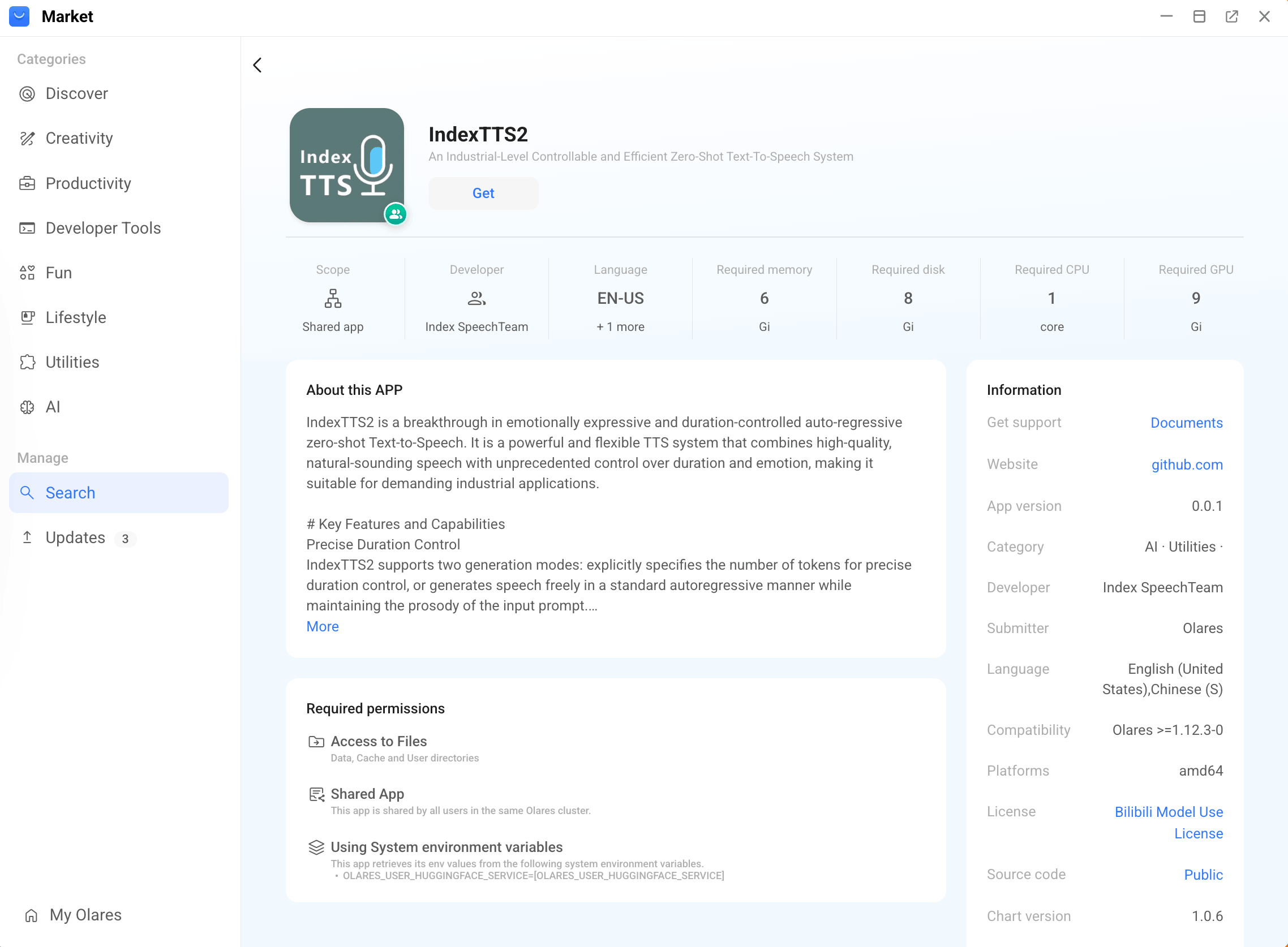
Click Get, then Install, and wait for installation to complete.
Open IndexTTS2.
On first launch, IndexTTS2 downloads the required model files from Hugging Face and then initializes them locally. This may take several minutes, depending on your network speed and device performance.
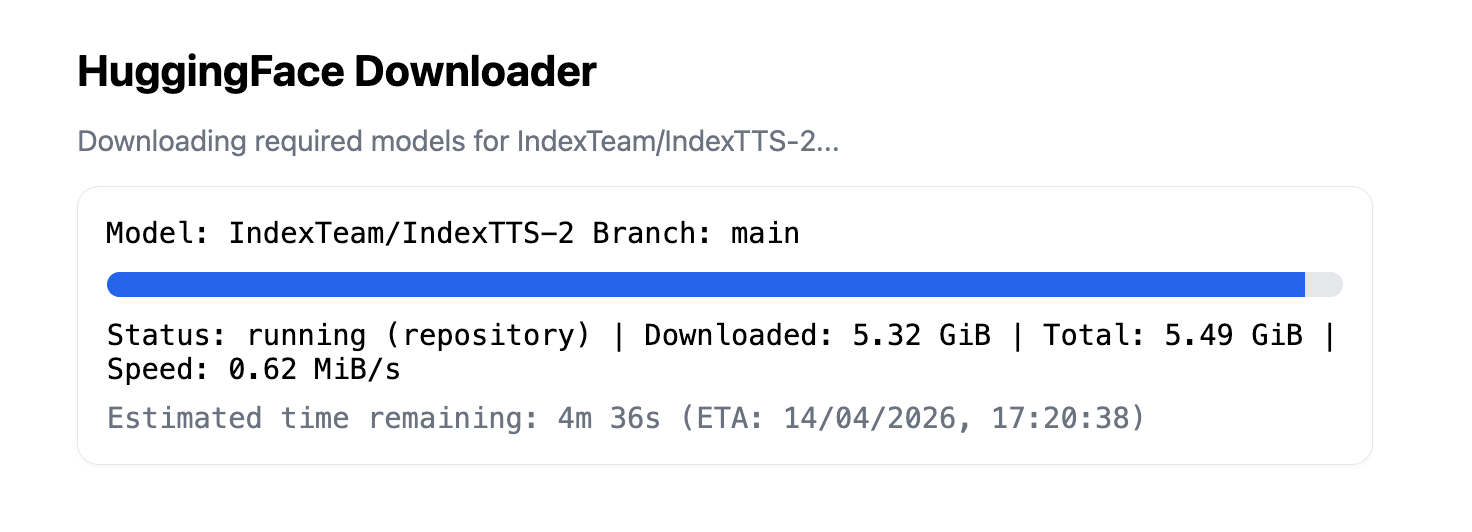
If the download does not complete or the page appears stuck for a long time, check whether your network can access Hugging Face, then reopen IndexTTS2 and try again.
Generate speech
IndexTTS2 provides two ways to get started:
- Use a built-in example voice to test the app quickly.
- Use your own reference audio to clone a specific voice.
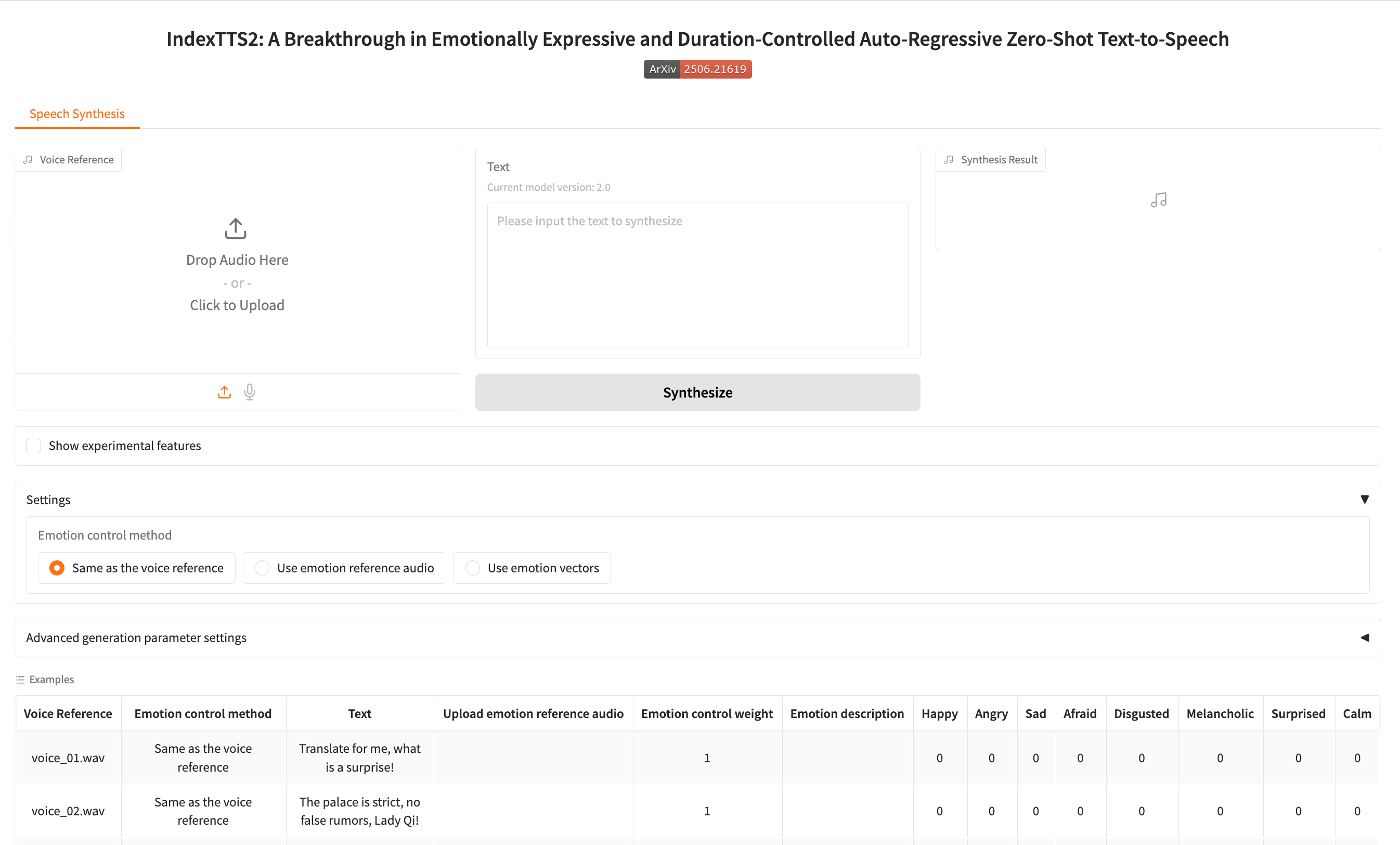
Use an example voice
Use the built-in examples to quickly test voice synthesis without preparing your own audio.
In Examples, select a sample voice.
In the Text field, keep the default text or enter your own.
(Optional) To change the emotion, see Adjust emotion.
Click Synthesize.
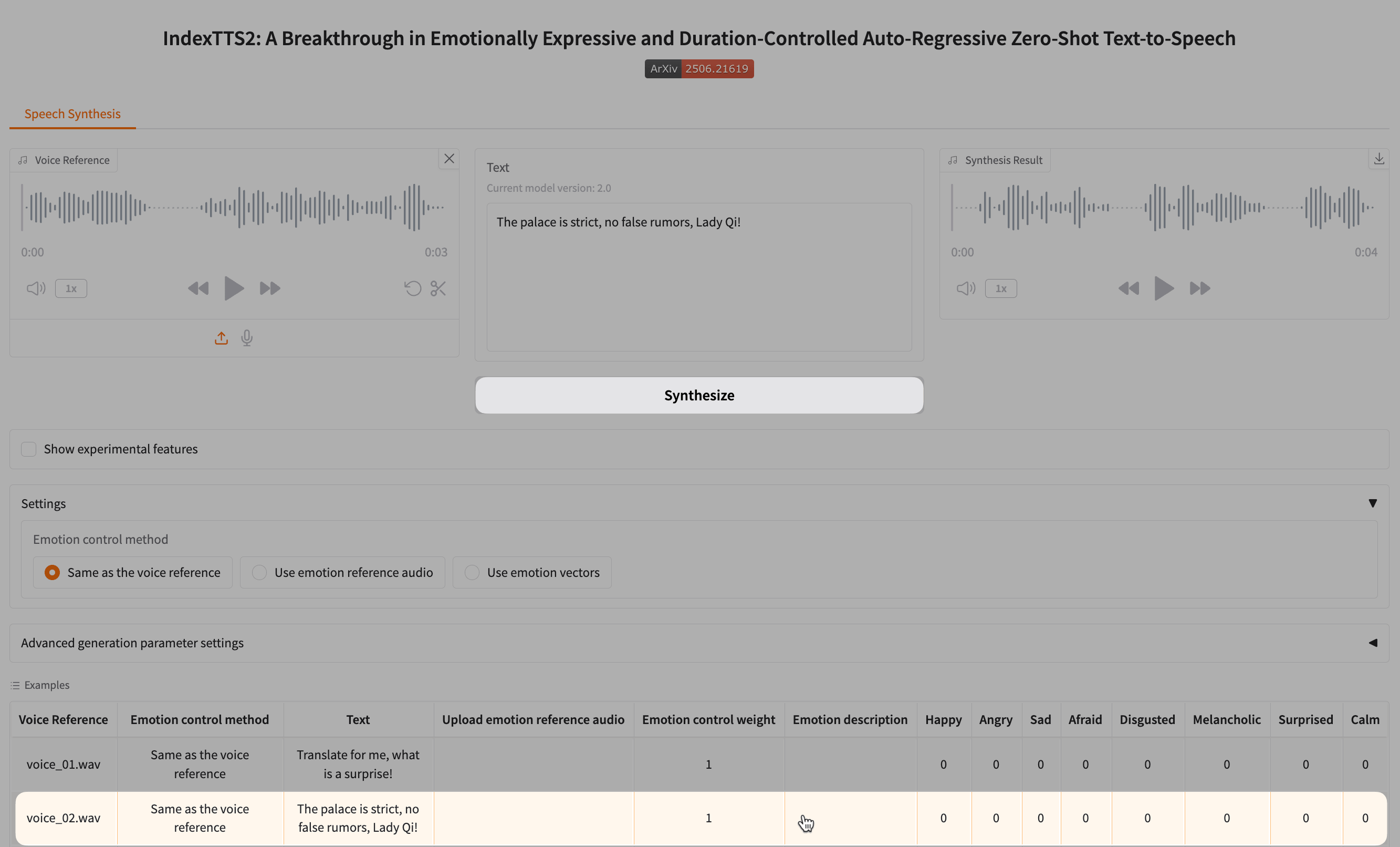
When generation finishes, the result appears in the output audio player. You can play it directly in the browser or click download to download it.
Use your own reference audio
Use this option when you want the generated speech to match a specific speaker.
Upload a reference audio file to Voice Reference area, or click mic to record one.
Choose a good reference clip
For best results, use a clean recording of 5 to 15 seconds with minimal background noise and a single speaker.
In the Text field, enter the text you want to synthesize.
(Optional) To change the emotion, see Adjust emotion.
Click Synthesize.
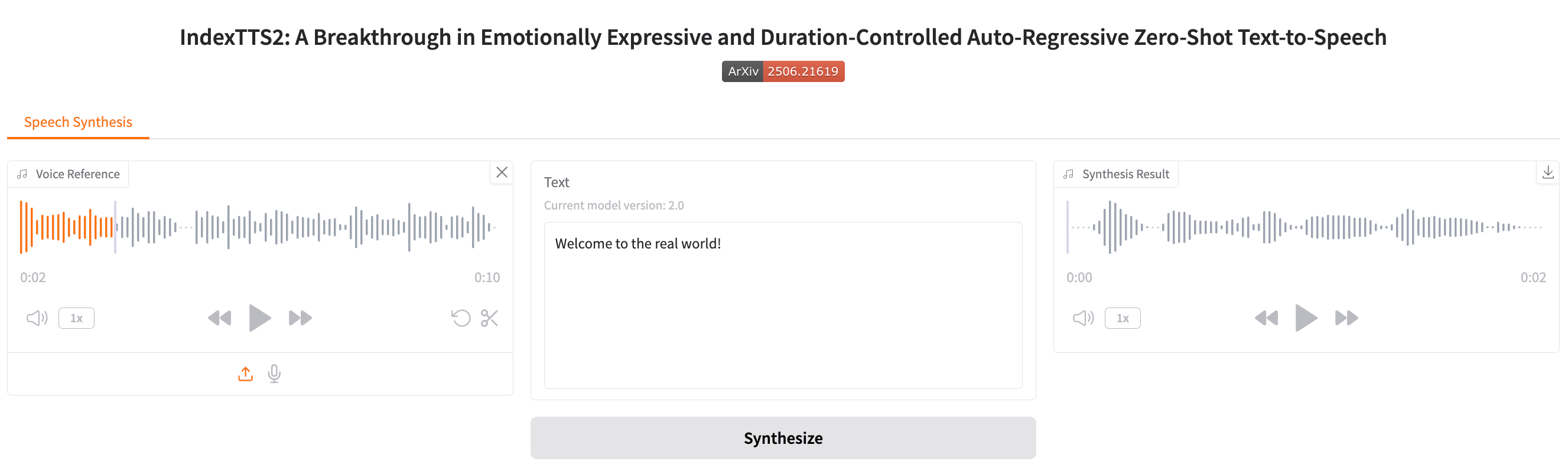
When generation finishes, the result appears in the output audio player. You can play it directly in the browser or click download to download it.
Optional: Adjust emotion
By default, IndexTTS2 uses the emotion from the main reference audio. You can generate speech without changing any emotion settings.
If you want to change the emotion, expand Settings, then choose a method under Emotion control method.
Use an emotion reference audio
Use this option when you want to keep one speaker's voice but borrow the emotion from another clip.
- Select Use emotion reference audio.
- Upload an audio clip in Upload emotion reference audio or click mic to record one.
- Adjust Emotion control weight to control how strongly the emotion reference affects the generated speech.
Use emotion vectors
Use this option when you want direct control over emotional intensity.
Select Use emotion vectors.
Adjust one or more emotion sliders, such as Happy, Angry, Sad, Afraid, Disgusted, Melancholic, Surprised, and Calm.
Adjust Emotion control weight to control how strongly the emotion is applied.
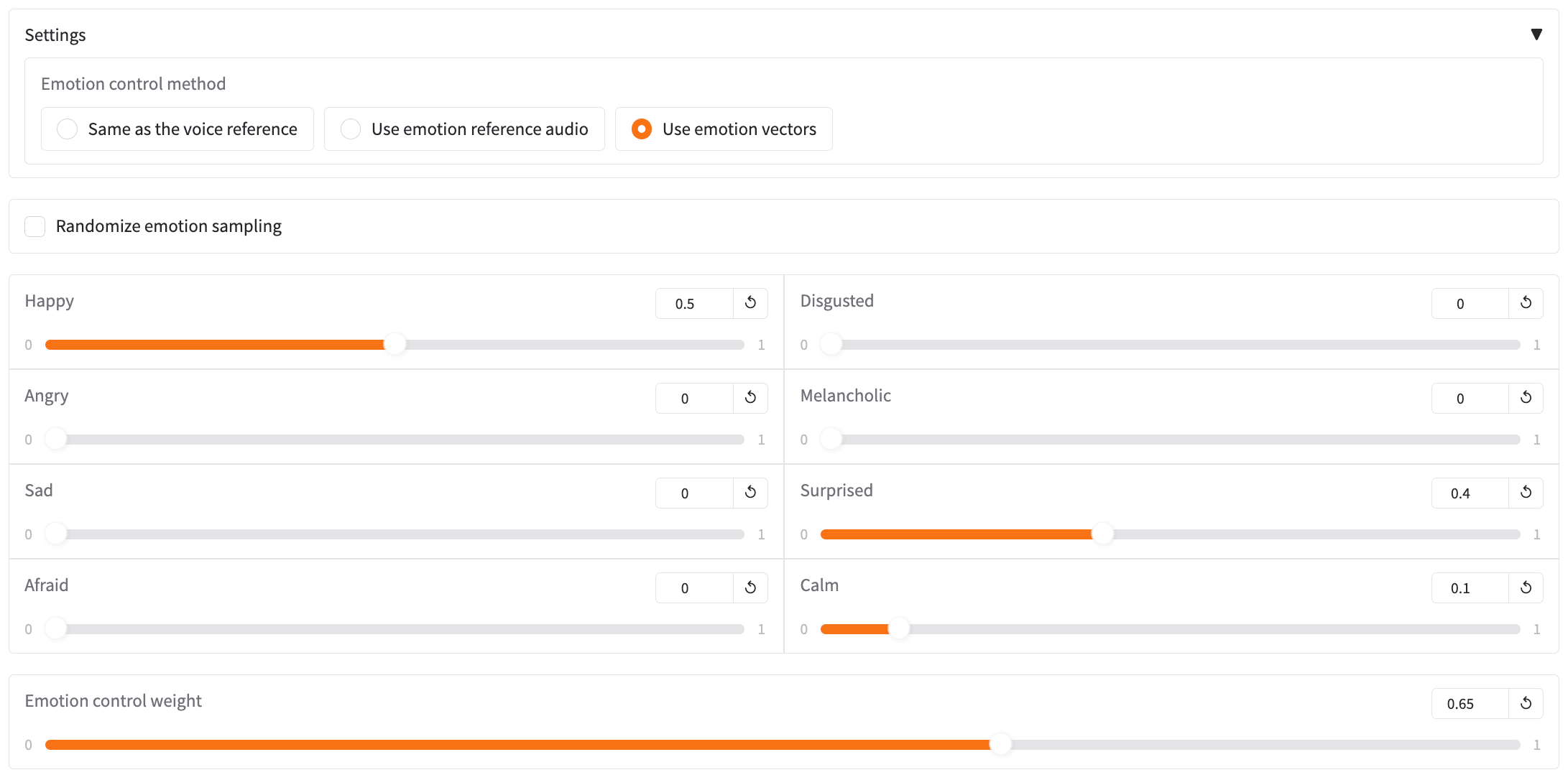
Adjust emotion weight gradually
We recommend starting with a value around 0.6. Higher values increase emotional intensity, while lower values preserve the original voice's natural tone.
FAQs
Why is the audio cut off before the text finishes?
If the generated audio stops before the full text is spoken, max_mel_tokens in Advanced generation parameter settings may be too low.
To fix this issue:
- Expand Advanced generation parameter settings.
- Increase max_mel_tokens.
- Generate the audio again.
- If the text is very long, also increase Max tokens per generation segment slightly and try again.
Why does long text sound choppy or pause at awkward places?
Long text is split into smaller segments before generation. If the text is split too aggressively, the result may sound less smooth or pause in unnatural places.
To improve continuity:
- Expand Advanced generation parameter settings.
- Review Preview of the audio generation segments to see how the text is being split.
- Increase Max tokens per generation segment gradually.
- Generate the audio again and compare the result.
TIP
If the text is very long, consider manually breaking it into smaller paragraphs before generating.
Why does the output contain repeated words or phrases?
If the generated speech repeats words or phrases unnaturally, the current decoding settings may be causing too much variation.
To reduce repetition:
- Expand Advanced generation parameter settings.
- Increase repetition_penalty slightly.
- Generate the audio again.
- If repetition continues, try lowering temperature slightly and test again.
Adjust these values gradually. Large changes may make the result sound less natural.
Learn more
- IndexTTS2 on GitHub: Source code and technical details.
- Speaches: Speech-to-text, text-to-speech, and voice chat in one app.