Integrate with Discord
Connect your agent to a Discord bot to chat with it remotely.
Learning objectives
In this guide, you will learn how to:
- Create a Discord bot and generate an API token.
- Invite the bot to your Discord server with the required permissions.
- Connect the bot to OpenClaw and configure channel access policies.
- Pair your Discord account with the bot so you can chat with your agent.
Prerequisites
- Discord account: Required to create the bot application.
- Discord server: A server where you have permissions to add bots.
Step 1: Create a Discord bot
Log in to the Discord Developer Portal with your Discord account.
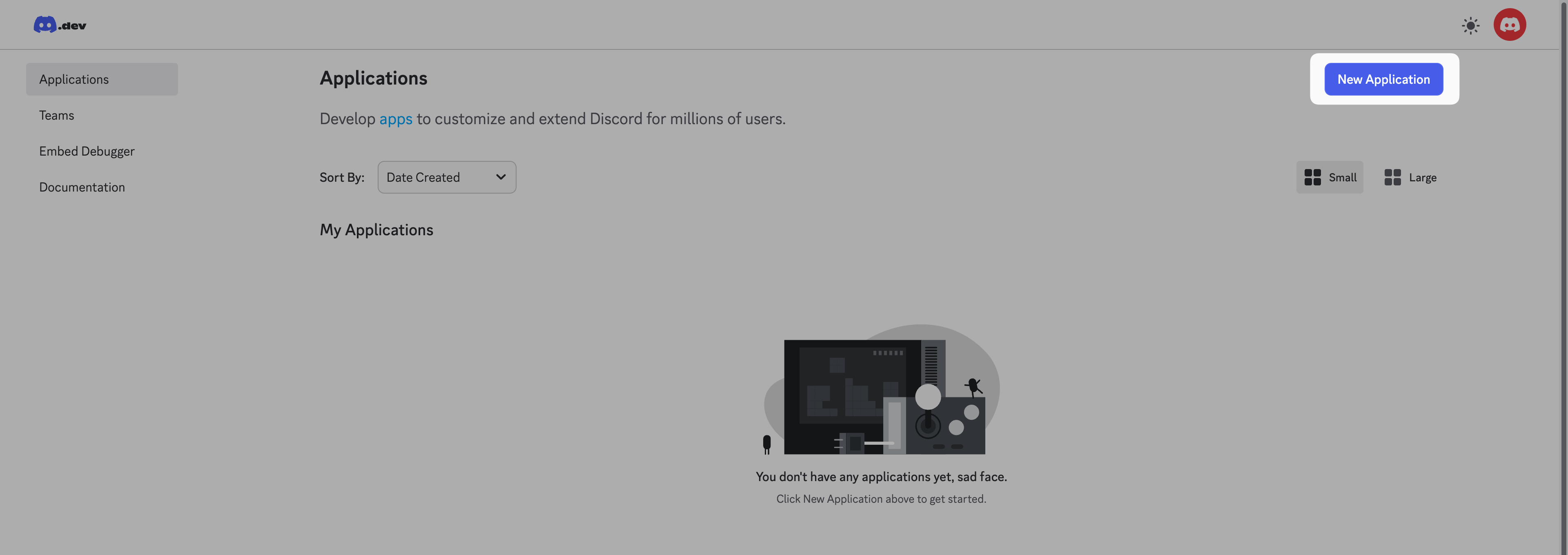
Click New Application.
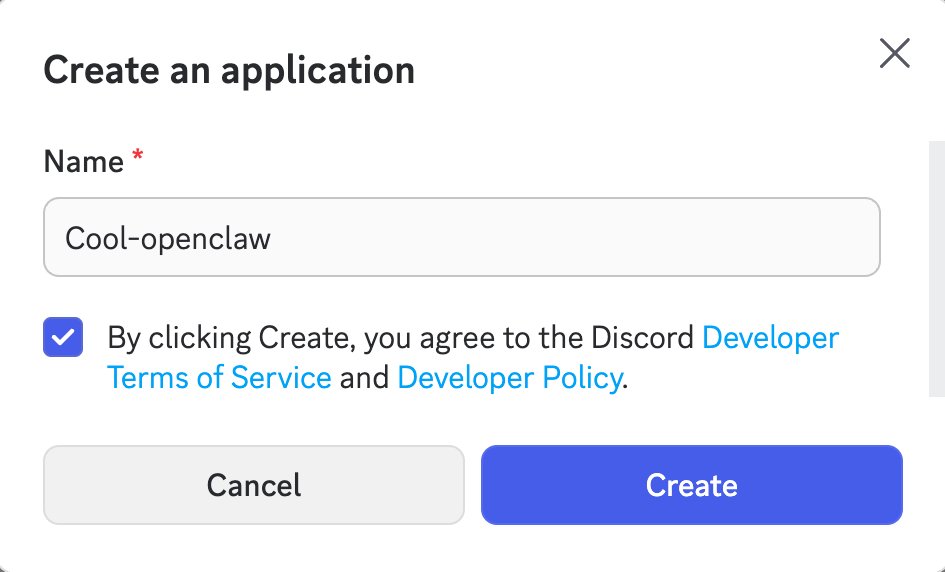
Enter a name for the new app, agree to terms, and then click Create.
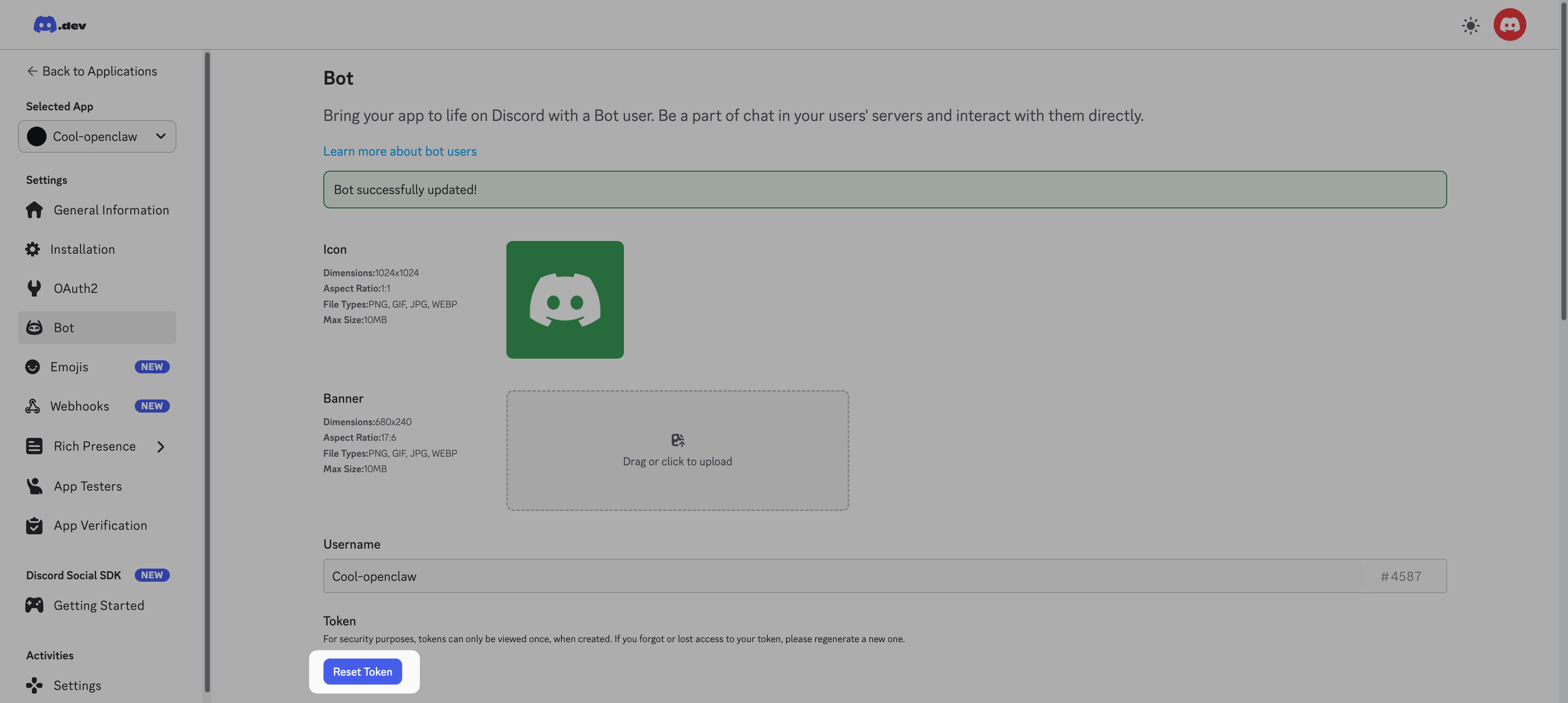
From the left sidebar, select Bot.
Scroll down to the Privileged Gateway Intents section and enable the following settings:
- Presence Intent
- Server Members Intent
- Message Content Intent
Click Save Changes.
Scroll up to the Token section, click Reset Token, and then copy the generated token for your Discord bot. You need the token for channel configuration later in Control UI.
Step 2: Invite the bot to server
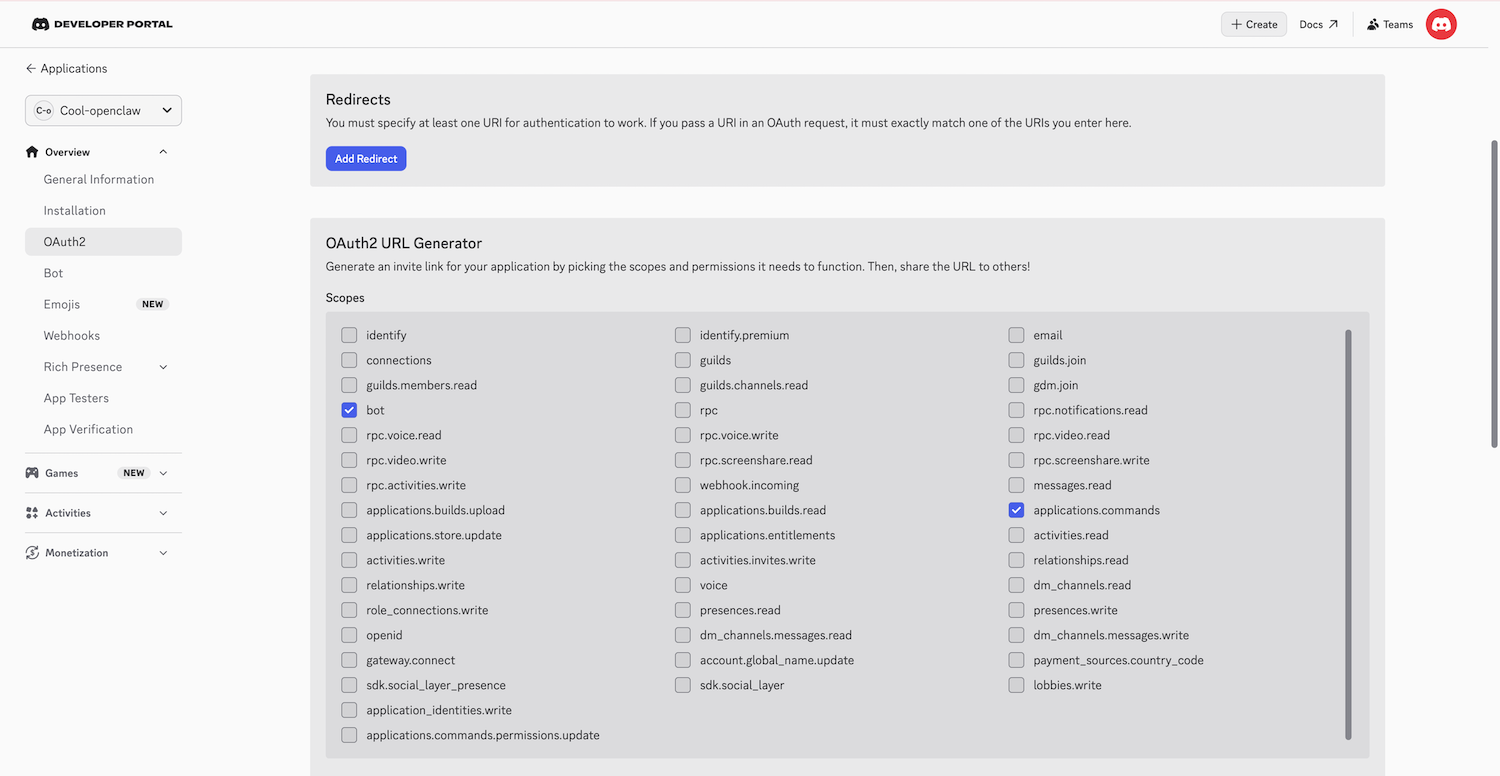
From the left sidebar, select OAuth2, and then find the OAuth2 URL Generator section:
a. In Scopes, select Bot and applications.commands.
b. Scroll down to Bot Permissions, set as the following image. You can modify the settings later.
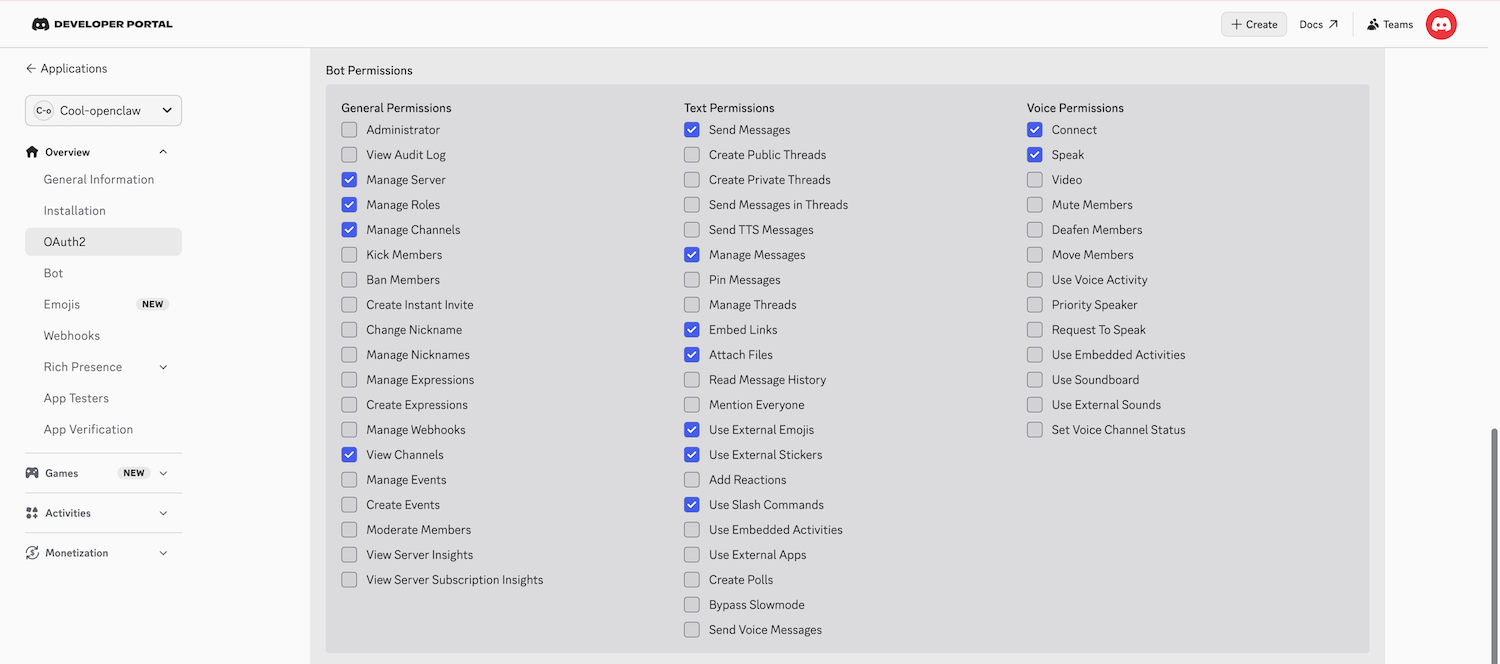
Copy the Generated URL at the bottom.
Paste the URL into a new browser tab, select your Discord server from Add to server, click Continue, and then click Authorize.
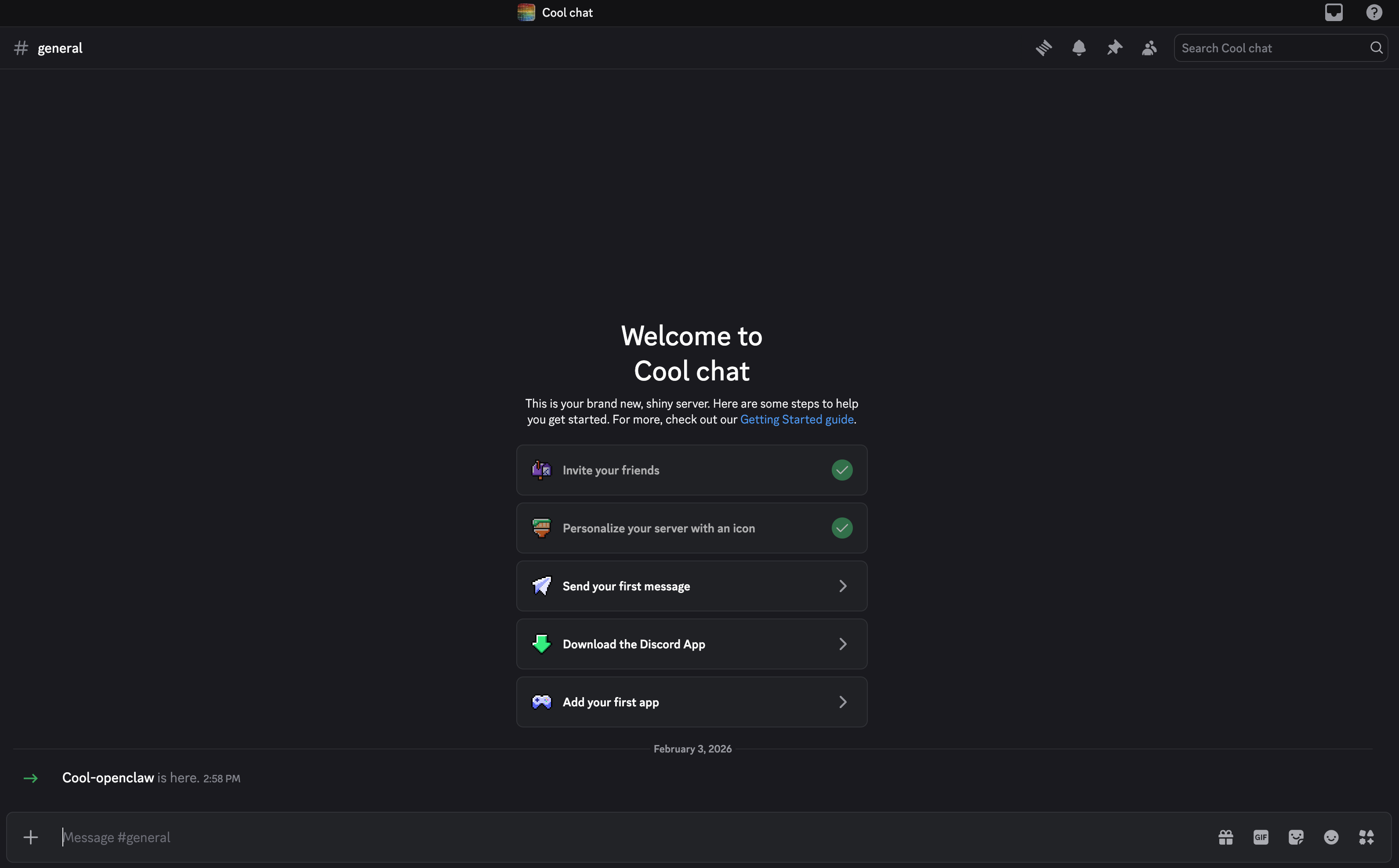
The bot is authorized and added to your server.
Step 3: Configure the channel
Run the OpenClaw configuration wizard to connect your Discord bot.
Open the OpenClaw CLI.
Run the following command to start the configuration wizard:
bashopenclaw configure --section channelsConfigure the settings as follows:
Settings Option Where will the Gateway run Local (this machine) Channels Configure/link Select a channel Discord (Bot API) How do you want to provide this Discord bot token Enter Discord bot token Enter Discord bot token Paste the bot token from Step 1 Configure Discord channels access Yes Discord channels access Open (allow all channels) Select a channel Finished Configure DM access policies now?
(default: pairing)Yes Discord DM policy Pairing (recommended)
Step 4: Authorize your account
For security, the bot does not talk to unauthorized users. You must pair your Discord account with the bot.
Open Discord and send a Direct Message (DM) to your new bot. The bot will reply with an error message containing a Pairing Code.
Open the OpenClaw CLI and enter the following command:
bashopenclaw pairing approve discord {Your-Pairing-Code}Once approved, you can start chatting with your agent in Discord.