Set up a multi-user notebook environment with JupyterHub
JupyterHub is an open-source, multi-user server for Jupyter notebooks. It lets you provide computational environments to multiple users, each with their own workspace, without requiring them to install anything locally. Running JupyterHub on Olares gives you a self-hosted notebook platform for data science, research, or team collaboration.
Learning objectives
In this guide, you will learn how to:
- Install JupyterHub and set up the admin account.
- Launch notebook servers and write code in JupyterLab.
- Add and manage JupyterHub users.
- Customize notebook profiles as an admin.
Install JupyterHub
Open Market and search for "JupyterHub".
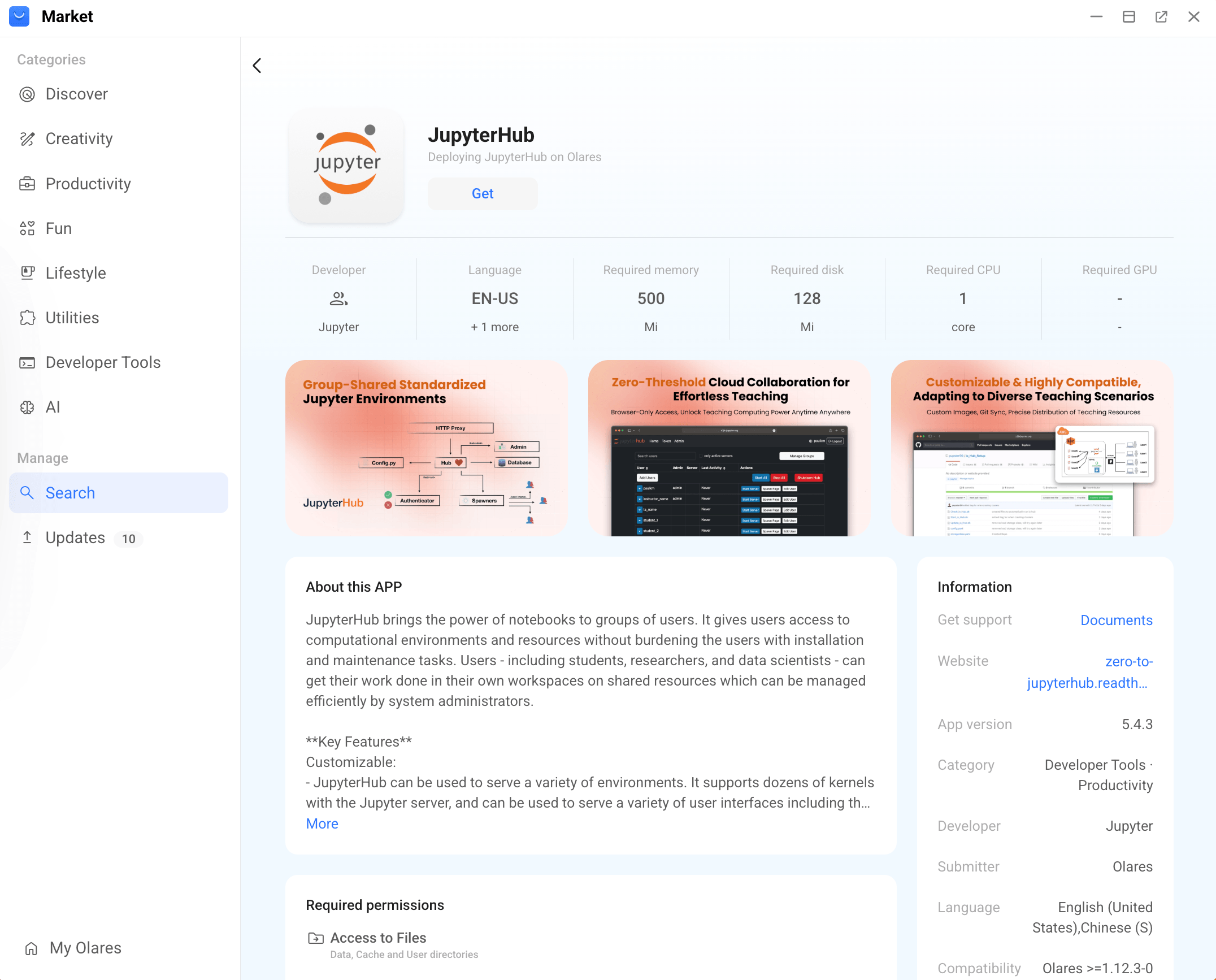
Click Get, then Install.
When prompted, set the following environment variable:
- JUPYTERHUB_ADMIN_USERNAME: Enter a username for the default admin account. After installation, use this same username to sign up and create the admin password.
Wait for installation to complete.
Set up the admin account
After installation, the admin username is reserved, but no password has been created yet. To activate the admin account, sign up with the same username you entered during installation.
Open JupyterHub from Launchpad. You will see the sign-in page.
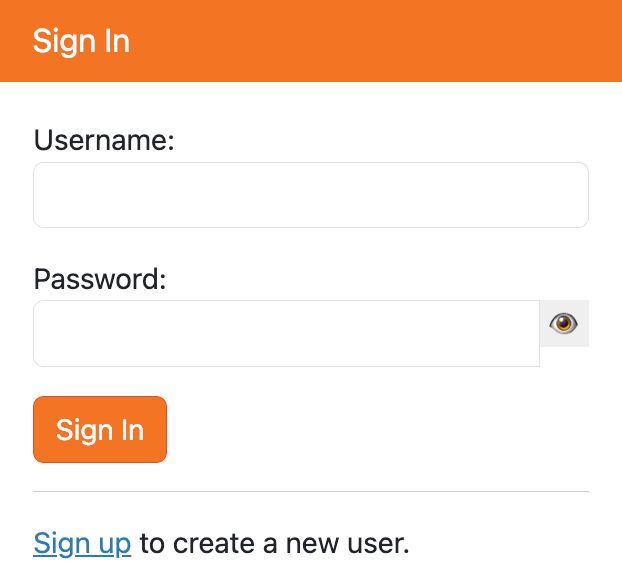
Click Sign up to go to the account creation page.
Enter the admin username you specified during installation and set a password, then click Create User.
For example, if you set
JUPYTERHUB_ADMIN_USERNAMEtoolares, enterolaresas the username here.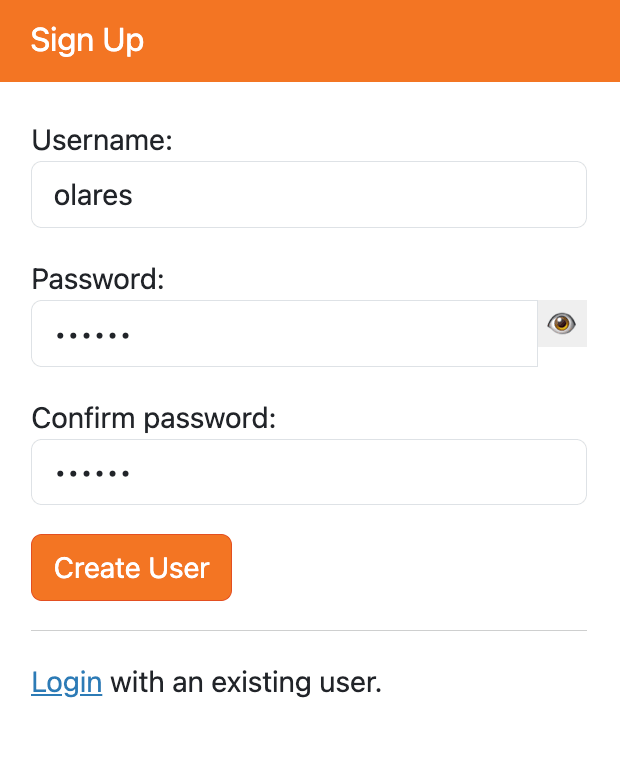
Return to the sign-in page and sign in with the admin username and password.
Start and use a notebook server
After signing in, you will see the JupyterHub dashboard. From here, you can start your own notebook server and access the admin page.
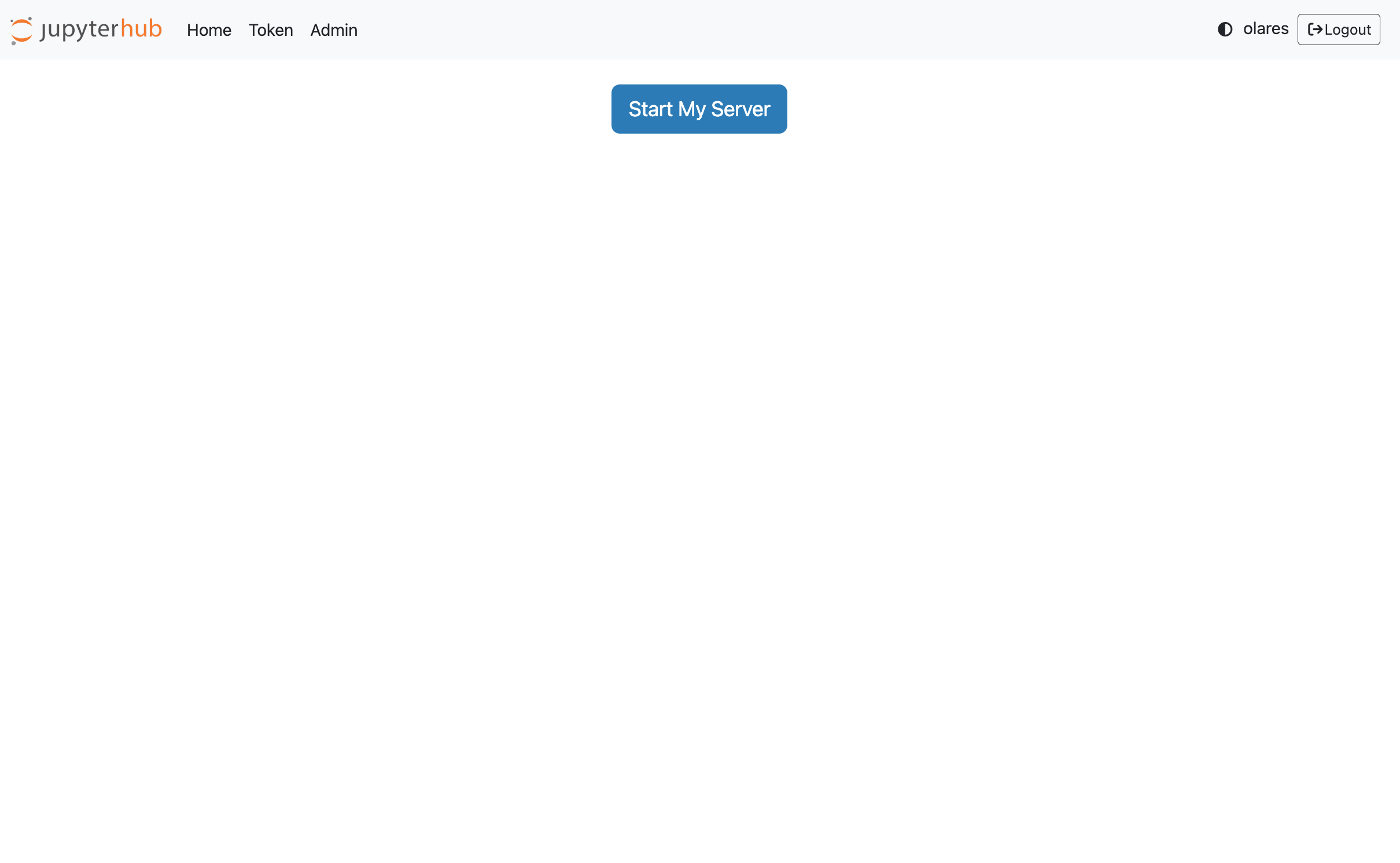
Start a notebook server
From the dashboard, click Start My Server.
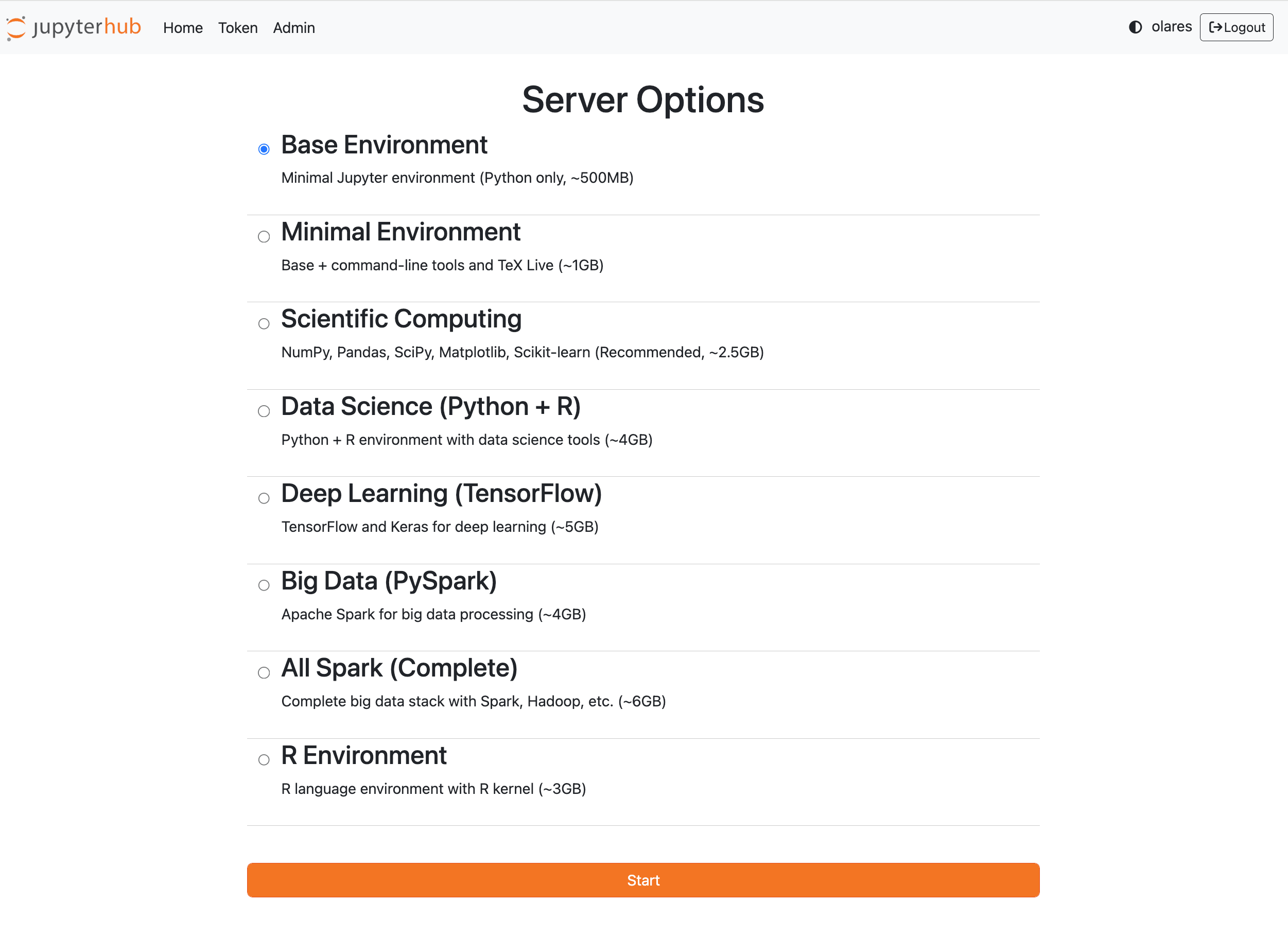
Select a notebook profile, then click Start.
The default option is Base Environment. It provides a minimal Python-only Jupyter environment and is suitable for most users.
INFO
When you start a notebook server for the first time with a selected profile, JupyterHub needs to pull the corresponding notebook image. This may take several minutes depending on the image size and your network connection.
If you want to use a different notebook image, ask an admin to customize the notebook profile.
Wait for the server to start. After the server starts, the Jupyter Notebook interface opens.
Create a notebook
From the Jupyter Notebook interface, you can create new notebooks, open a terminal, upload files, and work with existing files.
To create a notebook:
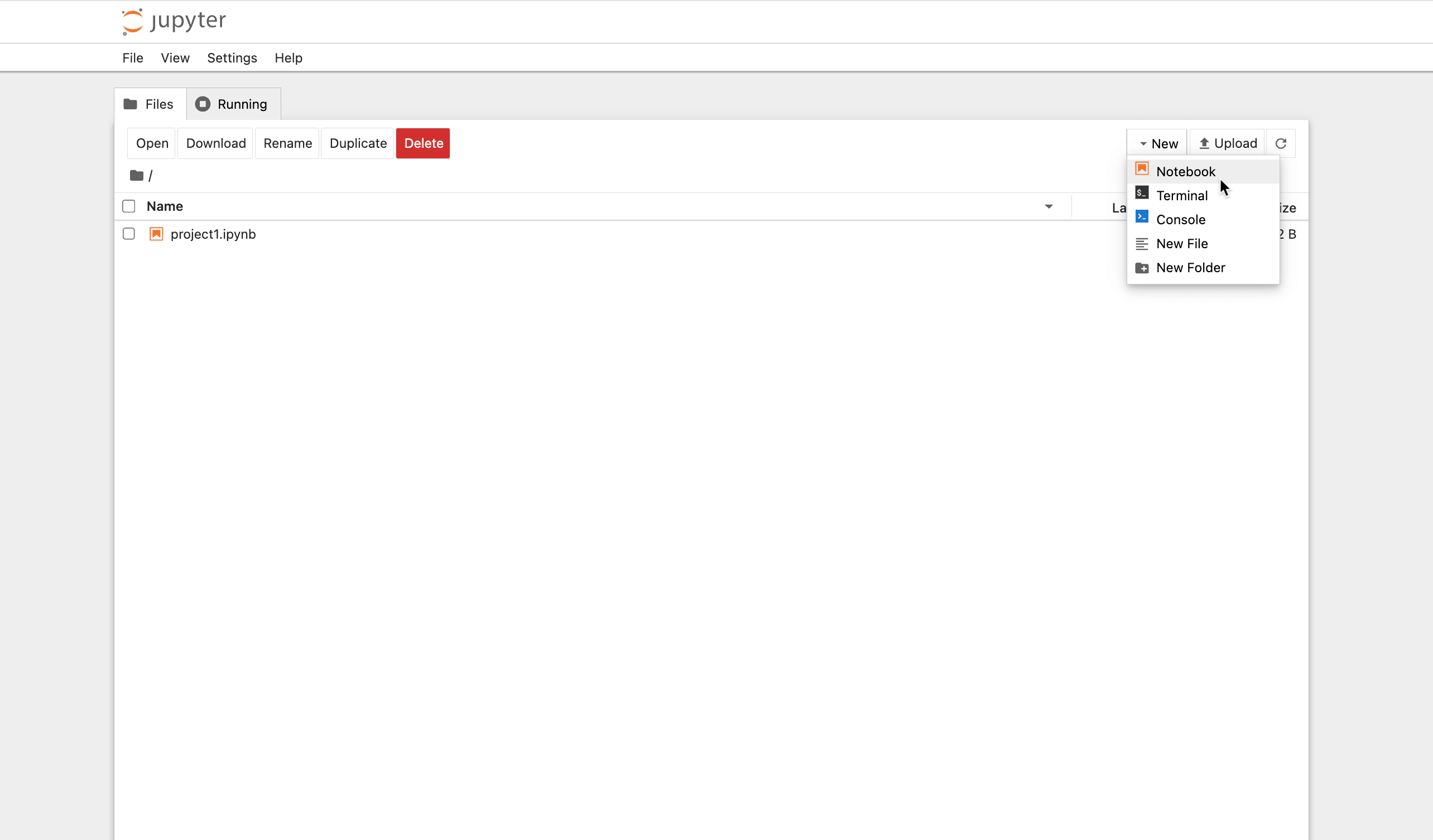
In the Jupyter Notebook interface, click New, then select Notebook.
Select a kernel, then click Select.
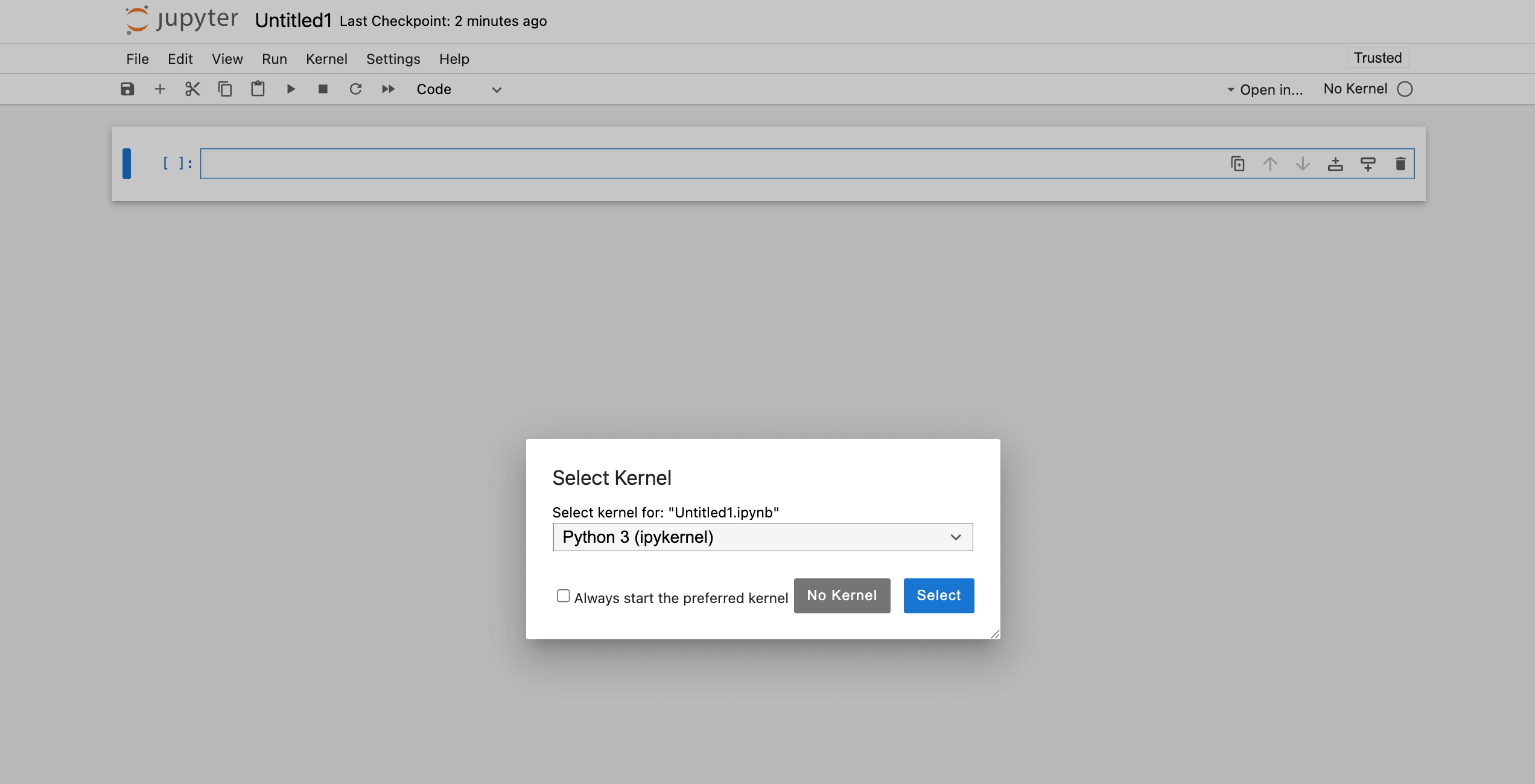
A new notebook opens in the current workspace.
Open JupyterLab and write code
You can also work in JupyterLab, which provides a more feature-rich coding environment with a file browser, multiple tabs, terminals, notebooks, and extensions.
In the Jupyter Notebook interface, click View > Open JupyterLab in the top navigation bar.
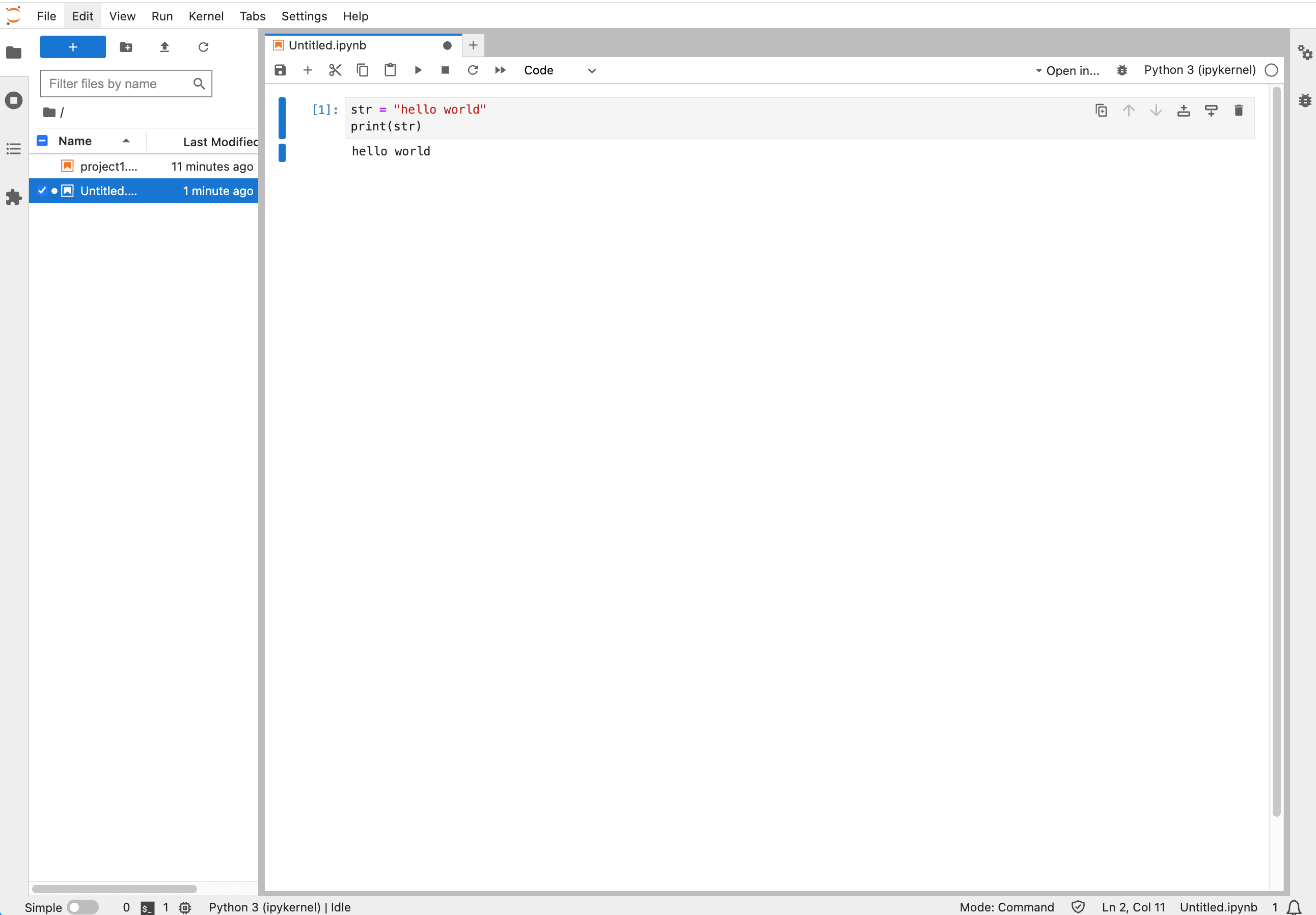
In the Launcher, click Python 3 (ipykernel) under Notebook.
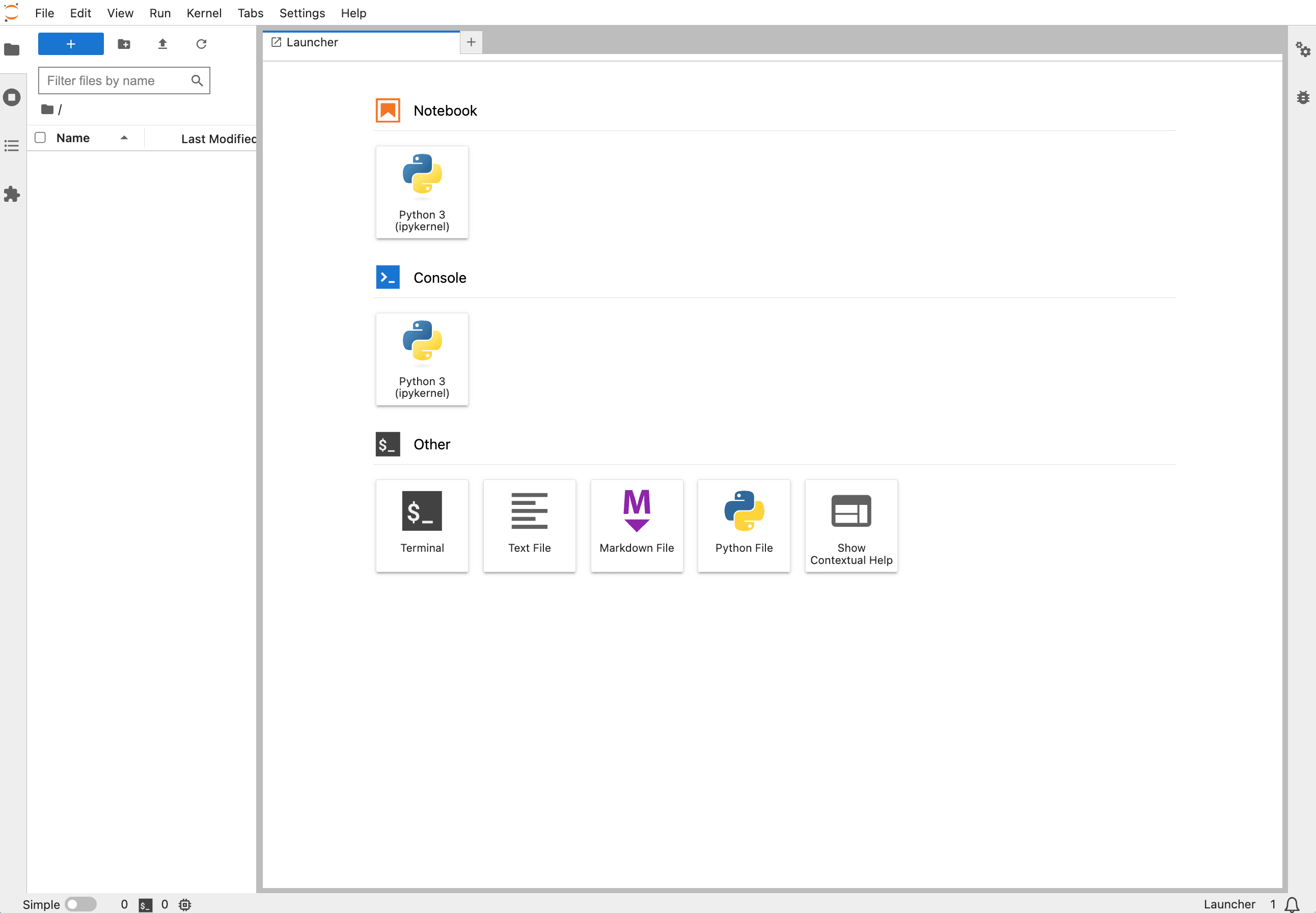
After the notebook opens, enter your code in a cell, then click play_arrow or press Shift + Enter to run it.
Return to the Hub
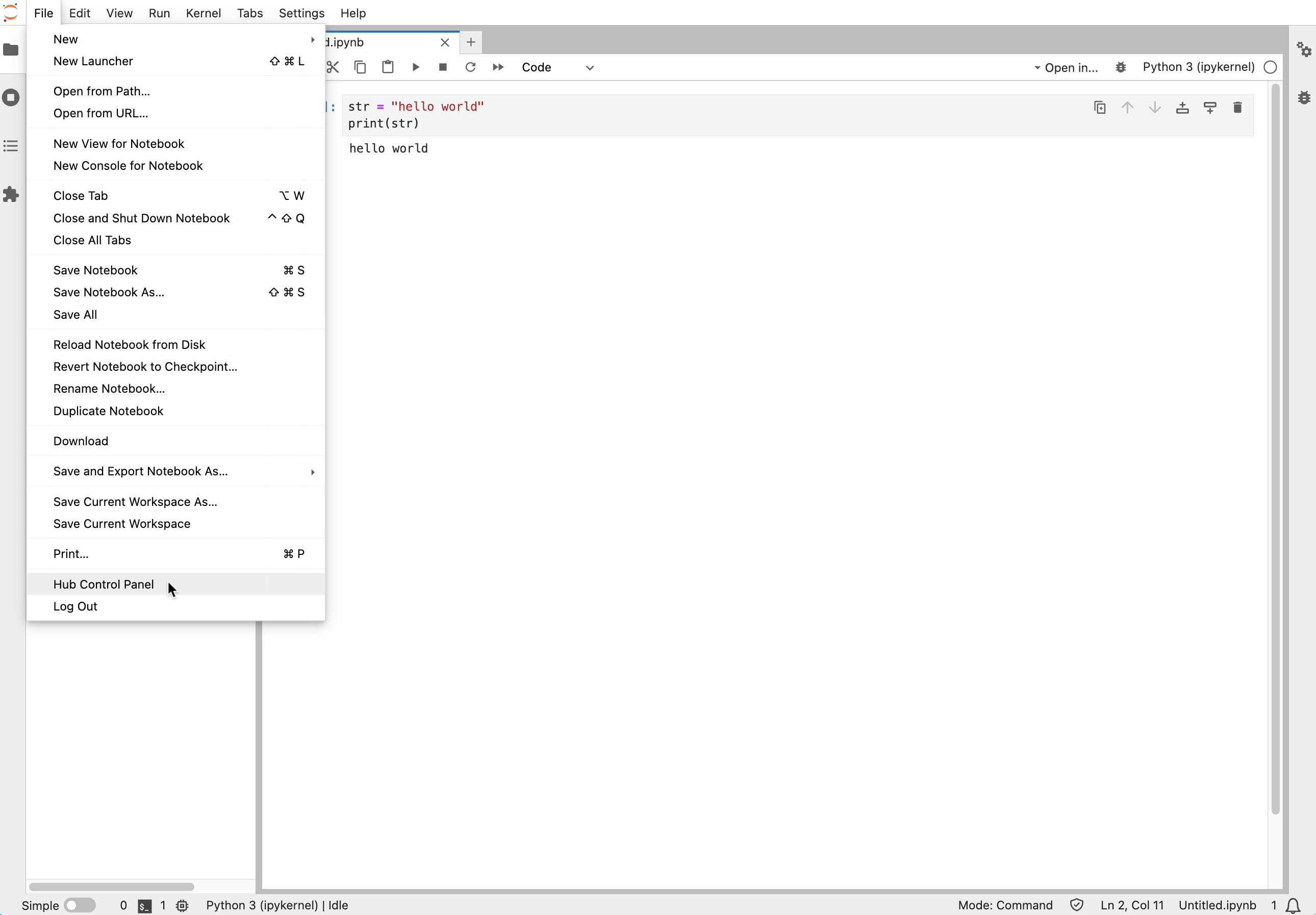
To go back to the JupyterHub dashboard from JupyterLab, click File > Hub Control Panel.
Manage users
As an admin, you can control who is allowed to use JupyterHub.
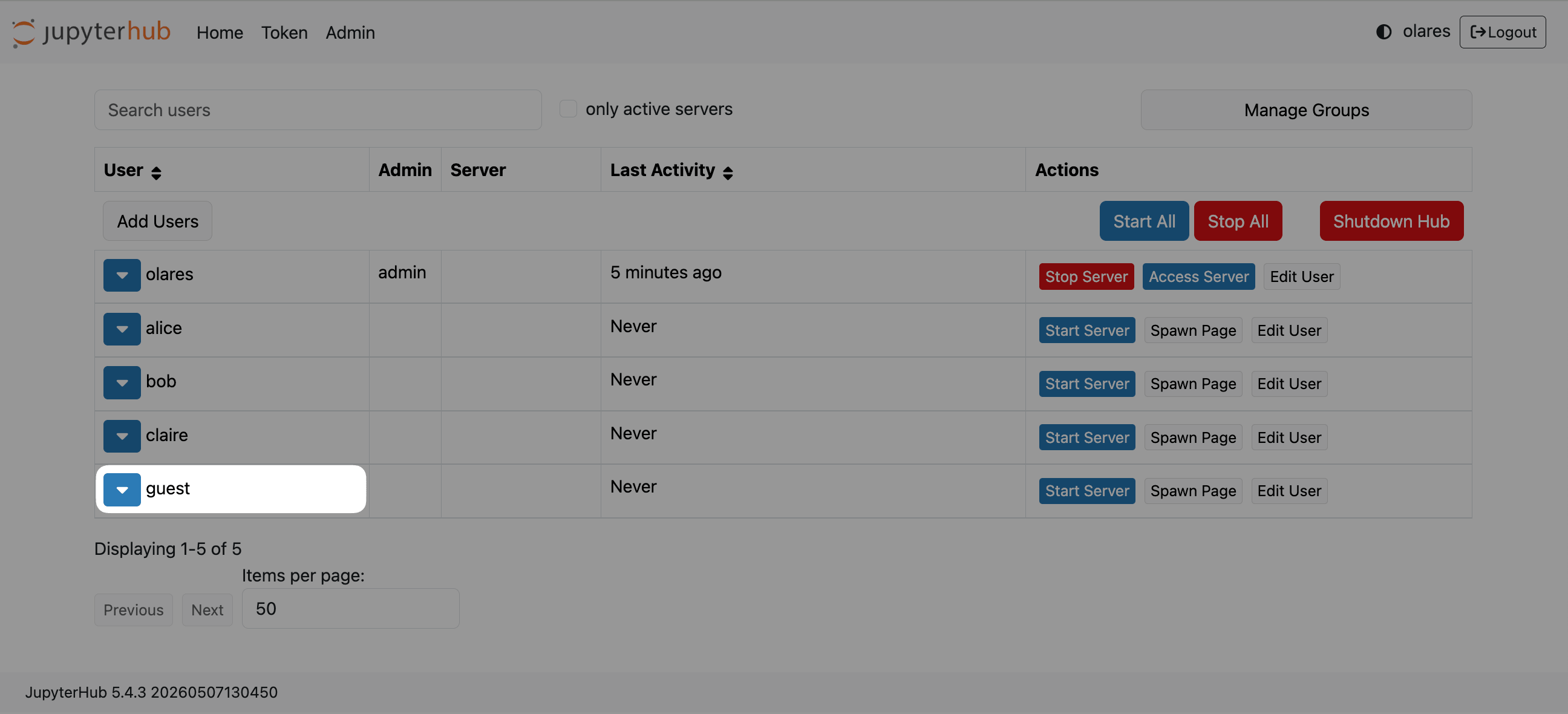
The recommended workflow is to create the username on the Admin page first. The user can then sign up with that exact username and set their own password.
Add a new user
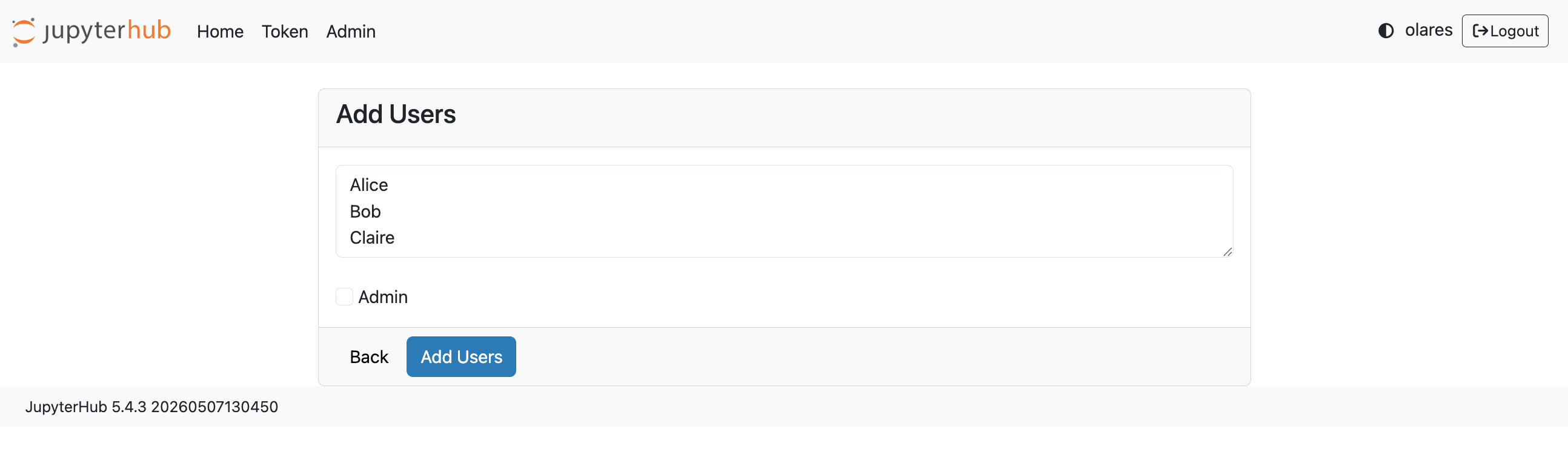
In the JupyterHub dashboard, go to Admin > Add Users.
Enter the username for the new user and click Add Users.
Ask the user to open JupyterHub, click Sign up, and create a password with the exact username you added.
After signing in, the user can start their own notebook server.
Add self-registered users
If a user signs up before the admin adds their username, they may appear on the hidden authorization page. However, appearing as authorized on this page does not automatically allow them to sign in and start a notebook server.
To allow the user to use JupyterHub:
In the browser address bar, append
/hub/authorizeto your JupyterHub URL.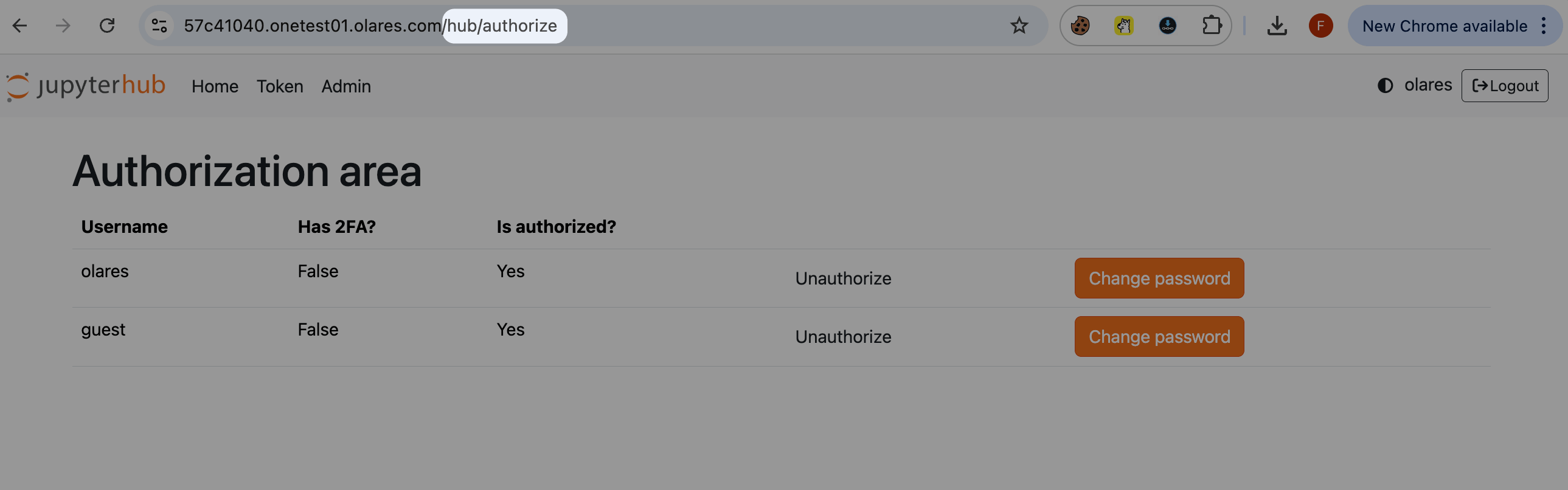
Check the username shown on the authorization page.
Return to the JupyterHub dashboard and go to Admin > Add Users.
Add the same username shown on the authorization page.
After the user is added on the Admin page, they can sign in with the account they registered.
Optional: Customize notebook profiles
Each notebook profile defines the image and resource limits used when a user starts a notebook server. Most users do not need to change these settings.
As an admin, you can customize profiles from the JupyterHub ConfigMap.
GPU acceleration is not supported
JupyterHub on Olares currently does not support GPU acceleration for notebook servers. Use CPU-based notebook images only. Do not use CUDA-enabled image tags, such as tags prefixed with cuda12- or cuda-.
The default profiles and their resource limits are:
| Profile | CPU (guarantee / limit) | Memory (guarantee / limit) |
|---|---|---|
| Base Environment | 0.1 / 1 | 1 GB / 1 GB |
| Minimal Environment | 0.2 / 1 | 1 GB / 1 GB |
| Scientific Computing | 0.5 / 1 | 1 GB / 2 GB |
| Data Science (Python + R) | 1 / 1 | 2 GB / 2 GB |
| Deep Learning (TensorFlow) | 2 / 4 | 2 GB / 4 GB |
| Big Data (PySpark) | 2 / 4 | 4 GB / 8 GB |
| All Spark (Complete) | 2 / 4 | 4 GB / 8 GB |
| R Environment | 1 / 2 | 2 GB / 4 GB |
To customize a notebook profile:
In Control Hub, go to Browse, then select the JupyterHub project.
Under Configmaps, select
jupyterhub-config, then click edit_square in the top-right of the details panel to open the YAML editor.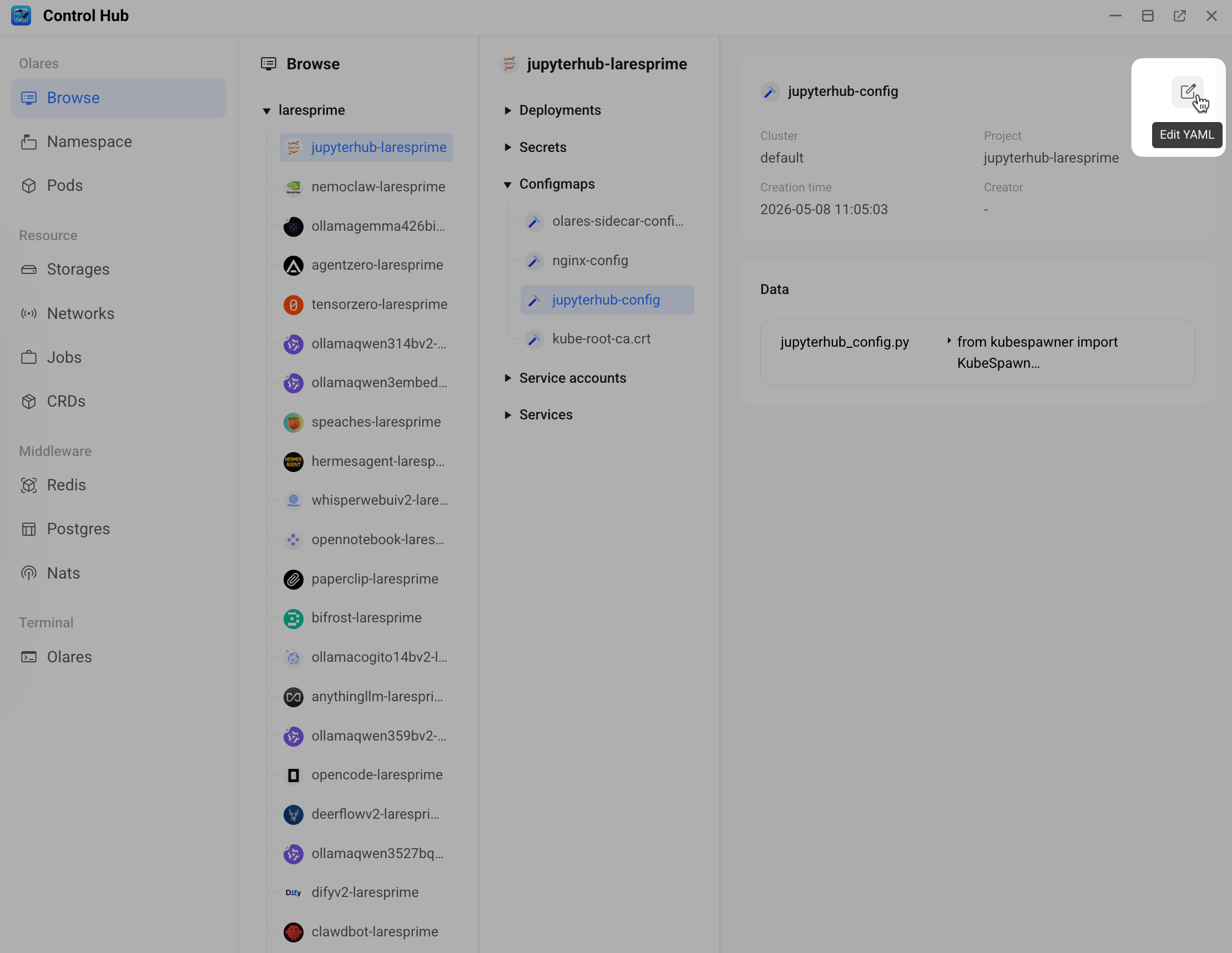
In the YAML editor, find
c.KubeSpawner.profile_list.Locate the profile you want to modify, then update the values under
kubespawner_override.- To change the notebook image, modify
image. The value must be a full image address. - To change resource limits, modify
cpu_guarantee,mem_guarantee,cpu_limit, ormem_limit.
A profile entry contains fields like these:
python'kubespawner_override': { 'image': 'docker.io/beclab/jupyter-base-notebook:notebook-7.0.6', 'cpu_guarantee': 0.1, 'mem_guarantee': '1G', 'cpu_limit': 1, 'mem_limit': '1G', }- To change the notebook image, modify
Click Confirm to save the changes.
Return to Deployments > jupyterhub, and then click Restart in the right panel.
Wait until the status icon turns green. The updated profile settings apply when users start a new notebook server for that profile.
FAQ
Why is my notebook server stuck in "Pending" status?
A notebook server may stay in Pending when the cluster does not have enough CPU or memory resources to start the server container.
As an admin, you can:
- Stop unused notebook servers to free up resources.
- If the selected notebook profile requires more resources than your cluster can provide, customize the notebook profile, then ask the user to start the server again.
How do I use a different notebook image?
To use a different notebook image, an admin needs to update the image value in the JupyterHub ConfigMap. For detailed steps, see Customize notebook profiles.
Use CPU-based notebook images only, because GPU acceleration is not currently supported for notebook servers.
Can I use GPU acceleration?
JupyterHub on Olares currently does not support GPU acceleration for notebook servers. The default notebook profiles use CPU-based images.
Do not use CUDA-enabled image tags, such as tags prefixed with cuda12- or cuda-. For more information, see CUDA-enabled variants in the Jupyter Docker Stacks documentation.
Learn more
- JupyterHub documentation: Official JupyterHub docs and guides.
- Zero to JupyterHub with Kubernetes: Comprehensive guide for JupyterHub on Kubernetes.