Access Cloudflare-protected sites in Prowlarr with FlareSolverr
FlareSolverr is a proxy server that bypasses Cloudflare and DDoS-GUARD protection. Many indexer sites use Cloudflare's anti-bot measures, which can block automated access from apps like Prowlarr.
On Olares, you can use FlareSolverr as a proxy for Prowlarr to help access indexers protected by Cloudflare or similar anti-bot services.
Learning objectives
In this guide, you will learn how to:
- Install FlareSolverr and Prowlarr on Olares.
- Configure FlareSolverr as an indexer proxy in Prowlarr.
- Add Cloudflare-protected indexer sites.
- Verify that FlareSolverr is solving challenges correctly.
Install FlareSolverr
Open Market and search for "FlareSolverr".
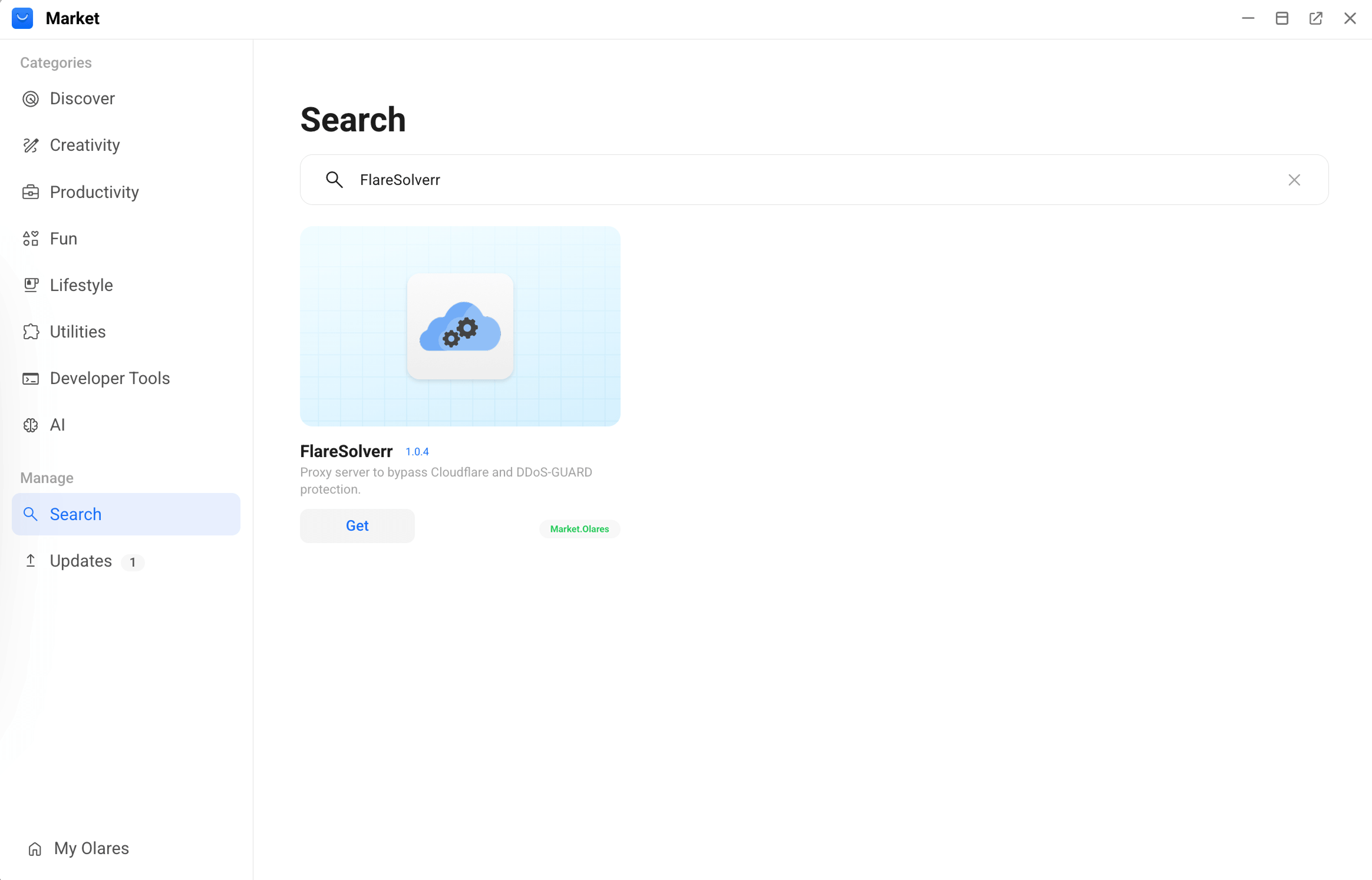
Click Get, then Install, and wait for installation to complete.
INFO
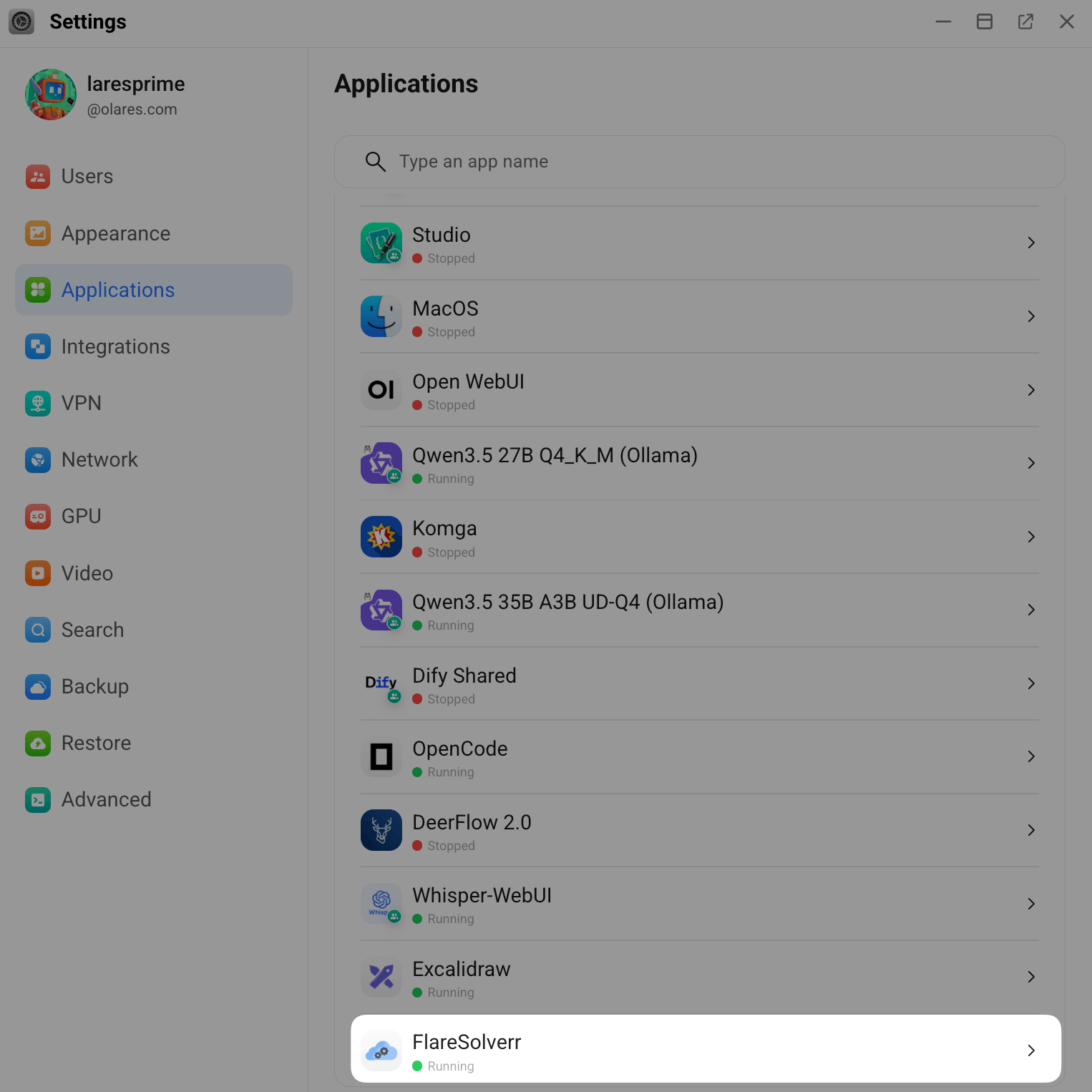
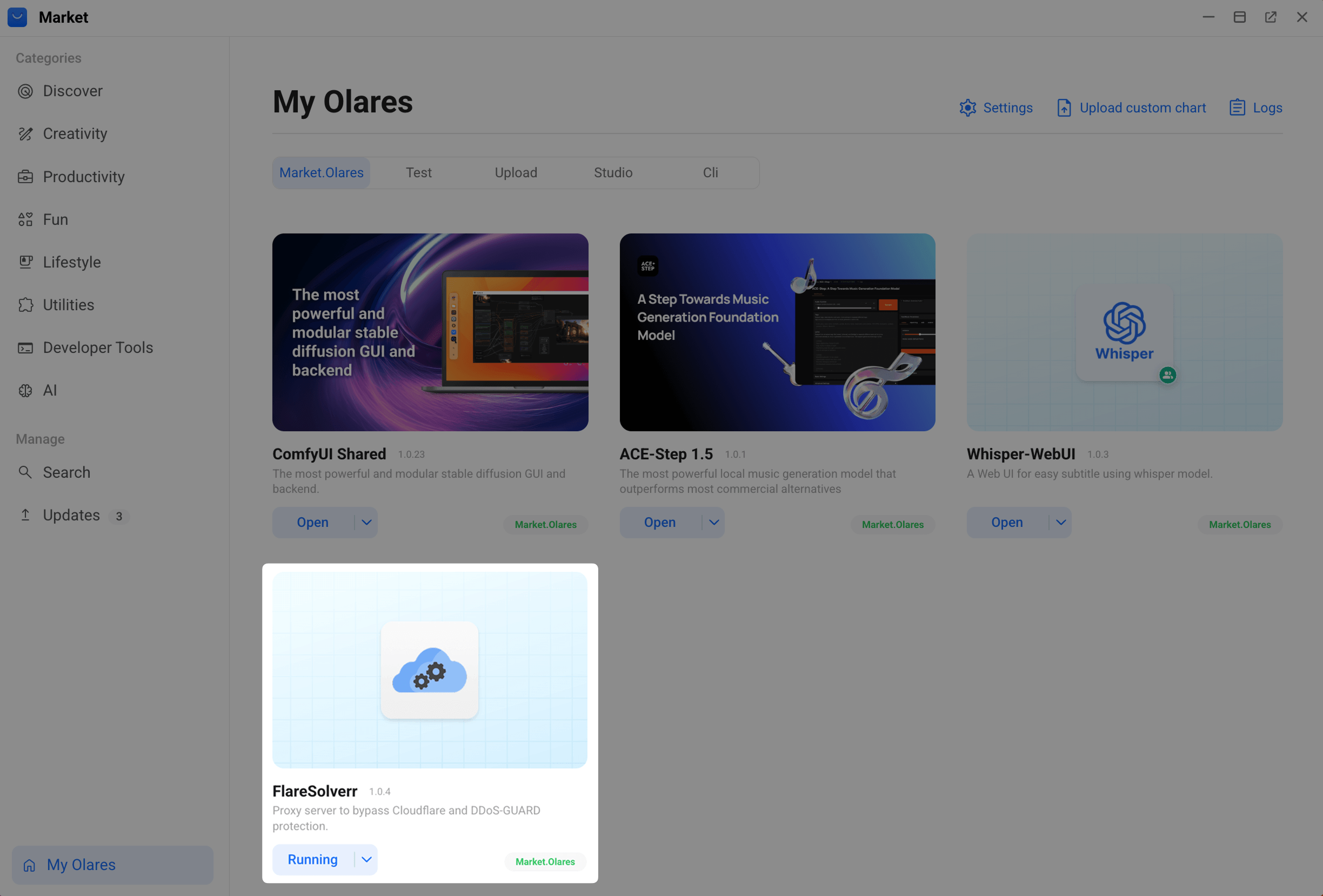
FlareSolverr runs as a background service, so it does not appear on Launchpad.
You can find it in Settings > Applications or Market > My Olares.
Install Prowlarr
Open Market and search for "Prowlarr".
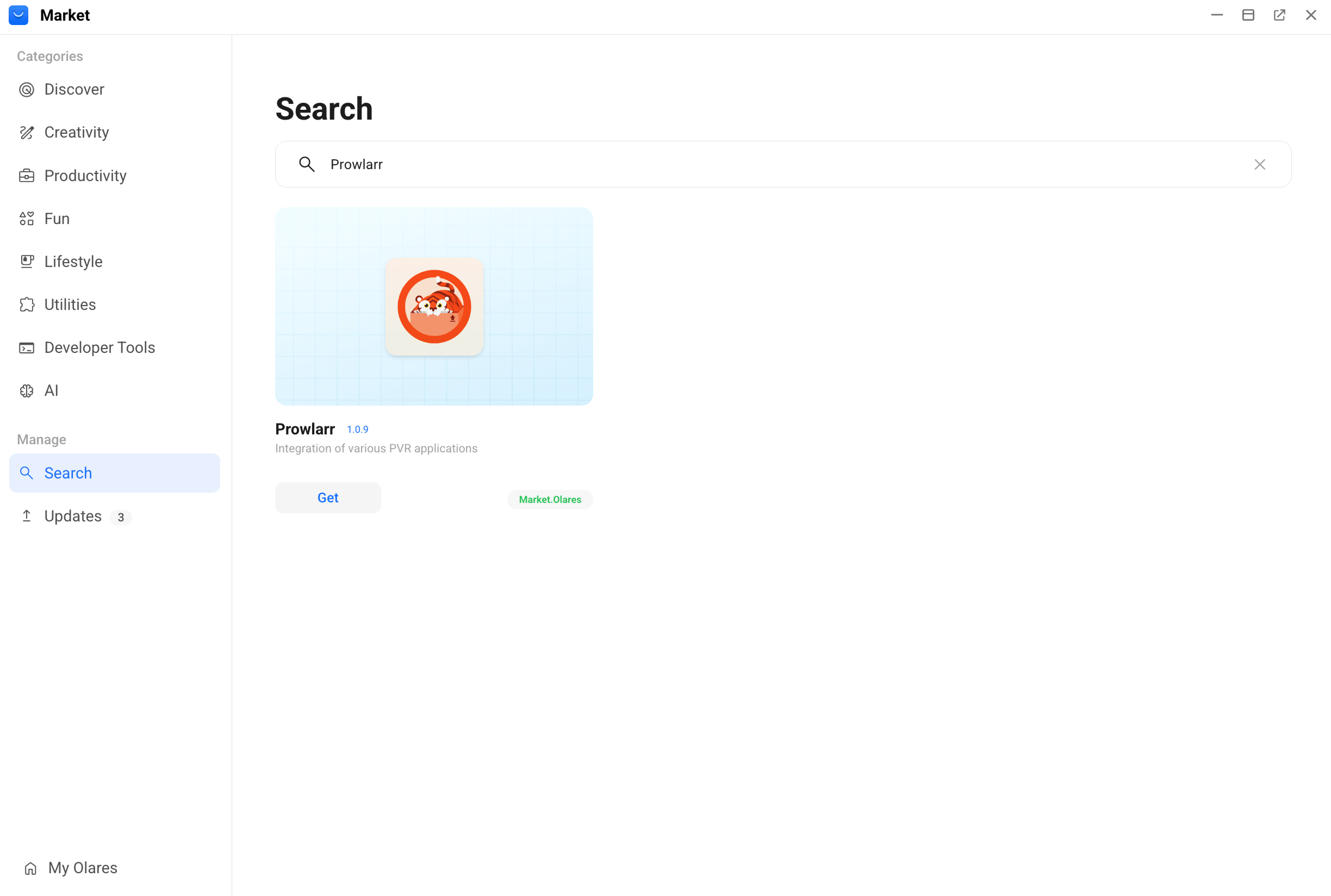
Click Get, then Install, and wait for installation to complete.
Configure FlareSolverr in Prowlarr
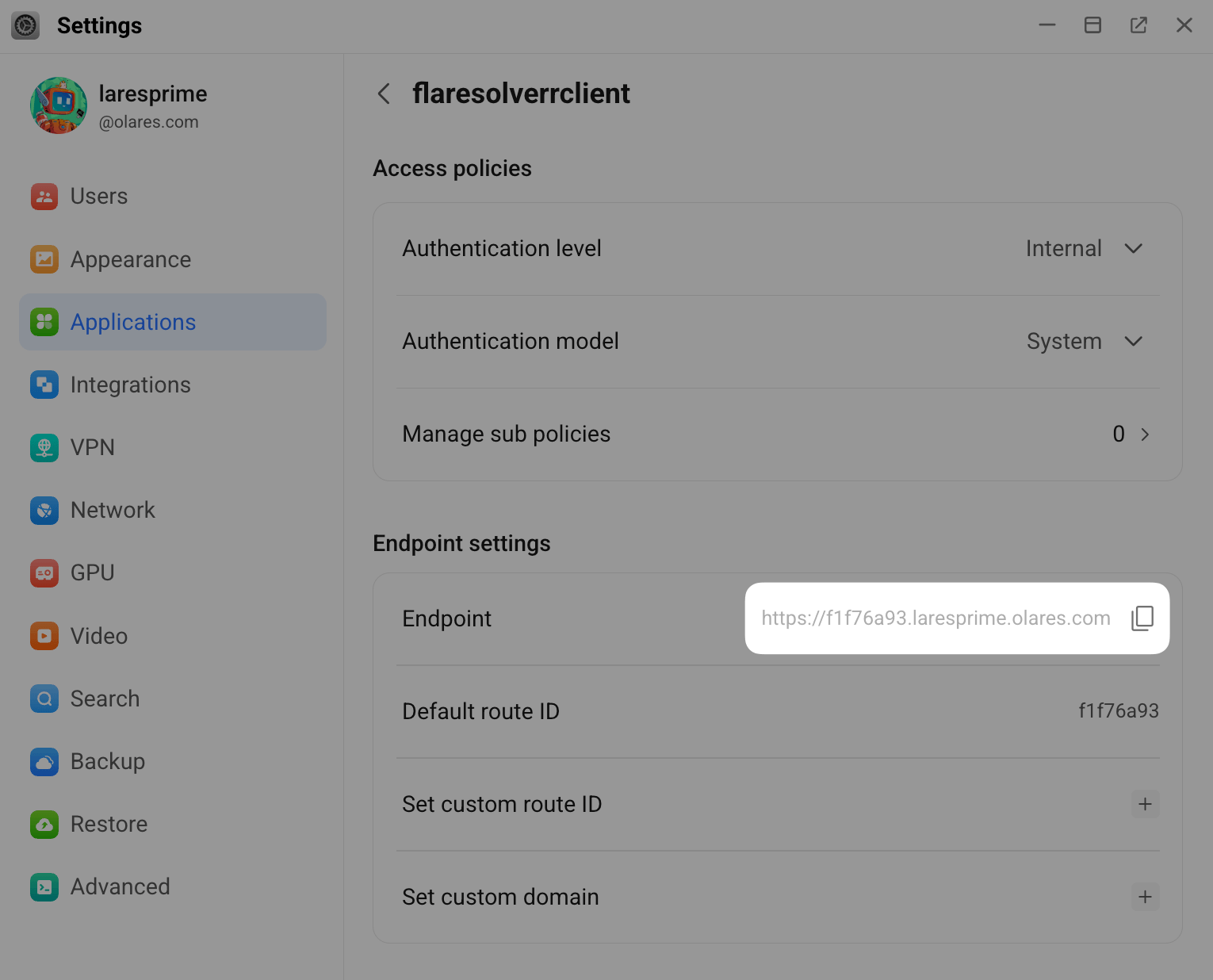
Get the FlareSolverr API address
- Open Settings, then navigate to Applications > FlareSolverr.
- Under Entrances, click FlareSolverr.
- Under Endpoint settings, locate the API endpoint and click content_copy to copy the address.
Add FlareSolverr as an indexer proxy
Open Prowlarr from Launchpad.
First-time setup
The first time you open Prowlarr, the Authentication Required dialog appears. Select an authentication method, set a username and password, then click Save to continue.
Go to Settings > Indexers.
Under Indexer Proxies, click add_2, then select FlareSolverr.
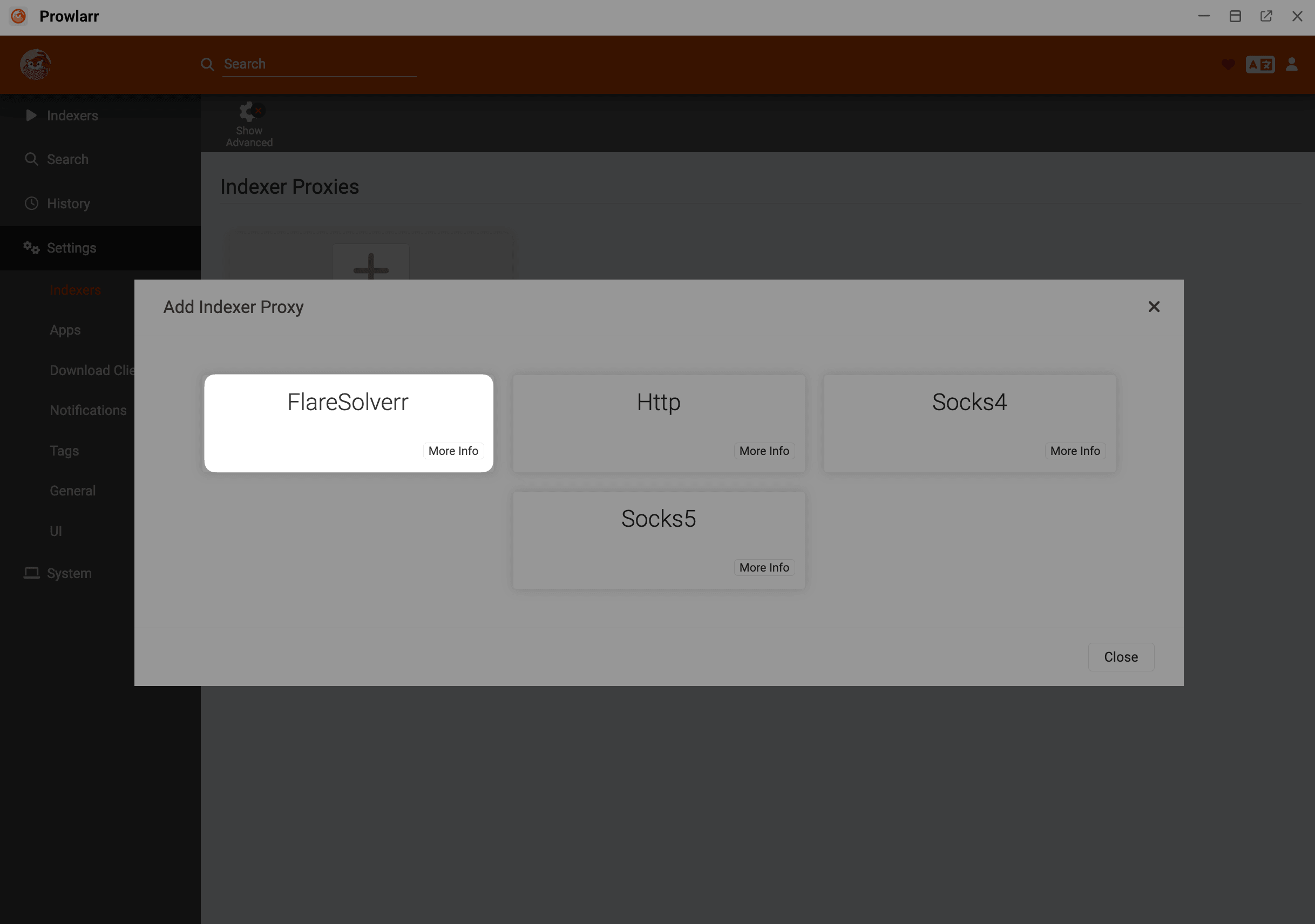
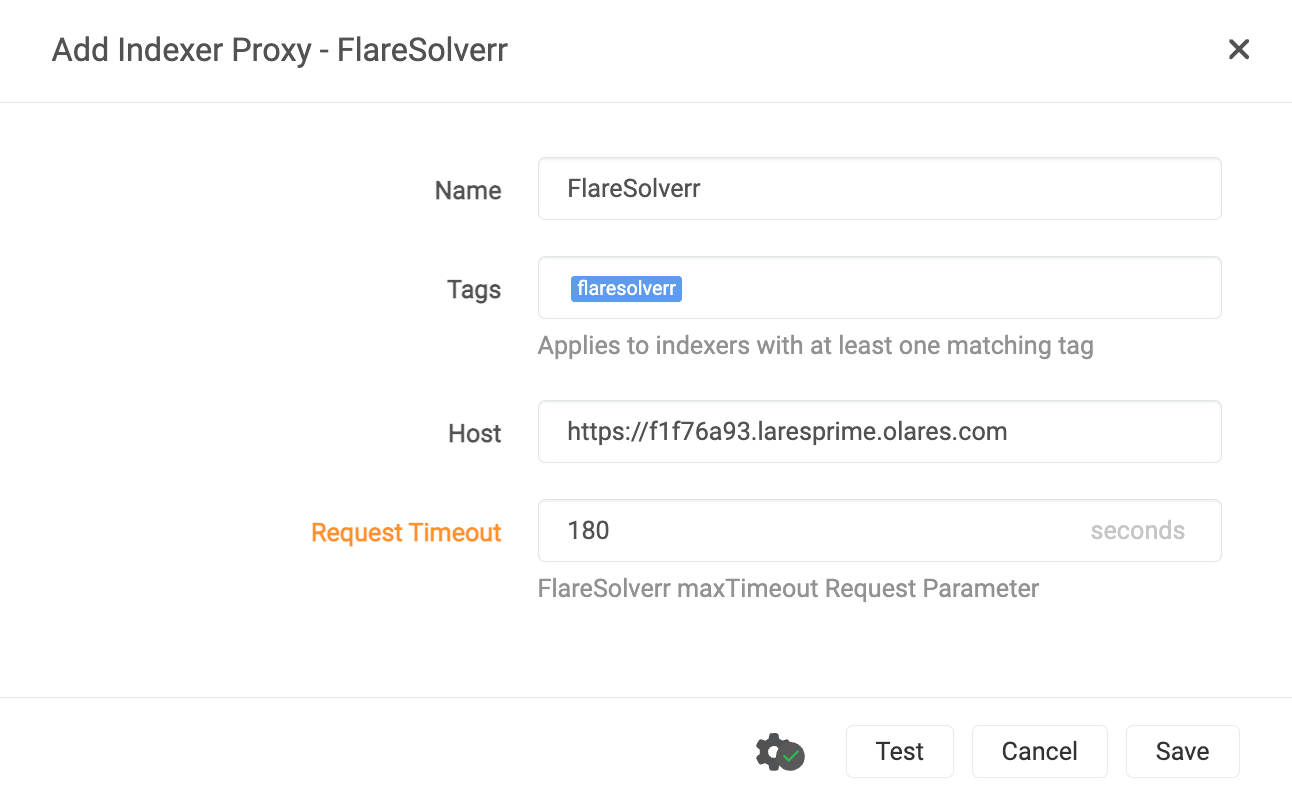
Configure the proxy settings:
- Tags: Enter a lowercase tag name such as
flaresolverr. Prowlarr uses this tag to decide which indexers should route requests through FlareSolverr. - Host: Paste the FlareSolverr API address you copied earlier.
- Tags: Enter a lowercase tag name such as
Click the gear icon and set Request Timeout to
180seconds.Click Test to verify the connection, then click Save.
Add a Cloudflare-protected indexer
This example uses 1337x, a popular indexer site protected by Cloudflare.
In Prowlarr, click Indexers > Add Indexer and search for "1337x".
Select 1337x, then set Base URL to
1337x.to.In the Tags field at the bottom, enter the same tag you assigned to the FlareSolverr proxy (e.g.,
flaresolverr).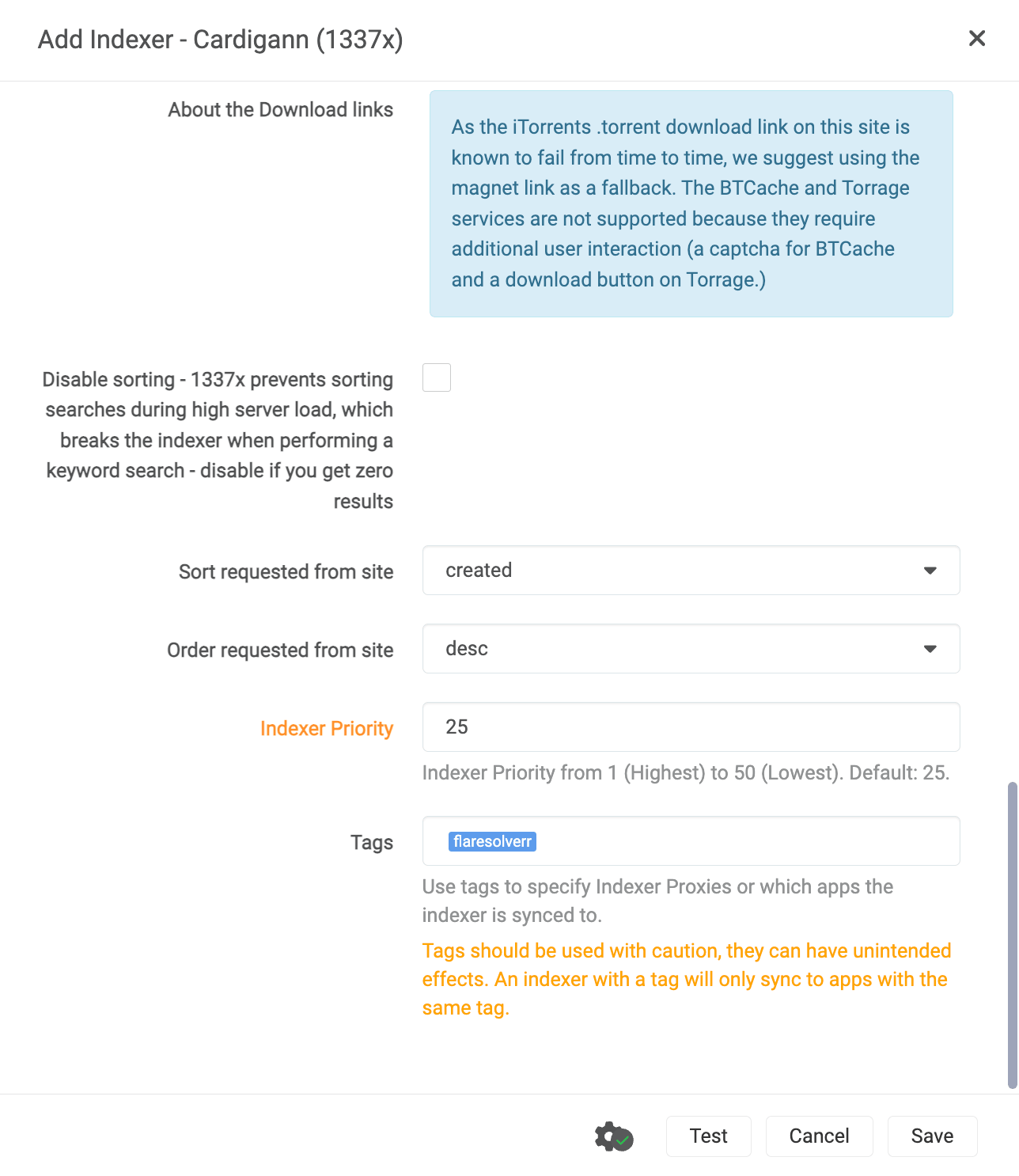
Click Test.
INFO
The challenge-solving process might take some time and does not always succeed on the first attempt. Try a few times if the initial test fails.
Verify FlareSolverr is working
You can check FlareSolverr's logs to confirm it is receiving and solving Cloudflare challenges.
Open Control Hub and select the FlareSolverr project from the sidebar.
Under Deployments, click the running pod of flaresolverr, then expand the container to view its logs.
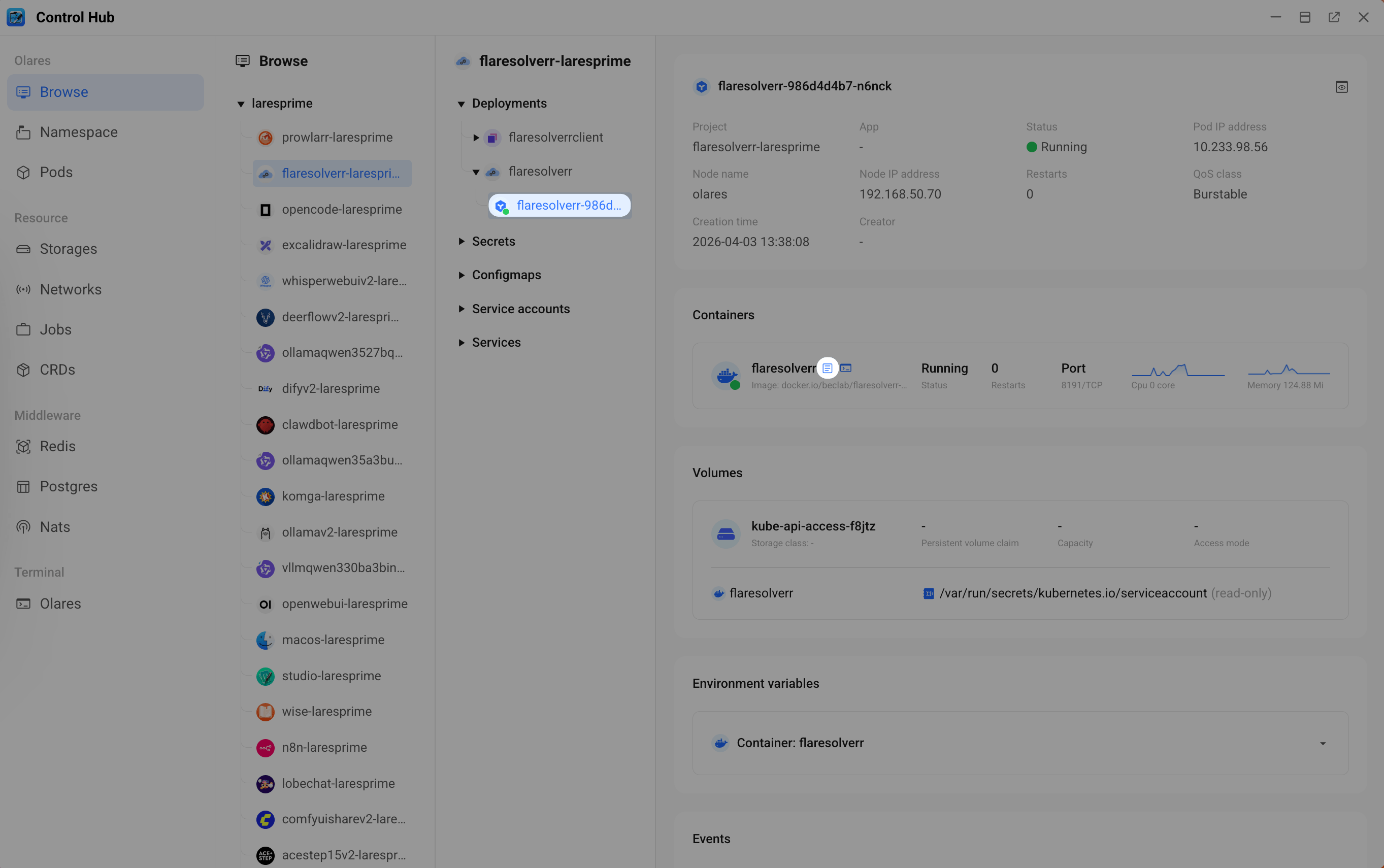
Click the play button to stream real-time logs.
Go back to Prowlarr and click Test on the 1337x indexer. You should see the incoming request appear in FlareSolverr's logs.
Look for
Challenge solvedin the logs. This confirms FlareSolverr has bypassed Cloudflare protection.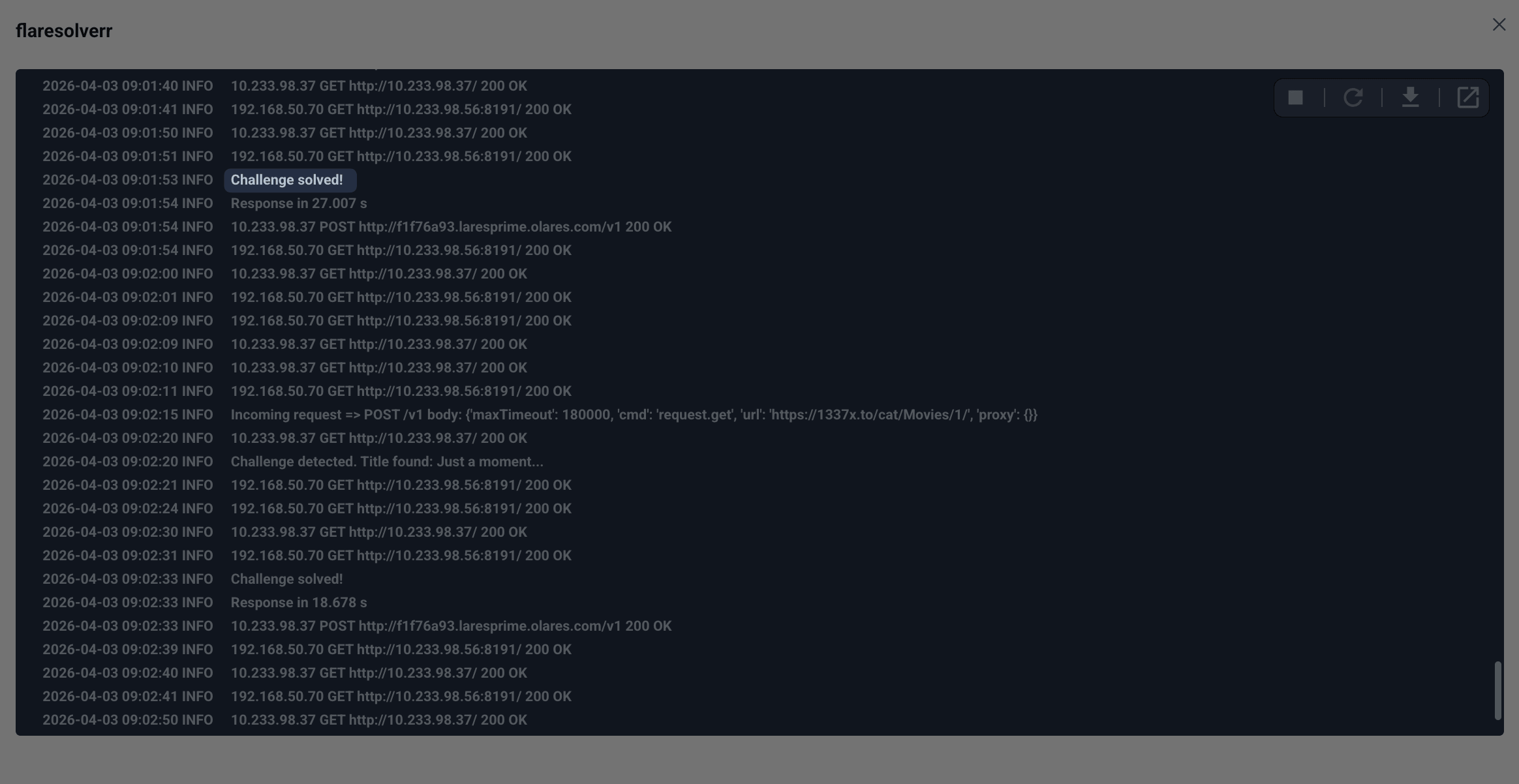
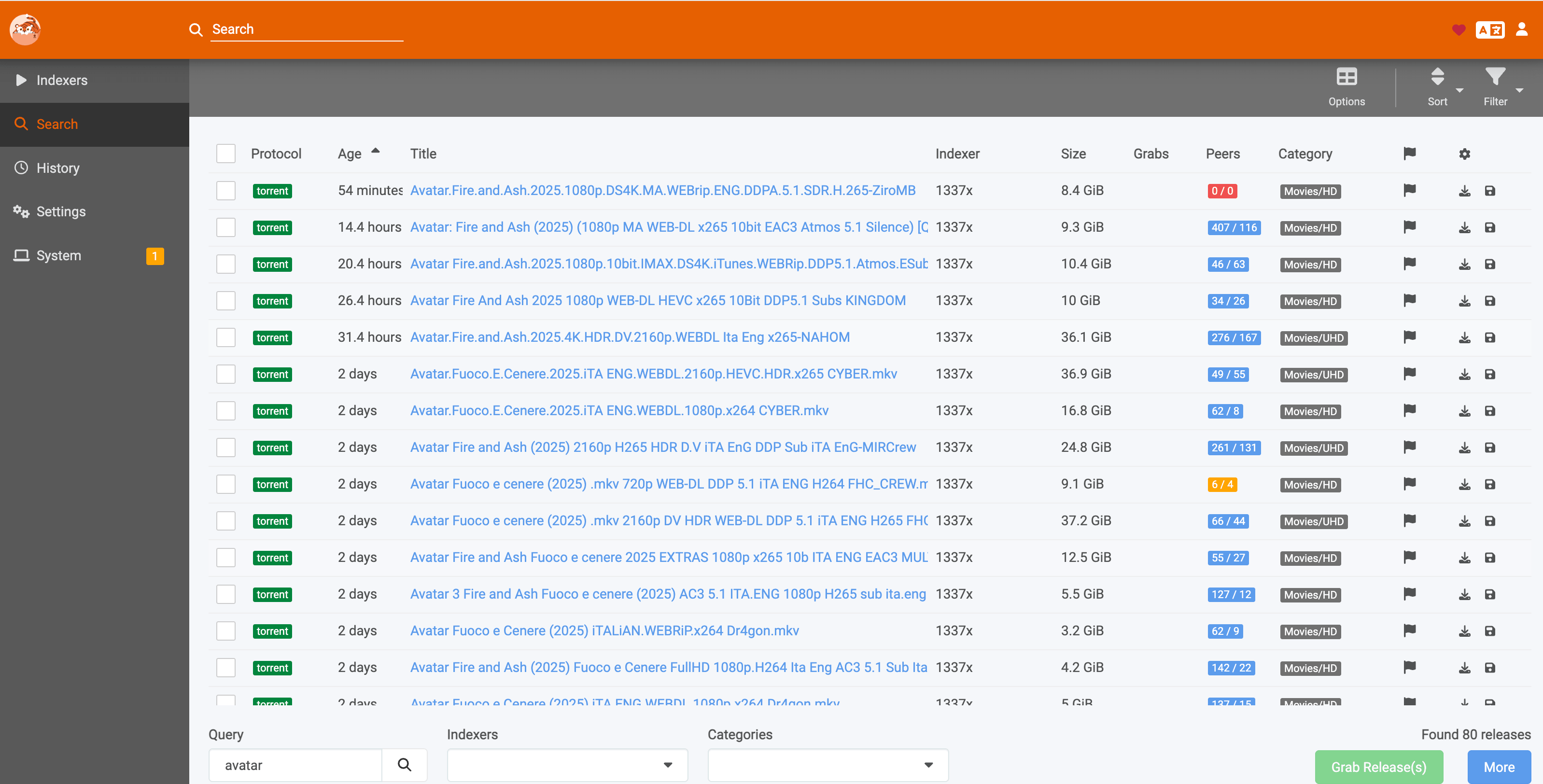
Search for content in Prowlarr's search bar. If results appear, FlareSolverr is working correctly.
Use FlareSolverr with other indexers
When adding other indexers in Prowlarr, look for the following message:
This site may use Cloudflare DDoS Protection, therefore Prowlarr requires FlareSolverr to access it.
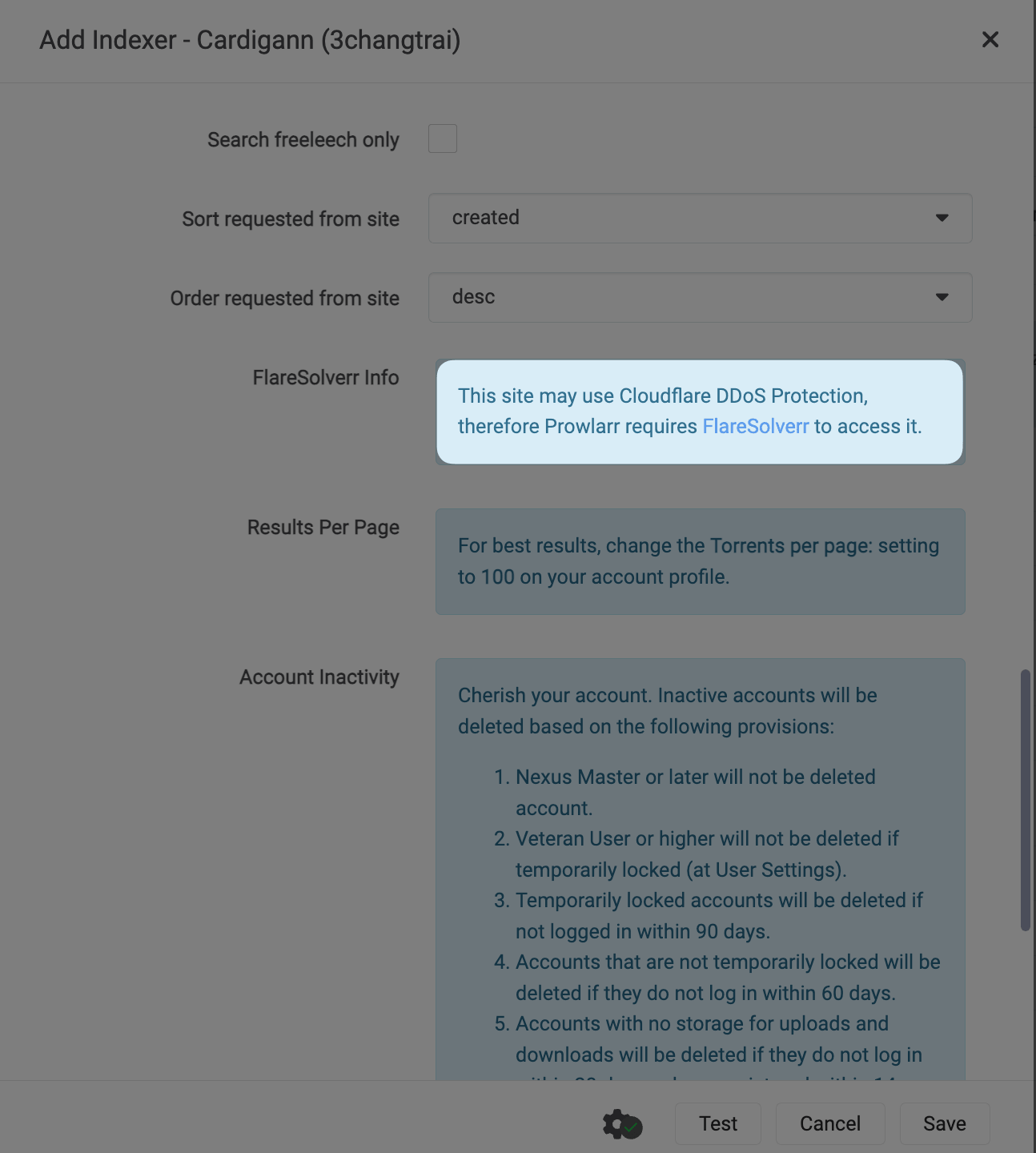
For any indexer showing this warning, add the same FlareSolverr proxy tag (e.g., flaresolverr) in the indexer's Tags field.
FAQ
Prowlarr test fails but FlareSolverr logs show "Challenge solved"
If FlareSolverr successfully solves the Cloudflare challenge but Prowlarr still reports the site as blocked, you can force-save the indexer. In some cases, the indexer returns search results even when the test fails.
To force-save:
In the indexer settings, configure all other parameters as needed.
Uncheck the Enable checkbox, then click Save. The indexer is now added to the list in a disabled state.
On the Indexers page, locate the indexer in the list and click the wrench icon on the far right to edit it.
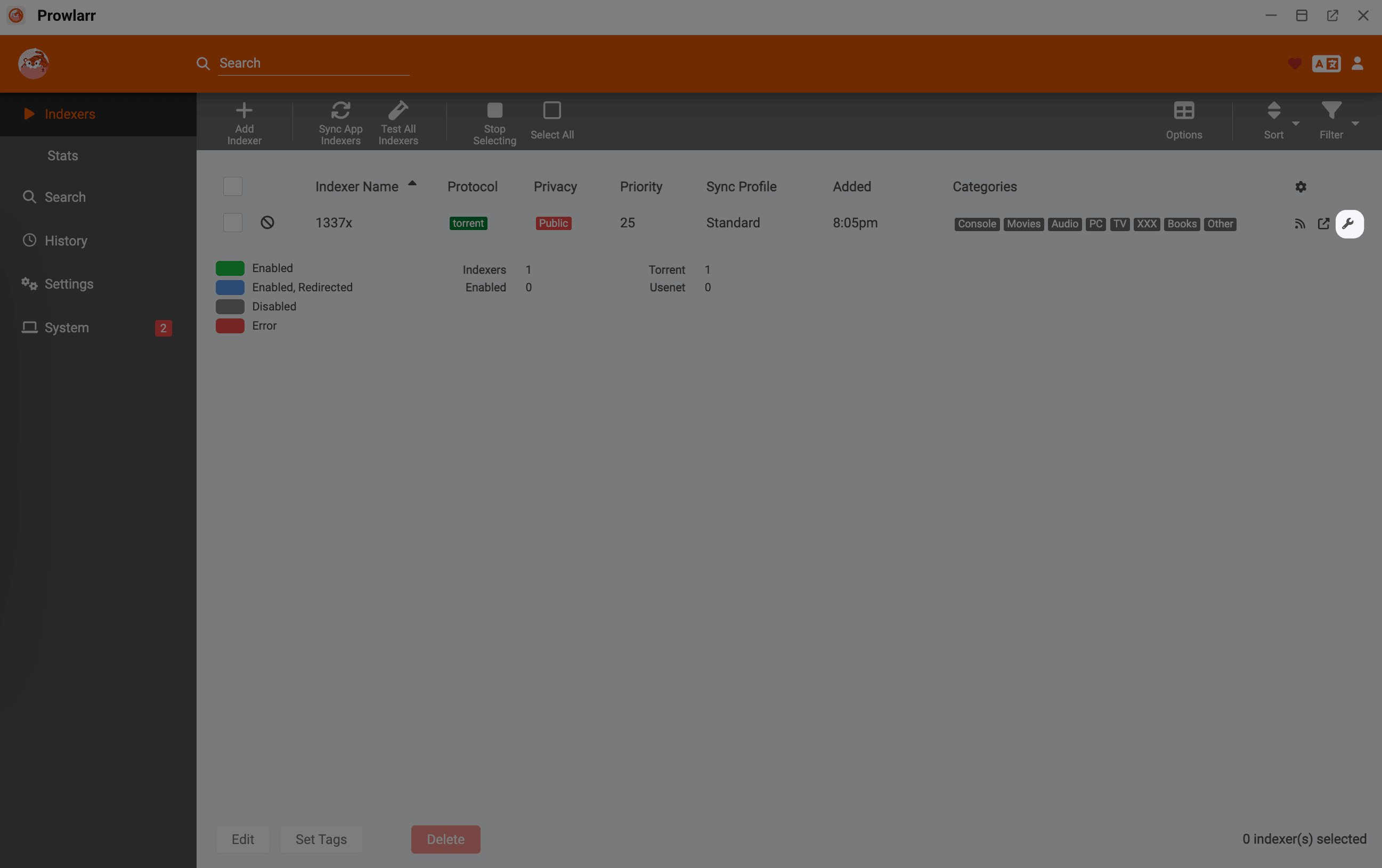
Select the Enable checkbox.
Click Save.
If Prowlarr keeps the edit page open and displays a warning (e.g.,
Unable to access 1337x.to, blocked by CloudFlare Protection), the Save button will change to a red warning icon. Click this icon again to save the indexer despite the failed connection check.
After re-enabling, try searching in Prowlarr. If results appear, the indexer is working despite the failed test.