Configure voice interactions in Open WebUI
Enable hands-free communication in Open WebUI by connecting it to the Speaches application. This integration provides speech-to-text (STT) for dictating prompts and text-to-speech (TTS) for hearing AI responses aloud.
Learning objectives
In this guide, you will learn how to:
- Retrieve the required STT and TTS configuration details from Speaches.
- Configure Open WebUI to use Speaches as the audio backend.
- Verify speech-to-text, text-to-speech, and continuous voice mode.
Prerequisites
Before you begin, ensure you have the following in place:
- Open WebUI installed and configured with at least one active model backend.
- Speaches installed.
- Administrator privileges for the Open WebUI instance.
- Approximately 14 GB of available VRAM to run the LLM, STT, and TTS models simultaneously.
Retrieve Speaches configuration details
To link Open WebUI and Speaches, you must obtain the Speaches shared endpoint URL and identify the specific STT and TTS model names used within Speaches.
Get the shared endpoint URL
Open Olares Settings, and then go to Applications > Speaches.
In Shared entrances, click Speaches API, and then note down the endpoint URL.
For example,
http://edd26bab0.shared.olares.com.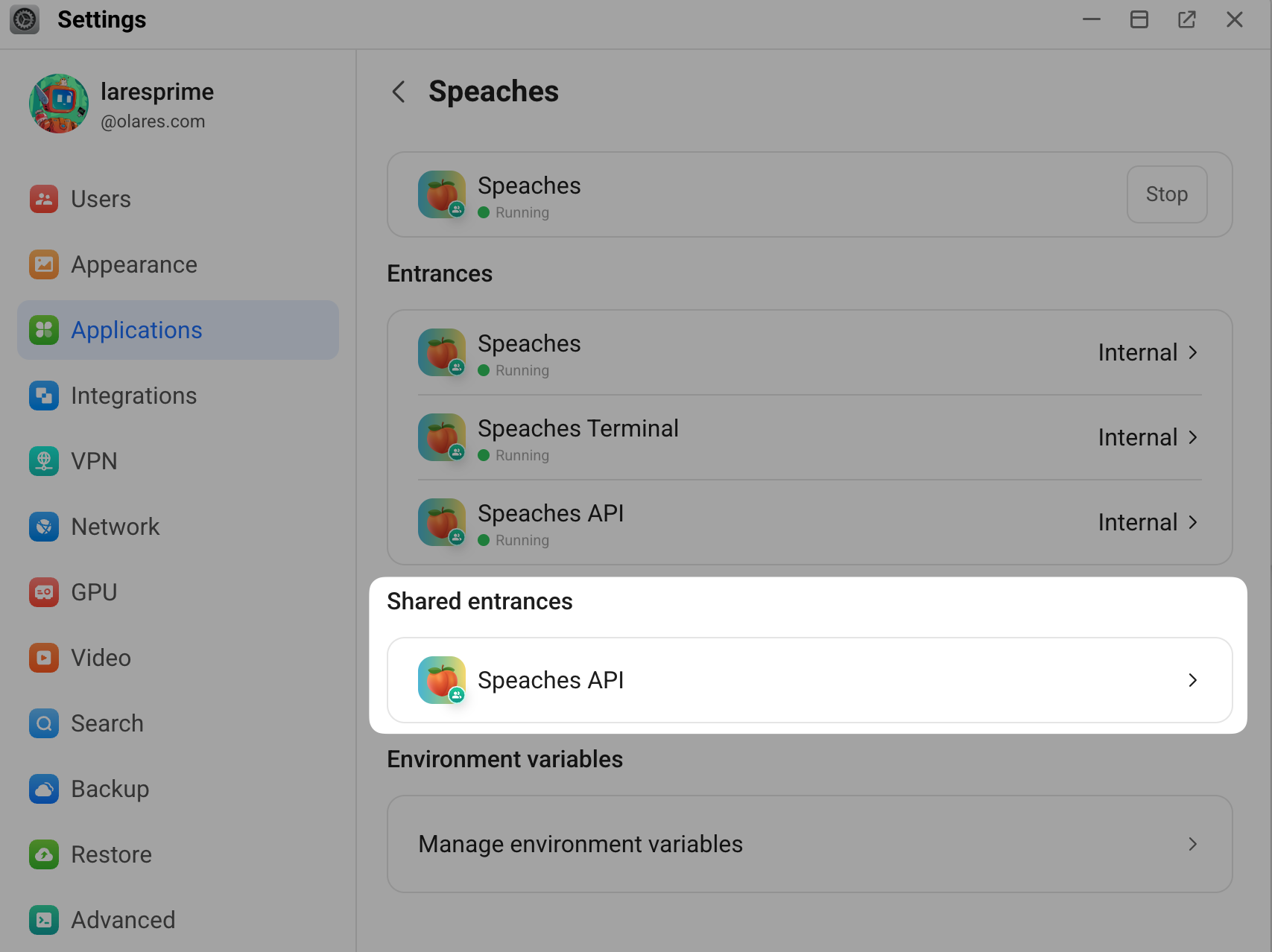
Find model and voice names
Open Speaches from the Launchpad.
Go to the Speech-to-Text tab, click the Model drop-down list, and then note down the default STT model name
Systran/faster-whisper-small.Go to the Text-to-Speech tab, click the Model drop-down list, select the default TTS model
speaches-ai/Kokoro-82M-v1.0-ONNX, and then note down the model name.From the Voice drop-down list, select a voice for the AI to use when reading responses aloud, and then note down the voice name. For example,
am_eric.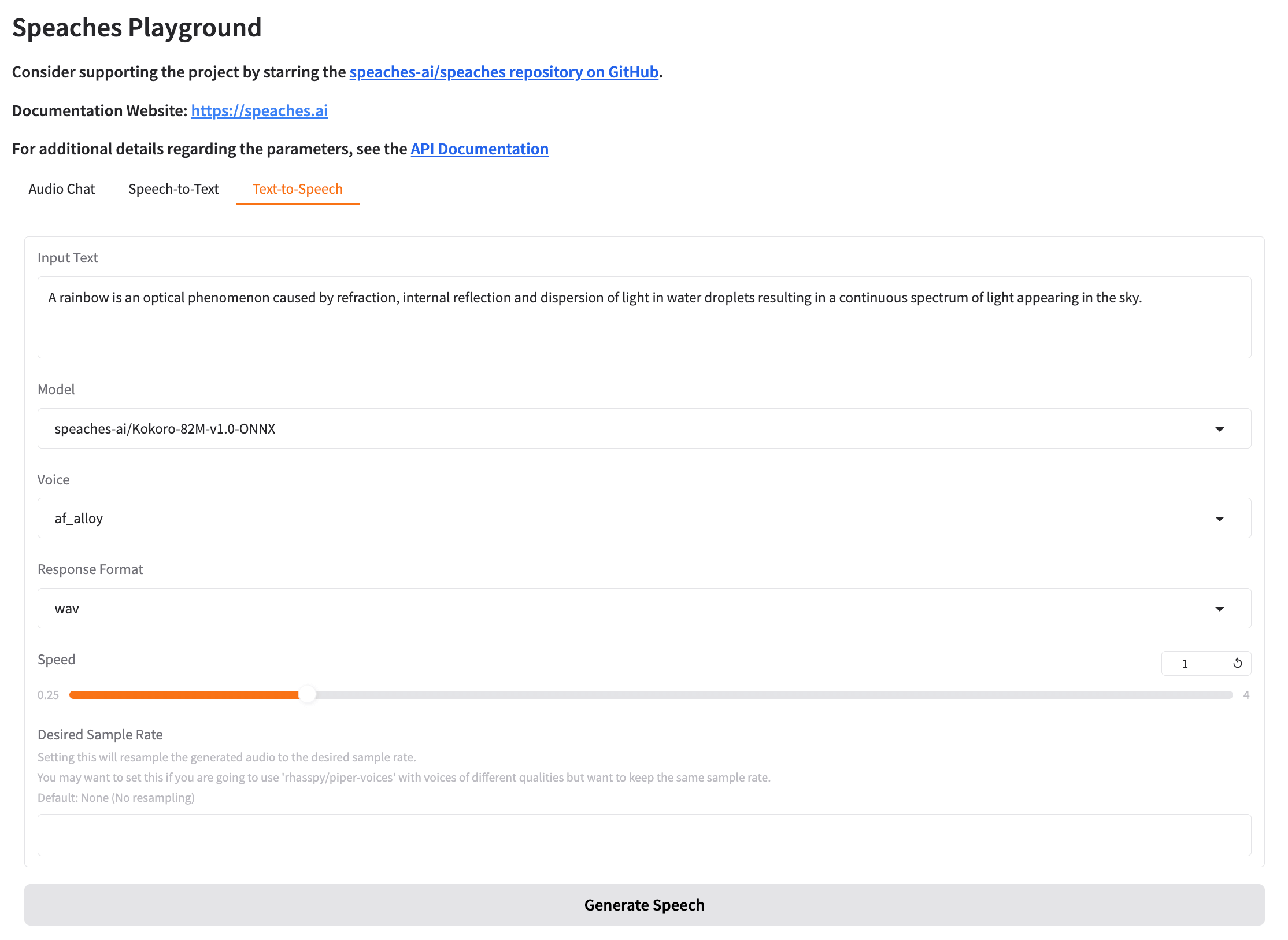
Configure audio settings in Open WebUI
In Open WebUI, click your profile icon, and then go to Admin Panel > Settings > Audio.
In the Speech-to-Text section, specify the following settings:
- Speech-to-Text Engine: Select OpenAI.
- API Base URL: Enter the Speaches shared endpoint URL and append
/v1to the end. For example,http://edd26bab0.shared.olares.com/v1. - API Key: Enter any text. Do not leave it empty.
- STT Model: Enter the STT model name you noted down earlier. That is
Systran/faster-whisper-small.
In the Text-to-Speech section, specify the following settings:
- Text-to-Speech Engine: Select OpenAI.
- API Base URL: Enter the Speaches shared endpoint URL and append
/v1to the end. For example,http://edd26bab0.shared.olares.com/v1. - API Key: Enter any text. Do not leave it empty.
- TTS Voice: Enter the voice name you noted down earlier. For example,
am_eric. - TTS Model: Enter the TTS model name you noted earlier. That is,
speaches-ai/Kokoro-82M-v1.0-ONNX.
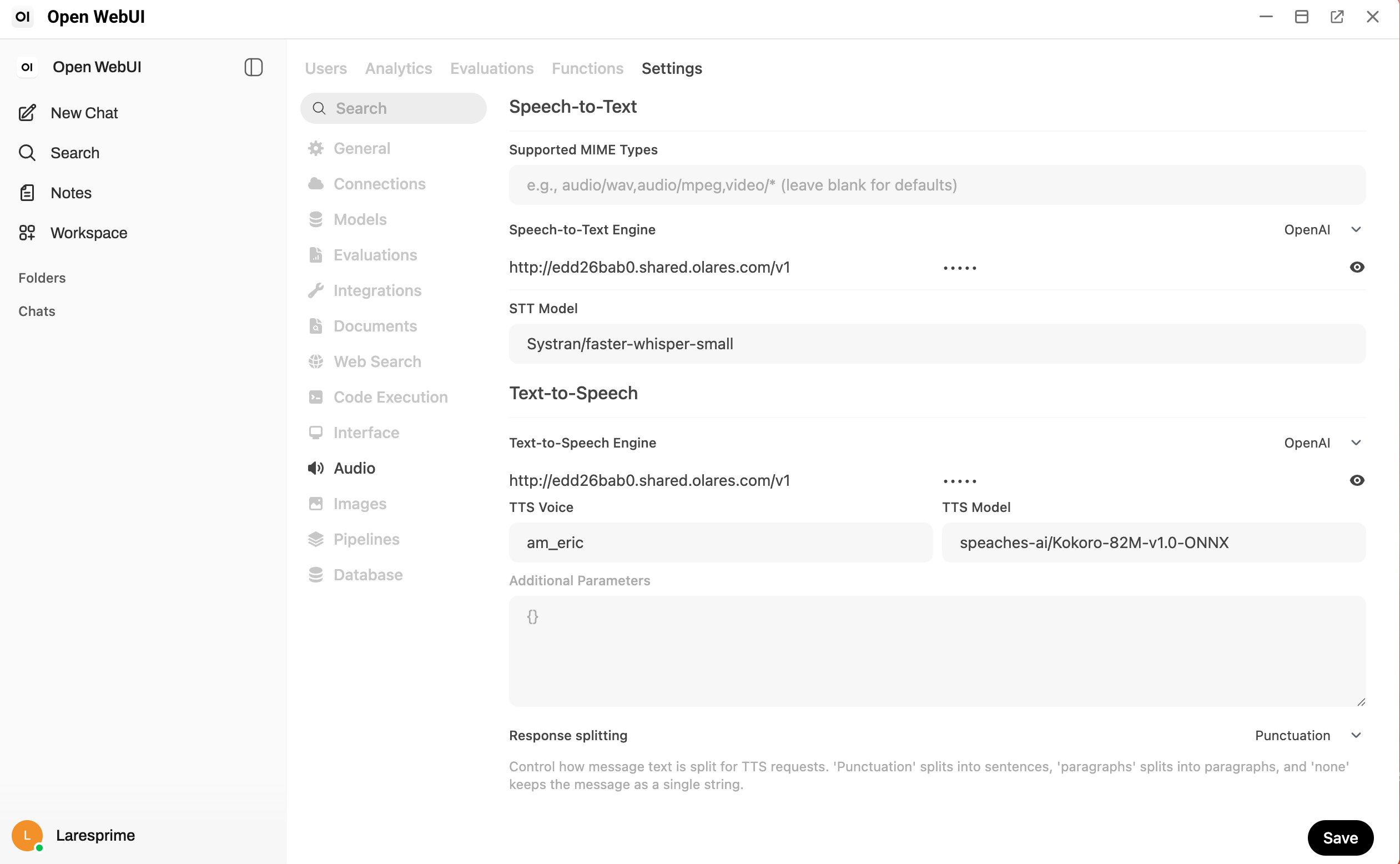
Click Save.
Verify the configuration
Test the individual audio features to ensure the integration works correctly.
Run Open WebUI in a new tab for audio
Modern web browsers block microphone access for applications running inside the Olares desktop window. To use voice features without receiving a "Permission denied" error, select open_in_new in the top-right corner of the Open WebUI window to open it in a new browser tab. Perform the following tests in that new browser tab.
Test speech-to-text
Start a new chat in Open WebUI.
Select a model.
Click mic next to the message input field.
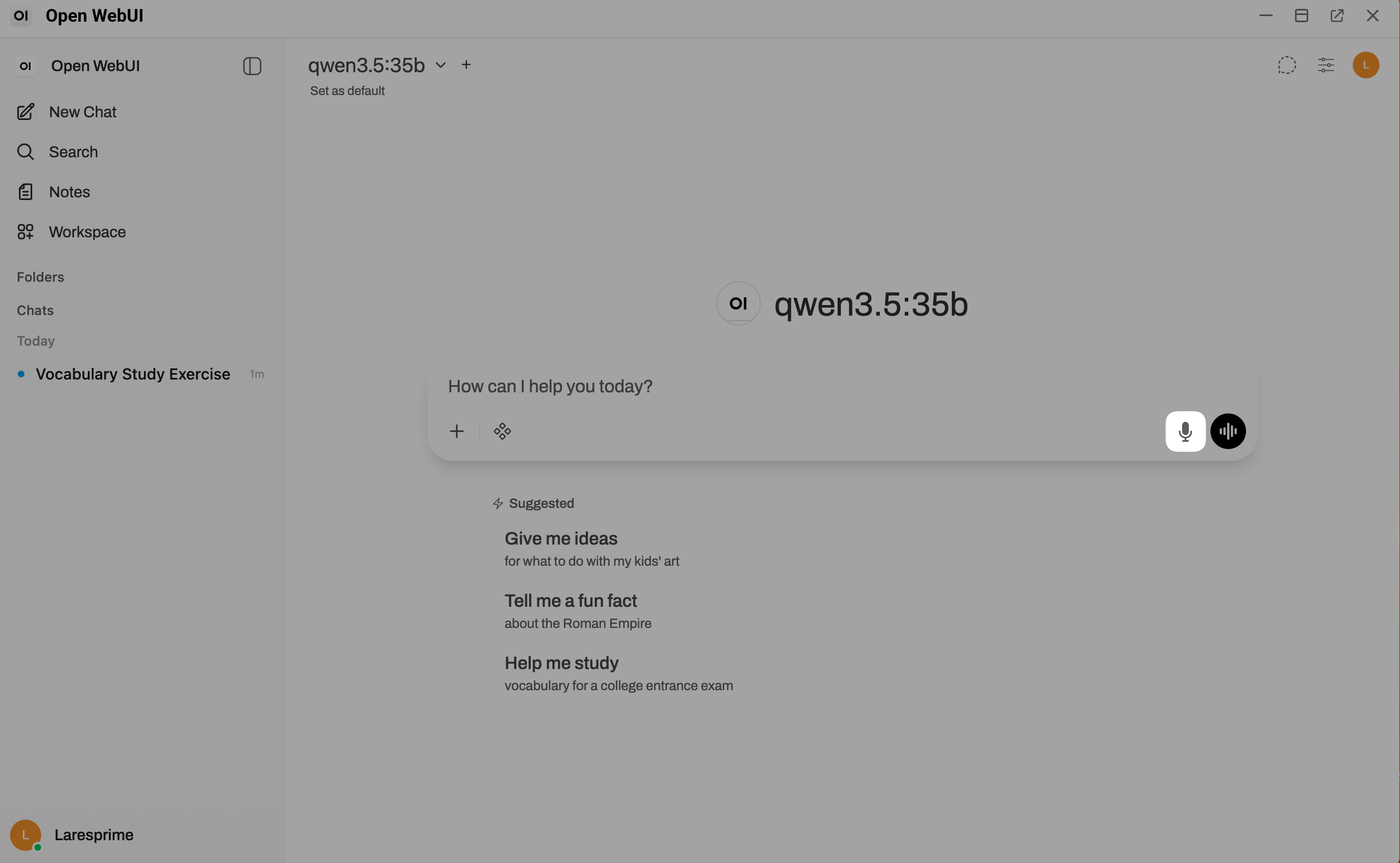
Allow browser microphone access when prompted.
Speak into your microphone. Your speech is transcribed into the text box.
Test text-to-speech
Send a message to the model and wait for a response.
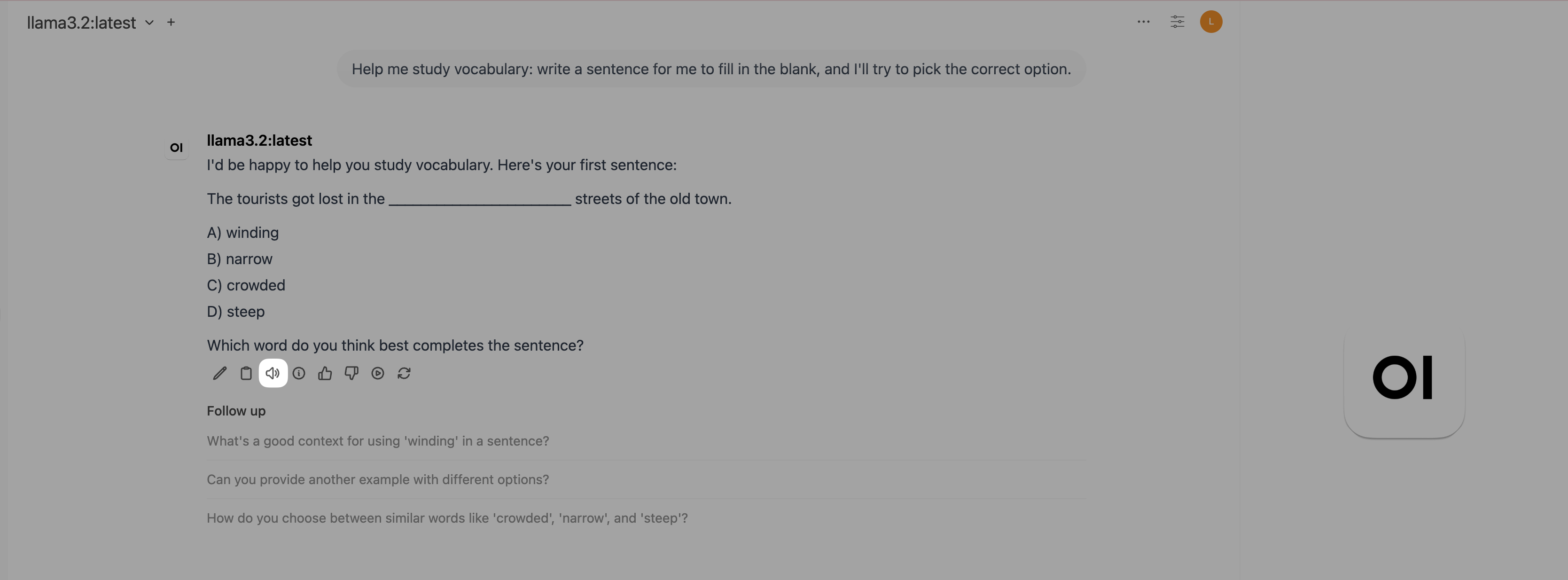
Click volume_up under the response. The response is spoken aloud.
Test continuous voice mode
In the chat interface, click graphic_eq. The first load might take a few moments as models initialize.
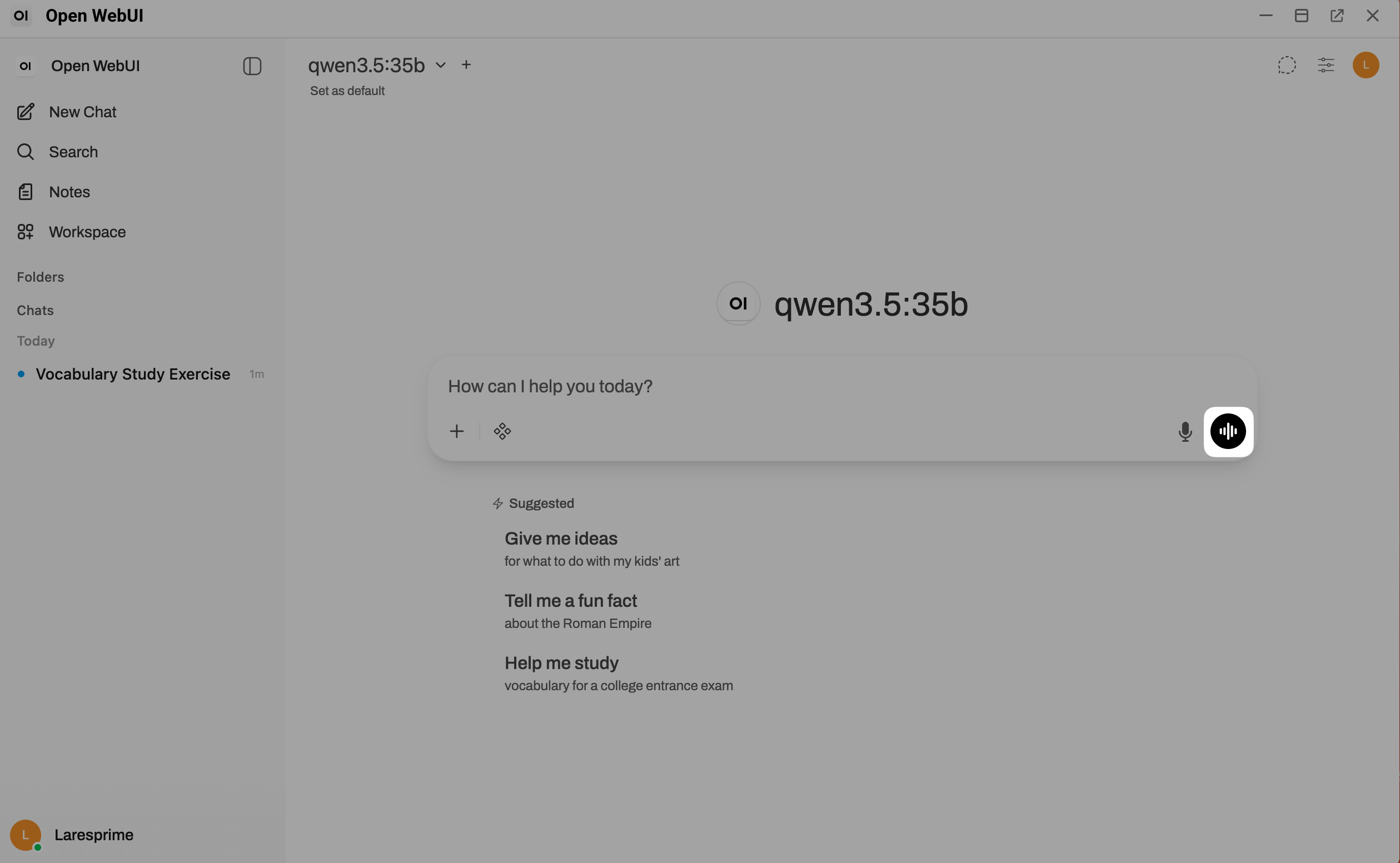
Speak naturally. The system will transcribe your speech, generate a response, and read it back automatically.
Resource usage
Using audio features invokes the LLM, STT, and TTS models simultaneously. Make sure your device has enough VRAM and memory for all three models to load and switch smoothly. If resources run low, Olares might stop apps to protect the system, causing brief unavailability.
For production use, consider setting the GPU mode to Memory slicing to prevent resource contention between models.
Non-English speech
The default STT and TTS models might not perform well for non-English languages. You can switch to different models in the Speaches Playground if needed. For instructions on changing models, see Manage models in Speaches.