Build a local knowledge base with AnythingLLM
AnythingLLM is an open-source, all-in-one AI application that lets you chat with documents using Retrieval-Augmented Generation (RAG). It supports multiple LLM providers, embedding engines, and vector databases, all running locally on your Olares device.
Learning objectives
In this guide, you will learn how to:
- Install a chat model and an embedding model from Market.
- Configure AnythingLLM to use these models via shared endpoints.
- Create a workspace and upload documents to build a knowledge base.
- Query your knowledge base using natural language.
Prerequisites
- An Olares device with sufficient disk space and memory
- Admin privileges to install shared apps from Market
Install AnythingLLM and model apps
To build a local knowledge base, three components are required: AnythingLLM, a chat model for generating responses, and an embedding model for processing documents.
This guide uses "Qwen3.5 9B" as the chat model and "Nomic Embed v1.5" as the embedding model.
Open Market and search for "AnythingLLM".
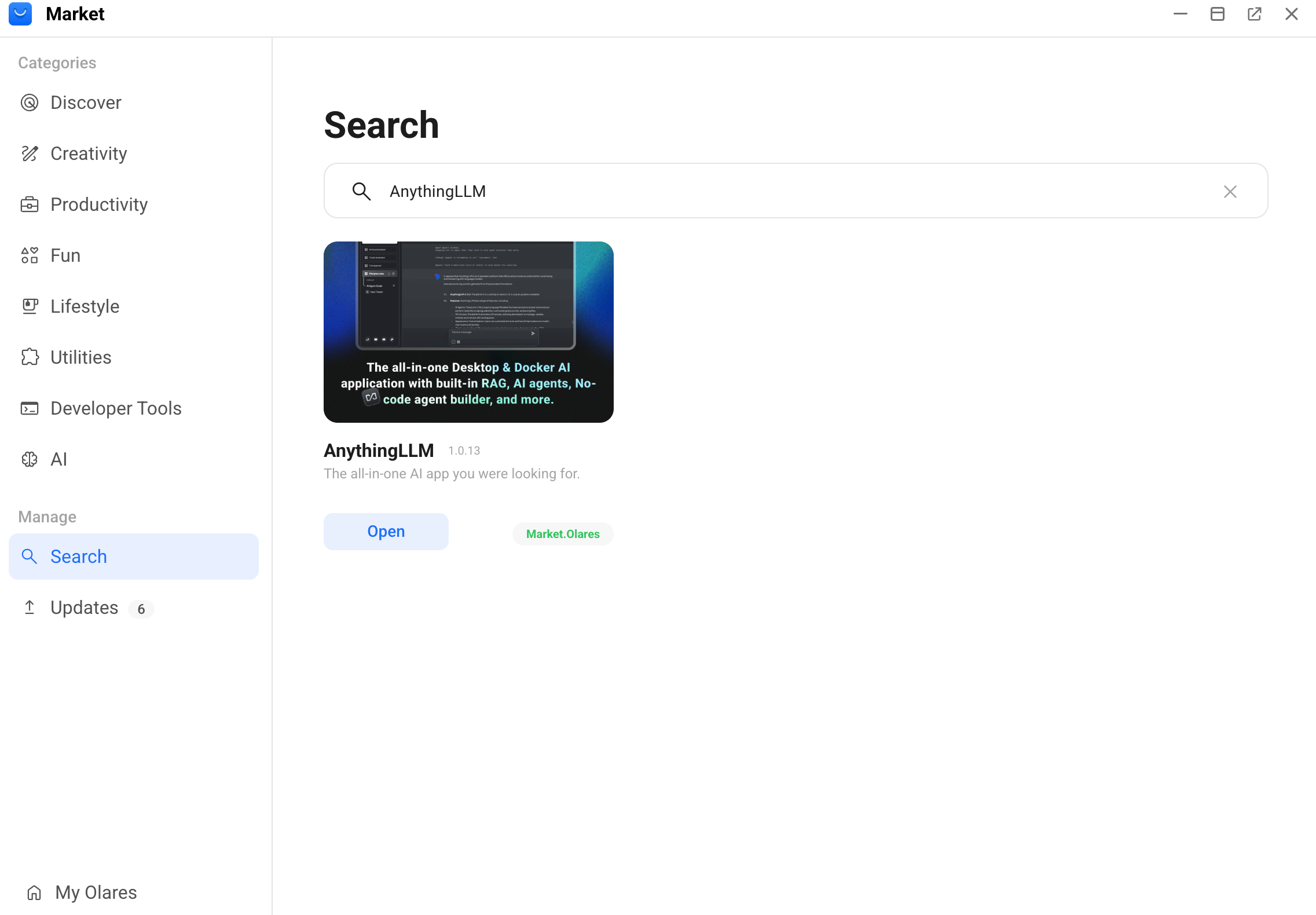
Click Get, and then click Install.
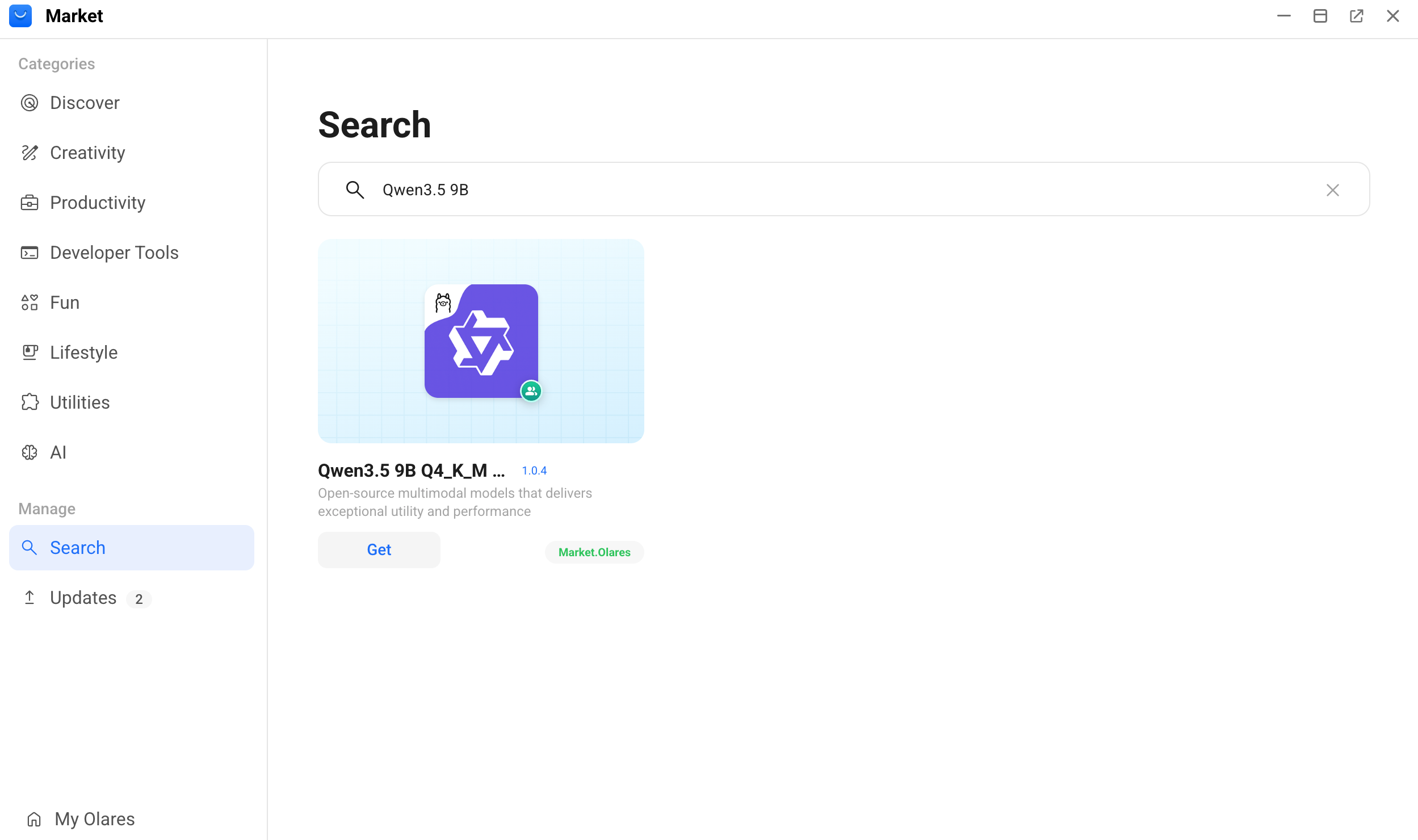
Search for "Qwen3.5 9B" and install it.
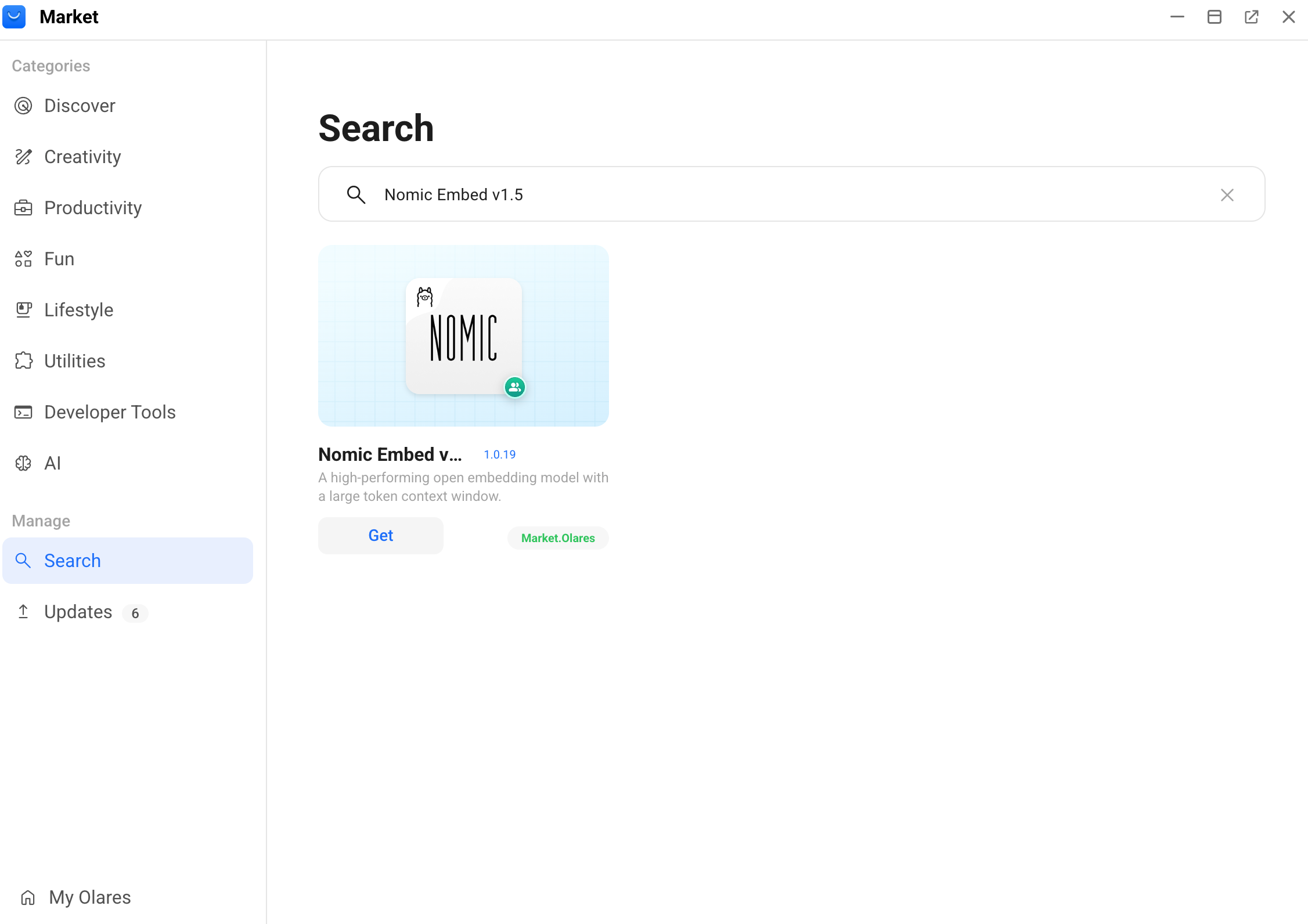
Search for "Nomic Embed v1.5" and install it.
Wait for all installations to finish.
Download models and get shared endpoints
After installation, each model app downloads its model automatically. You must obtain the shared endpoint URL for each model to connect AnythingLLM to these models.
Get the chat model endpoint
Open the Qwen3.5 9B Q4_K_M (Ollama) app from Launchpad and wait for the model download to complete.
Open Settings, and then go to Applications > Qwen3.5 9B Q4_K_M (Ollama).
In Shared entrances, select Qwen3.5 9B Q4_K_M to view the endpoint URL.
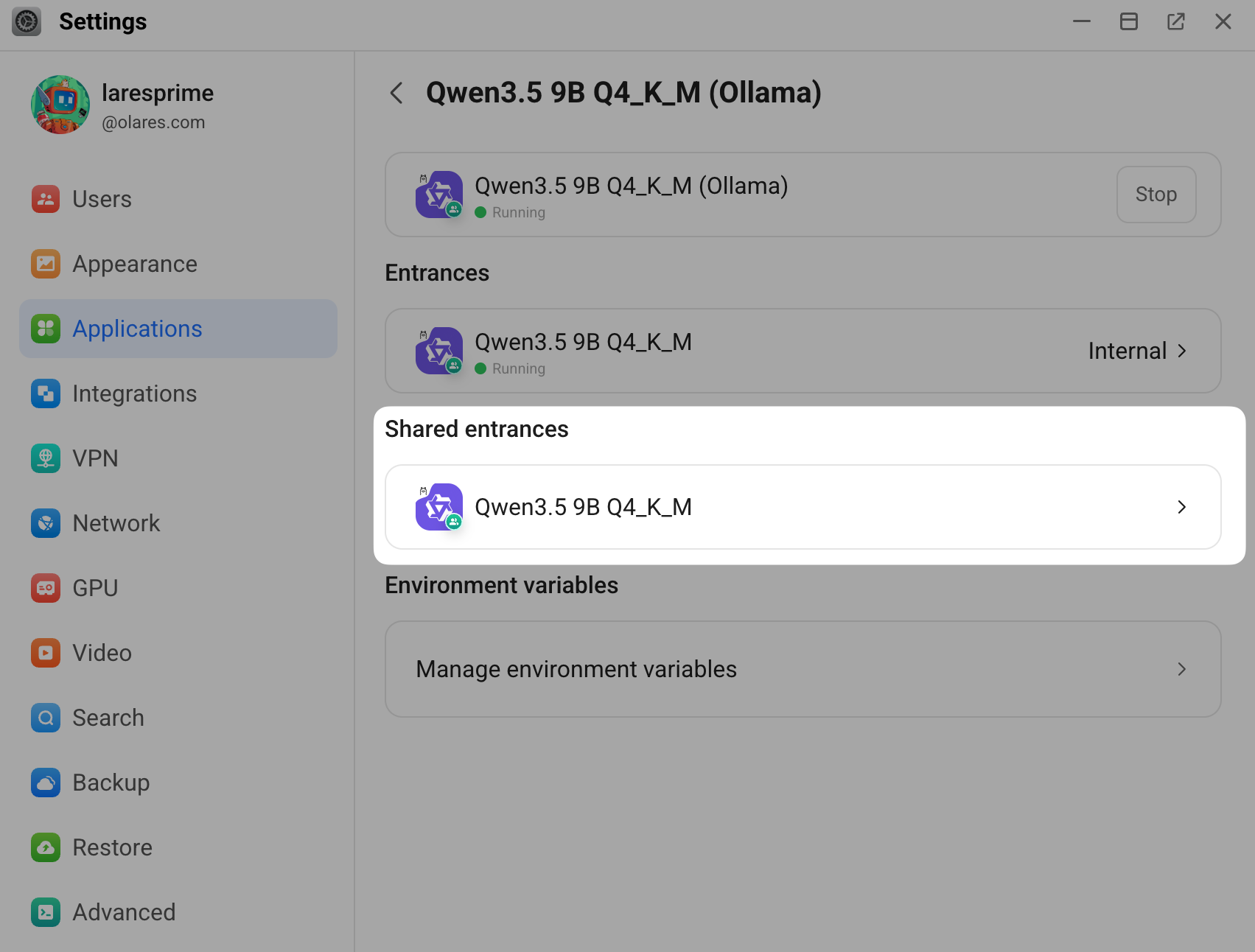
Copy the shared endpoint URL. For example:
plainhttp://bd5355000.shared.olares.com
Get the embedding model endpoint
Open the Nomic Embed v1.5 app from Launchpad and wait for the model download to complete.
Open Settings, and then go to Applications > Nomic Embed v1.5.
In Shared entrances, select Nomic Embed v1.5 to view the endpoint URL.
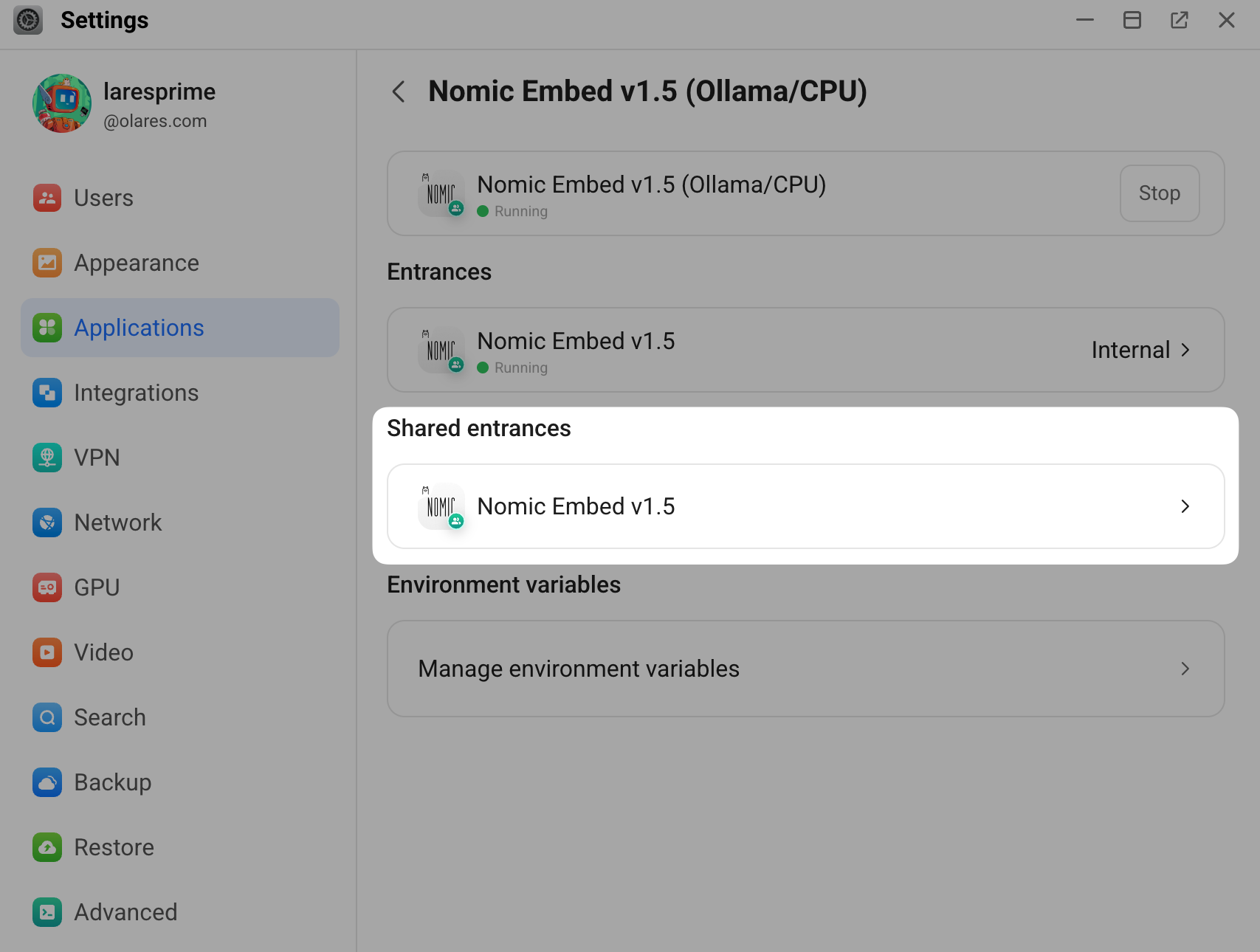
Copy the shared endpoint URL. For example:
plainhttp://8298761c0.shared.olares.com
Configure AnythingLLM
By default, AnythingLLM connects to the Ollama app's shared endpoint for both the chat model and the embedder. Because you installed dedicated model apps, you must update these endpoints to point to the correct models.
These settings apply as the system default for all workspaces. You can also customize individual workspaces to use different models.
Set up the chat model
Open the AnythingLLM app from Launchpad.
On the home page, click the Open settings icon in the bottom-left.
In the left sidebar, select AI Providers > LLM, and then select Ollama as the LLM provider.
In the Ollama Base URL field, paste the shared endpoint URL for Qwen3.5 9B. qwen3.5:9b is automatically displayed in Ollama Model.
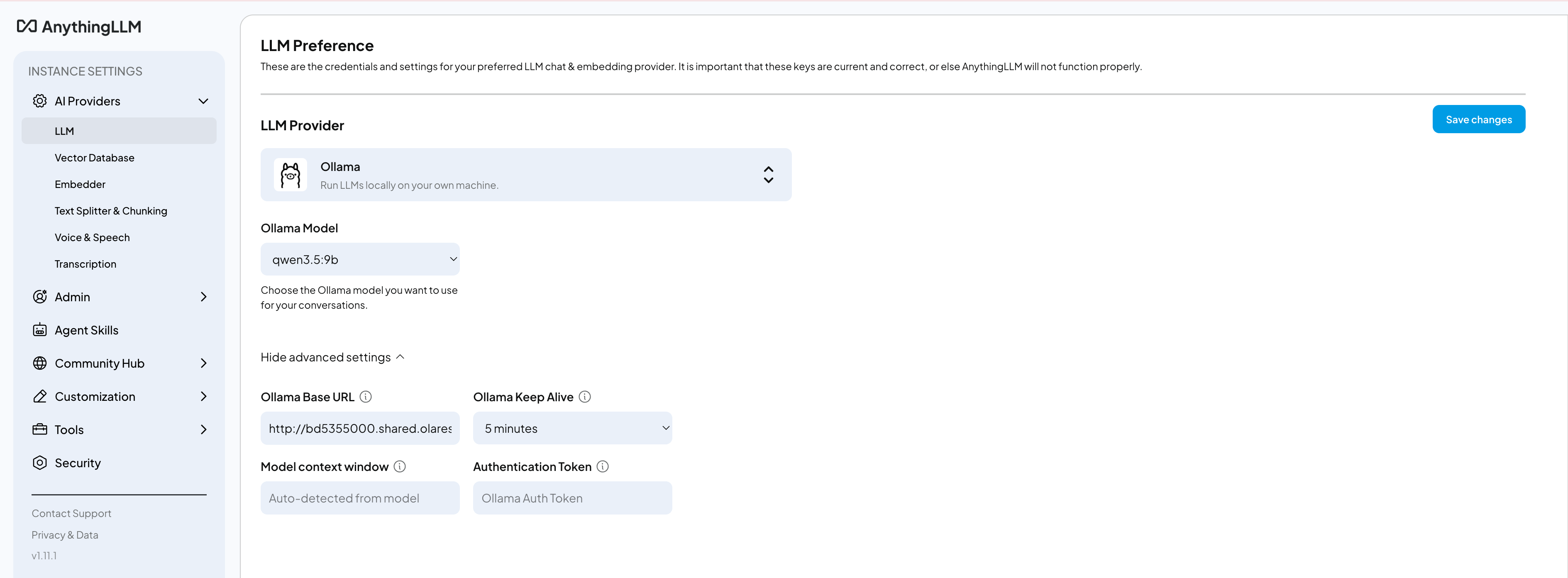
Click Save changes. The "LLM preferences saved successfully" message is displayed.
Set up the embedding model
In the left sidebar, select Embedder, and then select Ollama as the embedding provider.
In the Ollama Base URL field, paste the shared endpoint URL for Nomic Embed v1.5. nomic-embed-text:v1.5 is automatically displayed in Ollama Embedding Model.
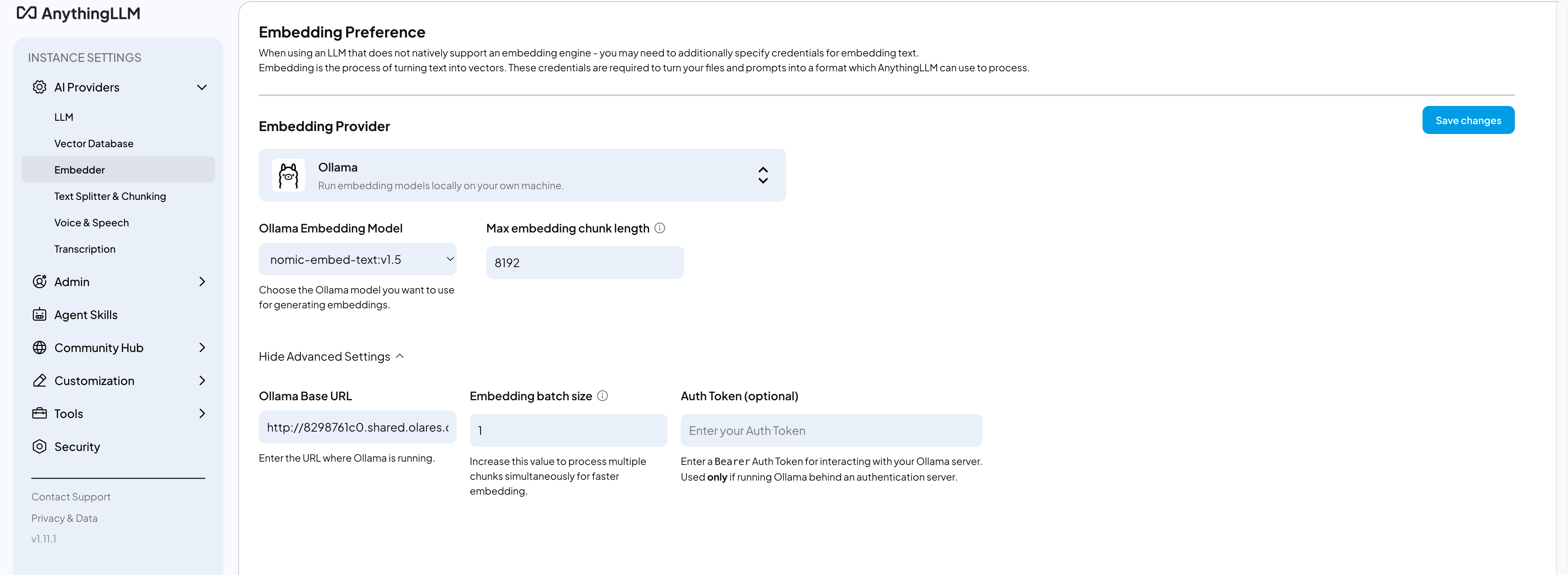
Click Save changes. The "Embedding preferences saved successfully" message is displayed.
Create a workspace
Click AnythingLLM in the upper-left corner to return to the home page.
Click add_2 next to the search bar.
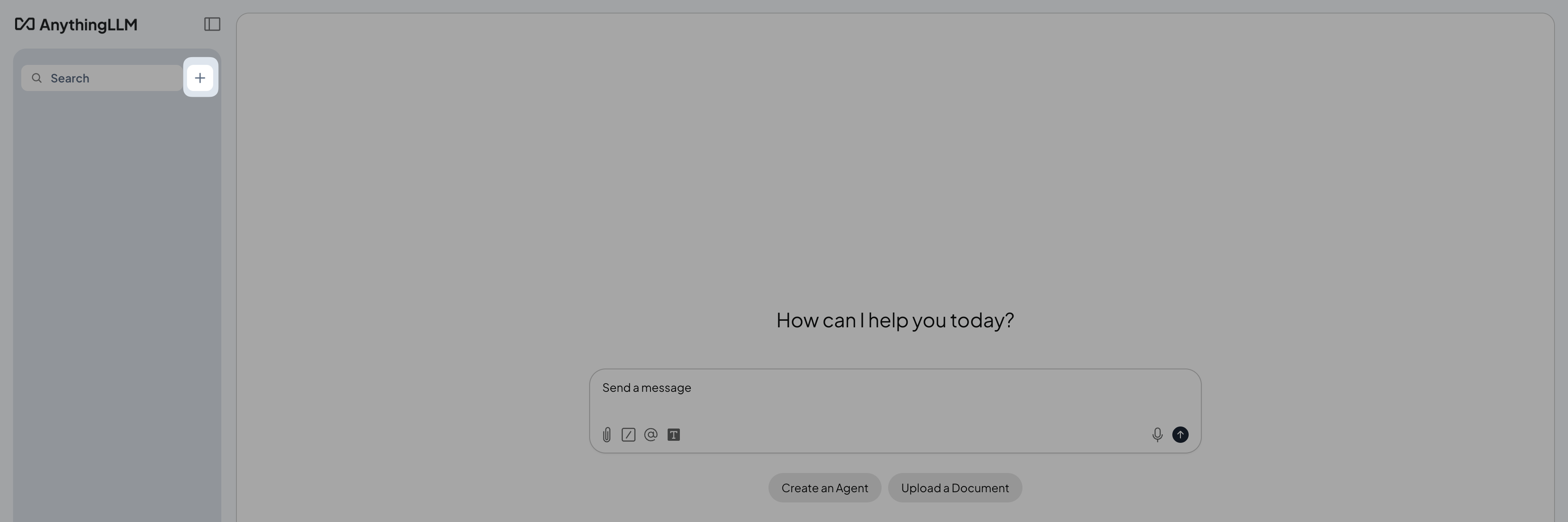
In the New Workspace window, name your workspace such as
My test, and then click Save.
Upload documents
Click upload next to the workspace name to open the document manager.
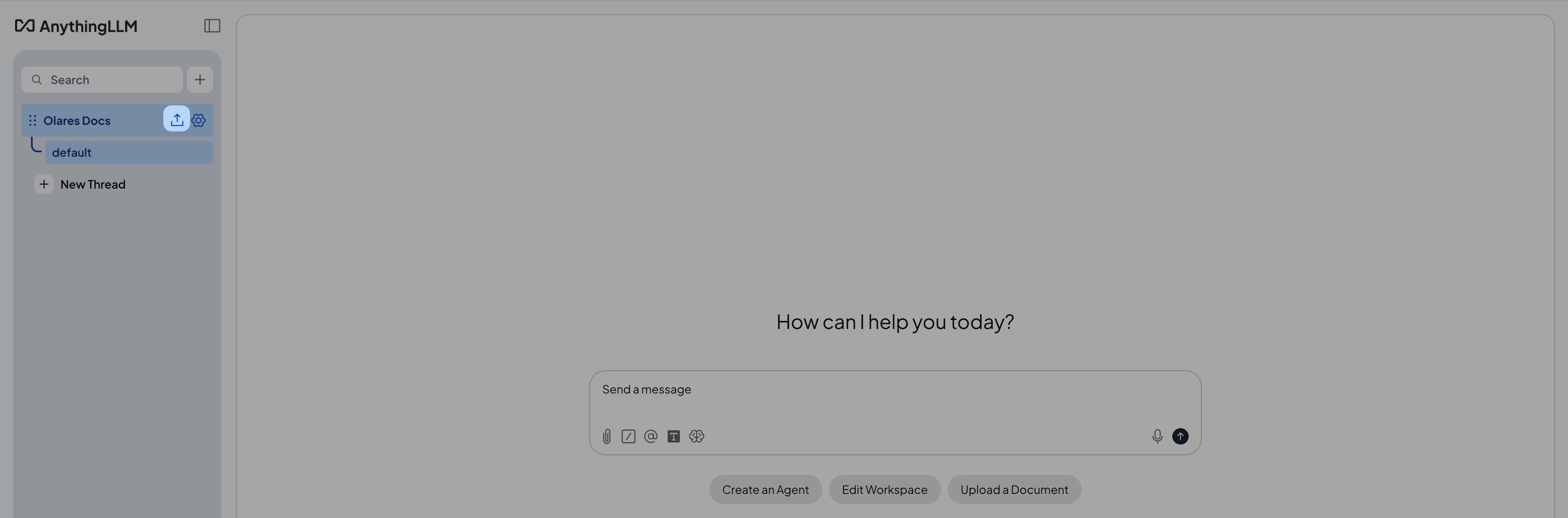
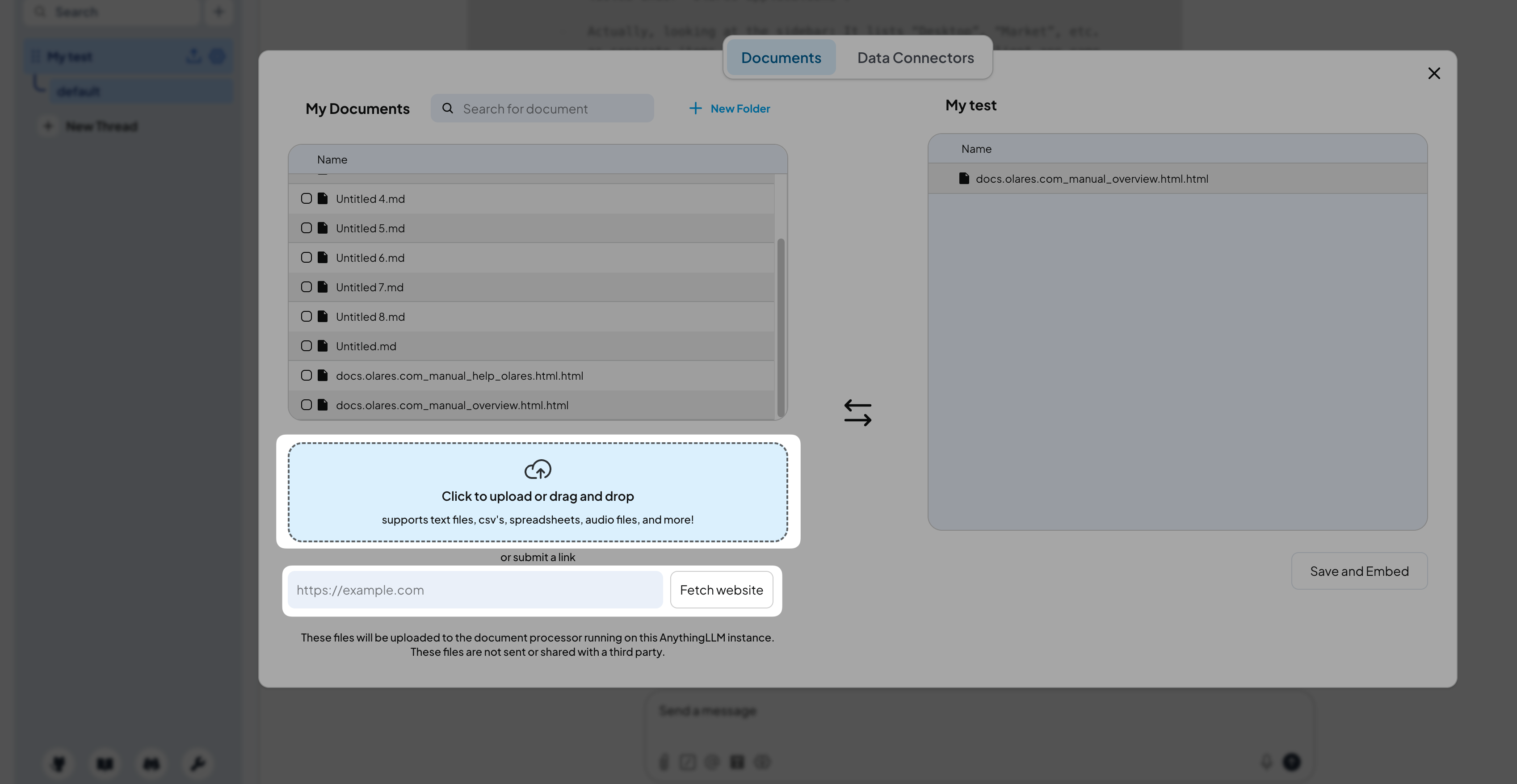
Upload your documents by uploading files or by submitting links. The uploaded documents and webpages are displayed in the My Documents panel.
In the My Documents panel, select the uploaded documents, and then click Move to Workspace to add them to the newly created workspace.
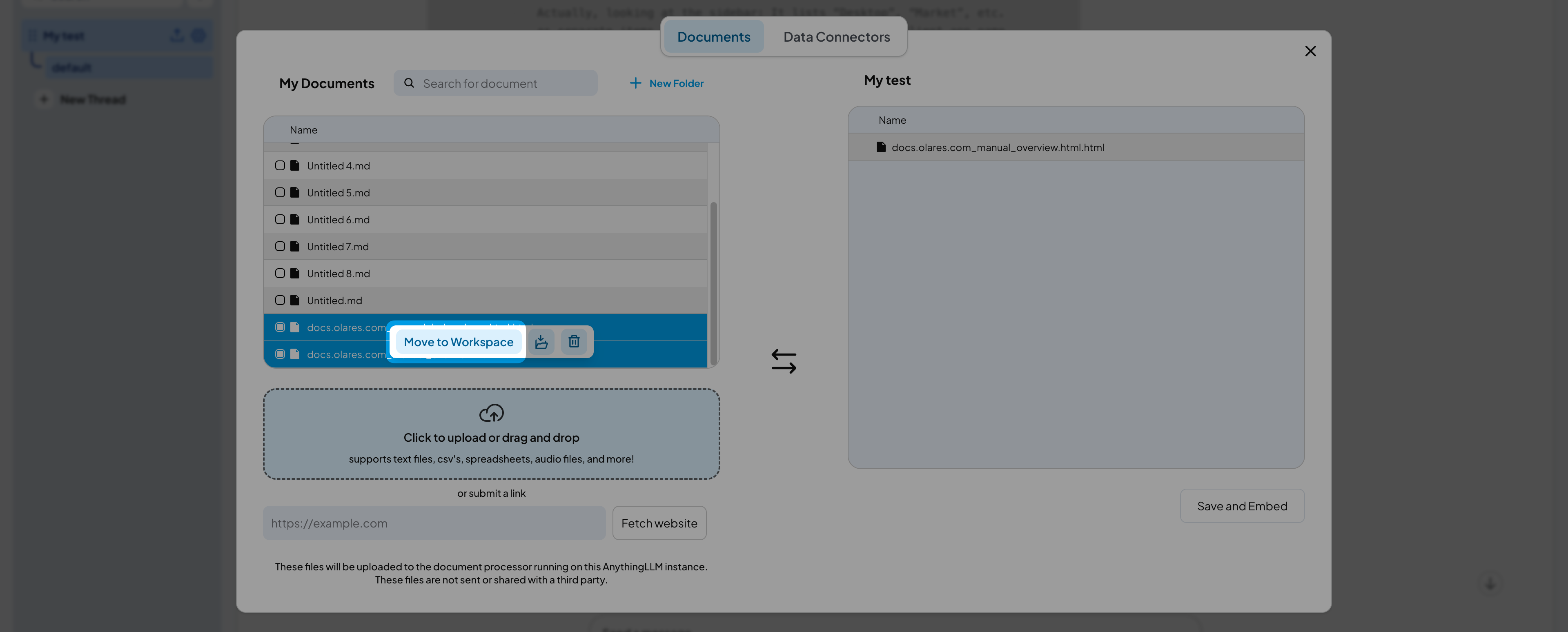
Click Save and Embed to start embedding.
This might take a few minutes depending on the number of documents. When the embedding finishes, the "Workspace updated successfully" message is displayed.
Query your knowledge base
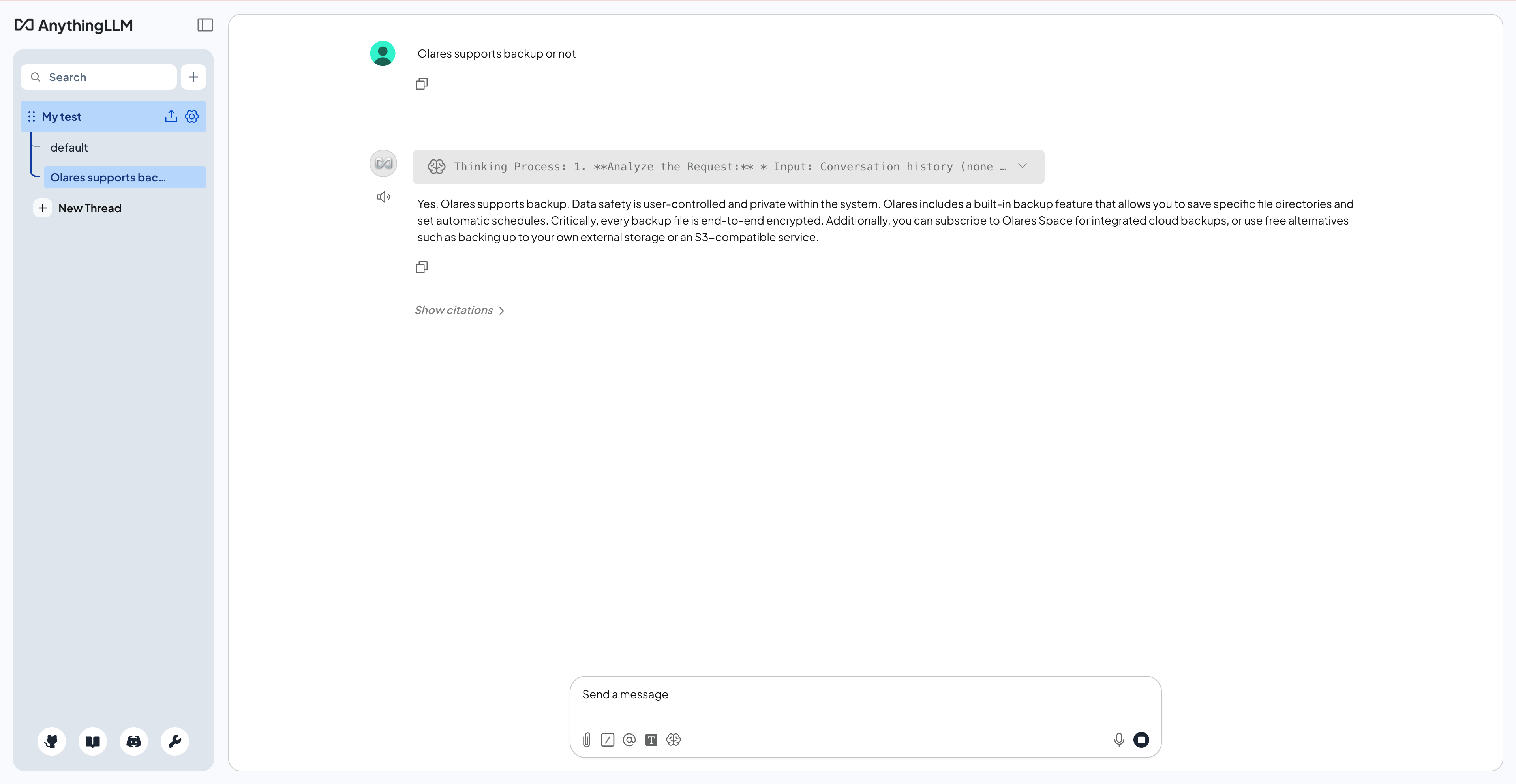
Ask questions about your documents.
Return to the workspace chat view.
Send your question through the chat. For example:
textOlares supports backup or notAnythingLLM retrieves relevant sections from your documents and generates an answer based on the content.