Use Firecrawl as a web page loader
Firecrawl is a headless web data service that turns web pages into clean Markdown, structured JSON, summaries, and metadata. On Olares, apps such as Open WebUI can use Firecrawl to load full web page content after search results are found.
You can also call the Firecrawl API directly to test scraping and crawling.
Install Firecrawl
Open Market and search for "Firecrawl".
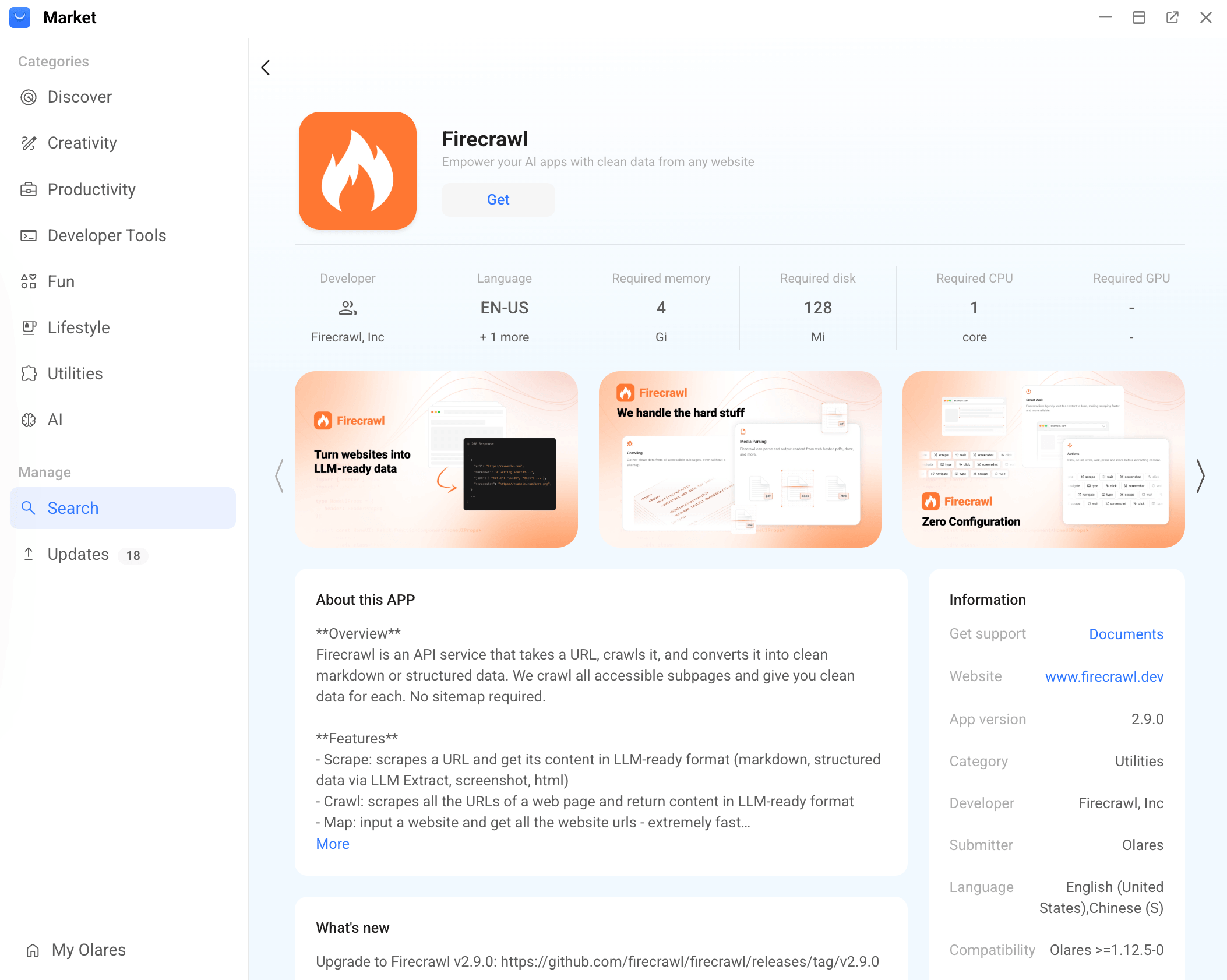
Click Get, then Install, and wait for installation to complete.
Use Firecrawl in other apps
Firecrawl usually runs in the background. Other apps call it through its endpoint URL when they need to fetch and clean web page content.
Get the Firecrawl endpoint
The endpoint is the base address of your Firecrawl service on Olares. You will add API paths such as /v2/scrape or /v2/crawl to this address.
Open Settings, then navigate to Applications > Firecrawl.
Under Entrances, click Firecrawl.
Under Endpoint settings, locate the endpoint URL and copy it.
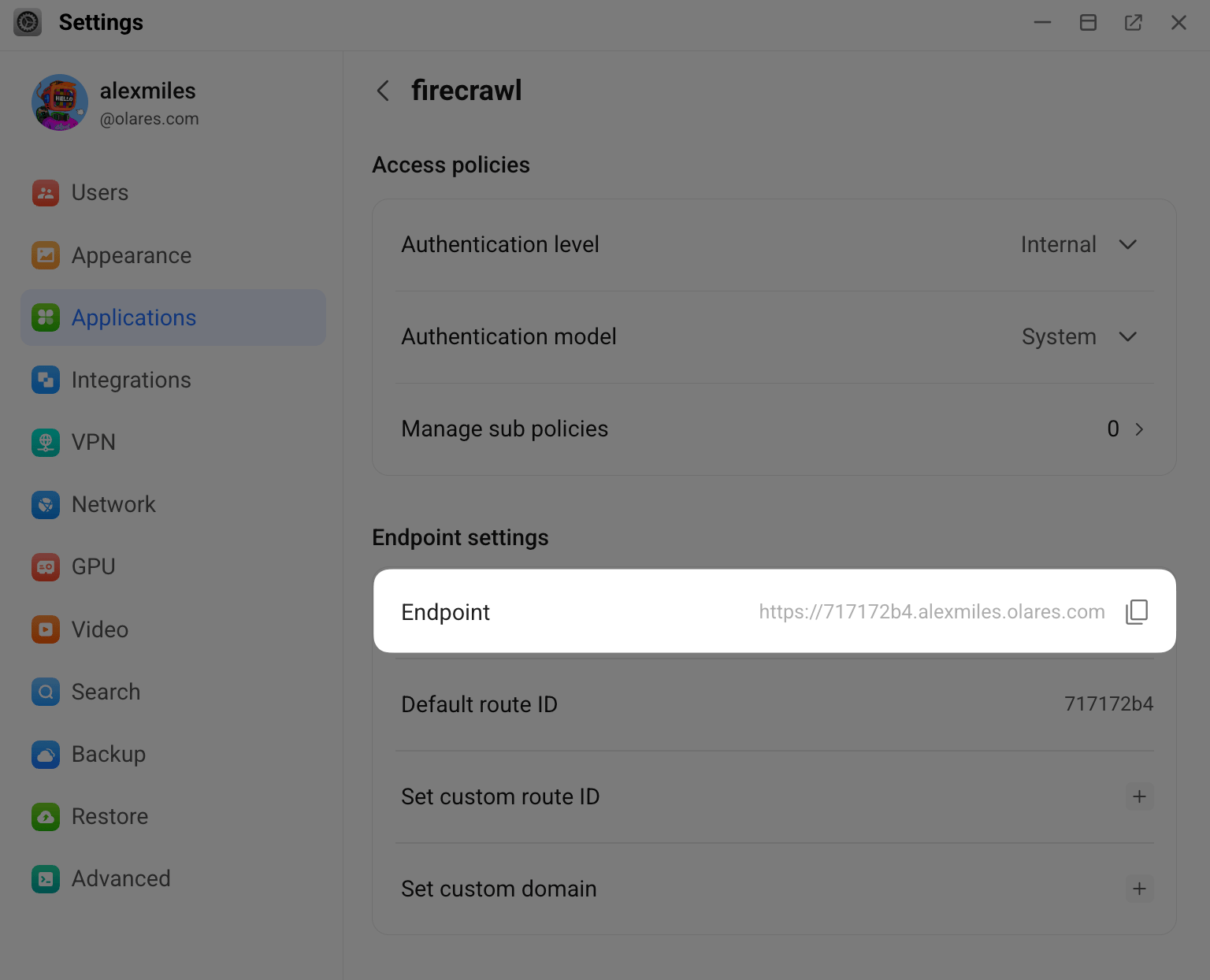
In the examples below, replace the sample endpoint with your own:
https://717172b4.alexmiles.olares.comConfigure Open WebUI
To use Firecrawl in Open WebUI, first connect Open WebUI to a model and configure web search. The Open WebUI web search guide uses SearXNG as one example. Then manually configure Firecrawl as the web page loader below.
GPU resources
If Open WebUI is slow or cannot return a result, your model might not have enough GPU resources. Stop apps that are not in use but still occupy GPU resources, then try again.
Open the Open WebUI app.
Click your profile icon in the bottom-left corner and select Admin Panel.
Go to Settings > Web Search.
In the loader settings, set Web Loader Engine to
firecrawl.In Firecrawl API URL, enter the Firecrawl endpoint you copied from Settings.
For Firecrawl API Key, enter any non-empty value, such as
fc-test.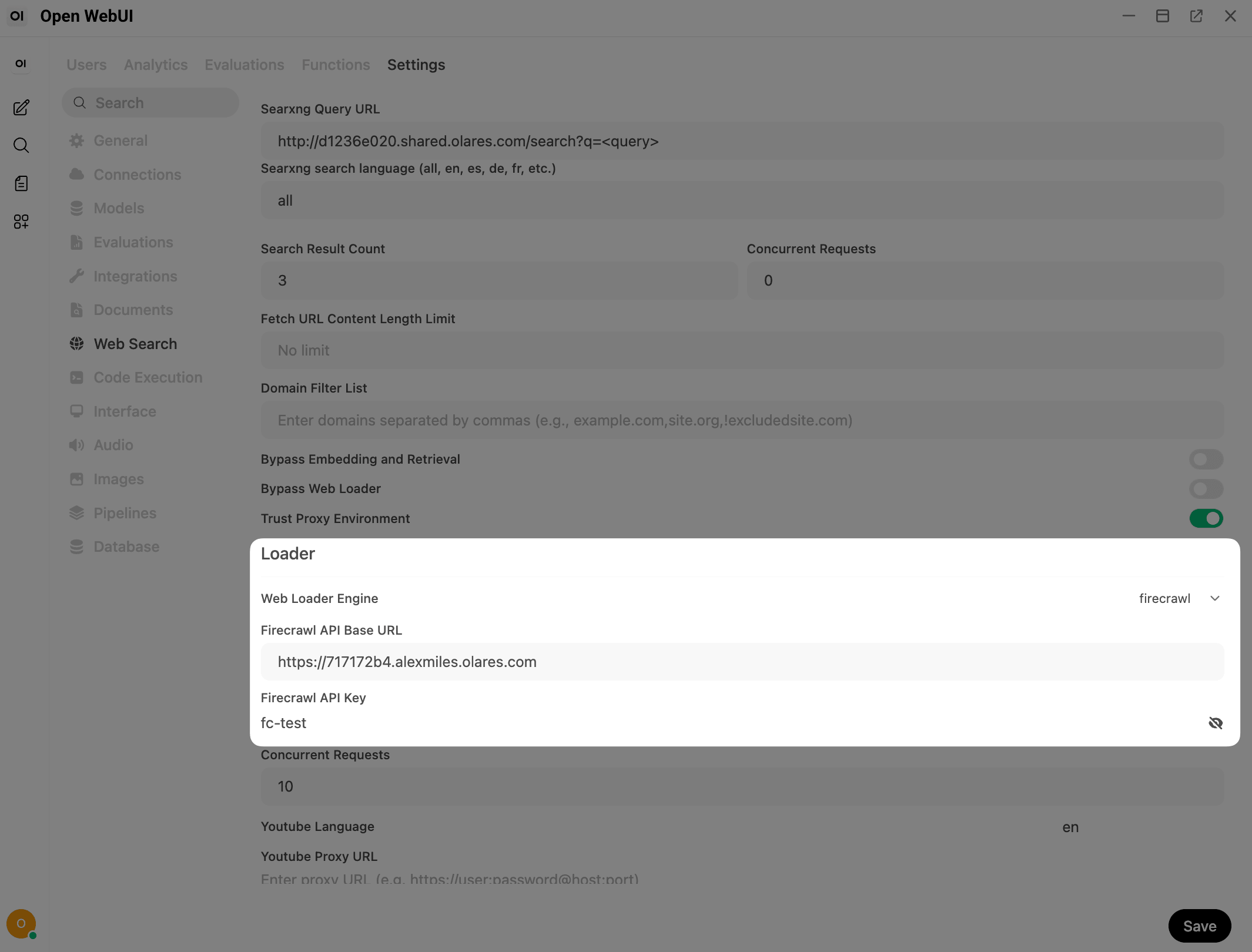
Click Save to save the settings.
Make sure Bypass Web Loader is disabled.
Test Firecrawl with the API
This section is optional. Use it when you want to confirm that Firecrawl can scrape or crawl pages directly.
Understand the Bull Dashboard
Open Firecrawl from Launchpad. You will see a Bull Dashboard page with internal queue cards, such as generateLlmsTxtQueue, deepResearchQueue, billingQueue, and precrawlQueue. Queue names can differ between Firecrawl builds.
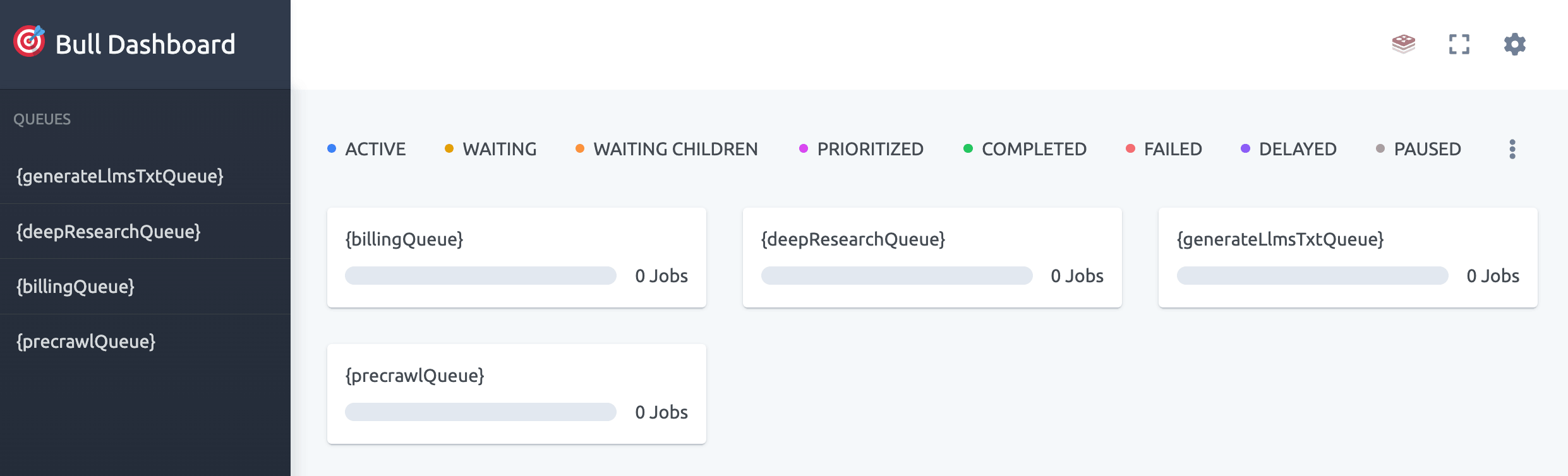
This dashboard is for internal queue debugging. A normal scrape or crawl request might not appear here, or it might finish too quickly to notice. If all cards stay at 0 Jobs, check the API response or crawl status URL instead.
For a first test, you only need two API actions:
| Action | Endpoint | Use it when you want to |
|---|---|---|
| Scrape | /v2/scrape | Extract content from one specific page. |
| Crawl | /v2/crawl | Start from one URL and let Firecrawl discover pages from there. |
The examples below use the browser console so the requests can use your current Olares sign-in session.
Olares endpoint authentication
For Olares-hosted Firecrawl, use credentials: "include" from a signed-in browser instead of an Authorization header.
Open the browser console
- Open Firecrawl from Launchpad.
- In the same browser, open your browser developer tools.
- Go to the Console tab.
- Paste one of the examples below and press Enter.
TIP
If your browser blocks pasted code in the console, follow the browser prompt to allow pasting. Only paste code you understand and trust.
Scrape a single page
Use scrape when you want the content of one page.
const endpoint = "https://717172b4.alexmiles.olares.com";

const response = await fetch(`${endpoint}/v2/scrape`, {
  method: "POST",
  credentials: "include",
  headers: { "Content-Type": "application/json" },
  body: JSON.stringify({
    url: "https://docs.olares.com/manual/overview.html",
    formats: ["markdown"]
  })
});

const data = await response.json();
console.log(data);
If the request succeeds, the response includes data.markdown. This is the cleaned page text. The response also includes data.metadata, such as the page title, source URL, language, and HTTP status code.
Crawl a page or website
Use crawl when you want Firecrawl to follow links from the starting page. Start with a small limit so the result is easy to inspect.
const endpoint = "https://717172b4.alexmiles.olares.com";

const response = await fetch(`${endpoint}/v2/crawl`, {
  method: "POST",
  credentials: "include",
  headers: { "Content-Type": "application/json" },
  body: JSON.stringify({
    url: "https://docs.olares.com/manual/overview.html",
    limit: 1
  })
});

const data = await response.json();
console.log(data);
A successful request returns a job ID and a status URL:
{
  "success": true,
  "id": "019e6988-6e26-7407-b7a4-8045a8d12269",
  "url": "https://717172b4.alexmiles.olares.com/v2/crawl/019e6988-6e26-7407-b7a4-8045a8d12269"
}
The url field is the crawl status URL. Open it in your browser to check whether the crawl has finished.
Read crawl results
| Field | Meaning |
|---|---|
status | Current job state, such as scraping, completed, or failed. |
data | List of crawled pages. Each item usually includes page content and metadata. |
markdown | Cleaned page content. This is the main text you usually send to an AI app. |
metadata | Page information such as title, source URL, language, and HTTP status code. |
Start with a limit
Large websites can produce hundreds or thousands of pages. Keep "limit": 1 or "limit": 10 while testing, then increase it after you confirm the result looks useful.
Advanced: Generate summaries or structured JSON
Firecrawl can use a configured LLM to summarize a page or return structured JSON.
LLM provider required for JSON and summary output
Structured JSON and summary output require a configured LLM provider. Local Ollama-based LLM extraction may fail with Failed to parse URL from /responses. If this happens, use regular markdown output or try an OpenAI-compatible provider.
Configure model access
Open Settings, then navigate to Applications > Firecrawl.
Open Environment variables.
Configure the model provider values you plan to use:
Variable Description OPENAI_API_KEYAPI key for an OpenAI-compatible provider. OPENAI_BASE_URLBase URL for an OpenAI-compatible provider. OLLAMA_BASE_URLOllama endpoint URL, if you use Ollama. Go to Settings >
Applications > Ollama > Entrances > Ollama API and copy
the endpoint.MODEL_NAMEModel name used for LLM-based extraction, such as qwen3.5:35b-a3b-ud-q4_K_L.Click Apply.
Open Control Hub, select your Firecrawl project under Browse, then restart the
worker,nuq-worker, andfirecrawldeployments to apply the environment variables.
Return structured JSON
const endpoint = "https://717172b4.alexmiles.olares.com";

const response = await fetch(`${endpoint}/v2/scrape`, {
  method: "POST",
  credentials: "include",
  headers: { "Content-Type": "application/json" },
  body: JSON.stringify({
    url: "https://docs.olares.com/manual/overview.html",
    formats: [
      {
        type: "json",
        prompt: "Read the page carefully and answer: what is Olares in one sentence, and list 3 main features.",
        schema: {
          type: "object",
          properties: {
            one_liner: { type: "string" },
            features: { type: "array", items: { type: "string" } }
          },
          required: ["one_liner", "features"]
        }
      }
    ]
  })
});

const data = await response.json();
console.log(data.data.json);| Response field | Meaning |
|---|---|
data.json | Structured JSON output was generated successfully. |
data.metadata only | The page was fetched, but structured JSON output was not generated. |
error | Firecrawl returned an error. Read the error message for details. |
Return a summary
const endpoint = "https://717172b4.alexmiles.olares.com";

const response = await fetch(`${endpoint}/v2/scrape`, {
  method: "POST",
  credentials: "include",
  headers: { "Content-Type": "application/json" },
  body: JSON.stringify({
    url: "https://docs.olares.com/zh/manual/overview.html",
    formats: ["markdown", "summary"]
  })
});

const data = await response.json();
console.log(data.data.summary);
console.log("markdown length:", data.data.markdown?.length);
FAQs
Why does the Bull Dashboard show 0 Jobs?
Queue names and visible jobs can differ by Firecrawl version and Olares app build. Check the API response or crawl status URL instead.
Why is the crawl result empty or incomplete?
Some websites block automated crawlers, require login, or load content through complex browser interactions. Try a smaller public URL first, keep the crawl limit low, and check the response metadata for errors.
Learn more
- Firecrawl crawl API reference: Request and response details for crawling multiple pages.
- Firecrawl documentation: SDKs, LLM integrations, and more features.
- Enable web search in Open WebUI: Configure SearXNG and web search in Open WebUI.