Stream your music library with Navidrome
Navidrome is an open-source, self-hosted music streaming server that turns your local music collection into a personal cloud library. It supports virtually all audio formats, uses minimal resources, and is compatible with the Subsonic/Airsonic API. This lets you connect with a wide range of third-party music apps on any device.
Learning objectives
In this guide, you will learn how to:
- Install Navidrome and create the administrator account.
- Import music files to the Navidrome library folder from Olares Files.
- Stream your library to a mobile device using a Subsonic-compatible app.
Prerequisites
- LarePass installed on your phone and signed in with your Olares ID.
- Music files ready to upload to Olares.
- A mobile Subsonic-compatible music client. This guide uses Stream Music as an example.
Install Navidrome
Open Market and search for "Navidrome".
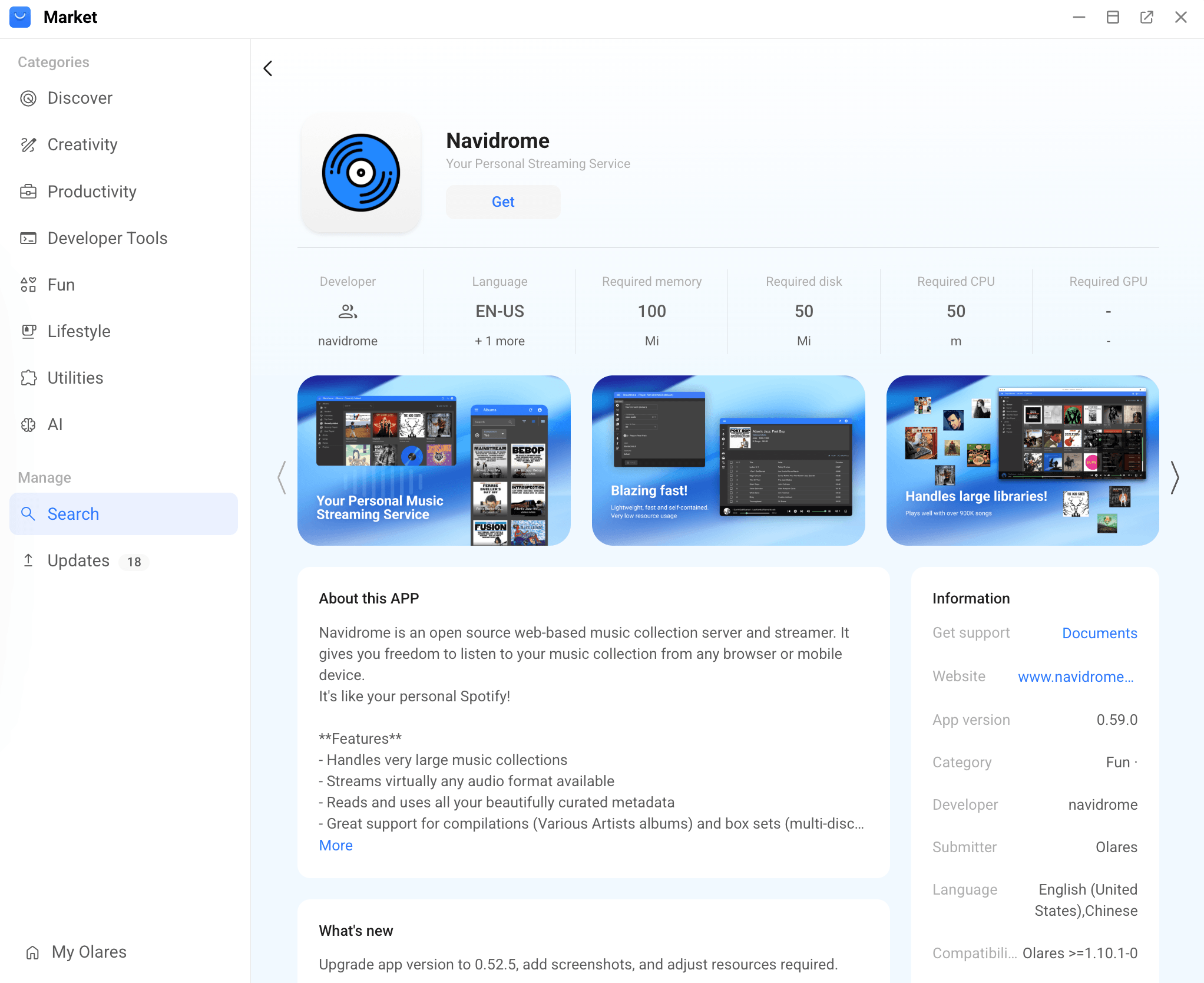
Click Get, then Install, and wait for installation to complete.
Set up the administrator account
When you open Navidrome for the first time, create the administrator account used to manage the server.
Open Navidrome from Launchpad.
Follow the page prompts to create an administrator username and password.
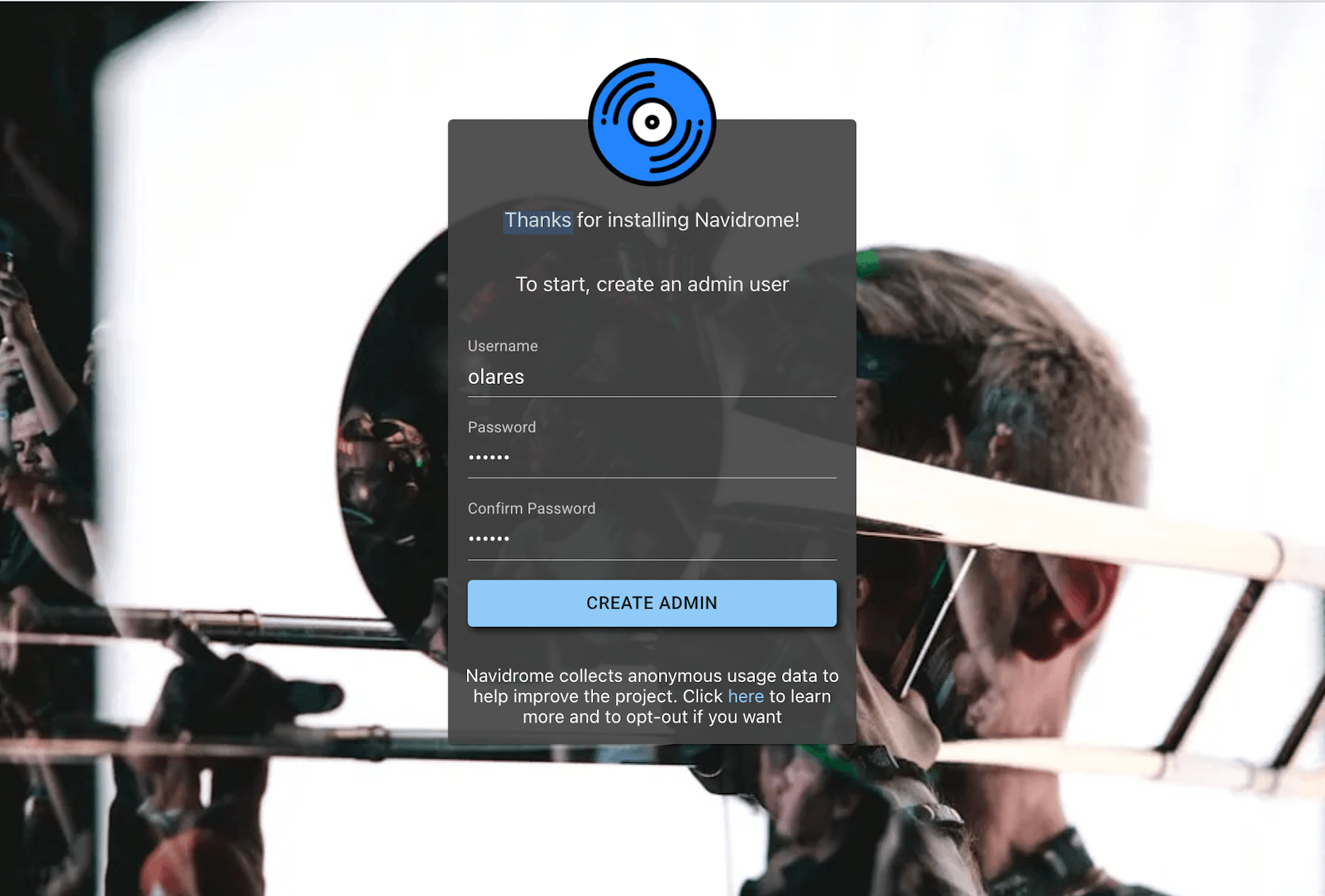
After signing in, you should see an empty Navidrome library. The library will populate after you upload music and Navidrome scans the folder.
Add music to Navidrome
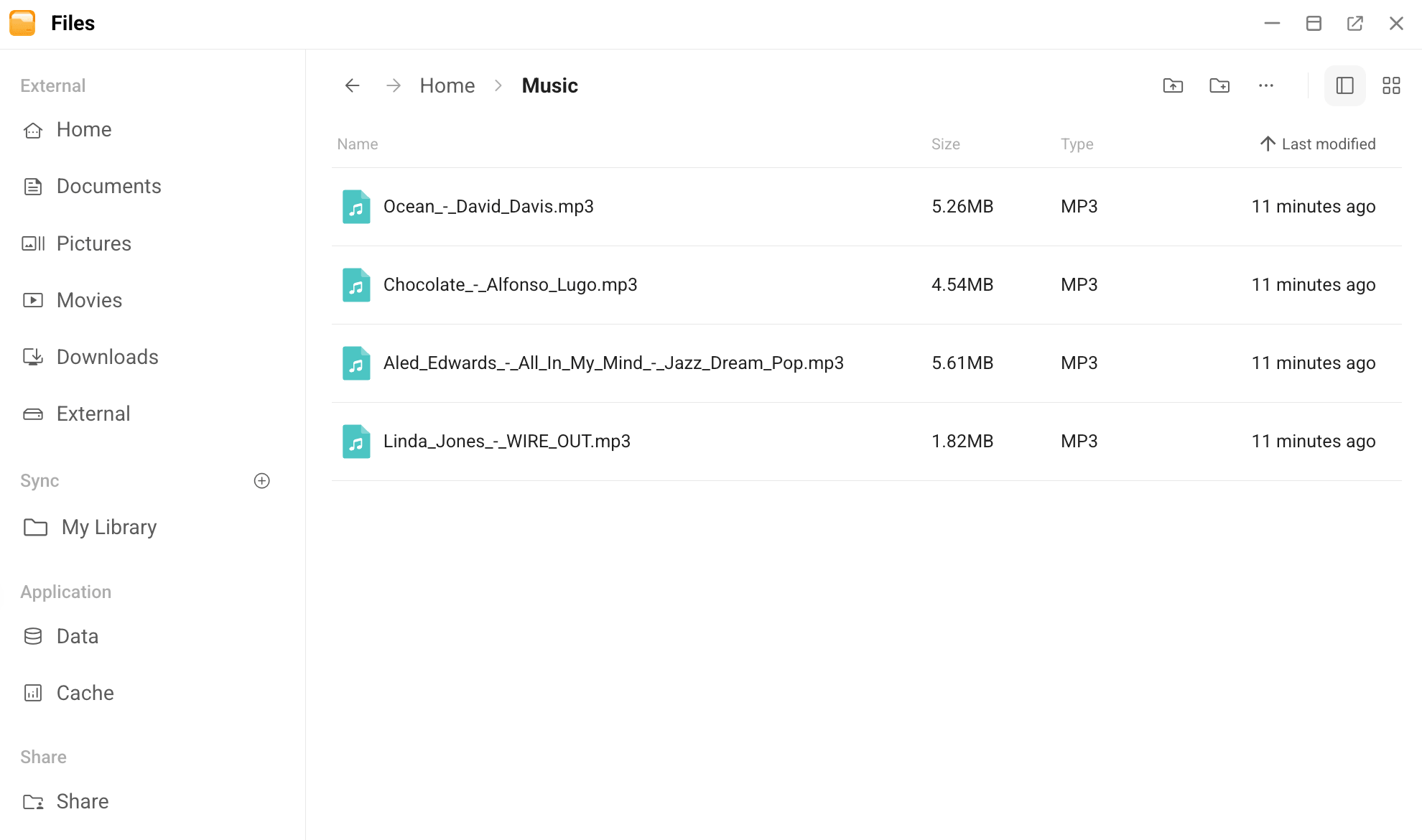
Navidrome scans the Home/Music folder in Olares Files. Files placed in this folder appear in your Navidrome library after scanning.
Open Files from Launchpad.
Go to Home > Music.
Upload your music files to this folder.
Organize by album
For cleaner browsing, organize files into album folders before uploading them. Navidrome can still identify single tracks, but album folders make the library easier to scan and maintain.
After the scan finishes, Navidrome displays your songs, albums, and artists in the library.
Scan the music library
Navidrome scans the music folder automatically. If newly uploaded songs do not appear, run a manual full scan.
Return to Navidrome.
In the upper-right corner, click Activity.
Click the Full Scan icon.
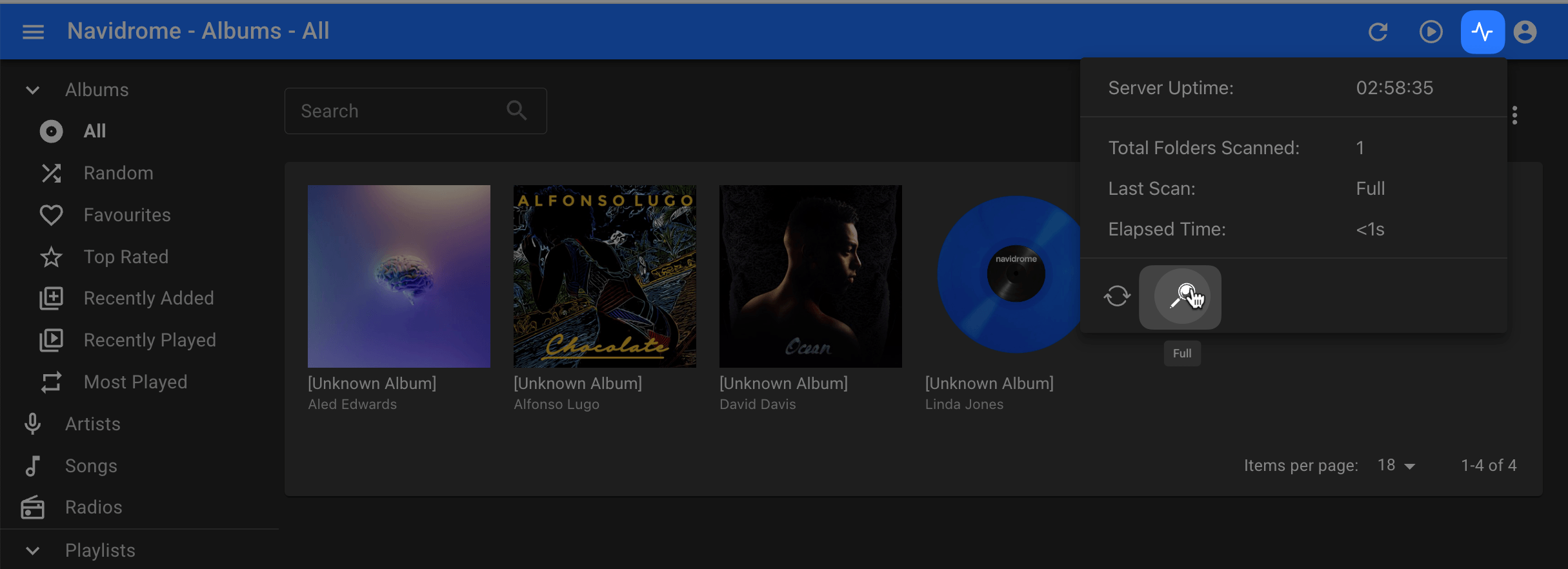
Wait for the scan to complete, then refresh the library view.
Connect a mobile music client
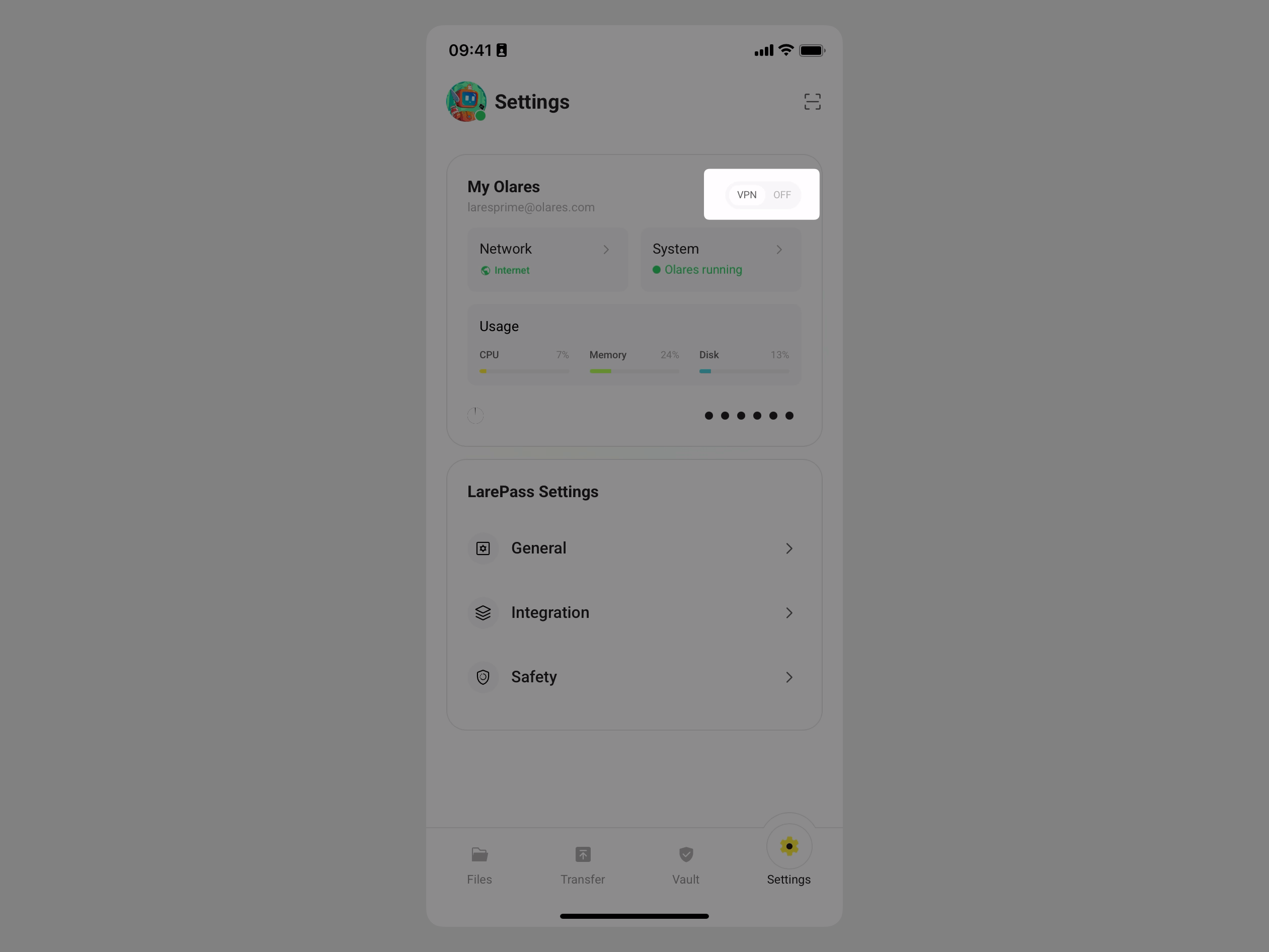
To stream from your phone, allow client access to Navidrome, enable LarePass VPN, and sign in from a Subsonic-compatible client.
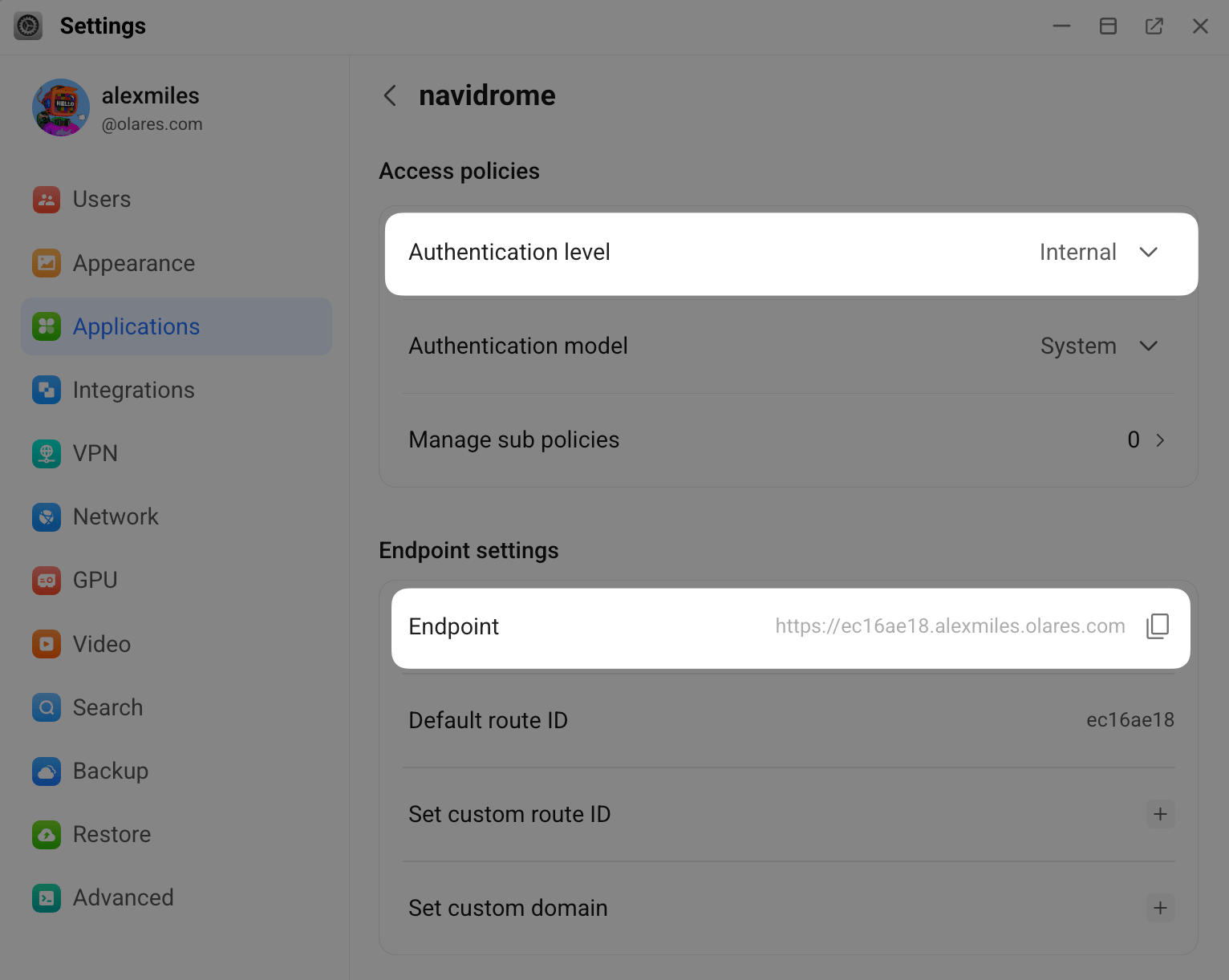
Update Navidrome's access policy and copy its endpoint:
a. Open Settings, then go to Applications > Navidrome.
b. Under Entrances, click Navidrome.
c. Set Authentication level to Internal, then click Submit.
d. Under Endpoint settings, copy the URL displayed in Endpoint.
Enable LarePass VPN on your phone.
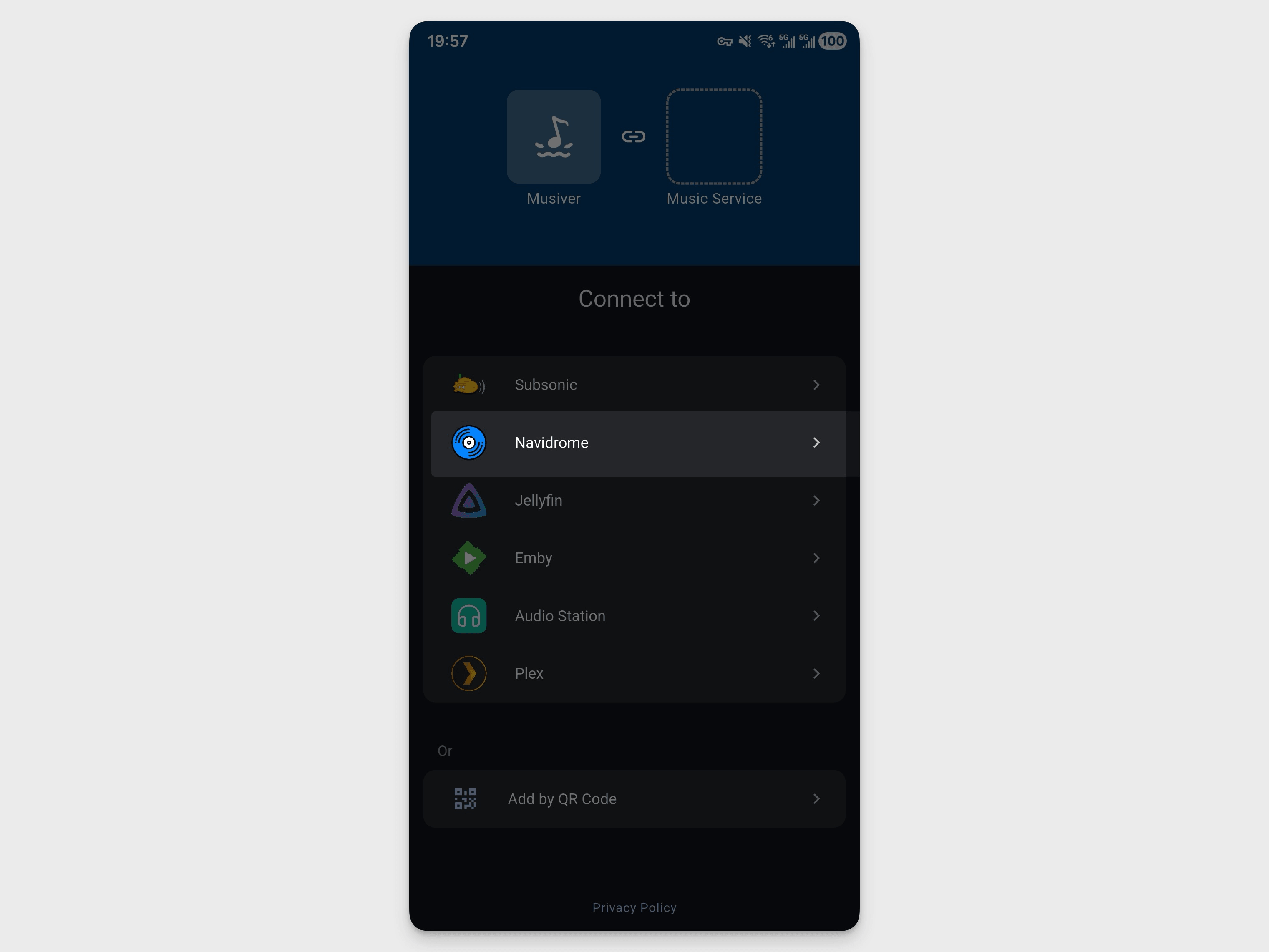
Open Stream Music on your phone, then choose the option to connect to Navidrome.
In the login page, enter your info:
- Host address: The Navidrome endpoint you copied from Olares Settings.
- Username: Your Navidrome username.
- Password: Your Navidrome password.
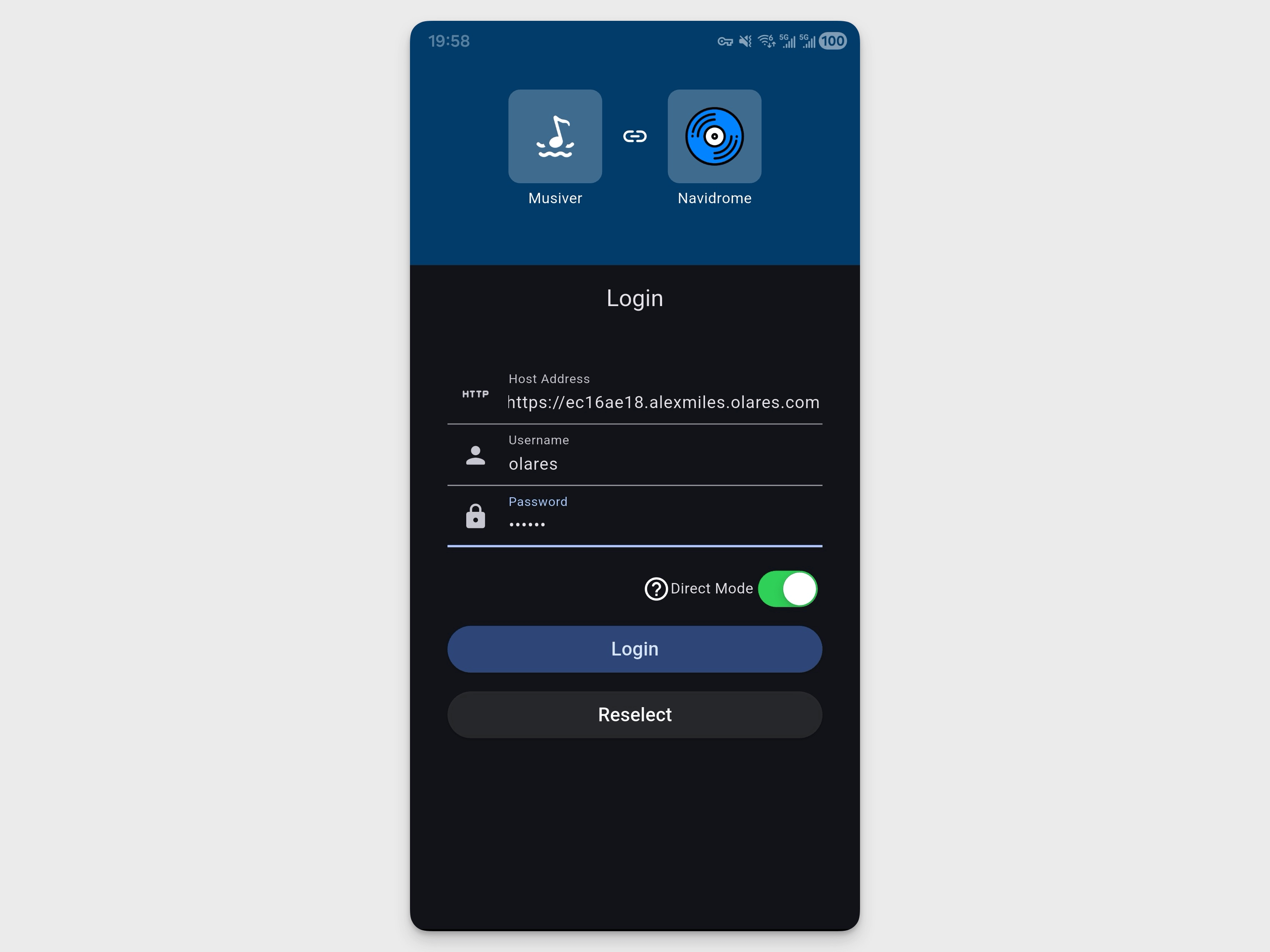
Tap Login.
When the app shows a login success message, return to the home page. Your Navidrome library should appear in the mobile client.
FAQs
Can I add lyrics with external .lrc files?
Navidrome on Olares is most reliable with embedded synchronized lyrics. External .lrc files might not appear in the Navidrome web interface. Some Subsonic-compatible clients might support them depending on the Navidrome and client versions.
To make lyrics work consistently, embed synchronized lyrics into the audio files before uploading them to Home/Music.
Learn more
- Build your private media server with Jellyfin: Stream movies, shows, and music from Olares with Jellyfin.
- Build your digital library with Komga: Manage comics, manga, magazines, and e-books on Olares.