Use TensorZero as an AI model gateway and observability platform
TensorZero is an all-in-one platform to manage, connect, and monitor your AI models. It acts as a central gateway that connects your client applications to your local AI models. It records every chat and request so you can track performance, and it helps you test different setups to get the best results.
Learning objectives
In this guide, you will learn how to:
- Install TensorZero on Olares.
- Understand how TensorZero manages AI connections.
- Connect a chat model and a function.
- (Optional) Connect an embedding model.
- Test your setup using the built-in Playground.
- Connect other apps to TensorZero.
- Enable your AI agent to read performance data via the built-in MCP server.
Prerequisites
- Ensure Ollama is installed with at least one chat model downloaded (e.g.,
qwen3.5:9b) and one embedding model downloaded (e.g.,nomic-embed-text). - Ensure your client applications, such as OpenCode and AgentZero, are already installed and fully functional. This guide covers only the specific settings required to connect them to TensorZero.
Install TensorZero
Open Market and search for "TensorZero".
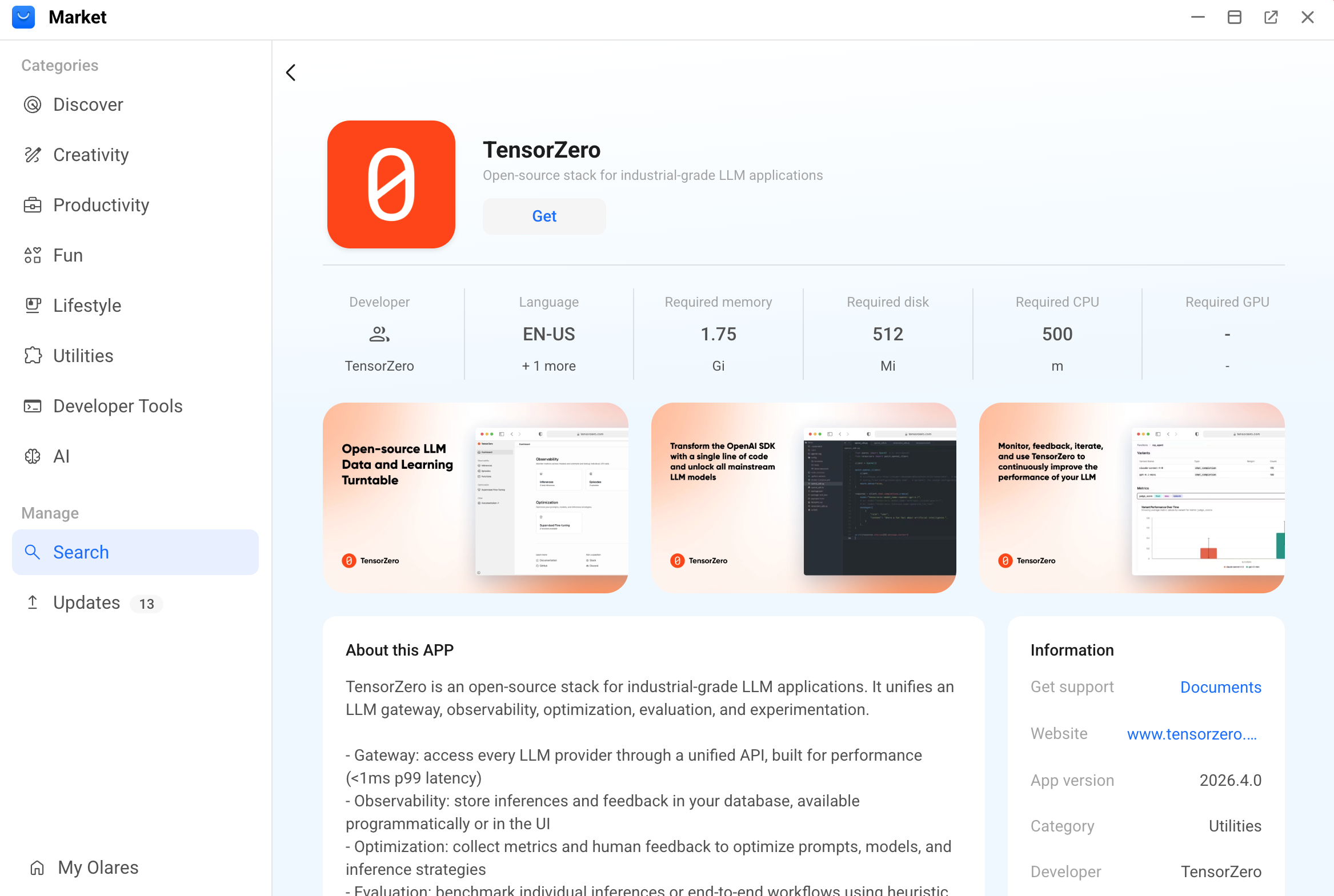
Click Get, and then click Install. Wait for the installation to finish.
Understand the configuration requirements
TensorZero does not provide a graphical interface for configuring models. You manage all settings by editing its configuration file in Files.
Before you edit the file, review the following rules to avoid errors:
Strict permission: TensorZero rejects direct requests to raw model names like
gpt-4oandqwen3.5. You must define an alias for every model you want to use. Do not use dots or colons in your alias names. For example, useqwen3_5_9b, notqwen3.5:9b.Exact naming: When you connect other apps to TensorZero, you must prepend your model aliases with specific prefixes, such as
tensorzero::model_name::<alias>andtensorzero::function_name::<alias>.TIP
For applications that use the LiteLLM framework, you must include the
openai/prefix in the model name. For example, the embedding feature in AgentZero requires the embedding model name in the format ofopenai/tensorzero::embedding_model_name::nomic_embed.Formatting rules: The configuration file uses the TOML text format. You must maintain at least one empty line between different sections, for example, between
[models]and[functions]. If you remove the empty lines, the application might fail to start.
Configure a chat model and function
To make TensorZero work, you need two things: a model to act as the AI engine, and a function to serve as the access point your apps use to communicate with that engine.
You define the model to tell TensorZero where the AI is, and then you link it to a function to handle the requests.
This example connects a local Ollama model.
Open Settings, go to Applications > Ollama > Shared entrances > Ollama API, and then copy the endpoint URL. For example,
http://d54536a50.shared.olares.com.Open Files, and then go to Data > tensorzero > config.
Right-click
tensorzero.toml, and then rename it totensorzero.toml.txt.Double-click
tensorzero.toml.txt, and then click edit_square.In the editor, add the following snippet:
- Replace
api_basewith your copied Ollama endpoint URL and append/v1. - Replace
model_namewith the exact name of the model you downloaded in Ollama.
This configuration registers your Ollama model under the alias
qwen3_5_9b, and creates a client-facing functiongeneral_chatthat routes incoming app requests to that model.toml# models [models.qwen3_5_9b] routing = ["ollama"] [models.qwen3_5_9b.providers.ollama] type = "openai" api_base = "<ollama-shared-entrance>/v1" model_name = "qwen3.5:9b" api_key_location = "none" # functions [functions.general_chat] type = "chat" [functions.general_chat.variants.my_default_variant] type = "chat_completion" model = "qwen3_5_9b"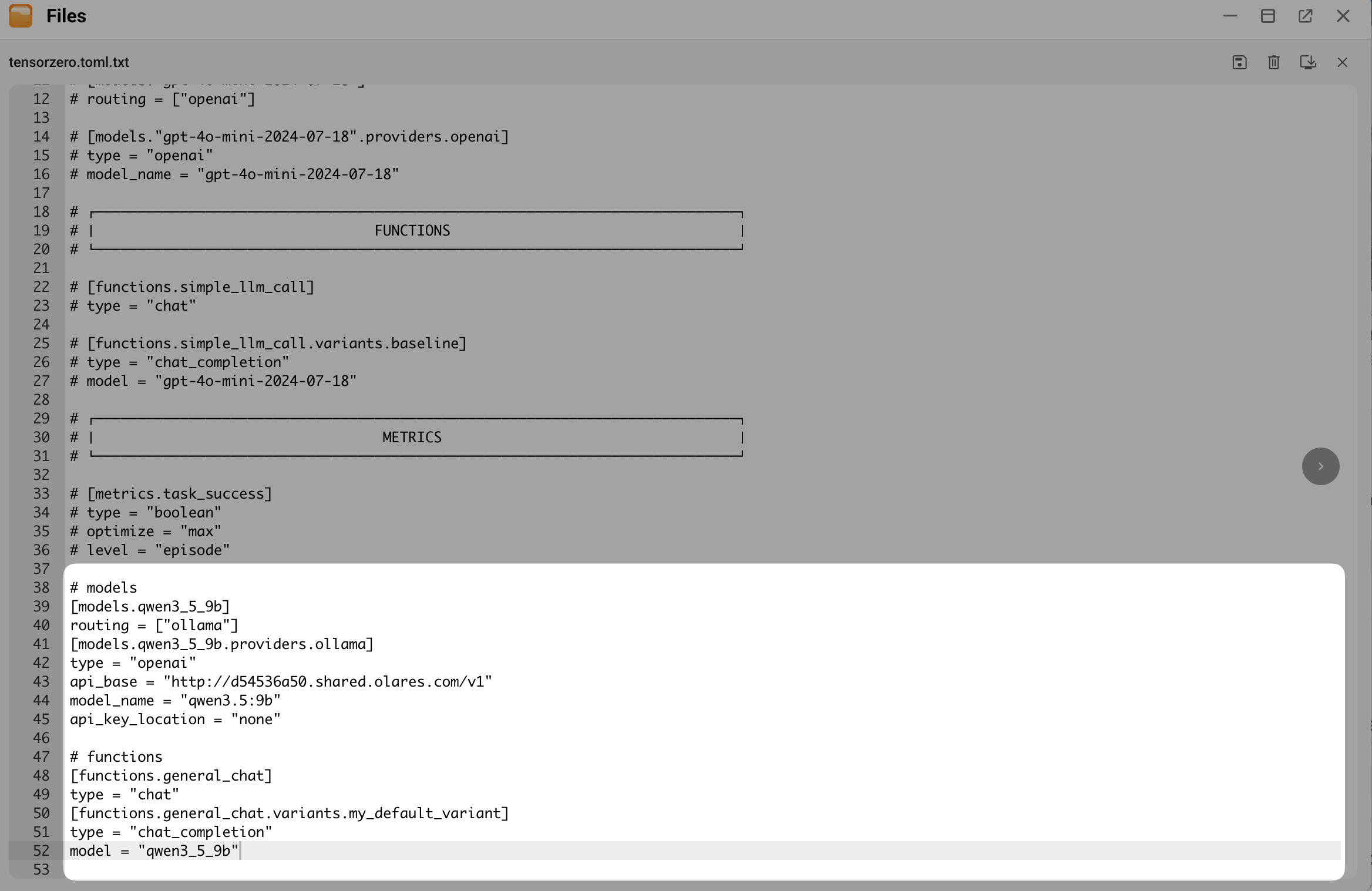
- Replace
Click save, and then close the file.
Rename
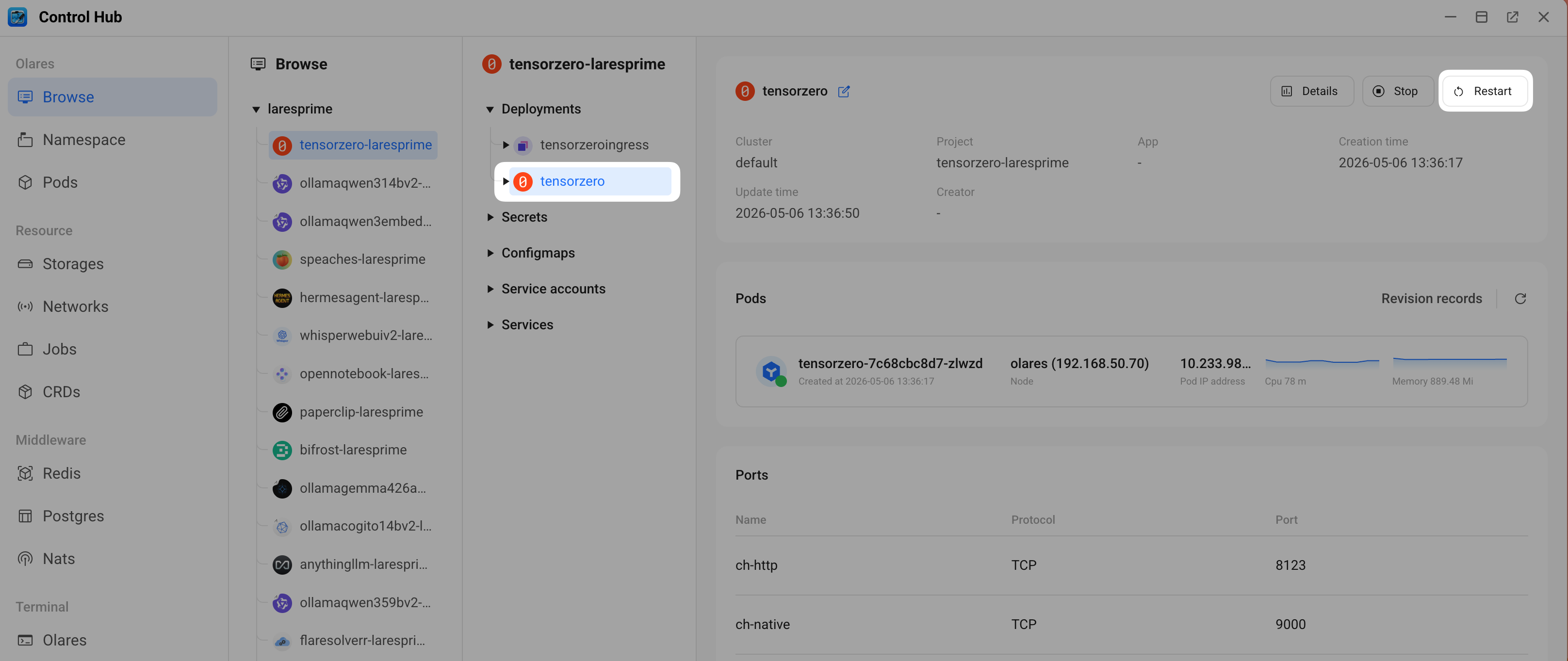
tensorzero.toml.txtback totensorzero.toml.Open Control Hub, go to Browse > tensorzero-{username} > Deployments > tensorzero, and then click Restart for the application to apply the new settings.
(Optional) Configure an embedding model
Some apps require embedding models to search through documents or build memory features. TensorZero treats embedding models separately from chat models. You must define a dedicated embedding model. Do not use a chat function for memory tasks.
Add the following snippet in
tensorzero.tomlto define an embedding model:- Replace
api_basewith your copied Ollama endpoint URL and append/v1. - Replace
model_namewith the exact name of the embedding model you downloaded in Ollama.
This configuration registers your Ollama embedding model under the alias
nomic_embed.toml# embedding_models [embedding_models.nomic_embed] routing = ["ollama"] [embedding_models.nomic_embed.providers.ollama] type = "openai" api_base = "<ollama-shared-entrance>/v1" model_name = "nomic-embed-text" api_key_location = "none"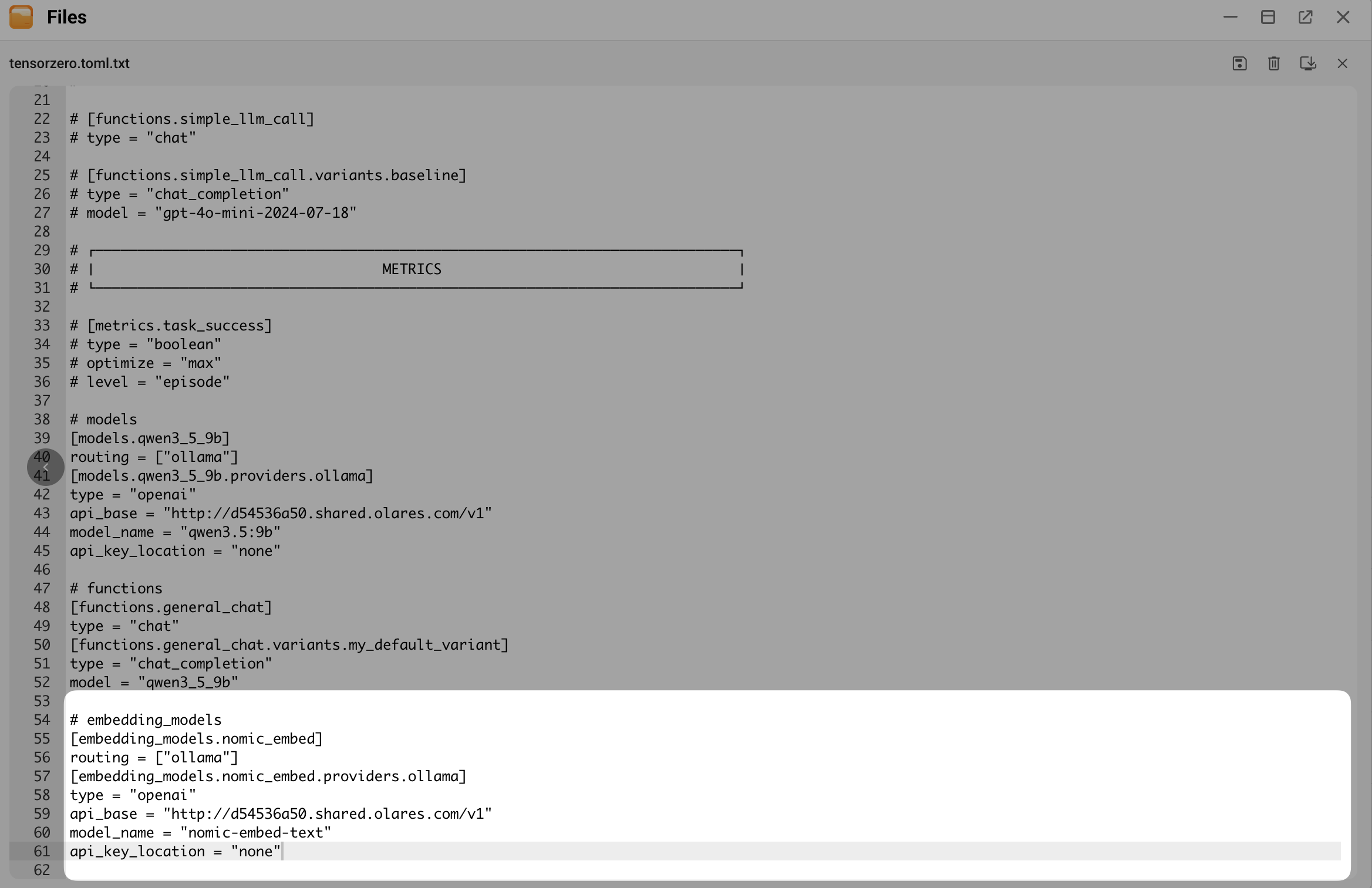
- Replace
Restart the tensorzero container in Control Hub for the application to apply the new settings.
Verify the connection
Use the built-in Playground to test that your function works correctly with your Ollama model.
The Playground requires at least one test case, called a Datapoint, to display the chat interface. If you do not have one, you must create it manually.
Open TensorZero from the Launchpad.
Select Datasets from the left sidebar.
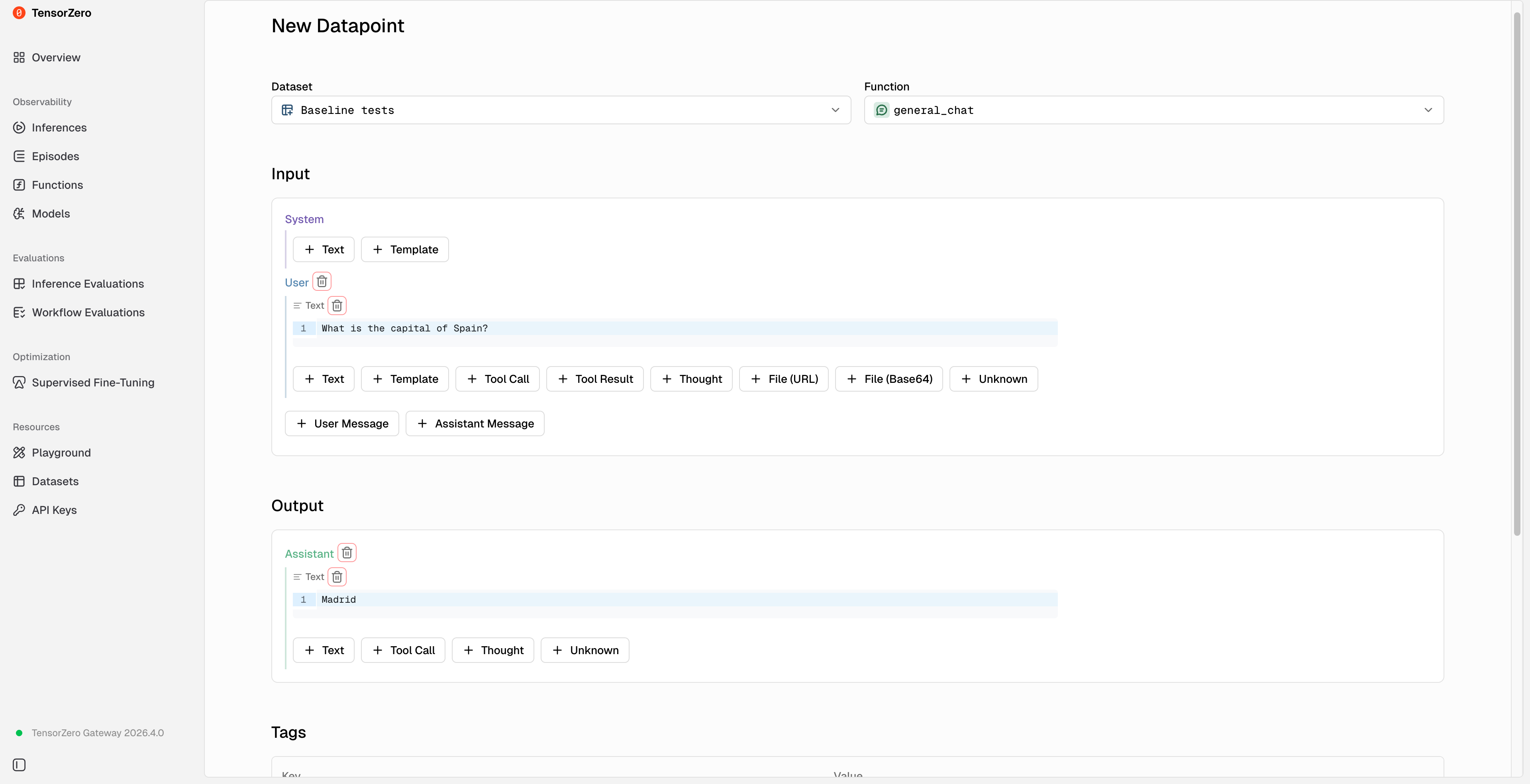
Click New Datapoint, and then configure the test case details.
For example, to create a basic geography test:
- Dataset: Specify a name to create a new collection of test cases. For example,
Baseline tests. - Function: Select the function you configured earlier. For example,
general_chat. - Input: Select + User Message, click + Text, and then enter a test prompt. For example,
What is the capital of Spain?. - Output: Select + Text, and then enter the exact answer you expect the model to generate. For example,
Madrid. - (Optional) Tags and Metadata: Enter labels to help identify this test case later. For example, add a tag with Key set to
typeand Value set toQA.
- Dataset: Specify a name to create a new collection of test cases. For example,
Click Create Datapoint.
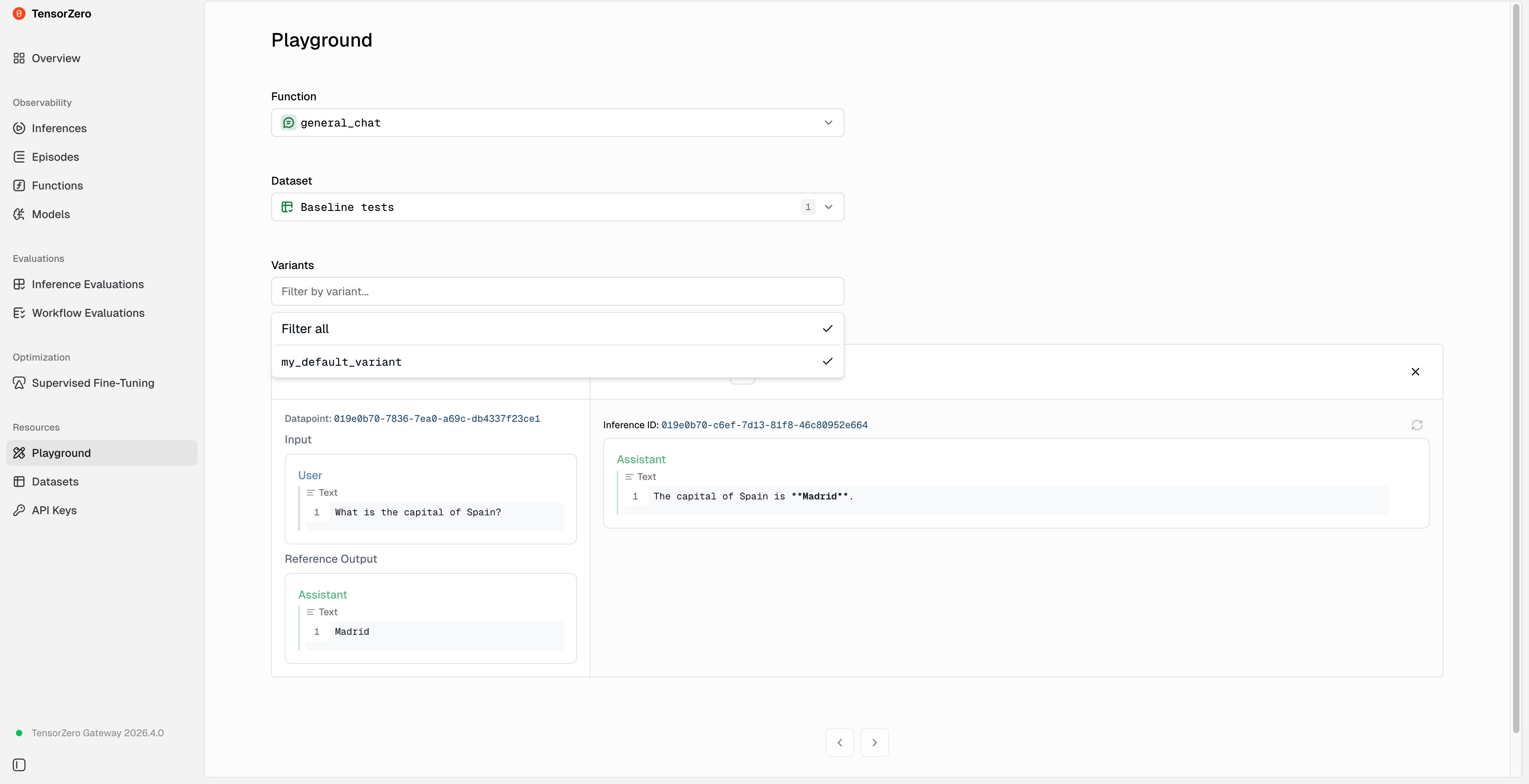
Select Playground from the left sidebar.
Select your function, the dataset you just created, and your variant. The chat interface appears. If you receive a normal reply, the setup is successful.
Obtain the TensorZero endpoint
To connect other apps to TensorZero, get its entrance address.
Open Settings, and then go to Applications > TensorZero > Entrances > TensorZero.
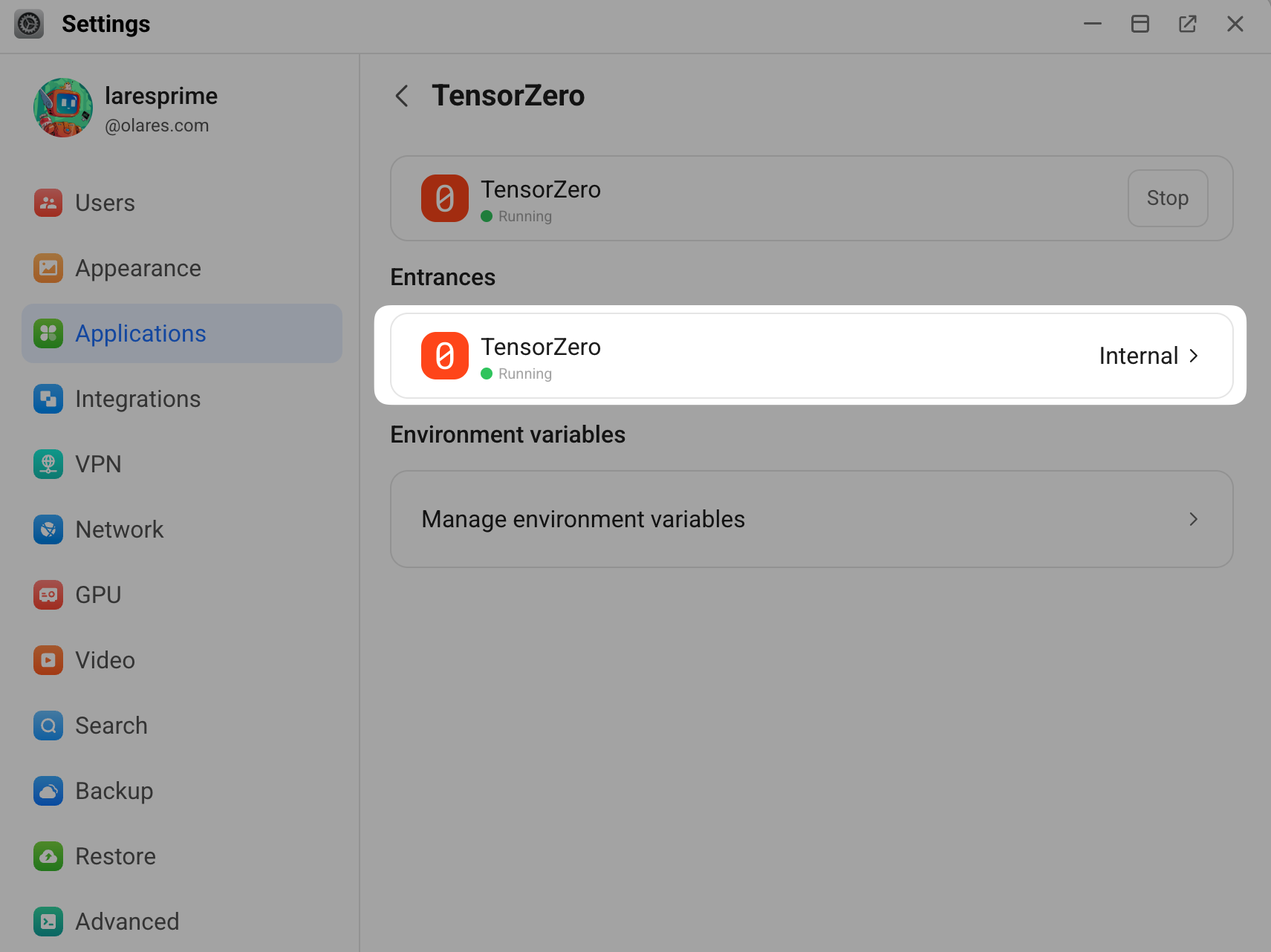
Copy the endpoint URL. For example,
https://ea581361.laresprime.olares.com. For OpenAI‑compatible clients, you must append/openai/v1to this URL.
Route models to client applications
Configure your third-party applications to use TensorZero.
Determine your model name string
Construct the correct model name using the following prefixes based on the resource you want to call:
| Resource type | Required string format | Example |
|---|---|---|
| Function | tensorzero::function_name::<alias> | tensorzero::function_name::general_chat |
| Model | tensorzero::model_name::<alias> | tensorzero::model_name::qwen3_5_9b |
| Embedding | tensorzero::embedding_model_name::<alias> | tensorzero::embedding_model_name::nomic_embed |
TIP
- Do not use dots or colons in your alias names. For example, use
qwen3_5_9b, notqwen3.5:9b. - If the model name does not work, prepend
openai/to satisfy the LiteLLM framework and try again. For example, useopenai/tensorzero::embedding_model_name::nomic_embed.
Connect your client apps
The following steps demonstrate how to configure OpenCode and AgentZero to route their requests through TensorZero.
Access the built-in MCP server
TensorZero includes a built-in Model Context Protocol (MCP) server located at the /mcp endpoint. This feature allows your AI agent to look up the performance data in TensorZero.
For example, you can ask your agent to retrieve the average response time for general_chat today, and the agent will use the MCP connection to read the logs and report the data back to you.
The following example demonstrates how to configure OpenCode to access this MCP tool.
Open Files, and then go to Data > opencode > .config > opencode.
Double-click
opencode.json, and then click edit_square.Add the following MCP configuration block. Ensure you replace
<tensorzero-endpoint>with your actual TensorZero endpoint URL.json{ "mcp": { "tensorzero": { "type": "remote", "url": "<tensorzero-endpoint>/mcp", "enabled": true } } }Click save.
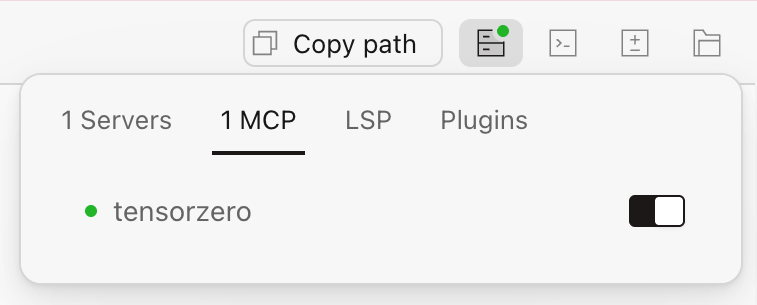
Restart the OpenCode app to apply the changes. In the upper-right corner, on the MCP tab, verify that tensorzero shows up as enabled.
Instruct your AI agent directly in the chat to explicitly use the tool. For example, enter
Use the TensorZero MCP tool to analyze the latest inference logs.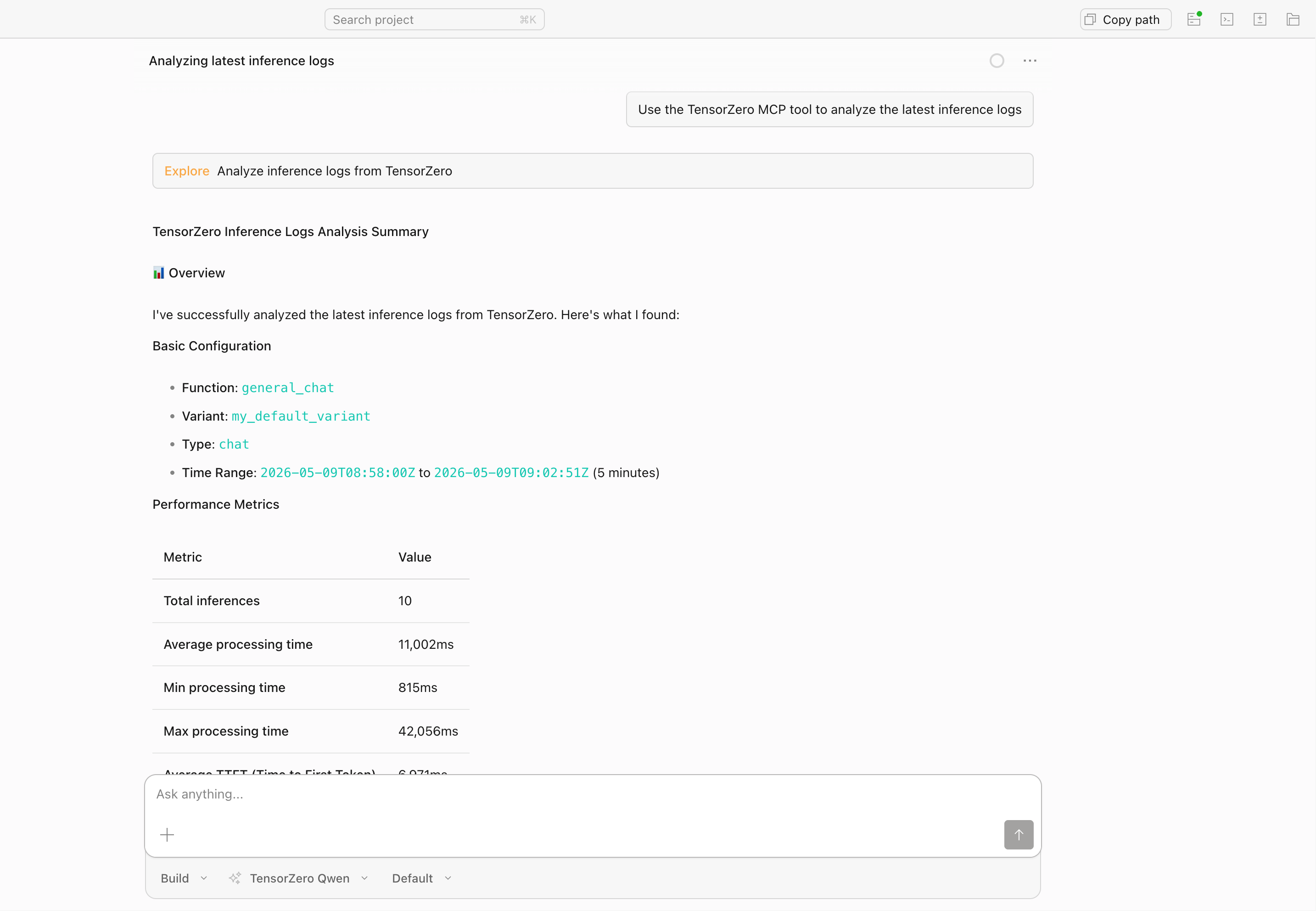
FAQs
What is the difference between connecting to a model versus a function?
In TensorZero, both models and functions allow your applications to communicate with the AI, but connecting your applications to a function is highly recommended.
- Model (
tensorzero::model_name::...): This represents the raw AI engine. While you can connect your client applications directly to a model, doing so bypasses TensorZero's advanced monitoring features. - Function (
tensorzero::function_name::...): This represents the specific task your application is performing, such ascoding_assistantortext_summarizer. Connecting through a function can use TensorZero's detailed observability and statistical tracking. It also allows you to link multiple different functions to the same underlying model, helping you track and optimize each specific task separately.
Error: model field must start with tensorzero::function_name::...
Why it happens: You entered a raw model name like qwen3.5:9b or an incorrect format in your client’s model field.
How to fix: Always use one of these three exact formats, depending on what you want to connect:
| You want to call | Format | Example |
|---|---|---|
| A function | tensorzero::function_name::<alias> | tensorzero::function_name::general_chat |
| A model directly | tensorzero::model_name::<alias> | tensorzero::model_name::qwen3_5_9b |
| An embedding model | tensorzero::embedding_model_name::<alias> | tensorzero::embedding_model_name::nomic_embed |
Error: litellm.BadRequestError: LLM Provider NOT provided
Why it happens: This error occurs in applications that rely on the LiteLLM framework, such as the embedding feature in AgentZero. These specific applications do not automatically recognize the standard TensorZero model string. They require an explicit provider prefix to understand how to format the connection.
How to fix: Review the error message details to identify exactly which model is failing. Open your application settings and add openai/ to the very beginning of that model name.
For example, if the error mentions model=tensorzero::embedding_model_name::nomic_embed, you must change your embedding model name or ID to openai/tensorzero::embedding_model_name::nomic_embed. Save your settings and try the request again.
TensorZero fails to start after I edit the configuration file
Why it happens: The TOML format is broken, which is usually caused by a missing empty line between sections or an invalid character in an alias name.
How to fix:
Open Control Hub, go to tensorzero-{username} > Deployments > tensorzero > Pods, and then click the tensorzero pod.
In the Containers section, locate gateway, and then click article next to it.
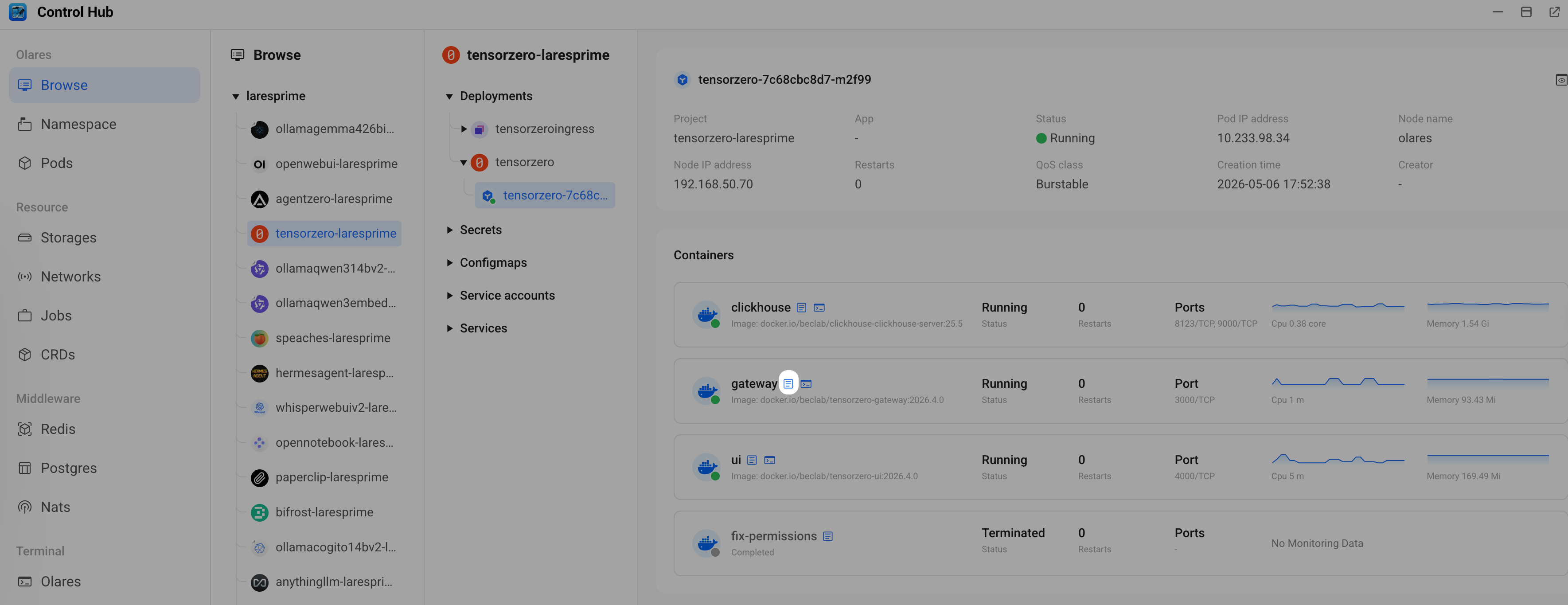
Look for the following common errors:
Failed to parse tensorzero.toml: Syntax error. Ensure you have exactly one empty line between every section block (# models,# functions,# embedding_models). If you deleted the empty lines when pasting the code, the application will fail to start.unknown field: Incorrect setting name, such as dots or colons in aliases. Use underscores, likeqwen3_5_9b, notqwen3.5:9b.provider...not found: The provider name in yourrouting = ["name"]line does not match the block defined immediately below it[models.alias.providers.name]. For example, if you writerouting = ["ollama"], you must have a matching[models.xxx.providers.ollama]block.
After fixing the syntax, restart the TensorZero container.
My configuration changes not showing up in TensorZero UI
Why it happens: The UI cache, the gateway did not reload the configuration, or the restart failed.
How to fix:
Try the following methods:
- Hard refresh your browser by pressing Ctrl+Shift+R or Cmd+Shift+R to clear the browser cache.
- Check the gateway container logs for
Starting gateway server.... If you see migration messages, wait another 30 seconds. - Restart the TensorZero container.
Some pages mentioned in the official docs (Autopilot, Config Editor) are missing
Why it happens: Those are advanced components that are not included in the default Olares deployment. Olares provides the core gateway, UI, and observability stack.
How to fix: If you need those features, refer to the TensorZero official documentation for self‑hosting the additional services.