Find the best LLM models for your hardware with LLMFit
LLMFit automatically detects your system's RAM, CPU, and GPU, then recommends LLM models that run well on your hardware. It scores each model across four dimensions: quality, speed, compatibility, and context length, so you can quickly see which models will perform best on your setup.
Known limitations
The current version of LLMFit has these limitations:
- Random node allocation: In a multi-node environment, the specific node that the LLMFit container is assigned to is random.
- Single GPU detection: LLMFit can only detect and evaluate the GPU assigned to it on the specific node where it resides.
- Multi-GPU display limitations: If your node has multiple GPUs, the dashboard displays only one of them (which one is unpredictable). The API detects multiple cards correctly, but their VRAM is not aggregated or summed together in the interface.
Install LLMFit
Open Market and search for "LLMFit".
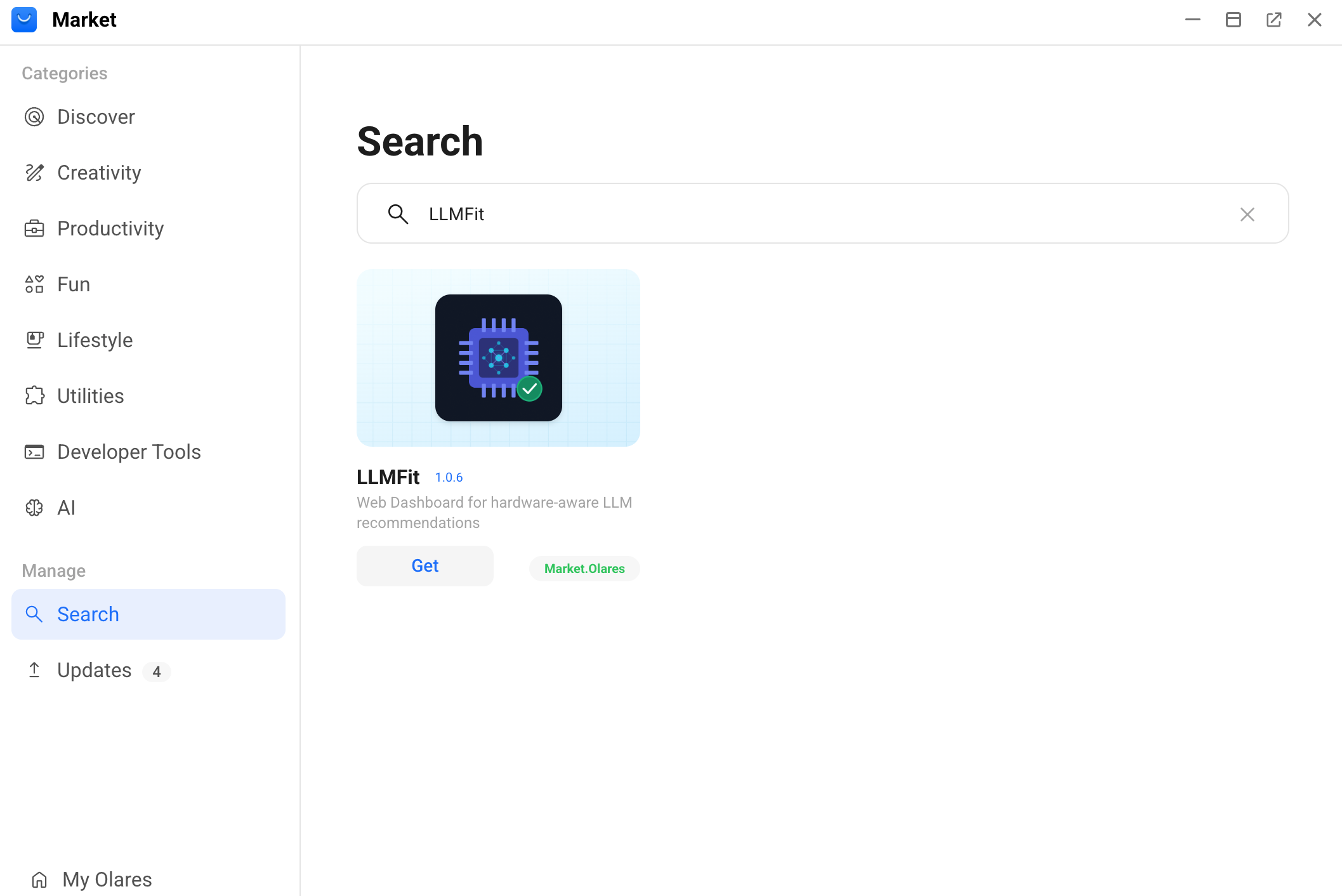
Click Get, and then click Install. Wait for the installation to complete.
Use LLMFit
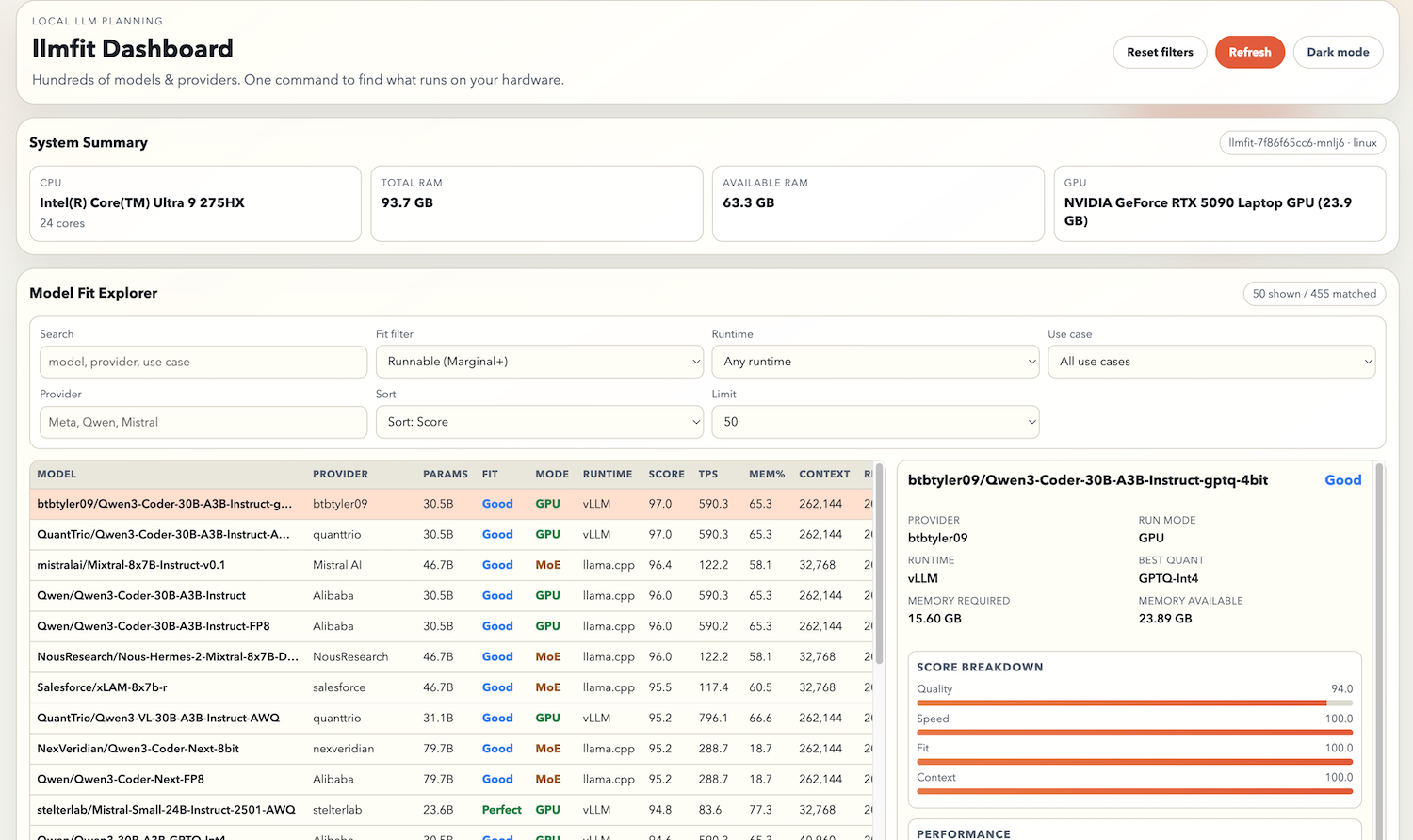
Open LLMFit from the Launchpad. The dashboard displays:
- System Summary: The current node and its hardware details such as CPU, RAM, and GPU.
- Model Fit Explorer: A list of LLM models with estimated TPS (tokens per second) and scores for quality, speed, fit, and context.
Use these scores to decide which models to download and run on your Olares device.
FAQ
How do I use the LLMFit TUI?
LLMFit uses its built-in web dashboard as the primary interface for simplicity. The dashboard provides the same functionality as the TUI.
If you prefer the terminal-based TUI:
Open Control Hub, and then navigate to open the LLMFit container terminal.
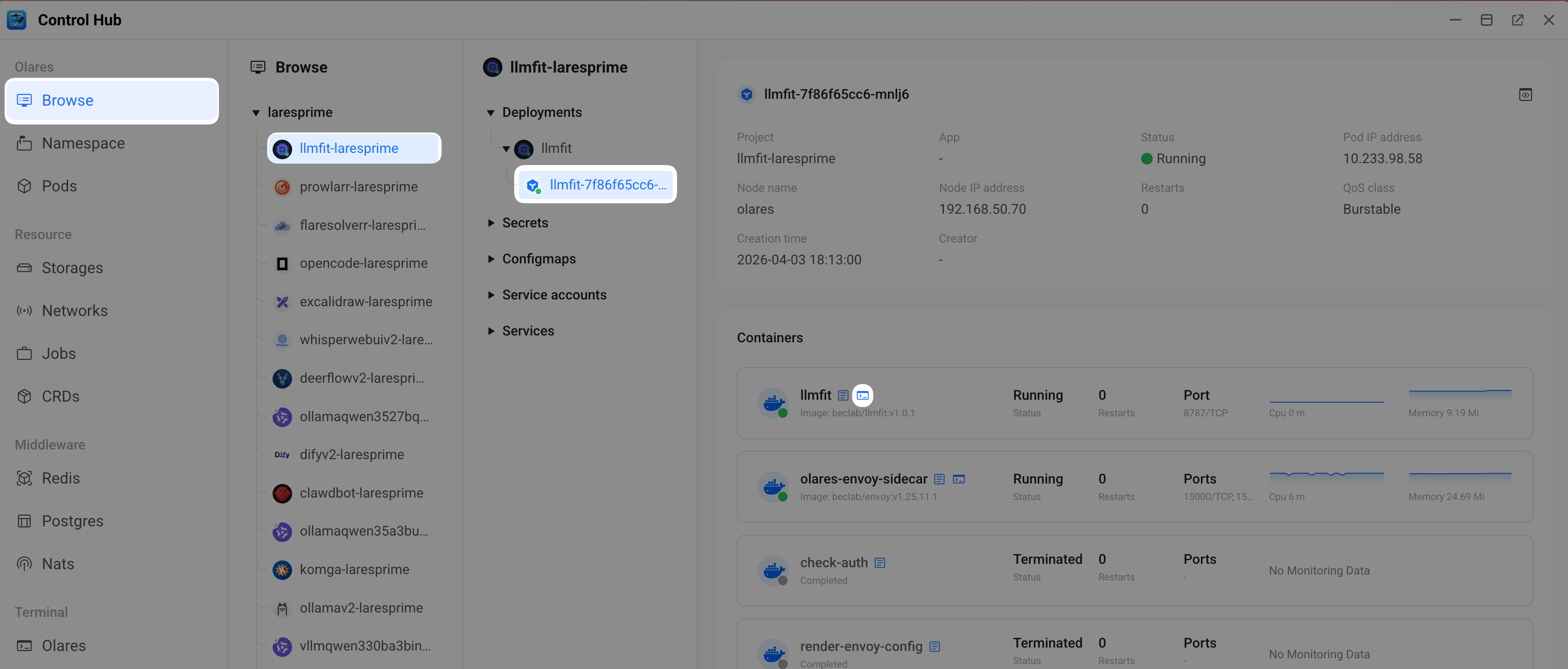
Run the following command:
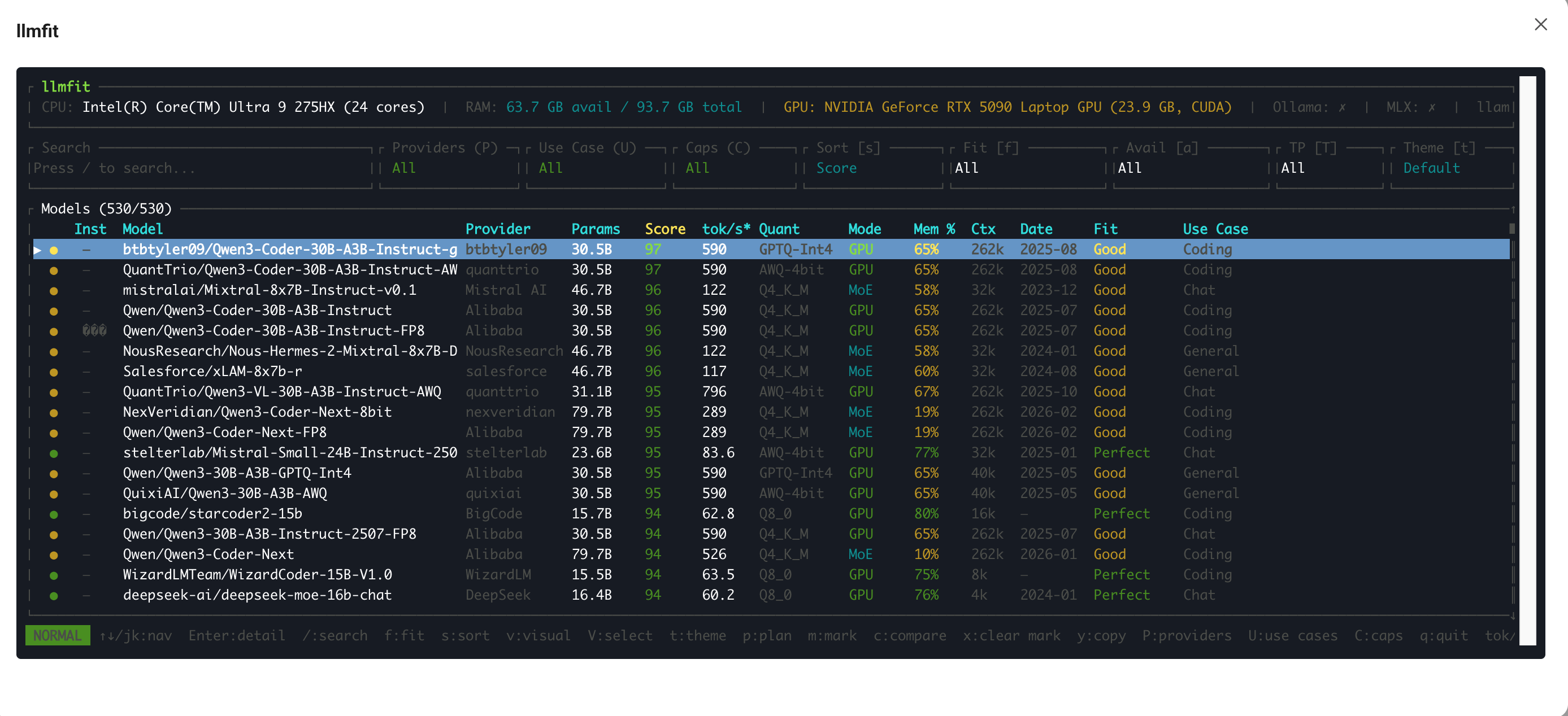
bashllmfit