Transcribe audio and video with Whisper-WebUI
Whisper-WebUI is a browser-based speech-to-text tool for generating transcripts and subtitle files from audio, video, YouTube links, and microphone recordings. It also includes standalone tools for subtitle translation and vocal/background music separation.
Use this guide to transcribe media files on Olares, improve transcription results with optional filters, translate existing subtitle files, and separate vocals from background music when needed.
Learning objectives
In this guide, you will learn how to:
- Install Whisper-WebUI on Olares.
- Transcribe local files, YouTube videos, and microphone recordings.
- Improve transcription results with background music removal, VAD, and speaker diarization.
- Translate subtitles and separate vocals from background music.
- Find generated files and handle model downloads if automatic downloads fail.
Install Whisper-WebUI
Open Market and search for "Whisper-WebUI".
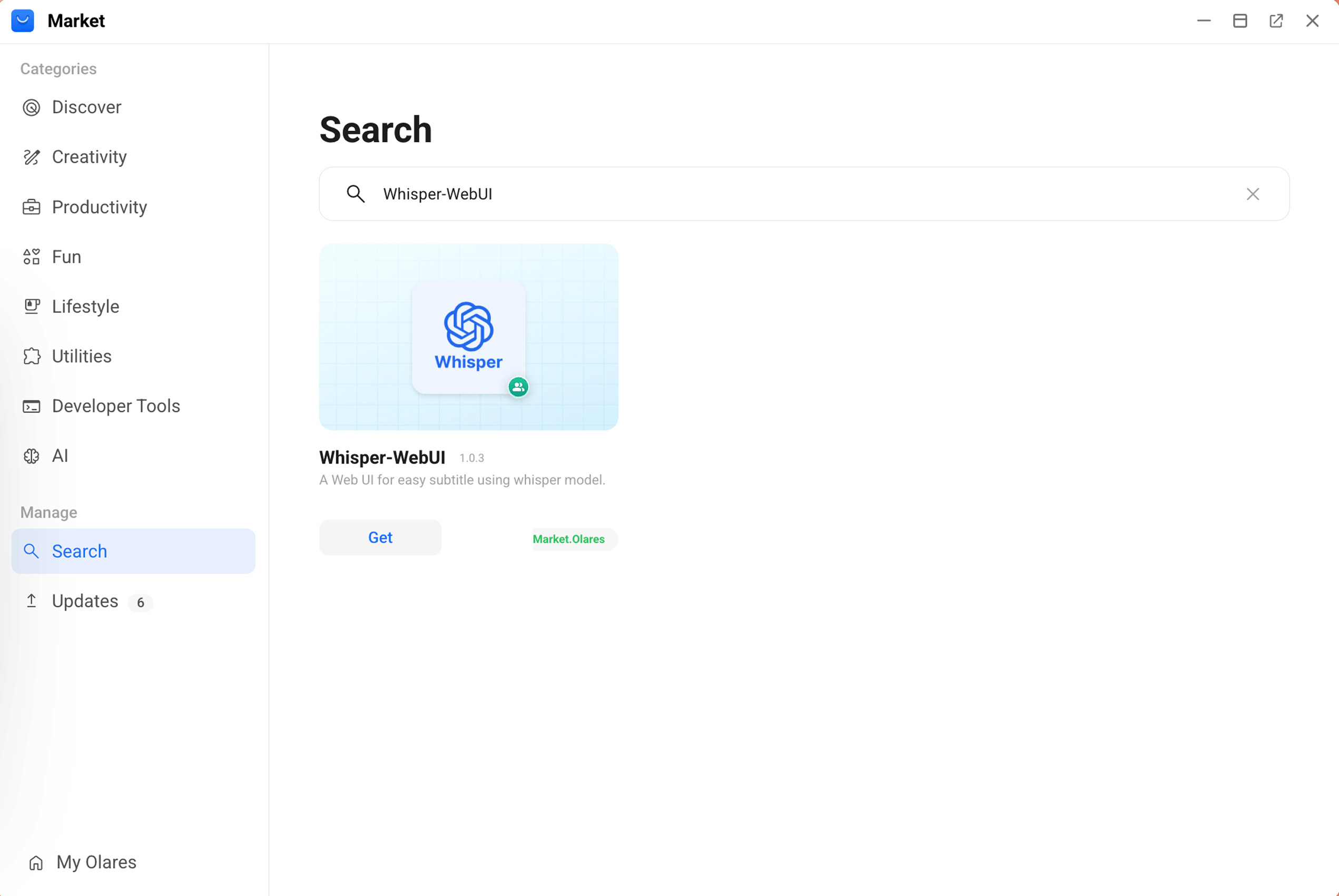
Click Get, then Install, and wait for installation to complete.
After installation, you will see two icons on Launchpad:
- Whisper-WebUI: The main interface for transcription, subtitle translation, and background music separation.
- Whisper-WebUI Terminal: A command-line terminal for managing models.
Understand the basics
Main workflows
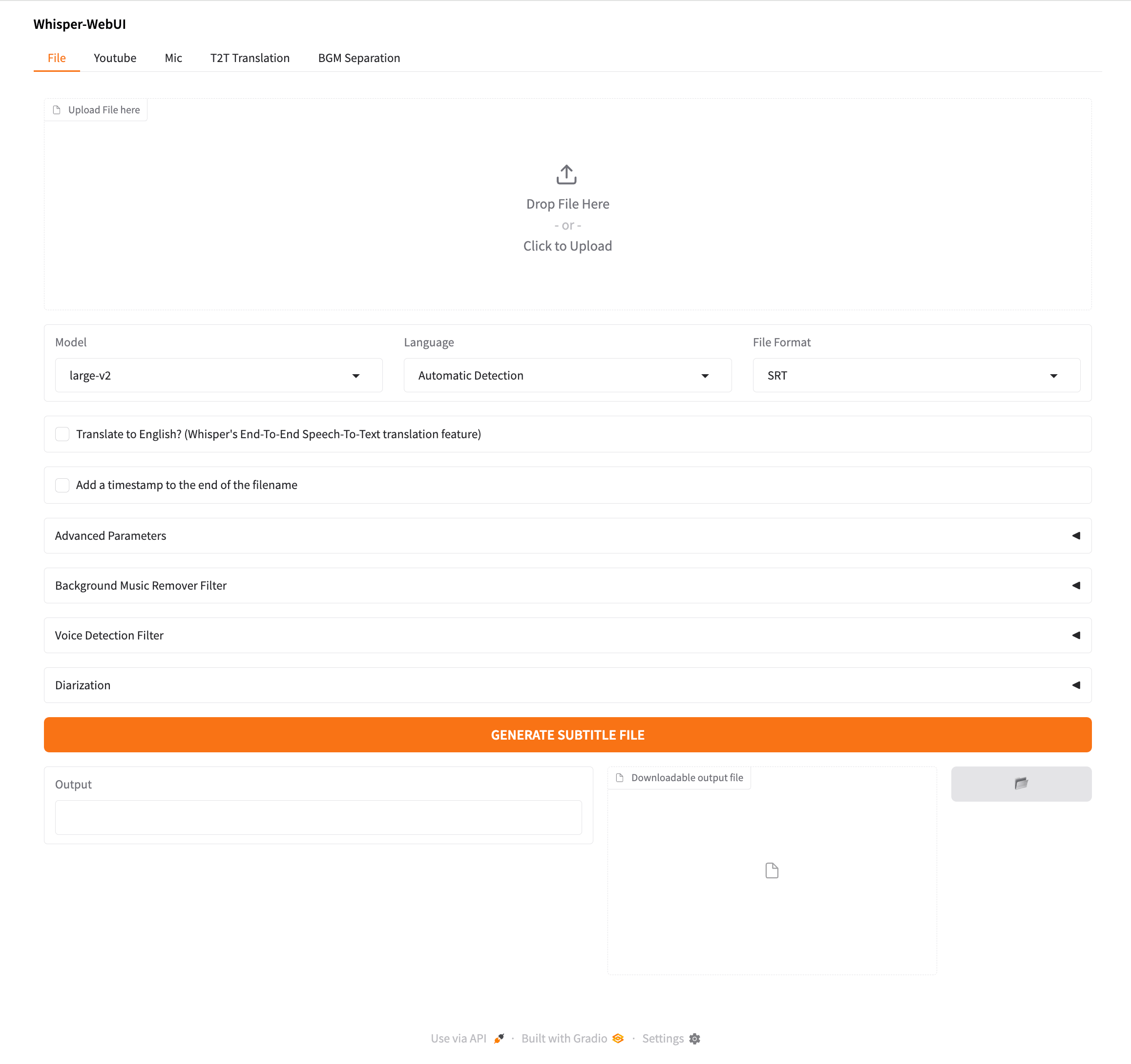
Whisper-WebUI includes five main tabs, which fall into two categories: transcription and standalone tools.
| Tab | Type | Best for |
|---|---|---|
| File | Transcription | Generating subtitles for local media files, up to 500 MB. |
| Youtube | Transcription | Transcribing online videos via URL without downloading them manually. |
| Mic | Transcription | Recording and transcribing audio directly in the browser. |
| T2T Translation | Standalone tool | Translating existing subtitle files. |
| BGM Separation | Standalone tool | Exporting separate vocal and instrumental tracks. |
Choose an output format
When using the transcription tabs, choose the output format based on how you plan to use the result.
| Format | Best for |
|---|---|
| SRT | Standard subtitle files for video players and editors. |
| WebVTT | Web video subtitles and browser-based playback. |
| TXT | Plain text transcripts without timestamps. |
| LRC | Synchronized lyrics for music players and audio applications. |
Choose a transcription model
For most tasks, start with large-v2. It is pre-installed and works well for general transcription.
Change the model when you need a different balance between speed, accuracy, and resource usage:
| Need | Recommended model | Notes |
|---|---|---|
| Faster processing | small or medium | Use when large models are too slow. Accuracy may be lower. |
| Lowest resource usage | tiny or base | Use only for quick tests or simple audio. Accuracy is limited. |
| Higher accuracy | large-v3 | Better for complex, noisy, or non-English audio, but uses more resources. |
| Faster large-model transcription | large-v3-turbo | Faster than large-v3, with some accuracy tradeoff. |
| English-only audio | Models ending in .en | Use only when the source audio is English. |
First-time downloads
Only large-v2 is pre-installed. Other models are downloaded automatically the first time you select them. The download may take some time, depending on your network and the model size.
Transcribe audio and video
The File, Youtube, and Mic tabs follow the same transcription workflow and share core settings such as model, language, output format, and advanced settings.
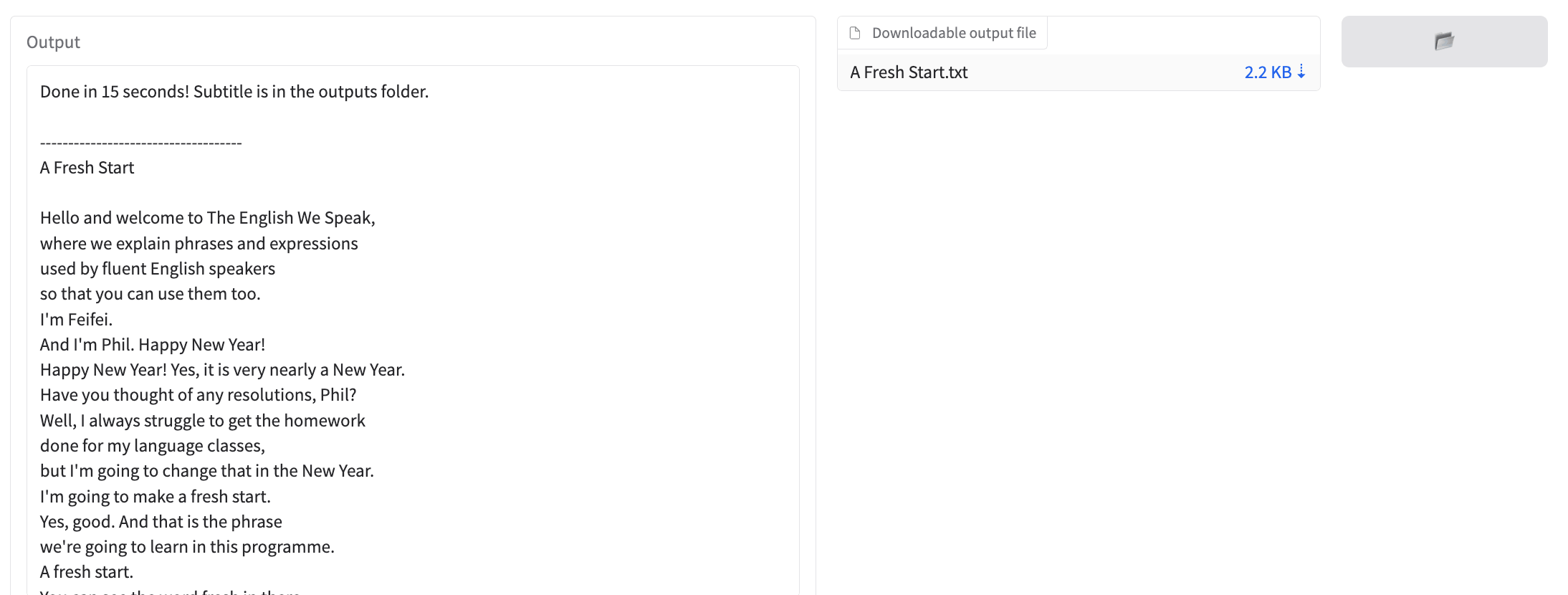
After each transcription task finishes, Whisper-WebUI shows the transcript in the output area and provides a downloadable subtitle or text file. Generated files are also saved in Files under /External/olares/ai/output/whisperwebui/.
Transcribe local files
- Click the File tab.
- Click the upload area and select an audio or video file. The file size limit is 500 MB.
- Under Model, select a transcription model.
- Under Language, specify the source language or use Automatic Detection.
TIP
Specifying the language can improve accuracy, especially for short audio or non-English content.
- Under File Format, choose your preferred output format.
- Optional: Expand panels below to remove background music, detect speech with VAD, or identify speakers.
- Click GENERATE SUBTITLE FILE.
Transcribe YouTube videos
YouTube access limitation
YouTube transcription may fail if YouTube blocks automated access or download requests, or if the network environment cannot access the video.
Click the Youtube tab.
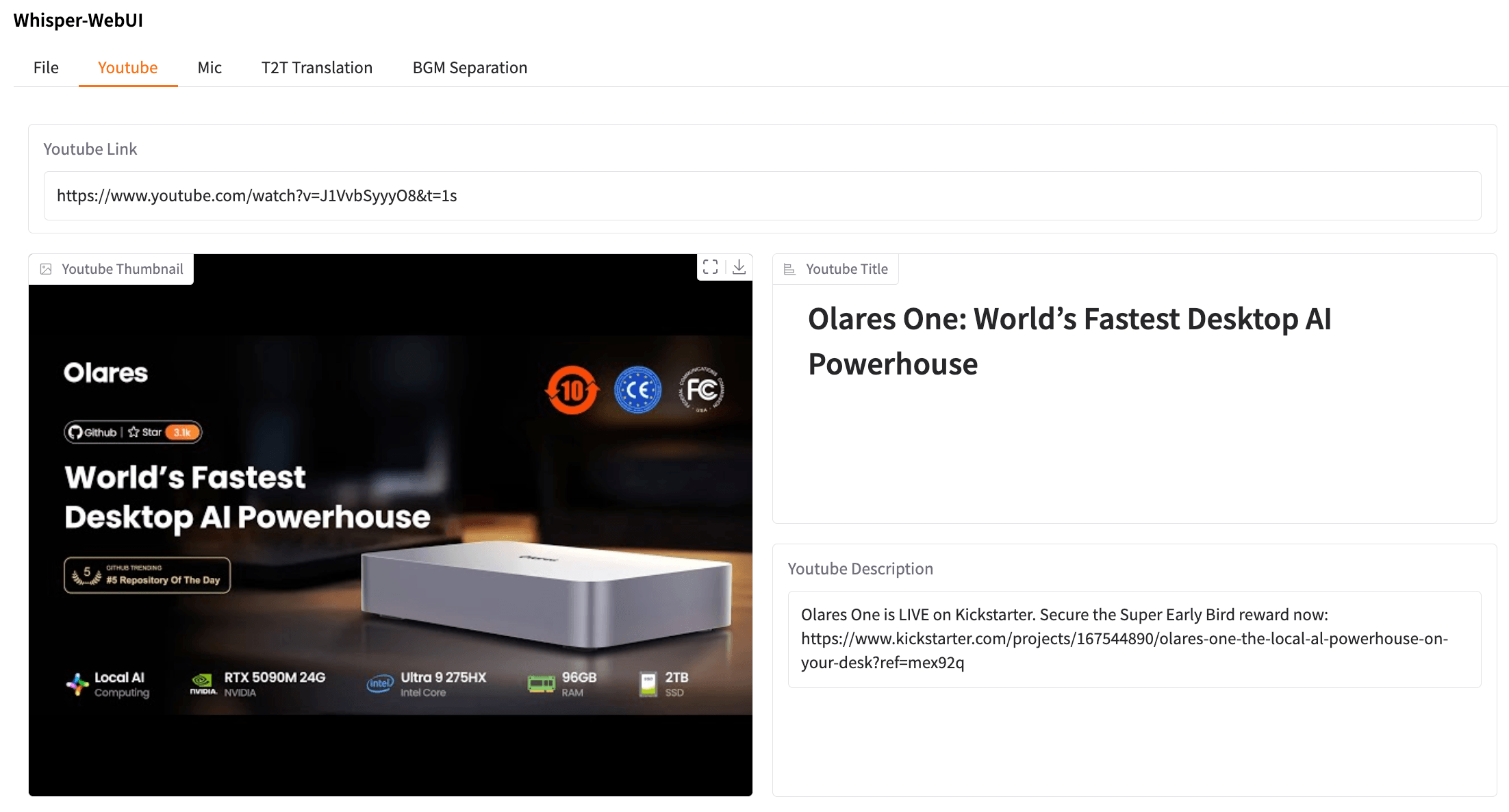
Paste the YouTube video URL into the input field. Whisper-WebUI detects the video's thumbnail, title, and description when available.
Under Model, select a transcription model.
Under Language, specify the video's language.
Under File Format, choose your preferred output format.
Optional: Expand panels below to remove background music, detect speech with VAD, or identify speakers.
Click GENERATE SUBTITLE FILE.
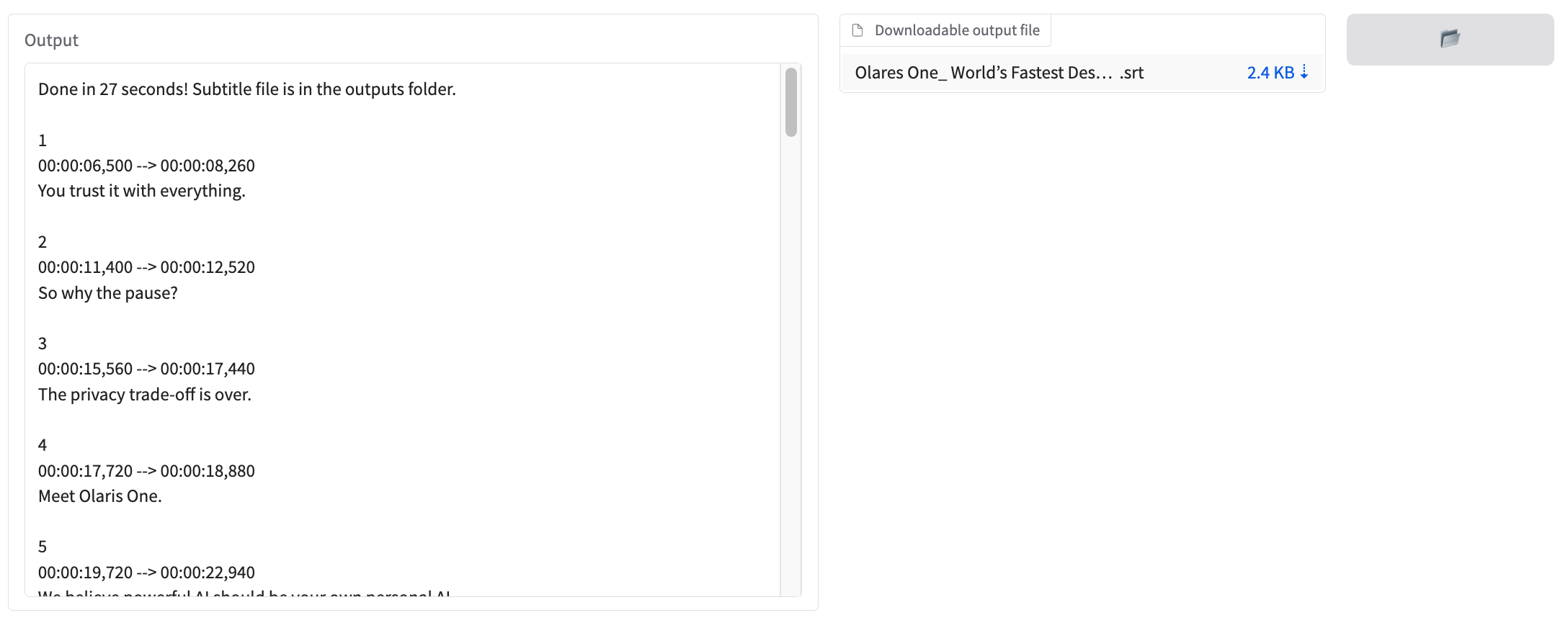
Record and transcribe with microphone
Microphone access requirement
Microphone recording requires browser microphone permission and HTTPS or localhost access. If recording does not work, check browser permissions and how you opened Whisper-WebUI.
Click the Mic tab.
Click the record button to start recording. You can pause at any time.
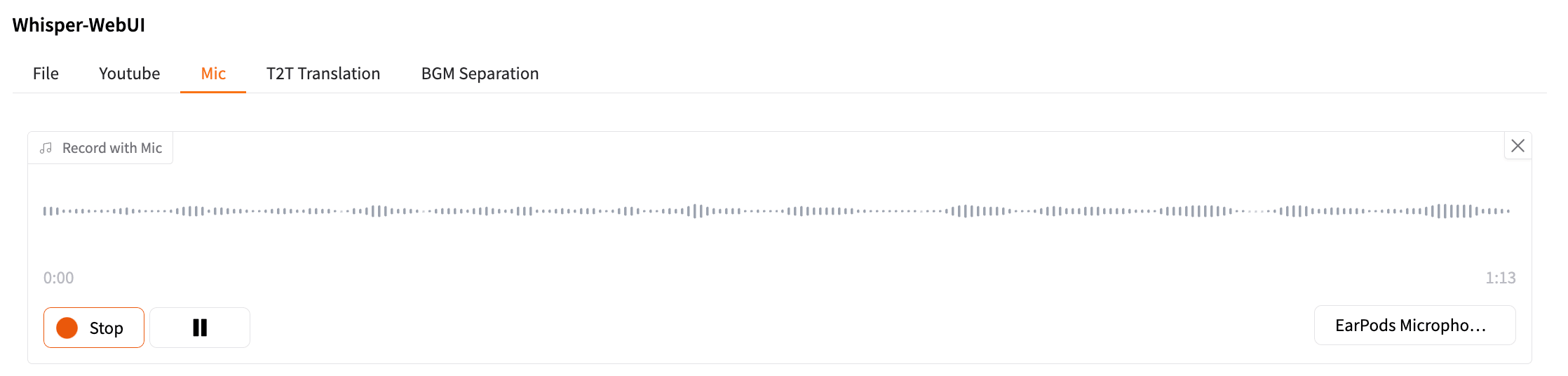
Click Stop to end the recording. You can preview and trim the audio.
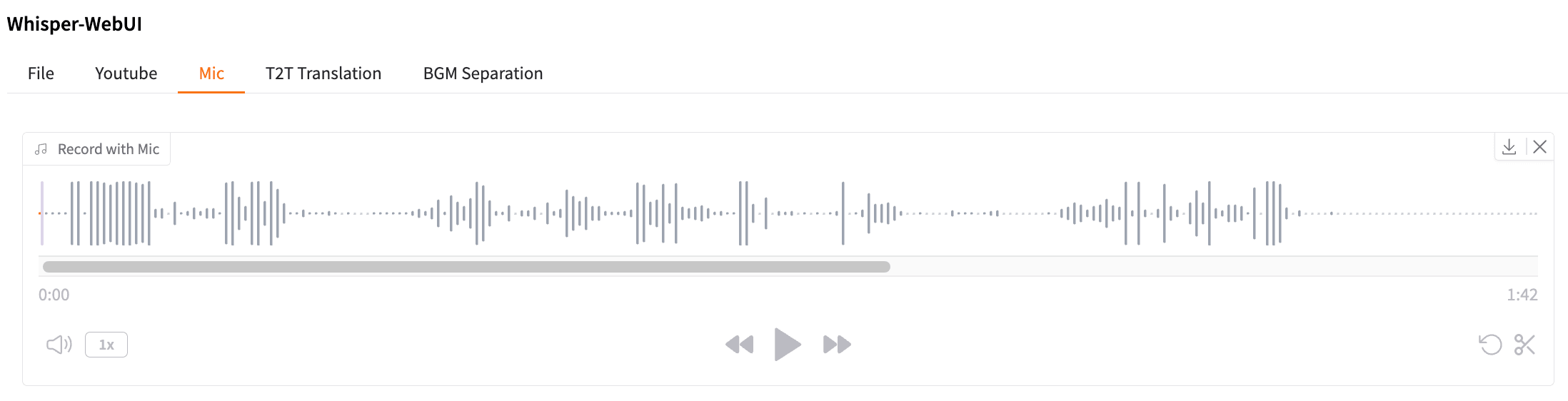
Select the Model, Language, and File Format for transcription.
Optional: Expand panels below to remove background music, detect speech with VAD, or identify speakers.
Click GENERATE SUBTITLE FILE.
Optional transcription filters
The File, YouTube, and Mic tabs include optional filters that can improve results for specific audio types. Configure these filters before clicking GENERATE SUBTITLE FILE.
Remove background music before transcription
Use this feature when speech is mixed with music or background audio.
To enable it:
- Expand Background Music Remover Filter.
- Check Enable Background Music Remover Filter.
- Keep the default model and segment size unless you need a custom setup.
Whisper-WebUI separates the vocal track first, then transcribes the processed audio.
BGM Separation vs. background music removal
The BGM Separation tab only separates audio into vocal and instrumental tracks. It does not transcribe the result.
Background music removal is part of the transcription workflow. It separates vocals first, then transcribes the vocal track.
Detect speech segments with VAD
Use VAD for long recordings, meetings, podcasts, or audio with long silent sections. VAD can skip silence, speed up transcription, and reduce hallucinated text from silent audio.
To enable it:
- Expand Voice Detection Filter.
- Check Enable Silero VAD Filter.
Identify speakers in multi-speaker audio
Speaker diarization labels different speakers in the transcript, such as SPEAKER_00 and SPEAKER_01.
Before using it for the first time, complete the Hugging Face setup so Whisper-WebUI can download the required models:
- Expand the Diarization panel.
- Under the HuggingFace Token field, click the two provided
pyannotemodel links. - On Hugging Face, log in or create a free account, then accept the conditions to access both models.
- In your Hugging Face account settings, create an access token with Read permissions.
- Back in Whisper-WebUI, check Enable Diarization.
- Paste your Hugging Face token into the HuggingFace Token input field.
- Run transcription as usual.
First-time diarization download
The first time you enable speaker diarization, Whisper-WebUI uses your token to download the required models. This may take some time. After the models are downloaded, they can be reused for future transcriptions.
Use standalone tools
Besides transcription, Whisper-WebUI provides dedicated tabs for subtitle translation and audio separation.
Translate subtitles
Use the T2T Translation tab to translate existing subtitle files.
Whisper-WebUI provides two translation methods:
| Method | Requirement | Best for |
|---|---|---|
| NLLB | Downloads a local translation model on first use. | Local translation without an external API key. |
| DeepL API | Requires a DeepL API key. | Online translation using DeepL. |
Separate vocals from background music
Use the BGM Separation tab to split an audio file into separate vocal and instrumental tracks. This standalone tool does not transcribe the result.
- Click the BGM Separation tab.
- Upload the audio file you want to process.
- Under Device, select a processing device based on your hardware.
- Under Model, select a separation model.
- Click SEPARATE BACKGROUND MUSIC.
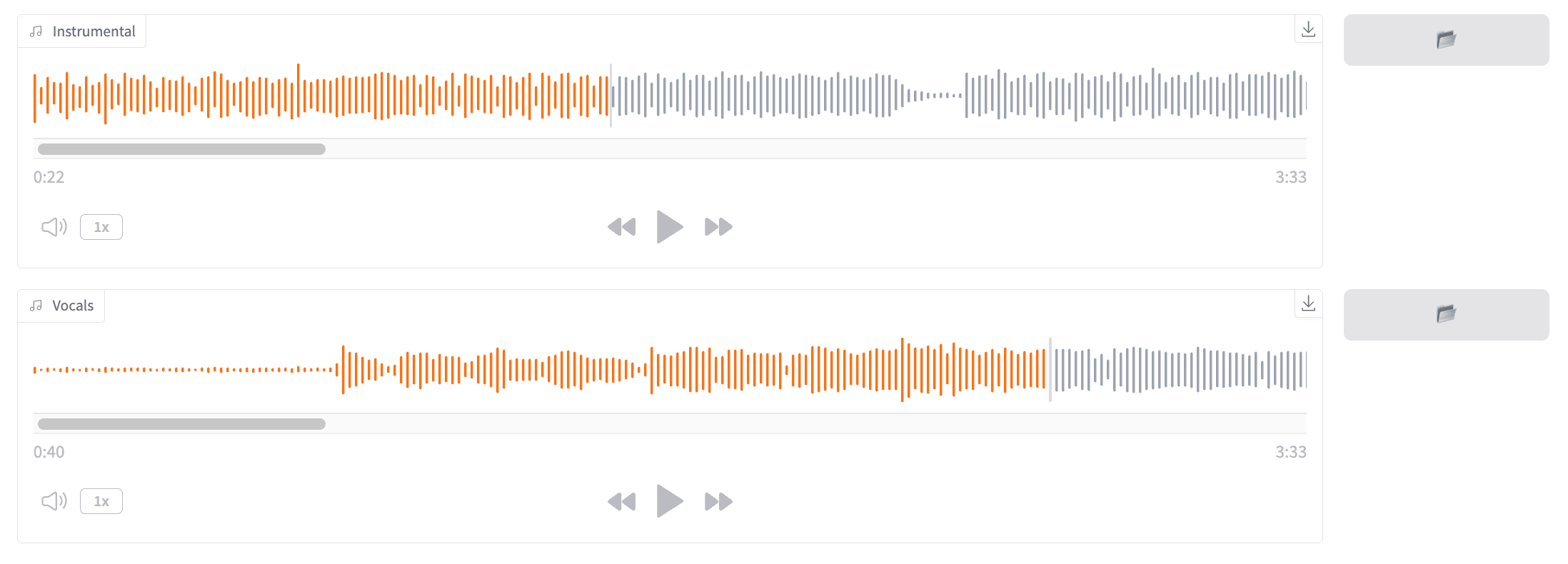
Once complete, you can preview the result, download the generated file, or check it in Files:
- Instrumental:
/External/olares/ai/output/whisperwebui/UVR/instrumental - Vocals:
/External/olares/ai/output/whisperwebui/UVR/vocals
Advanced: Manage model downloads from Terminal
Most users do not need to manage models manually. Use Whisper-WebUI Terminal only when automatic model downloads fail, time out, or you need to check whether a model has already been downloaded.
Click the Whisper-WebUI Terminal icon on the Launchpad to open the web terminal.
Check downloaded models
Open Whisper-WebUI Terminal, then run:
find /Whisper-WebUI/models -maxdepth 3 -type dTo check specific model folders:
# Whisper transcription models
ls -la /Whisper-WebUI/models/Whisper/faster-whisper/

# NLLB translation models
ls -la /Whisper-WebUI/models/NLLB/

# UVR background music separation models
ls -la /Whisper-WebUI/models/UVR/MDX_Net_Models/

# Speaker diarization models
ls -la /Whisper-WebUI/models/Diarization/
Manually download models
While Whisper-WebUI downloads models automatically, you can trigger downloads manually if the UI download times out:
For example, to download a Whisper transcription model, replace the repository name with the model you need:
hf download Systran/faster-whisper-large-v3 \
  --cache-dir /Whisper-WebUI/models/Whisper/faster-whisper
After the download completes, refresh Whisper-WebUI and select the model from the model list.
FAQs
Why does T2T Translation fail with NLLB?
NLLB translation may fail if the model download was interrupted or the model folder is incomplete.
To reset the NLLB download:
- Open
External/olares/ai/whisperwebui/NLLB/in Files. - Delete the contents inside the folder, but keep the folder itself.
- Return to Whisper-WebUI, and download the model again.
Why does speaker diarization fail?
Speaker diarization may fail if:
- The Hugging Face token is missing or invalid.
- The required pyannote model terms were not accepted.
- The model download failed because of network issues.
Check that:
- The Hugging Face token has Read permissions.
- You accepted the terms for both pyannote models using the same Hugging Face account.
- Your network is stable while Whisper-WebUI downloads the models.
Why do tasks fail after switching to a larger model?
A task may fail after you switch models for one of these reasons:
- The selected model has not finished downloading.
- The model requires more GPU memory than Whisper-WebUI currently has.
To fix this issue:
- Wait for the first-time model download to complete, then retry the task.
- Assign more VRAM to Whisper-WebUI in Memory slicing mode.
- Switch the GPU to another suitable mode.
- Choose a smaller model.
Learn more
- Open WebUI: Use Whisper-WebUI as a speech-to-text backend for chat input.