Common issues
Use this page to identify and resolve common issues with ComfyUI on Olares.
Need more help?
If you are encountering an issue that is not listed here, refer to Troubleshooting flow.
ComfyUI cannot start
ComfyUI fails to start, stops unexpectedly, or behaves abnormally.
This is usually caused by insufficient resources or incorrect GPU allocation. To resolve this:
- Check your system resources. If your CPU or memory usage is maxed out, stop other resource-intensive apps.
- If system resources look fine, go to Settings > GPU and check your GPU mode:
- If you are using Memory slicing, make sure ComfyUI is bound to the GPU and has enough VRAM allocated.
- If you are using App exclusive, make sure the exclusive app is set to ComfyUI.
- Wait a moment, then try to launch ComfyUI again.
Launcher log shows errors
Error messages in the Launcher logs do not necessarily indicate a system failure. During startup and plugin scanning, ComfyUI often logs non-fatal errors for missing optional dependencies or environment checks, even when running normally.
If ComfyUI starts successfully, most of these messages do not require action. Investigate logs only if ComfyUI fails to start, a workflow cannot run, or a plugin stops working.
Models cannot be downloaded directly to Olares
Some models require login, access approval, a token, or manual confirmation before they can be downloaded. These models cannot be downloaded directly to Olares through ComfyUI Launcher or Server Download.
To solve it, find the download link using one of the methods below. Then download the model manually and upload it to the correct folder in Olares Files.
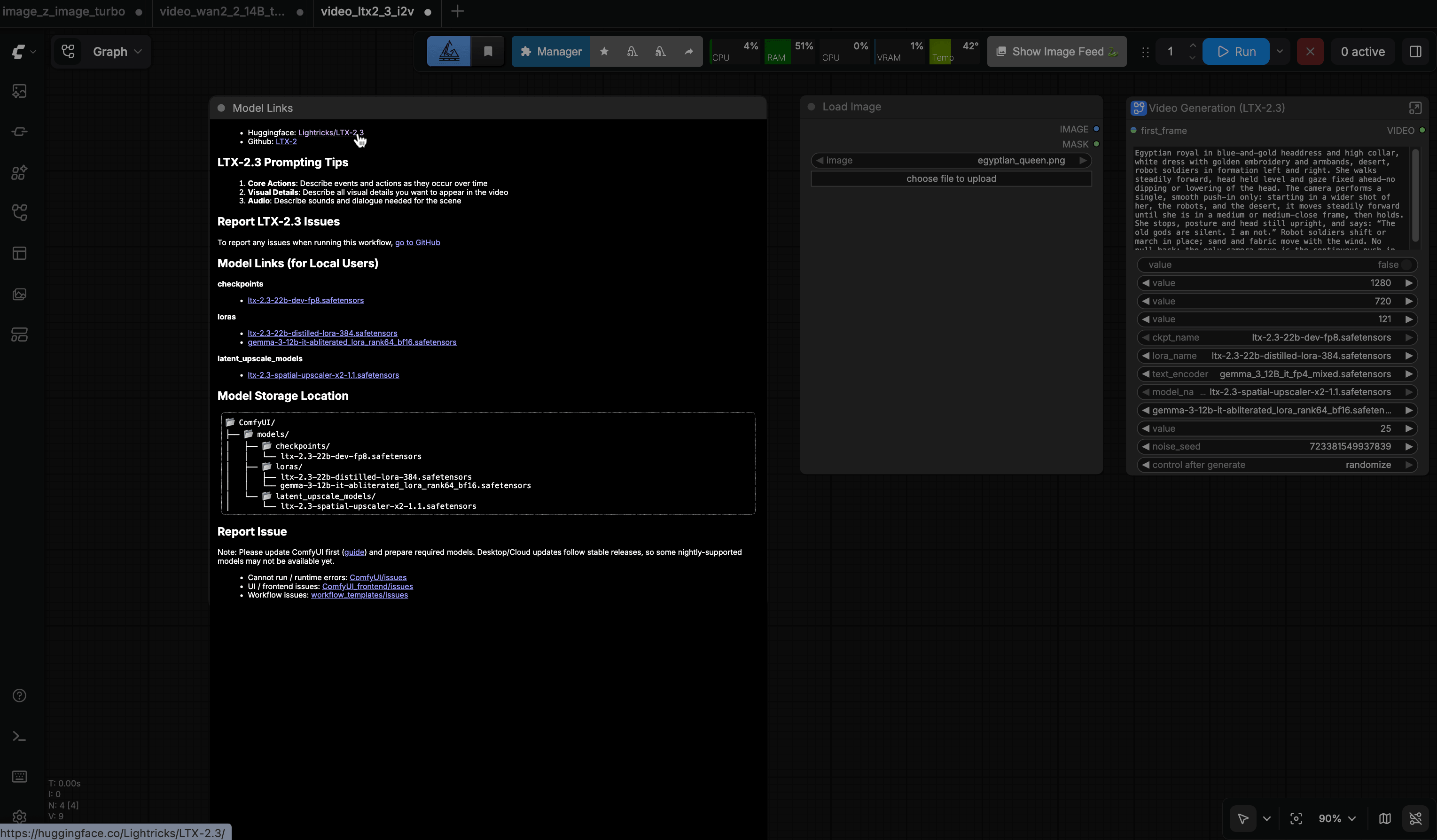
Method 1: Check the template notes or Model Links section
Some official templates include notes or a Model Links section that lists:
- The required model file
- The download URL
- The expected storage location
If available, copy the download URL or open the model page directly.
Method 2: Use a browser helper extension
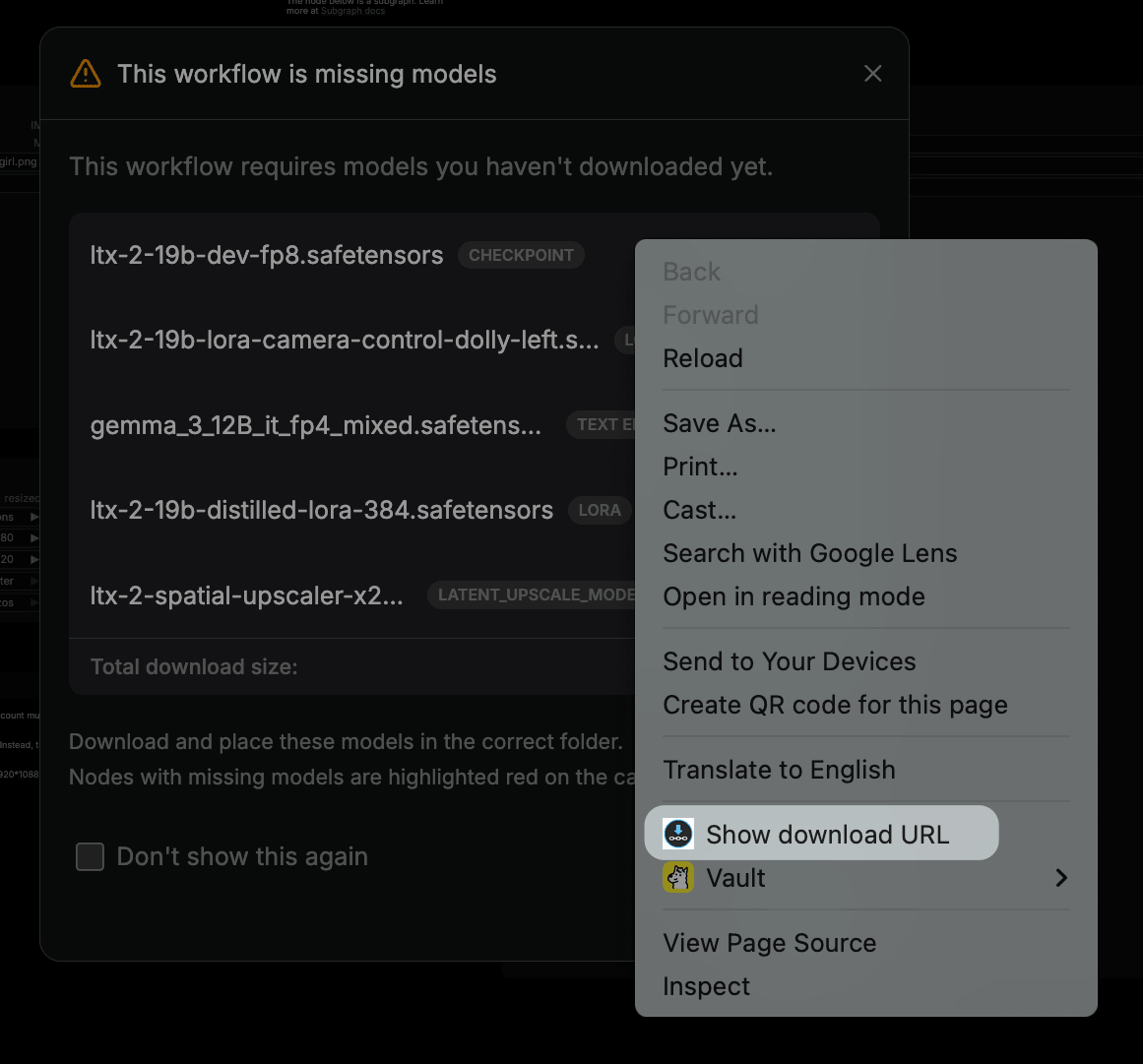
If the template shows a missing-model dialog and does not expose the full URL, use a browser helper extension like WAN Download URL Helper:
- Open the missing-model dialog in ComfyUI.
- Hover over a download icon.
- Right-click the icon and choose Show download URL.
- Copy the URL, then use it in your downloader or save it for manual download.
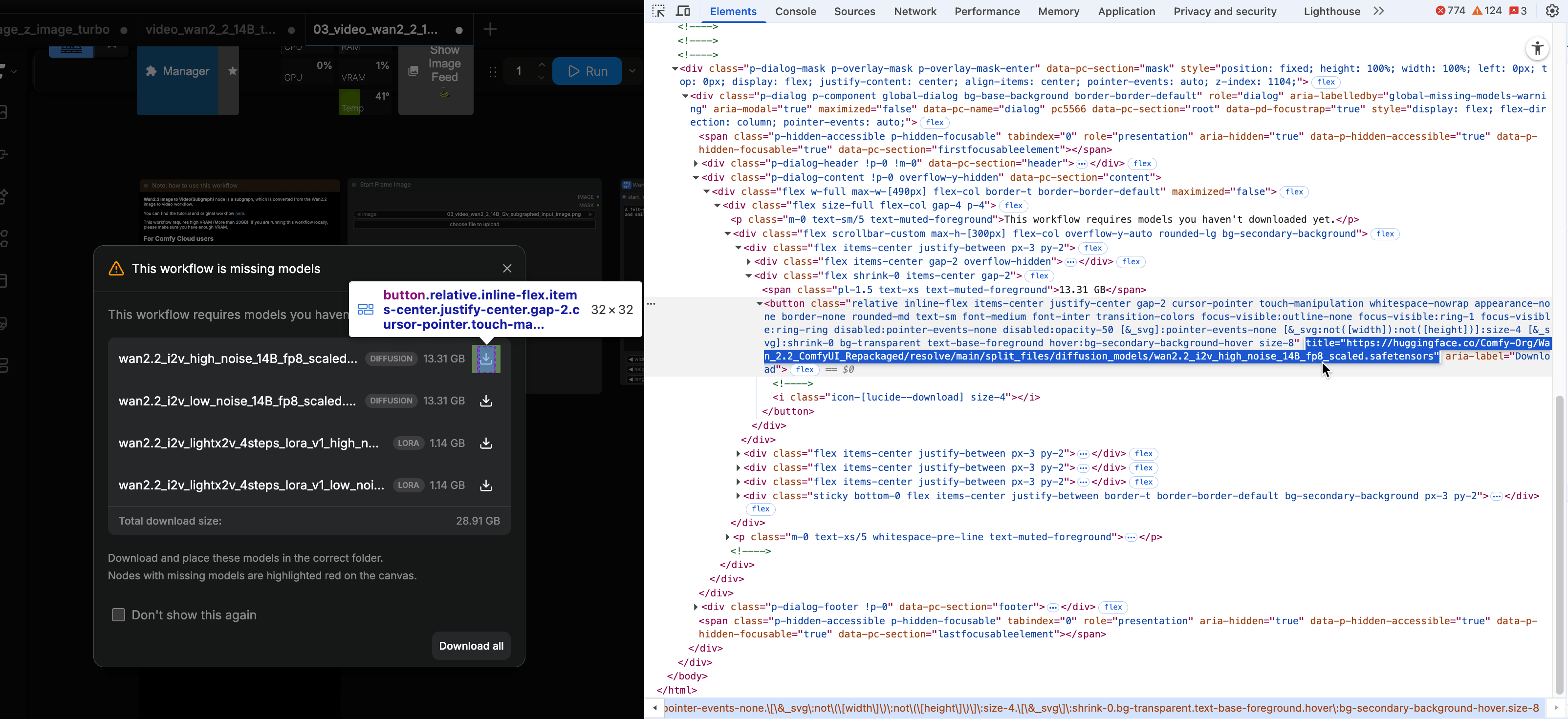
Method 3: Inspect the page in browser developer tools
If the URL is not shown in the template notes or dialog, inspect the page in your browser developer tools and look for network requests triggered by the template or missing-model dialog.
CPU temperature rises unusually high on Olares One
When a workflow requires more VRAM than your graphics card has, the system places heavy load on a single CPU core to swap data, driving the temperature high.
The long-term fix is to reduce the VRAM footprint of your workflow (for example, lower resolution, use a smaller model, or enable model offloading). As a temporary workaround, you can lower the maximum CPU frequency.
Olares One ships with a CPU whose default maximum frequency is 5.4 GHz. The steps below lower it to 5.0 GHz during the workload, then restore it.
Open the Control Hub app.
In the left sidebar, under Terminal, click Olares.
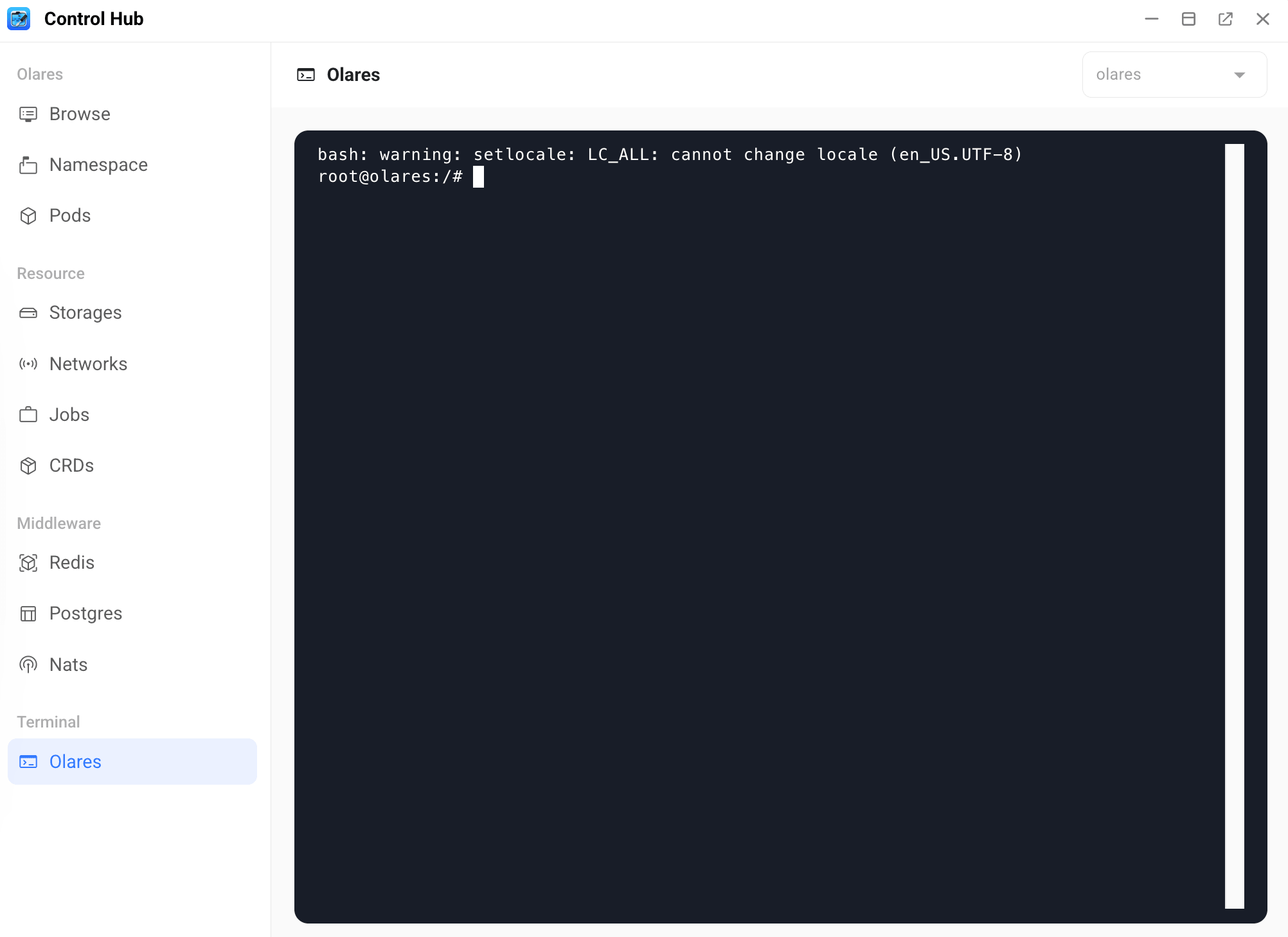
Run the following command to lower the maximum CPU frequency to 5.0 GHz:
bashecho 5000000 | sudo tee /sys/devices/system/cpu/cpufreq/policy*/scaling_max_freqOn other devices, adjust the target value based on your CPU's maximum frequency. Run
cat /sys/devices/system/cpu/cpufreq/policy0/cpuinfo_max_freqto check it first.Run your task in ComfyUI.
After the workload completes, run the following command to restore the default maximum CPU frequency of 5.4 GHz:
bashecho 5400000 | sudo tee /sys/devices/system/cpu/cpufreq/policy*/scaling_max_freq