Set up multi-user access
Configure additional user accounts in Open WebUI to share your local models and AI resources. This configuration enables multiple people to use the same Open WebUI instance on your Olares device using their own separate accounts.
Learning objectives
In this guide, you will learn how to:
- Change the Open WebUI entrance to Public.
- Add additional user accounts.
- Share downloaded models with specific users or all users.
- Verify user access to shared models.
Prerequisites
Before you begin, ensure you have the following in place:
- Open WebUI installed and configured with at least one active model backend.
- Administrator privileges for the Open WebUI instance.
Change entrance to Public
By default, Open WebUI restricts access to the Olares owner. To grant access to other users, change the application entrance type to Public.
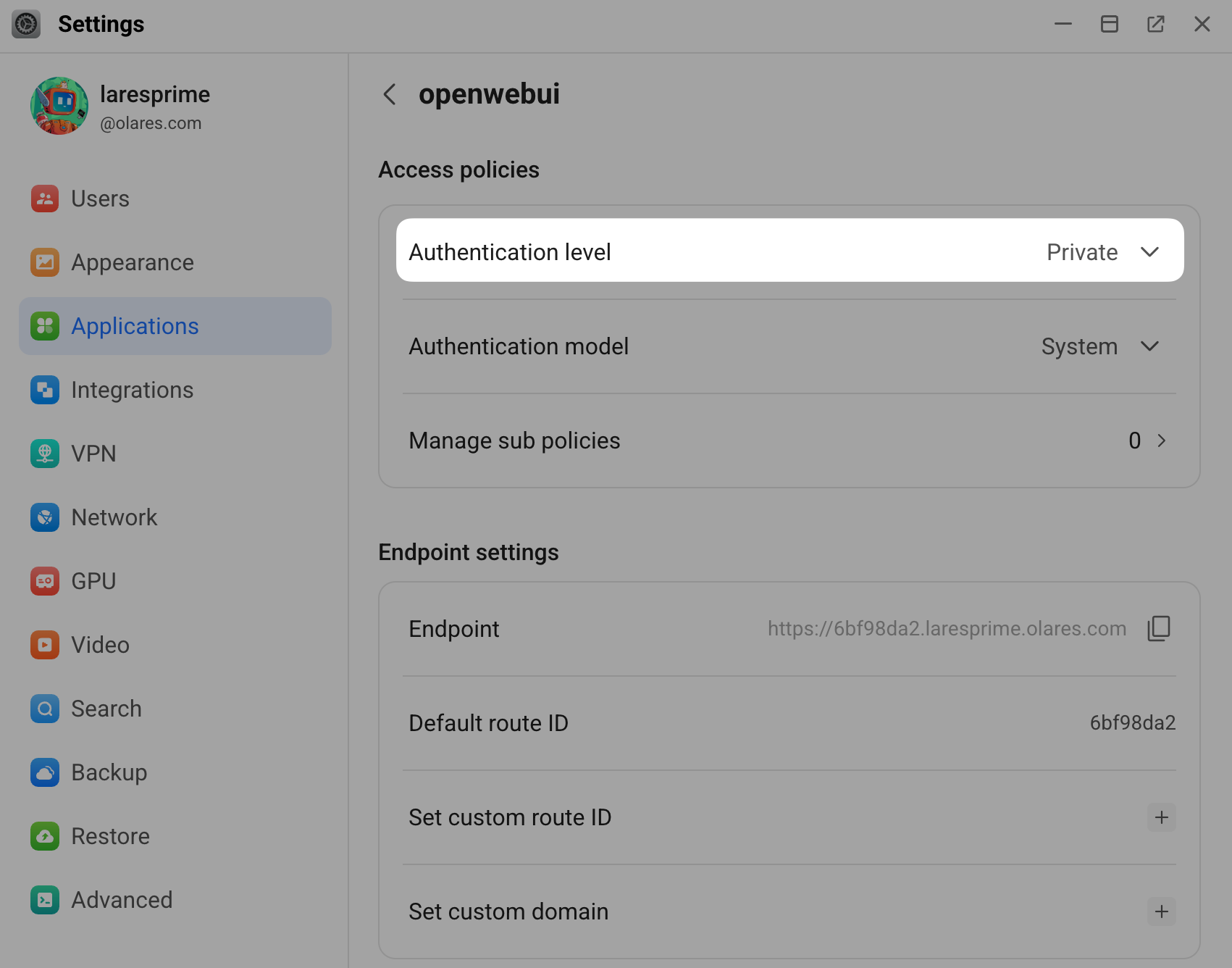
Open Olares Settings, and then go to Applications > Open WebUI > Entrances > Open WebUI.
Change the Authentication level from Private to Public, and then click Submit.
Security notice
Setting the entrance to Public exposes Open WebUI directly to the internet. The Open WebUI account system becomes your primary protection. Ensure the admin account and all sub-user accounts use strong passwords.
Add additional users
Create individual accounts for the people sharing your Olares device.
In Open WebUI, click your profile icon and select Admin Panel.
On the Users tab, click click add in the upper-right corner.
In the Add User window, fill in the user details.
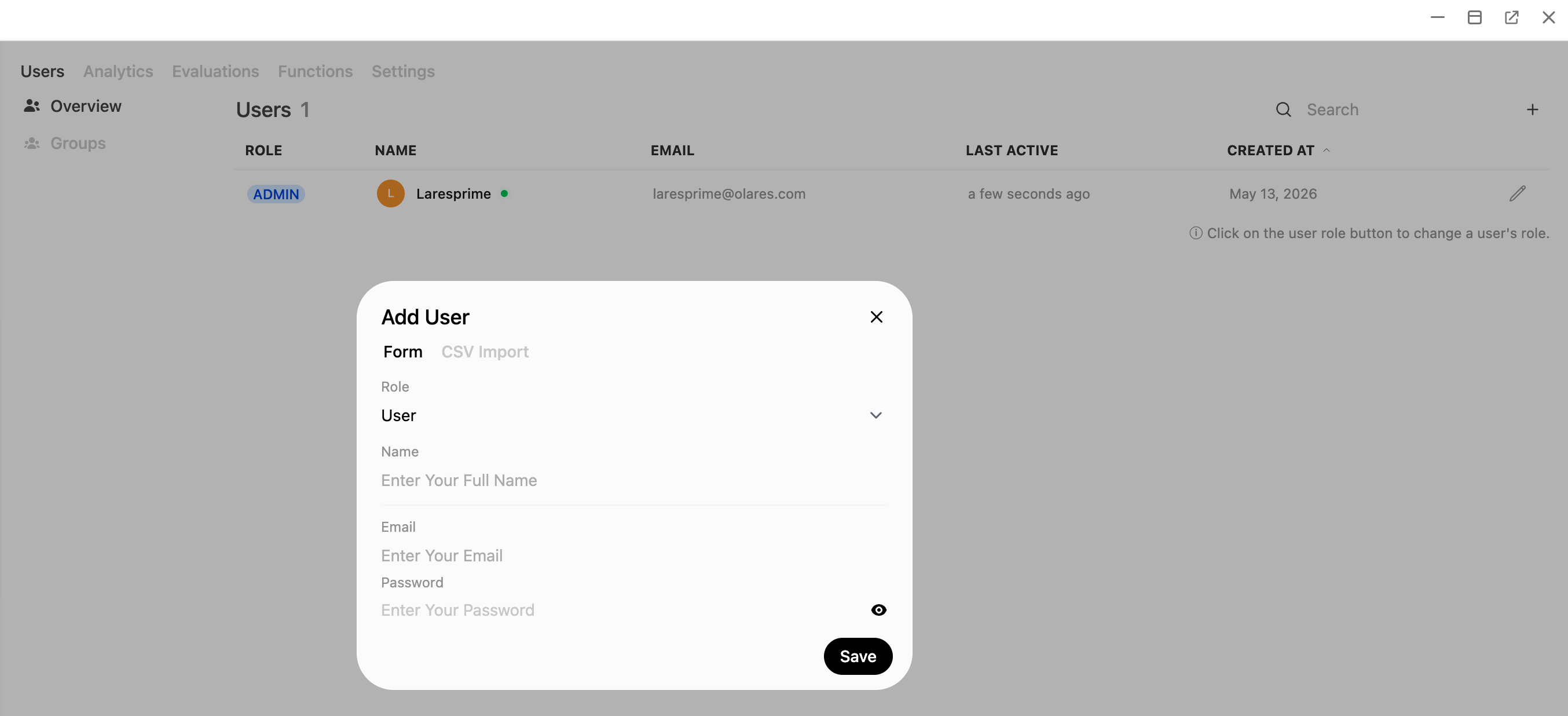
Click Save. The new user can now sign in with these credentials you specified.
Share local models
Models added by the admin remain private by default. Other users do not see or interact with them until you explicitly share them.
In Open WebUI, click your profile icon and select Admin Panel.
Go to Settings > Models.
Click edit next to the model you want to share.
Click Access in the upper-right corner.
Select one of the following access control options:
- Public: All authenticated users can access this model.
- Private: Only specified users can use this model. Click Add Access to add users to the access list.
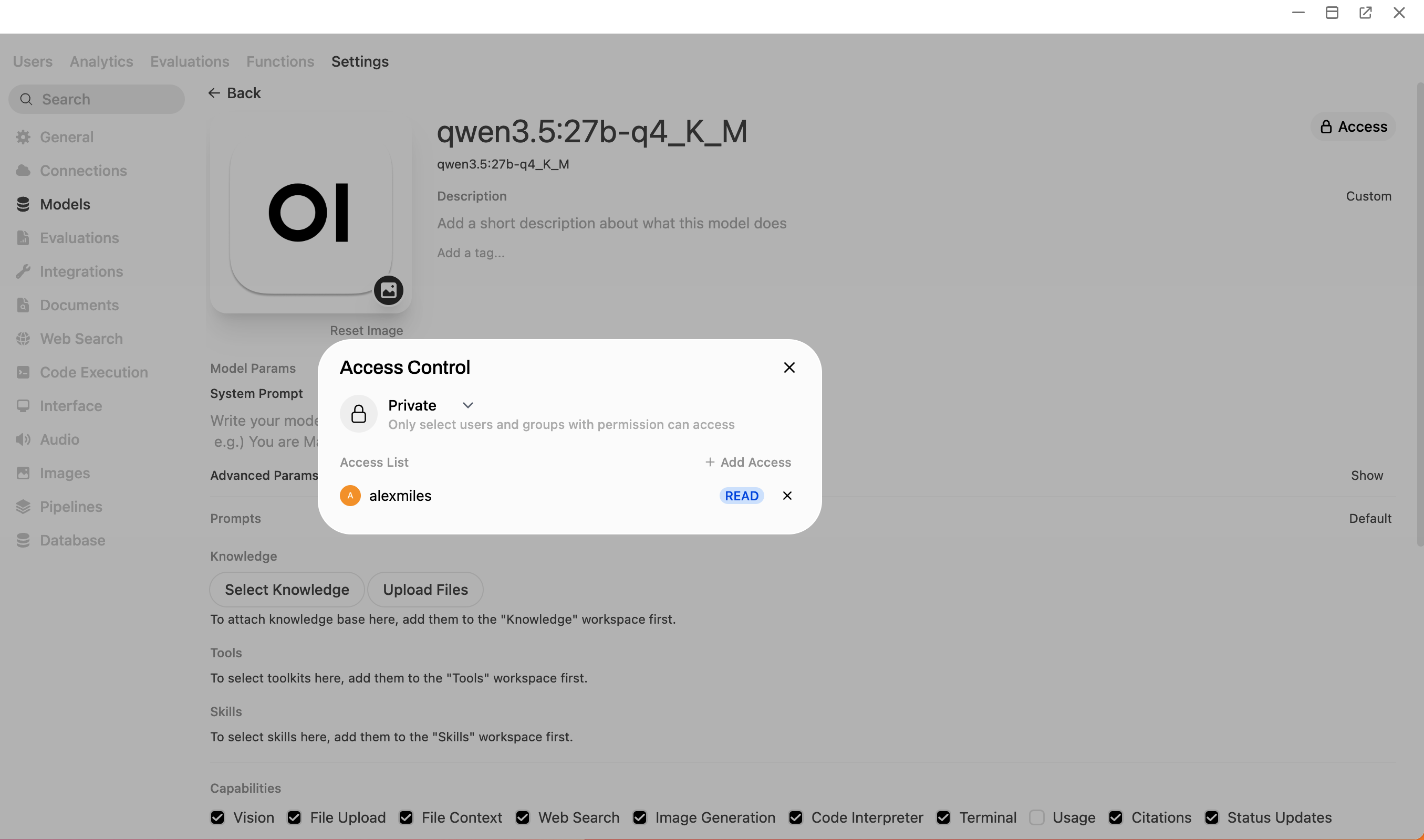
Click Save & Update.
Verify access
To ensure your configuration works correctly, test the new user experience.
Sign in to Open WebUI using the newly created user account.
Start a new chat.
Check the model drop-down list. You should see the shared model.