Manage your media library with the *Arrs ecosystem
The *Arrs family is a suite of open-source, self-hosted media managers. Sonarr manages TV shows, Radarr manages movies, Lidarr handles music, and Readarr organizes books. Prowlarr manages indexers for these applications, while Bazarr handles subtitle services.
By configuring connections between these tools, they communicate with each other to automatically search, download, and organize your media.
Learning objectives
In this guide, you will learn how to:
- Understand and construct application provider URLs in Olares.
- Connect a download client (qBittorrent) to a media manager (Sonarr).
- Connect an indexer manager (Prowlarr) to Sonarr.
- Connect a subtitle manager (Bazarr) to Sonarr.
Prerequisites
This guide focuses specifically on configuring the connections between the *Arrs applications. It does not cover the complete setup or general usage of each individual app.
Ensure you have properly configured the core settings of your media managers and download clients before connecting them.
Understand provider URLs
In Olares, provider URLs are internal addresses that enable direct communication between applications within the same cluster.
How the provider mechanism works
The mechanism operates through the following roles and features:
- Service provider: An application offering a service, such as qBittorrent providing a download API, declares one or more entrances in its Olares Settings.
- Service consumer: An application requiring that service explicitly requests access to the corresponding entrance. Olares grants permission only to authorized consumer applications.
- Visibility in Market: When you view an application's details in Market, you see exactly which other applications it connects to. This indicates the supported provider relationships.
Not every application supports the Olares provider mechanism. To establish a connection, both the provider application and the consumer application must explicitly declare and request the appropriate entrances.
How are provider URLs constructed
A provider URL is the HTTP protocol version of an application's entrance endpoint.
For example, if the entrance address of an *Arrs application is https://9691c178.alexmiles.olares.com, its provider URL is http://9691c178.alexmiles.olares.com.
The following steps demonstrate how to construct an application's provider URL in Olares using Sonarr as an example:
Open Settings, go to Applications > Sonarr > Entrances > Sonarr.
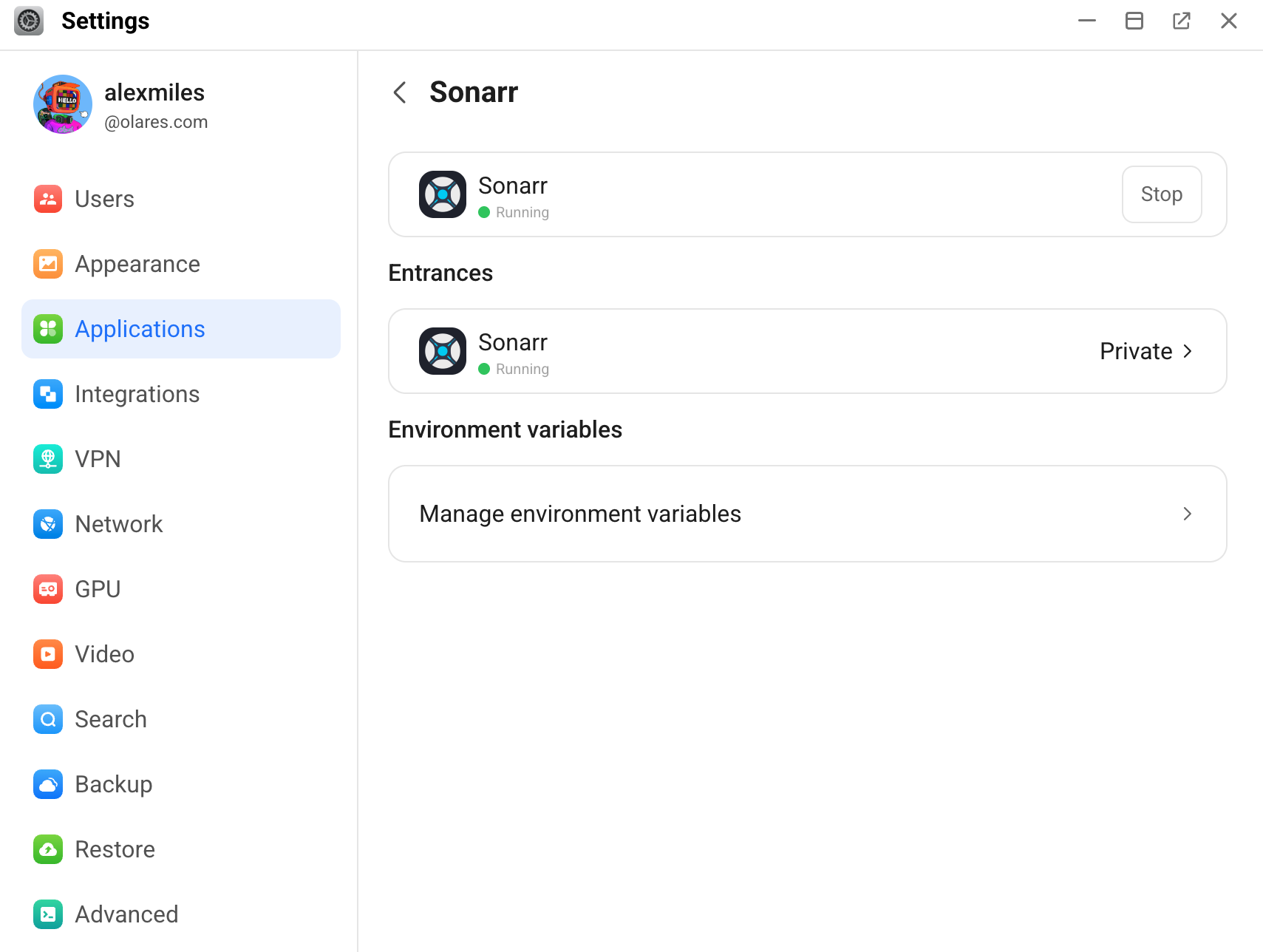
Note down the URL in the Endpoint field, that is
https://9691c178.alexmiles.olares.com.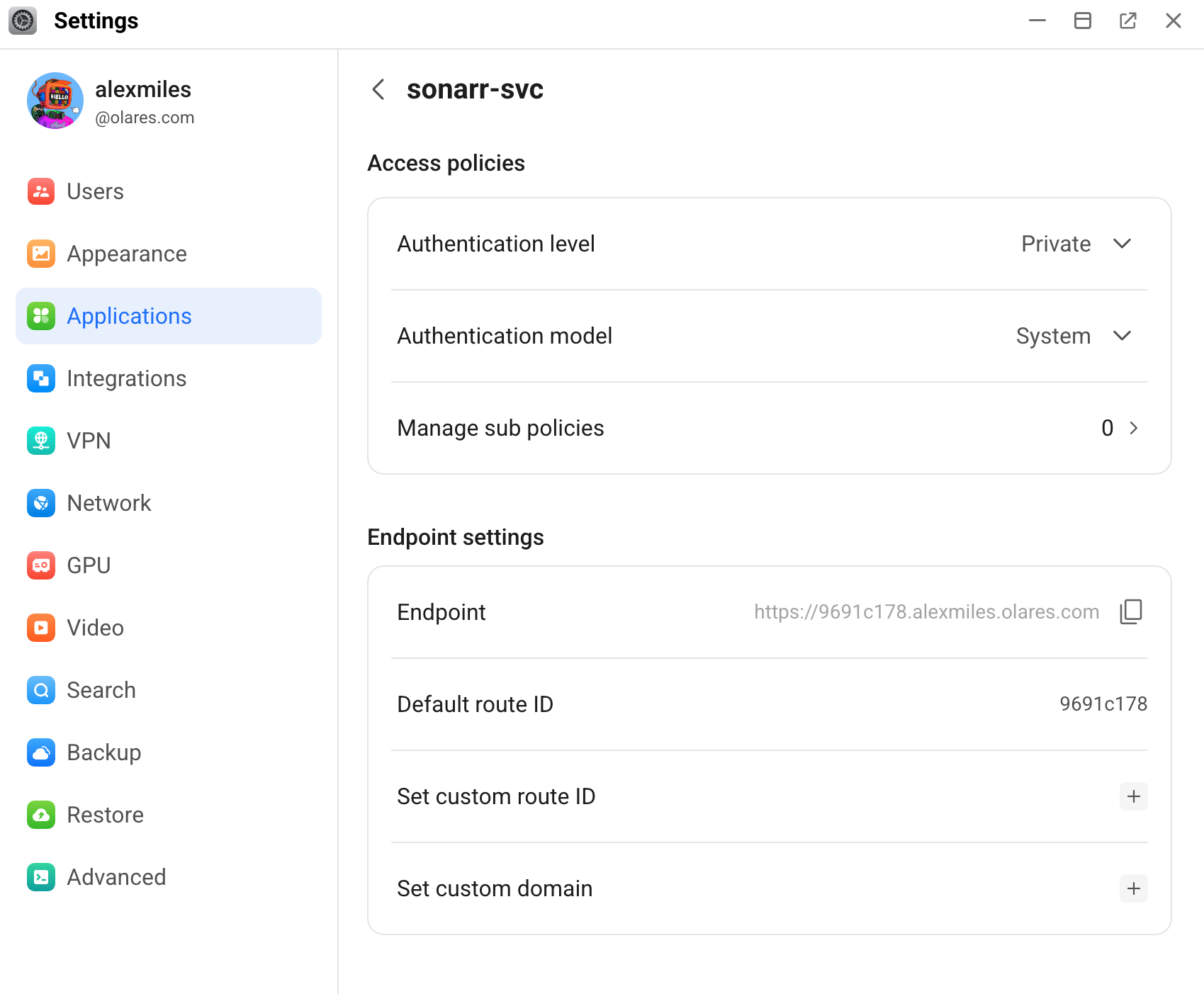
Replace
httpswithhttpto construct the provider URL, that ishttp://9691c178.alexmiles.olares.com.
Which entrance to select?
If an application exposes multiple entrances, ensure you select the correct one for the required service. For detailed instructions on identifying the correct entrance, see Which entrance to use when an app has multiple.
How provider URLs connect the *Arrs ecosystem
Because the *Arrs ecosystem relies heavily on app-to-app communication, provider URLs are essential for connecting your media managers (Sonarr, Radarr, Lidarr, and Readarr) with download clients (such as qBittorrent) and indexer managers (such as Prowlarr).
When you configure connections between these *Arrs applications, the application asks you to enter either the full provider URL (including the http:// prefix) or just the host address (excluding the prefix). For all provider URL‑based communication, you must specify the port as 80.
Install the *Arrs applications
Install the *Arrs applications you need for your media stack. This tutorial uses Sonarr, Prowlarr, Bazarr, and qBittorrent.
Open Market and search for "Sonarr".
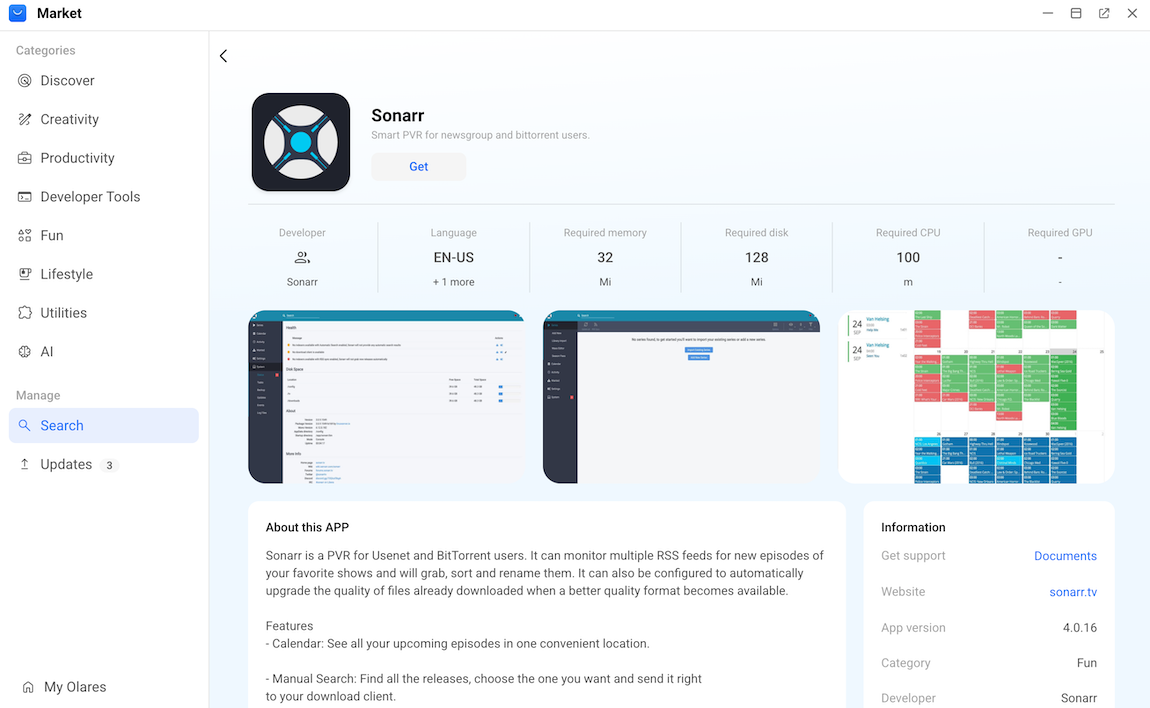
Click Get, and then click Install. Wait for the installation to finish.
Search for "Prowlarr" and install it.
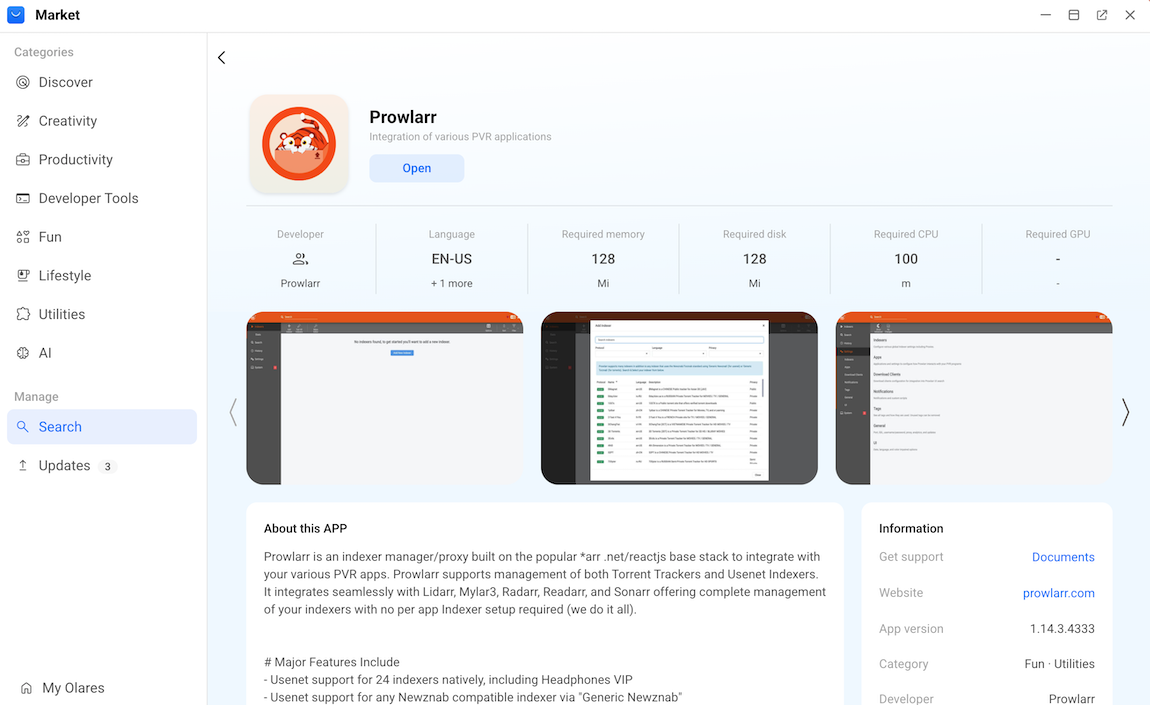
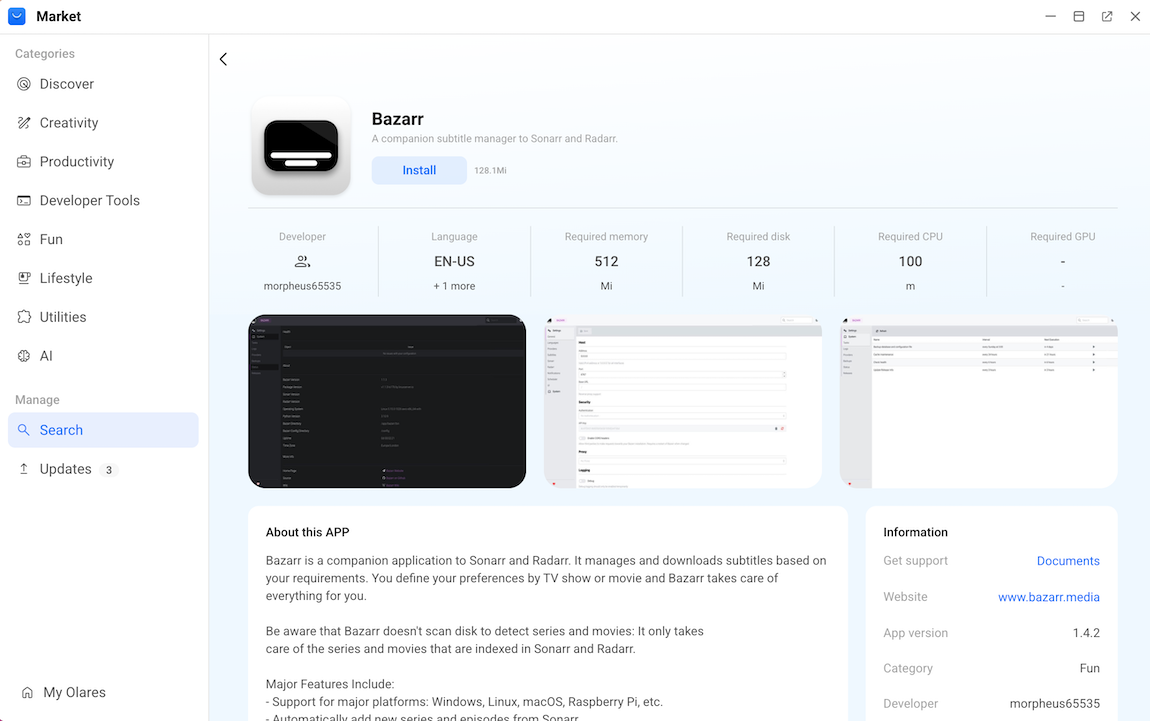
Search for "Bazarr" and install it.
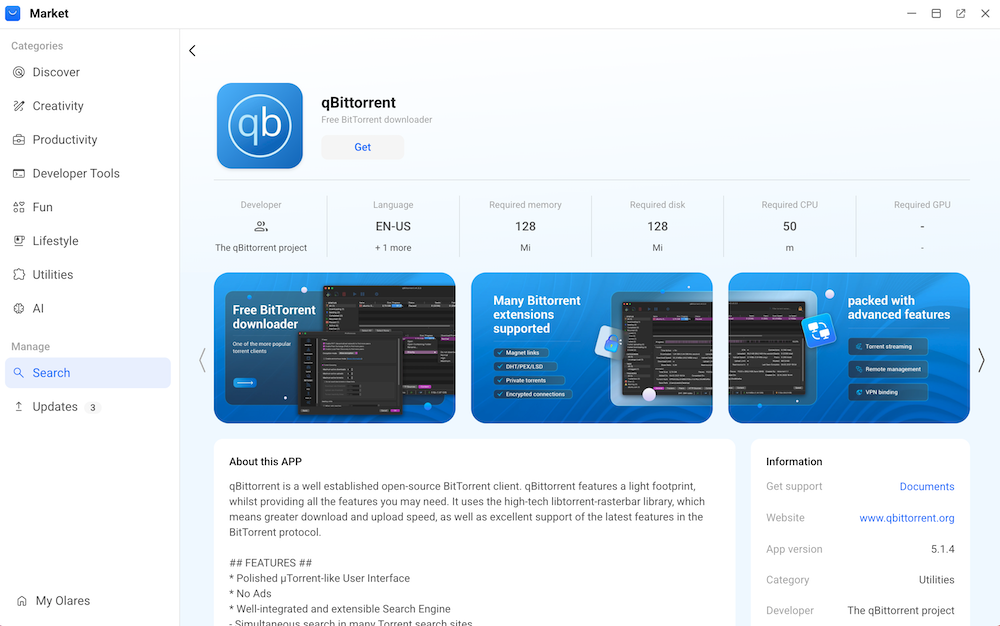
Search for "qBittorrent" and install it.
Complete the initial app settings
To secure your media server and prevent unauthorized access, you must configure administrator credentials for your applications upon their first launch if prompted.
The following steps demonstrate the initial setup for Sonarr.
Open Sonarr from the Launchpad. The Authentication Required page appears.
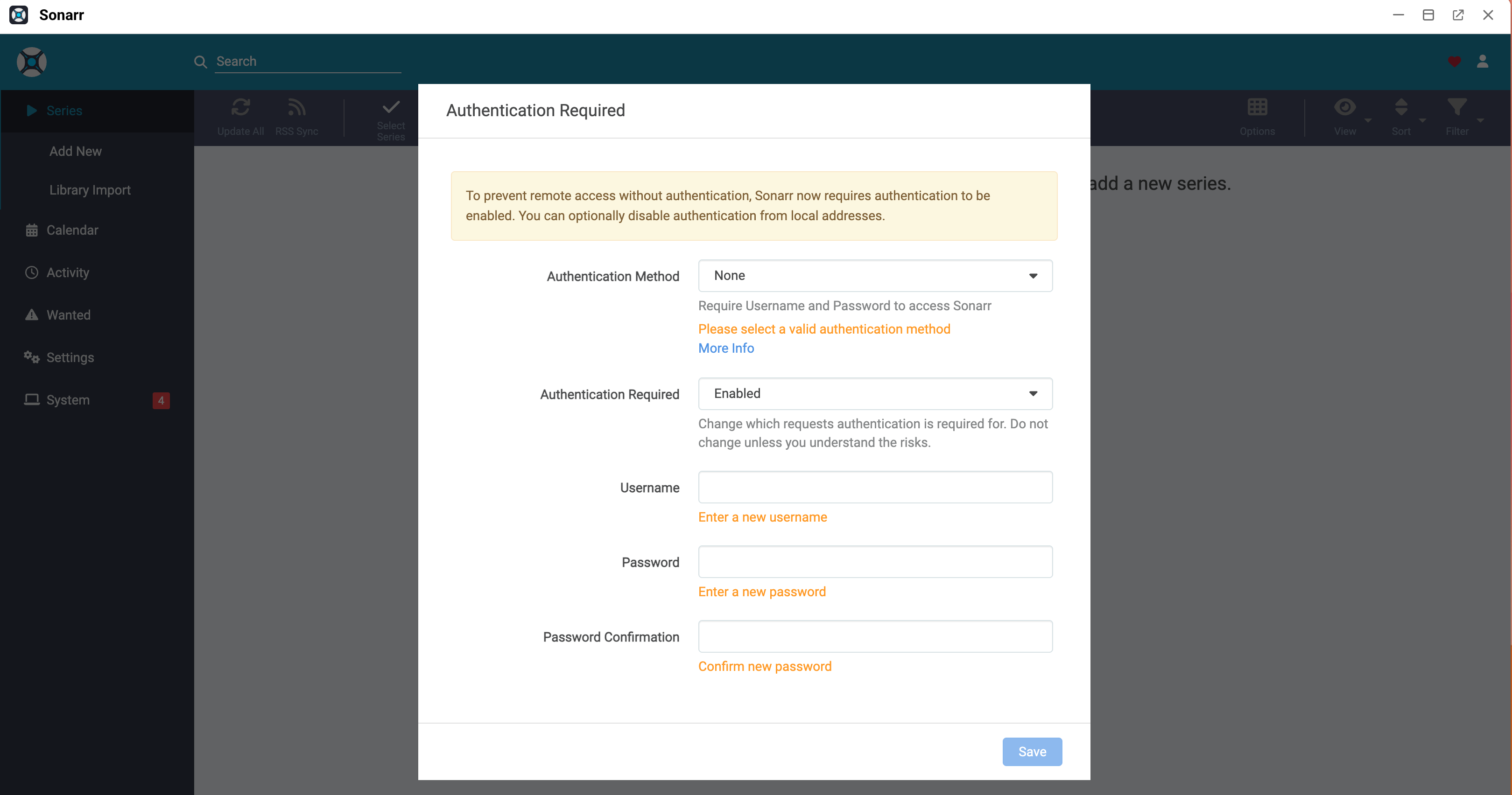
Select an authentication method:
- Basic (Browser Popup): To use your web browser's native login prompt, select this option. This method is often more compatible with automated password managers.
- Forms (Login Page): To use Sonarr's built-in, custom login interface for a more visually integrated experience, select this option.
In the Authentication Required list, keep the default selection Enabled to ensure maximum security. This option requires your username and password regardless of where you access the app from.
In the Username field, enter an admin username.
In the Password field, enter a secure password.
In the Password Confirmation field, type the same password again.
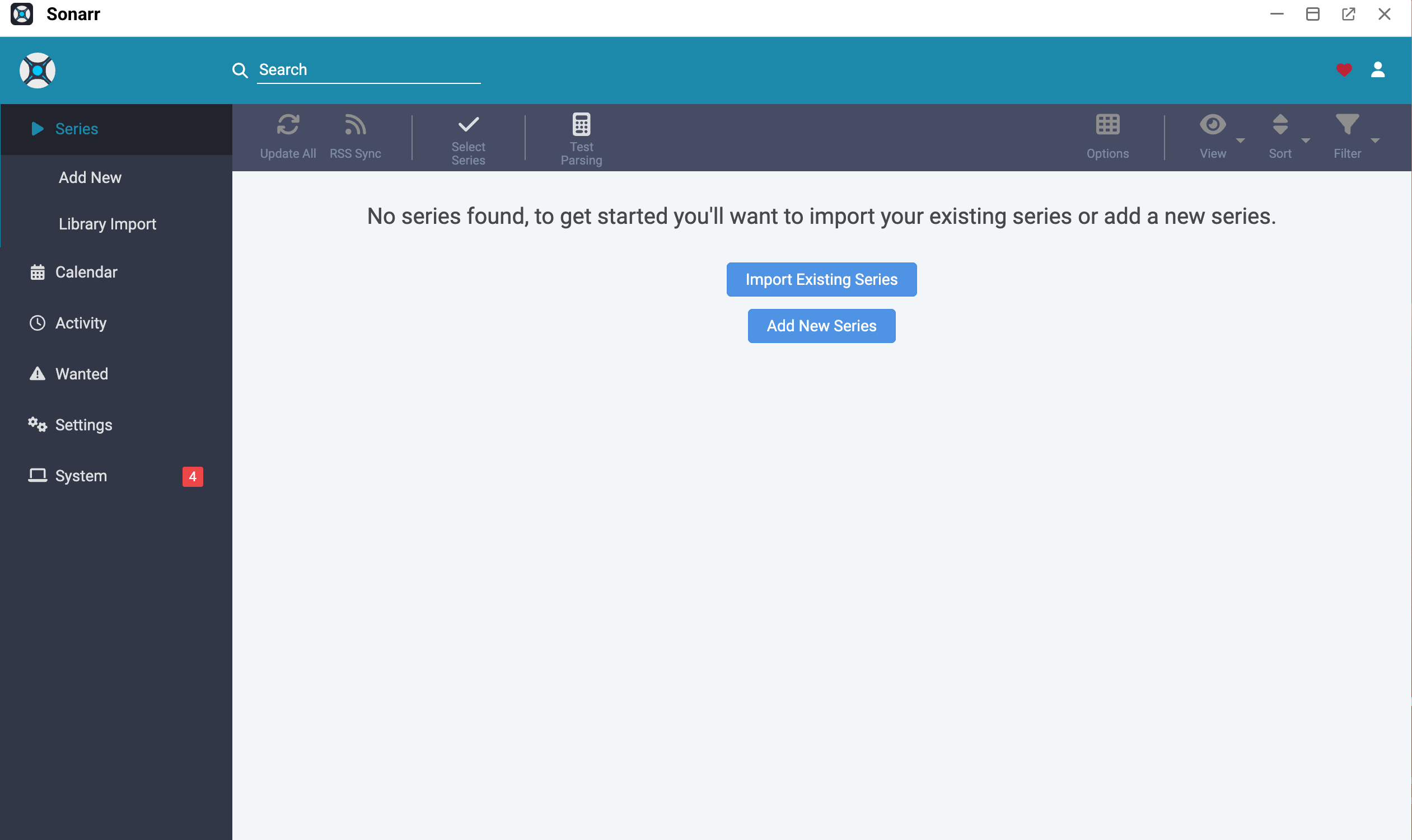
Click Save. You log in to Sonarr.
Connect a download client to a media manager
To download media, you must connect a download client like qBittorrent or Transmission to your media managers (Sonarr, Radarr, Lidarr, and Readarr).
The following steps demonstrate how to connect qBittorrent to Sonarr. You can apply the same process for other media managers.
Open Sonarr, click Settings from the left sidebar, and then select Download Clients.
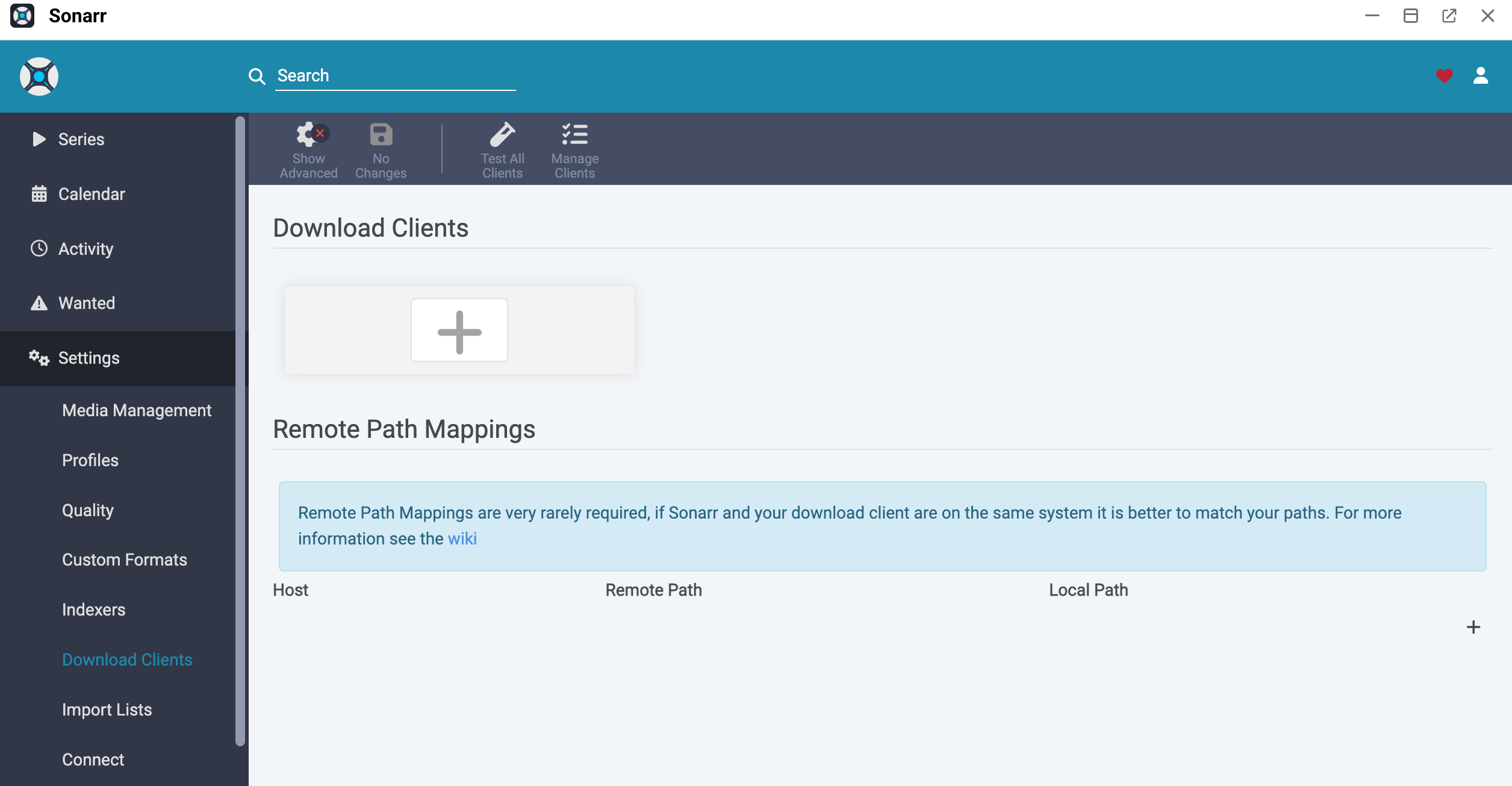
Click add_2, and then scroll down to select qBittorrent to add a new client connection.
Specify the connection details as follows:
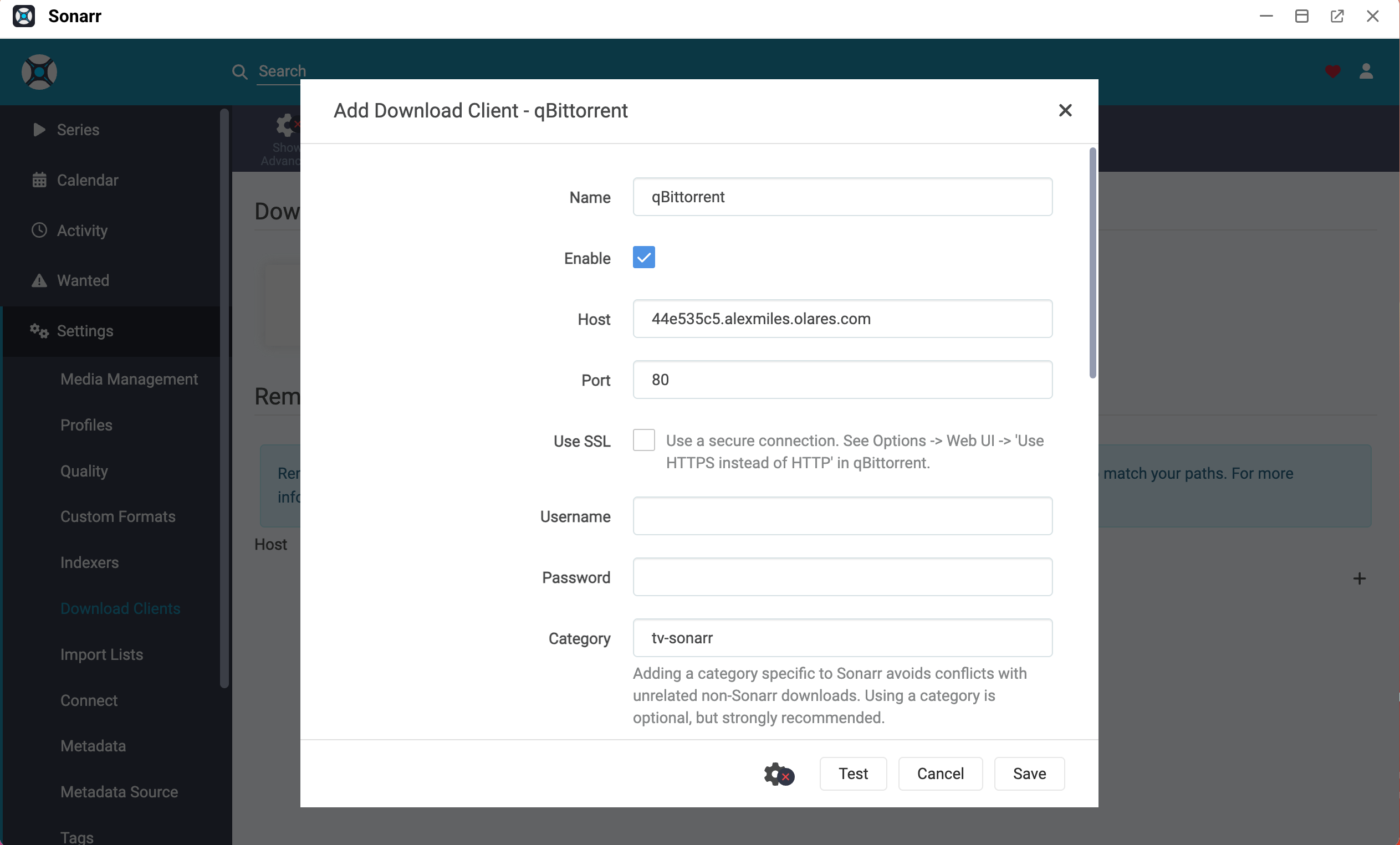
- Host: Enter the provider URL of qBittorrent, excluding the
http://prefix and any trailing slashes. For example,44e535c5.alexmiles.olares.com. - Port: Enter
80. - Username and Password:
- If your qBittorrent client requires authentication, enter your username and password.
- If you use the default qBittorrent settings without a password, leave the two fields blank.
- Host: Enter the provider URL of qBittorrent, excluding the
Click Test. A green checkmark appears, indicating the connection is successful.
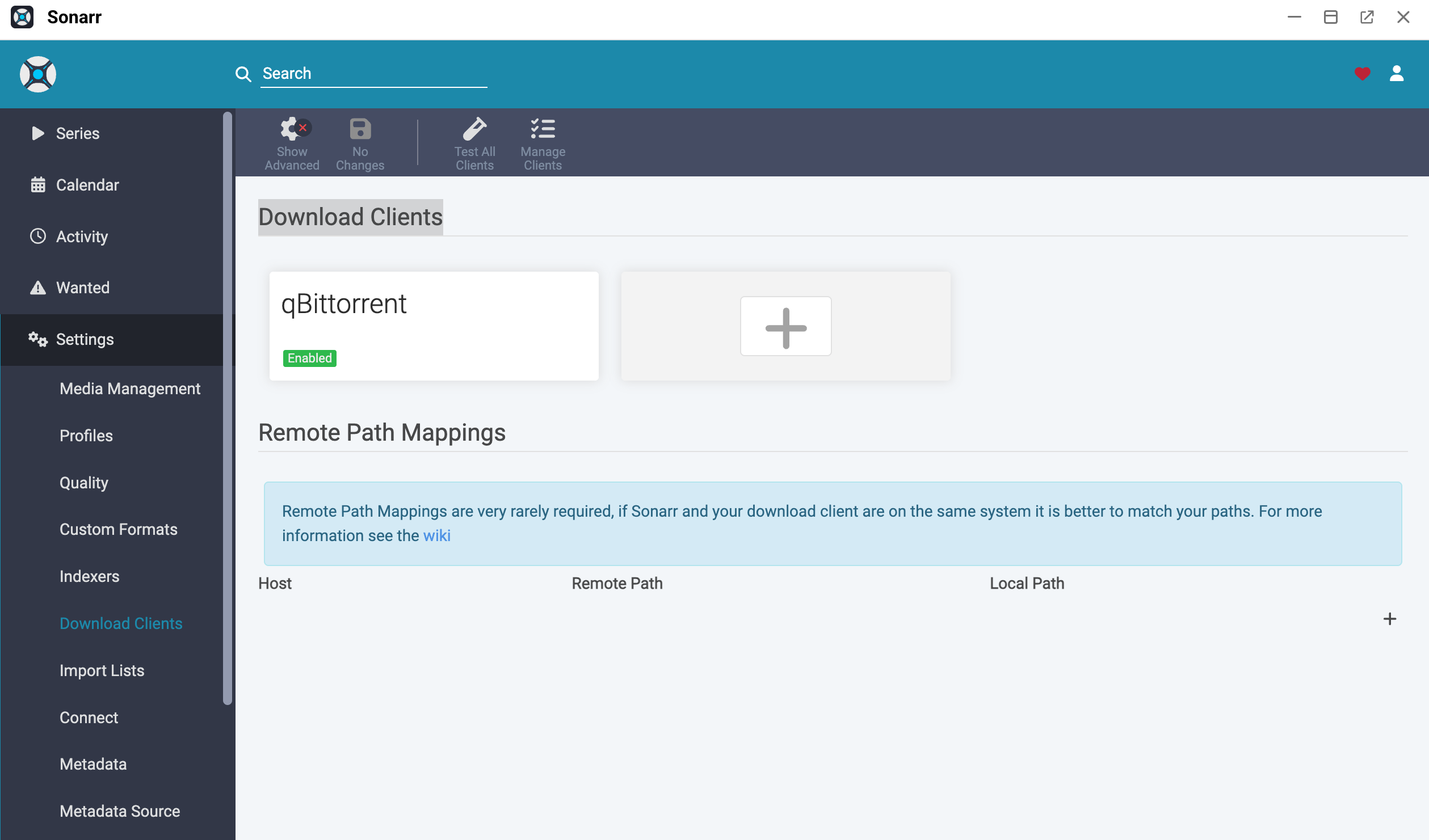
Select Save. qBittorrent appears in the Download Clients section as enabled.
Connect an indexer manager to a media manager
To automatically search for media files across multiple indexers (search sites), you must connect an indexer manager like Prowlarr to your media managers.
The following steps demonstrate how to connect Prowlarr to Sonarr. You can apply the same process for other media managers.
Step 1: Obtain the Sonarr API Key
Open Sonarr, click Settings from the left sidebar, and then select General.
In the Security section, note down the API Key. In this case, it is
e4ee9f376d754fd3b7146629d737644f.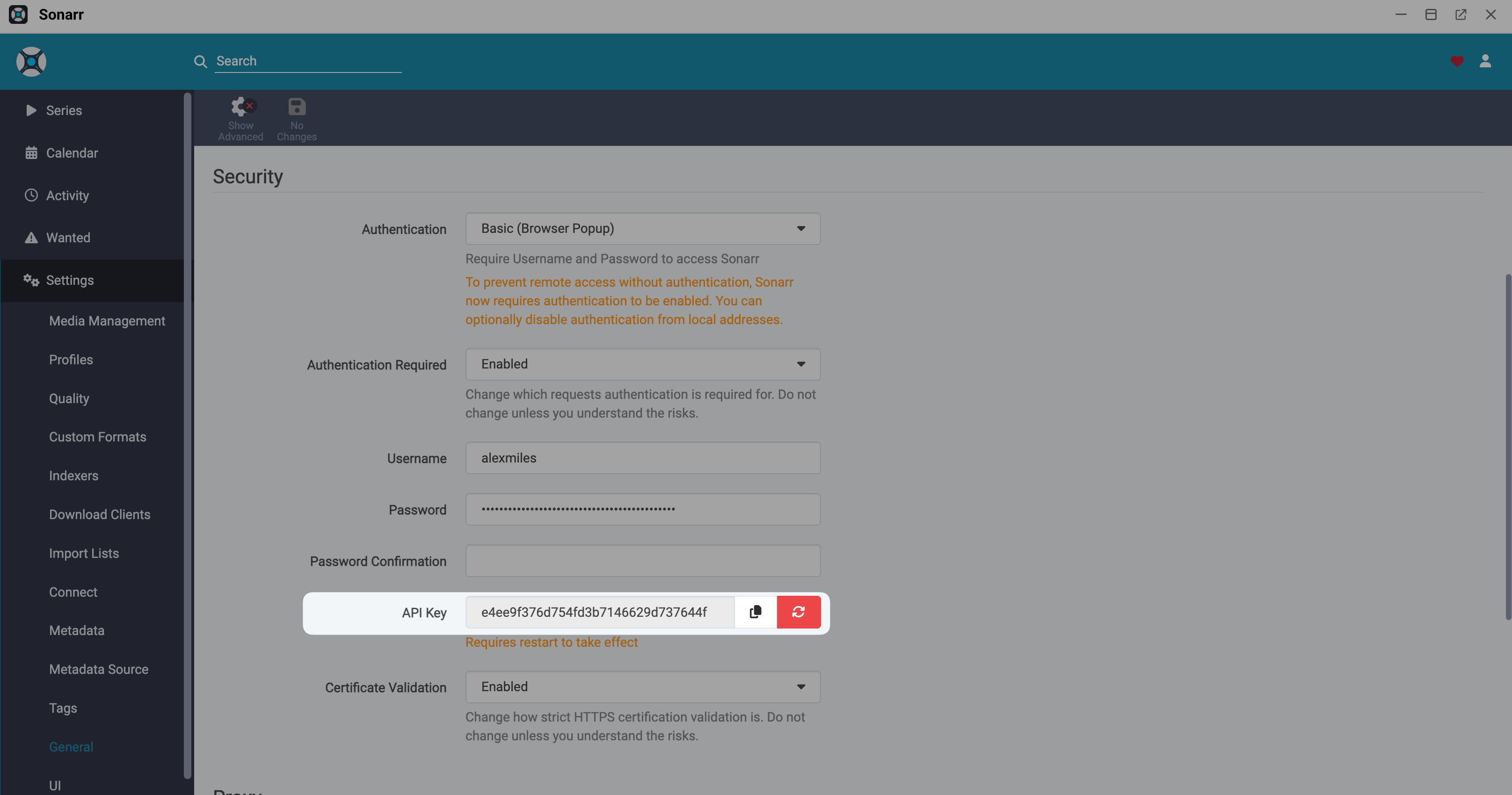
Step 2: Add indexers in Prowlarr
Open Prowlarr and sign in.
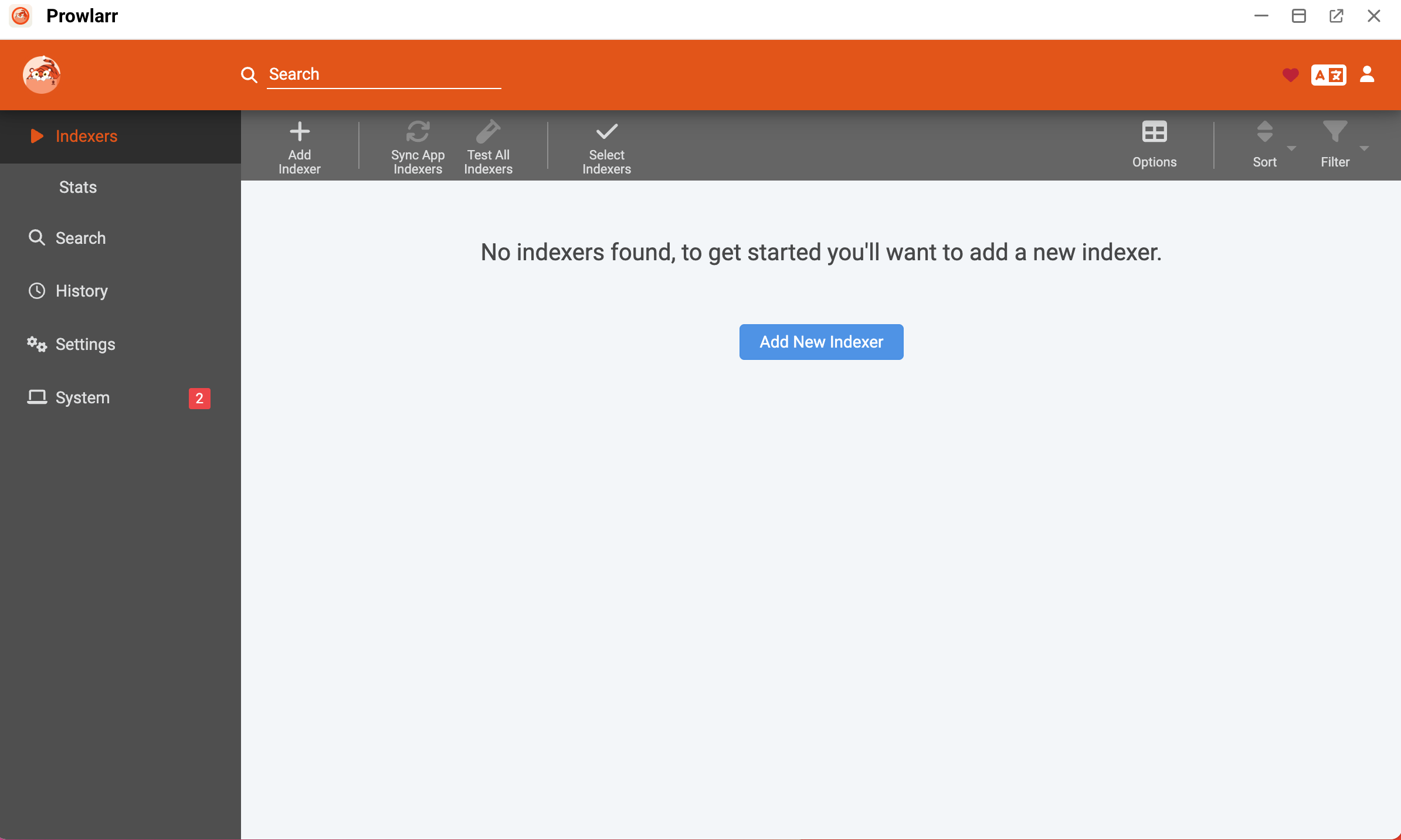
Click Add New Indexer.
Add your preferred indexers and ensure they connect successfully. For example, to add Uindex:
a. Search for Uindex, and then click it from the results list.
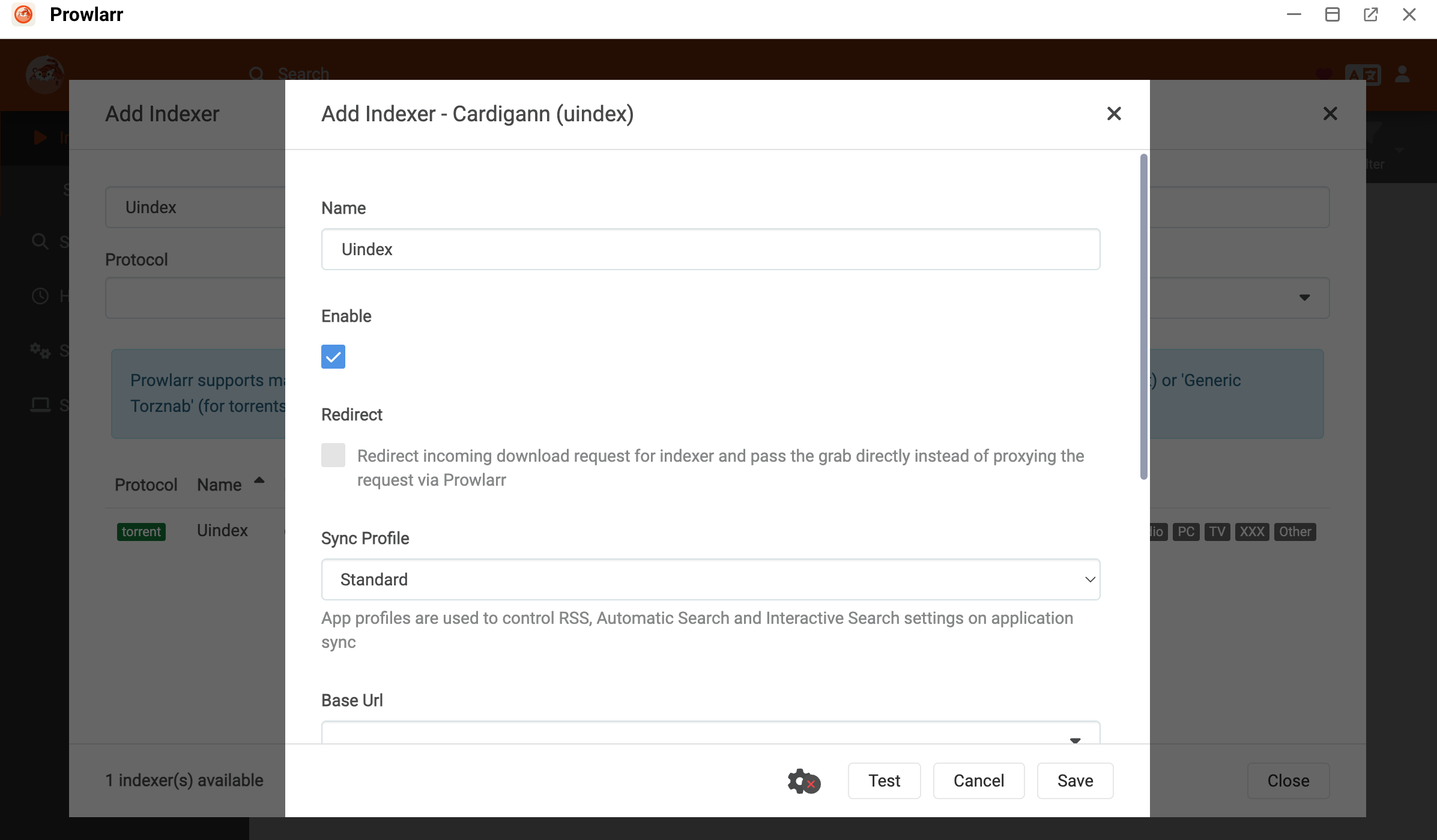
b. Click Test. A green checkmark appears, indicating the connection is successful.
TIP
If the connection test fails, the indexer might require a Cloudflare bypass. For instructions on resolving this issue, see Access Cloudflare-protected sites in Prowlarr with FlareSolverr.
c. Click Save.
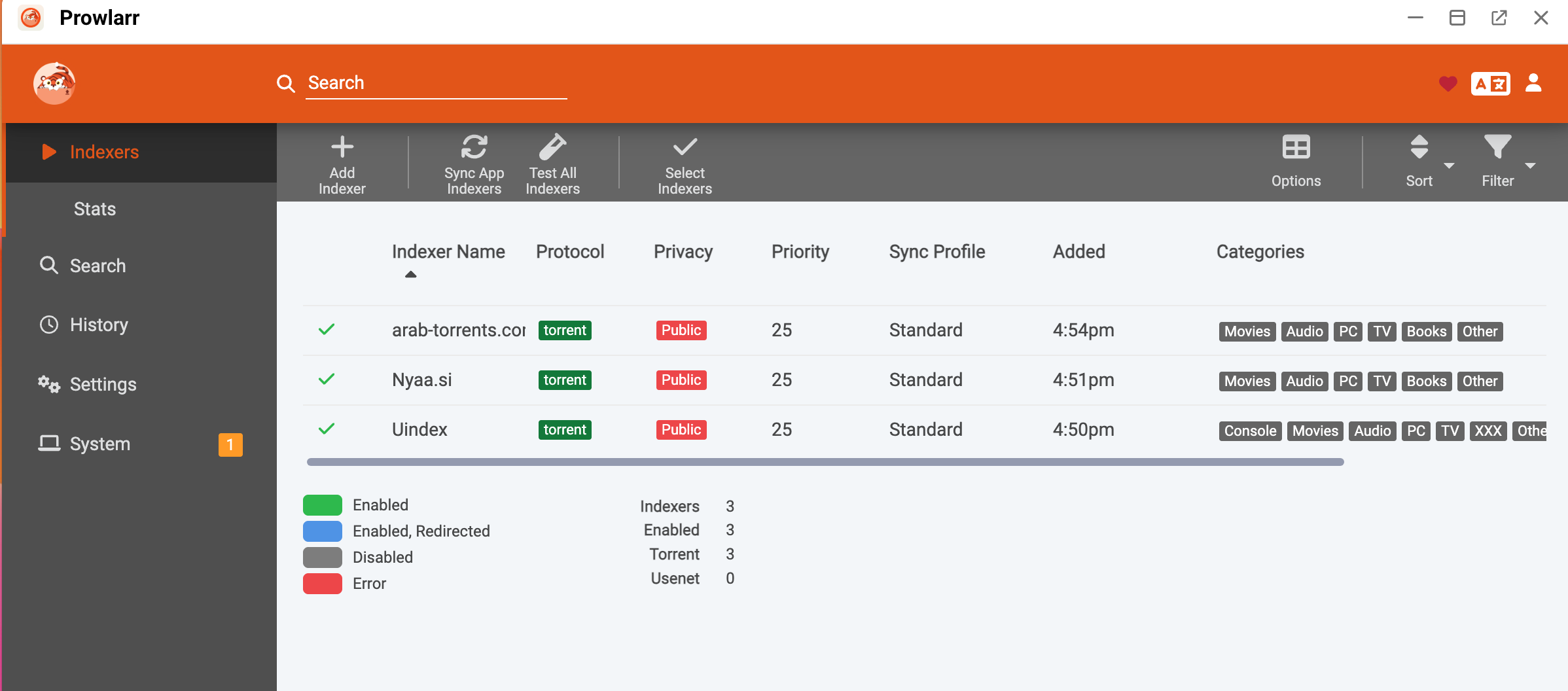
Close the Add Indexer window. Prowlarr displays the enabled indexers.
Step 3: Sync Prowlarr with Sonarr
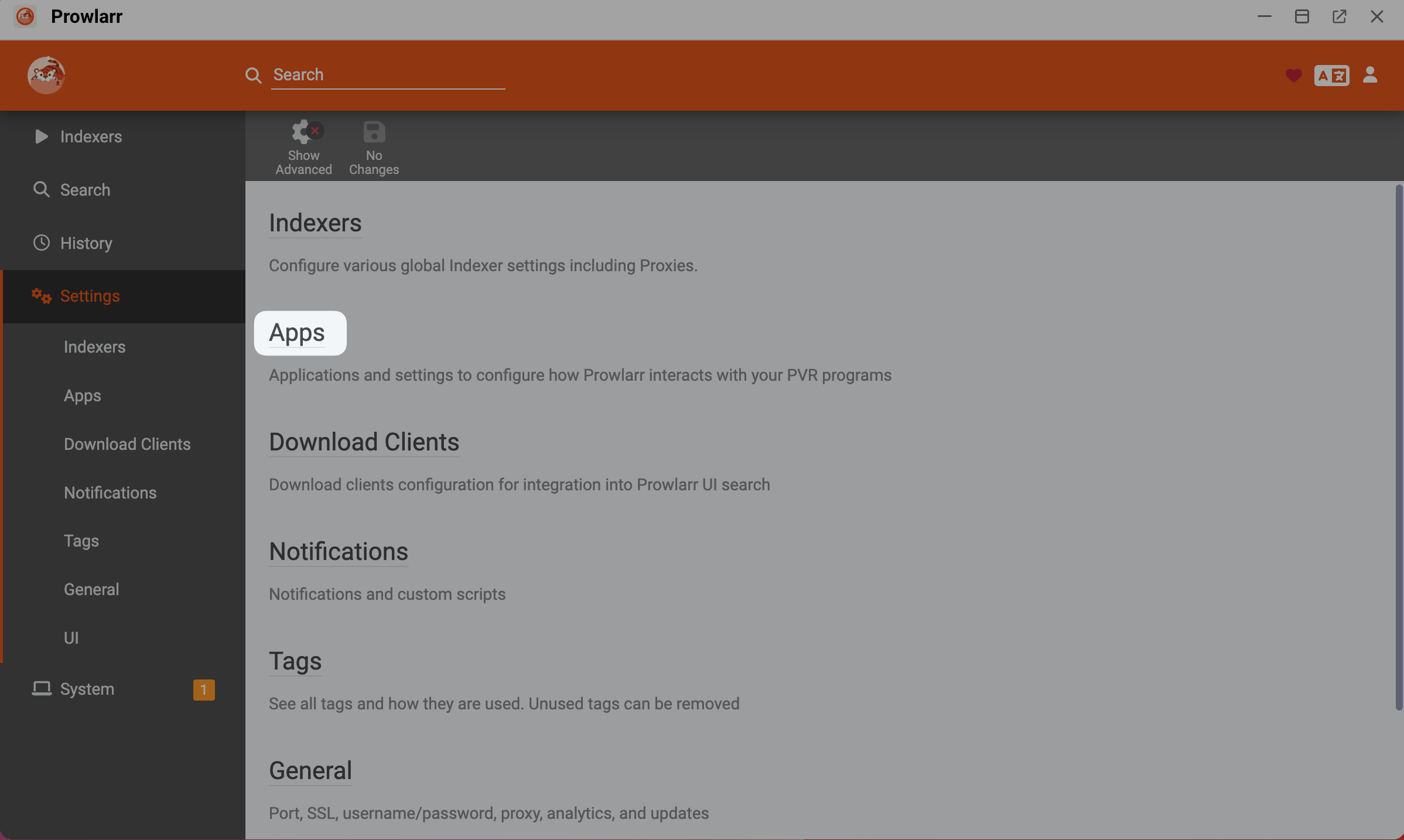
In Prowlarr, click Settings from the left sidebar, and then select Apps.
Click Apps.
Click add_2, and then select the application you want to connect, that is Sonarr.
In the Add Application - Sonarr window, specify the following settings:
- Prowlarr Server: Enter the provider URL of Prowlarr, such as
http://e5e5b409.alexmiles.olares.com. - Sonarr Server: Enter the provider URL of Sonarr, such as
http://9691c178.alexmiles.olares.com. - API Key: Enter the API key you noted down previously.
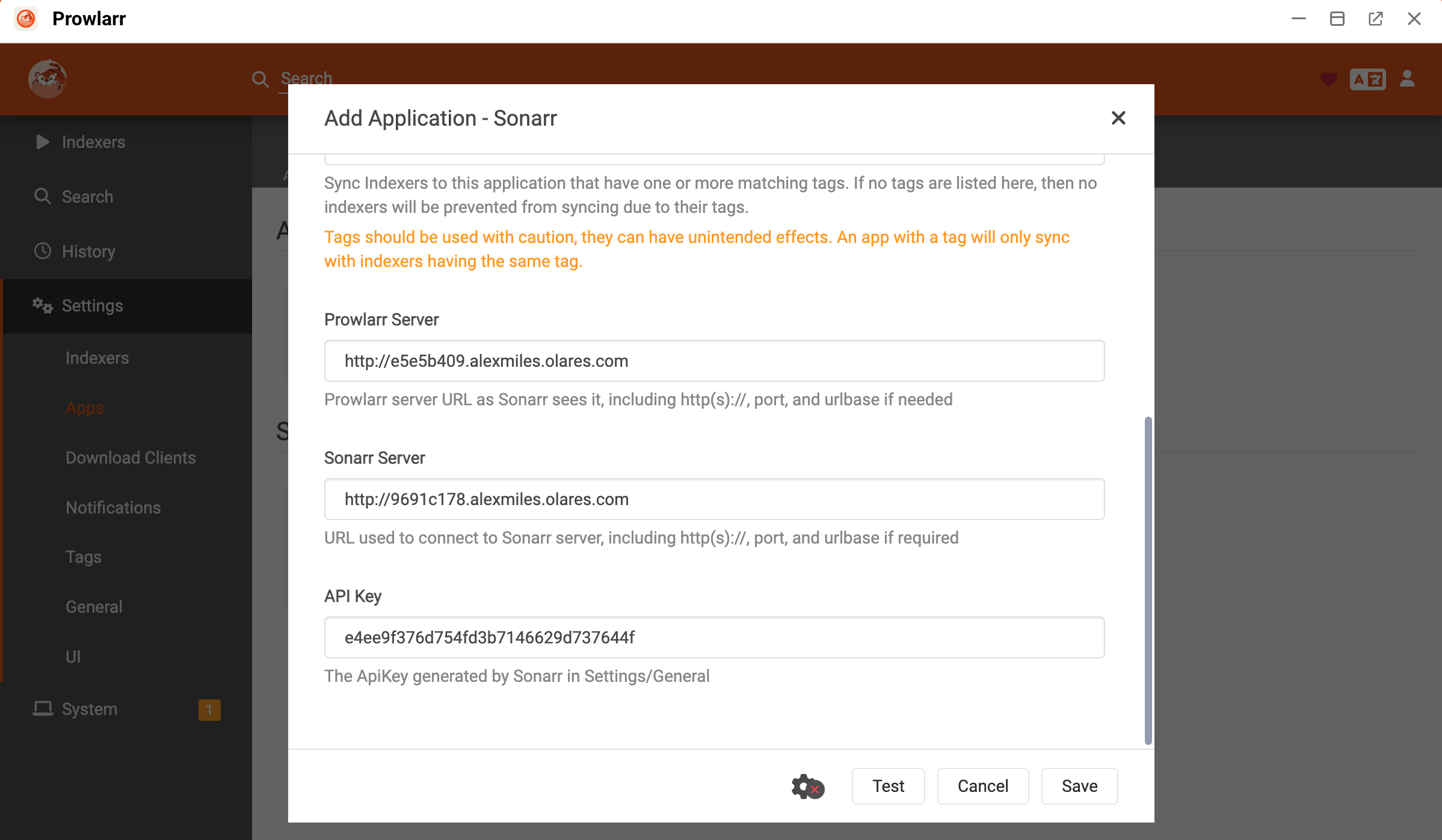
- Prowlarr Server: Enter the provider URL of Prowlarr, such as
Click Test. A green checkmark appears, indicating the connection is successful.
Click Save. Sonarr appears in the Applications section, and Prowlarr automatically pushes the indexers to Sonarr.
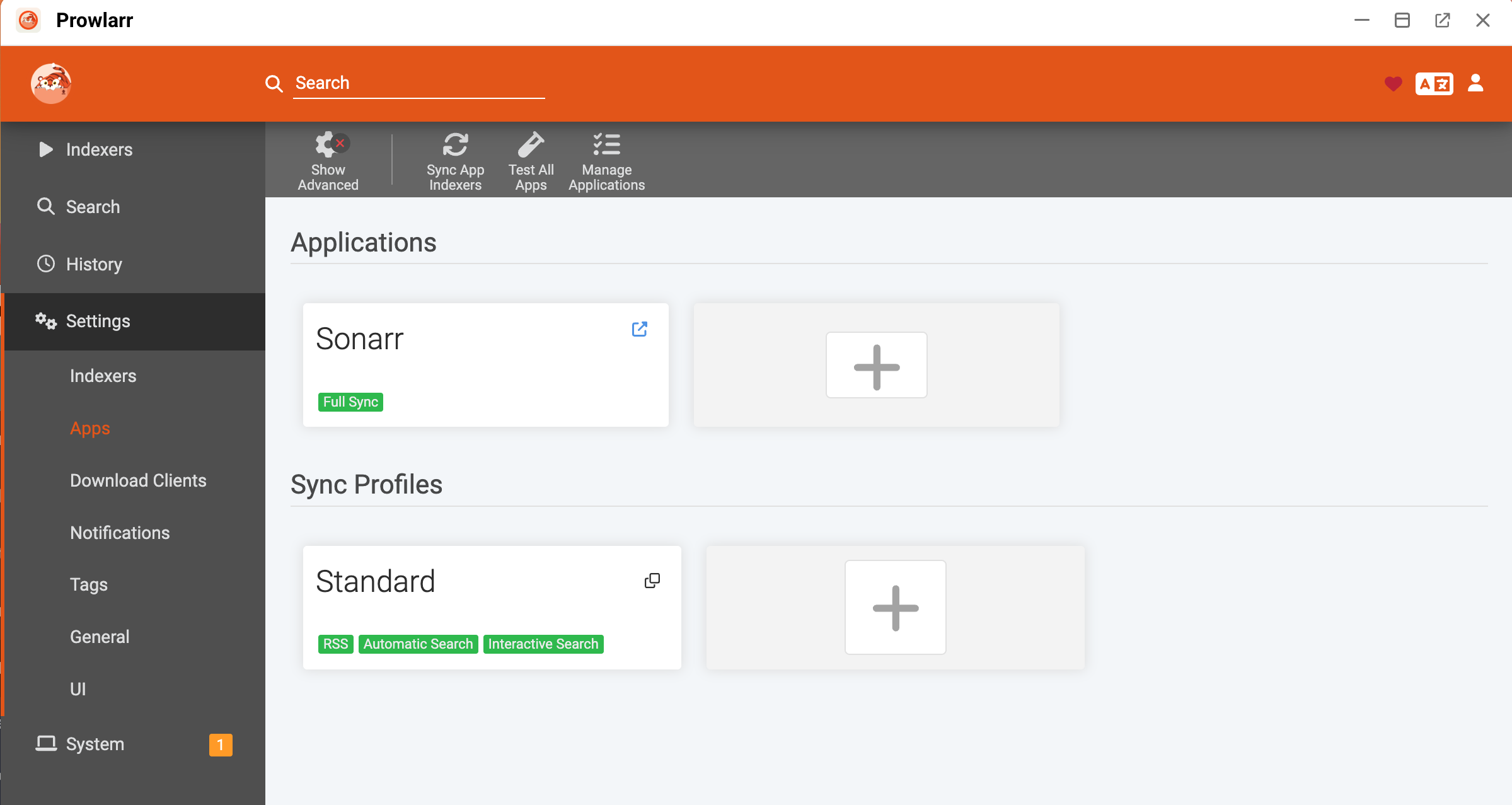
To verify the sync, open Sonarr, and then go to Settings > Indexers. You can see the data sources imported from Prowlarr.
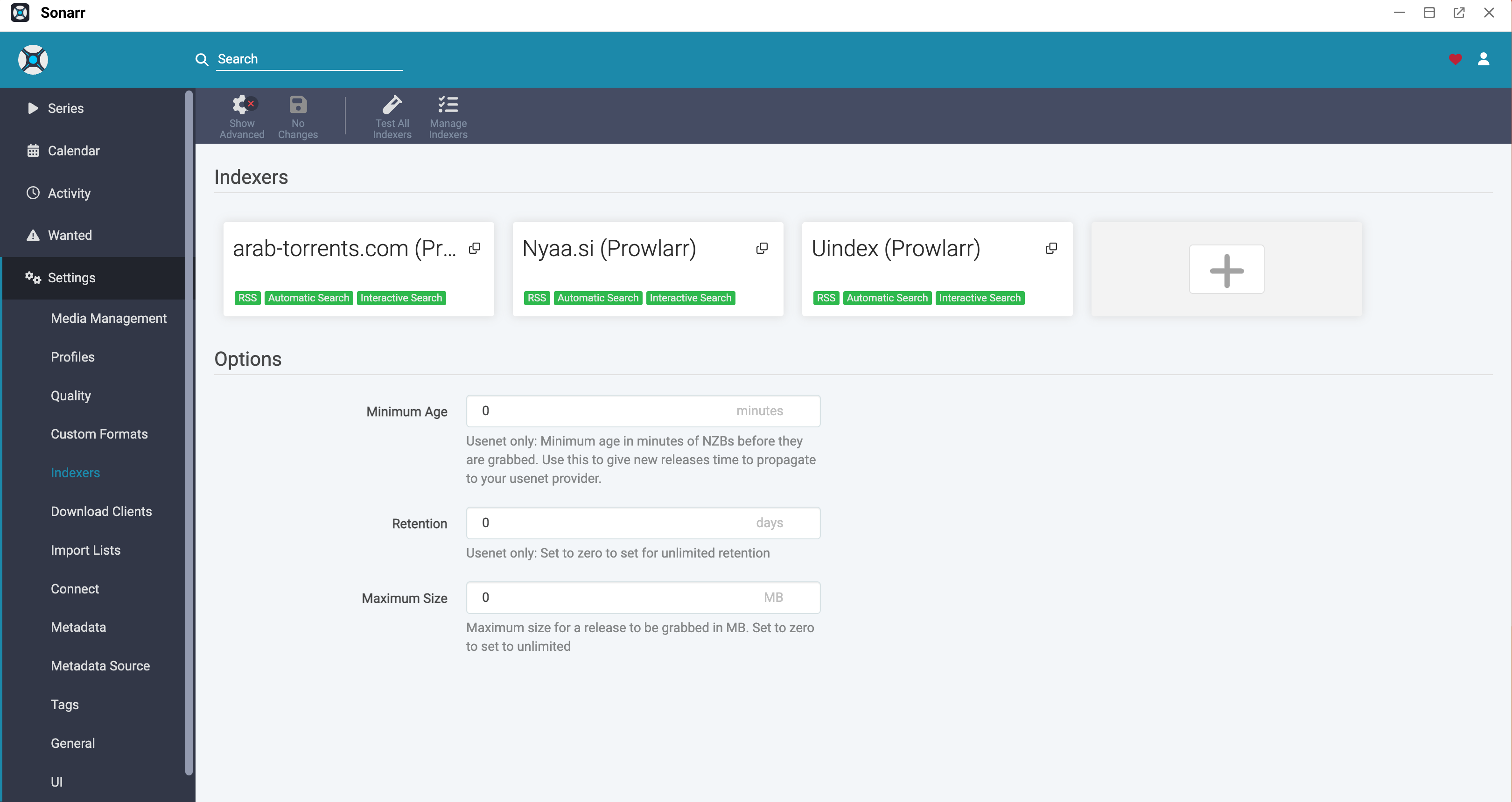
Now when you add a new TV show in Sonarr, it searches these indexers for available files and triggers qBittorrent to download them.
Connect a subtitle manager to a media manager
To automatically download missing subtitles for your media library, you must connect a subtitle manager like Bazarr to your media managers (Sonarr and Radarr).
The following steps demonstrate how to connect Bazarr to Sonarr.
Open Bazarr from the Launchpad, and then click Sonarr from the left sidebar.
Toggle on Enabled, and then specify the following settings:
- Address: Enter the provider URL of Sonarr, excluding the
http://prefix. For example,9691c178.alexmiles.olares.com. - Port: Enter
80. - API Key: Enter the Sonarr API Key you noted down earlier.
- Address: Enter the provider URL of Sonarr, excluding the
Click Test. Bazarr displays the connected Sonarr version number if the connection is successful.
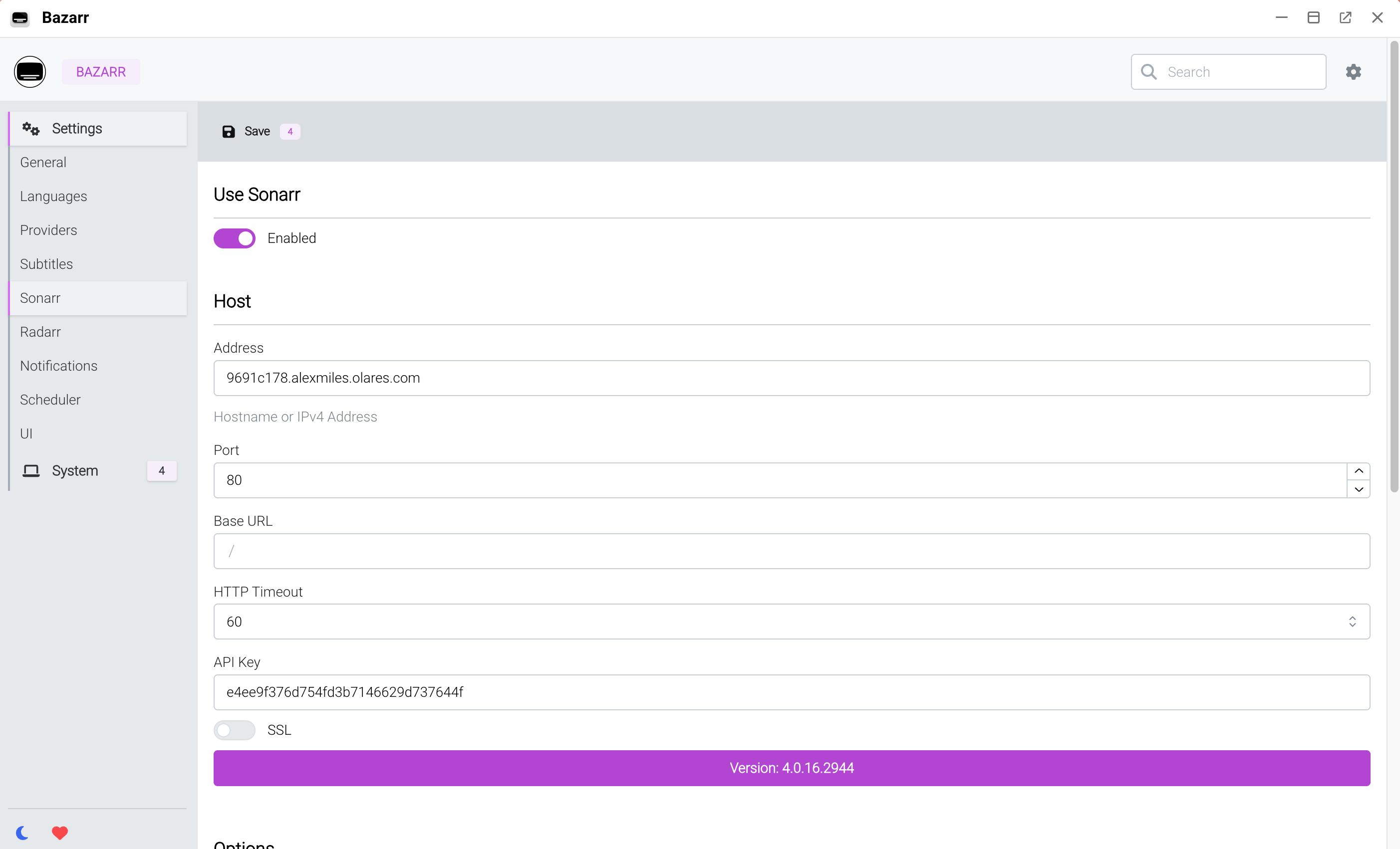
Select Save in the upper-left corner.
Bazarr now monitors Sonarr. Whenever Sonarr downloads a TV show, Bazarr automatically detects it and downloads the corresponding subtitles according to your language settings.
FAQ
Which entrance to use when an app has multiple?
Some applications expose more than one entrance. You must select the entrance that provides the actual service the consumer application needs.
To identify the exact entrance required, match the provider name listed in the Market with the provider name in Settings:
Open Market, and then go to the consumer application's details page. For example, Sonarr.
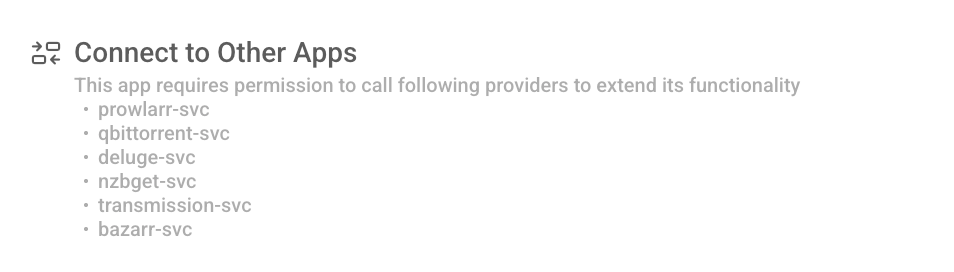
Locate the Connect to Other Apps section to find the exact name of the required provider. For example, qbittorrent-svc.
Open Settings, and then go to Applications > qBittorrent.
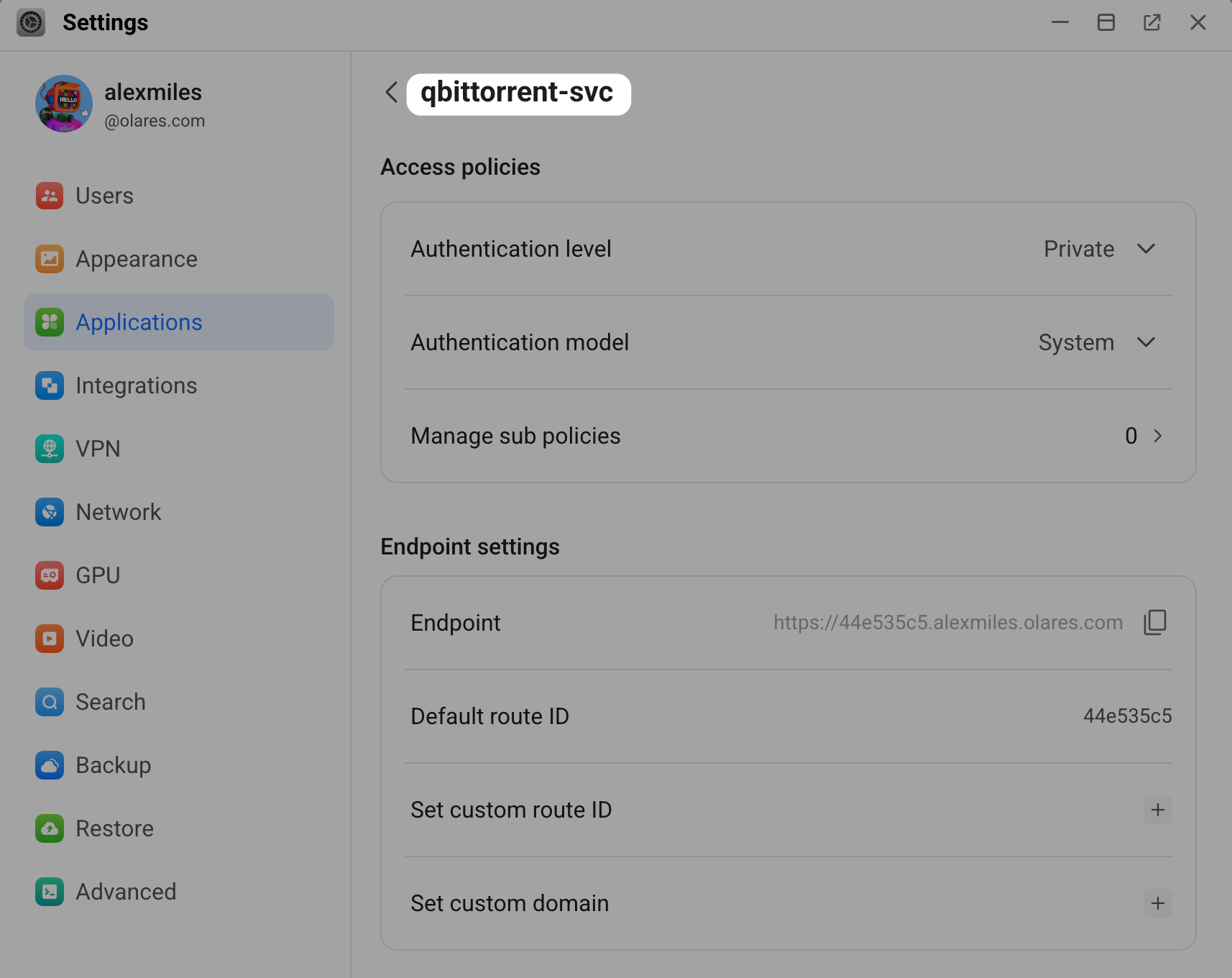
Under Entrances, select an entrance name to open its details page.
Verify that the provider name at the top of the page matches the provider name from the Market (qbittorrent-svc).
Why can I not connect certain apps, like JDownloader, to my media managers?
Not every application supports the Olares provider mechanism. To establish a connection, both the provider application and the consumer application must explicitly declare and request the appropriate entrances. For example, JDownloader does not connect to Sonarr or Radarr because it lacks the required provider permissions.
For more information, see Understand provider URLs.
Why does my connection test fail?
- Check the URL format: Review the requirements for the specific application you configure. Some applications (like Prowlarr connecting to Sonarr) require the
http://prefix, while others (like Sonarr connecting to qBittorrent, or Bazarr connecting to Sonarr) require omitting thehttp://prefix. - Verify the port: Ensure you set the port to
80.