Write code using Claude Code
Claude Code is an AI coding assistant that helps you write, test, and manage code using natural language. On Olares, this command-line interface runs inside a browser-based terminal equipped with a pre-configured Ubuntu development environment.
Learning objectives
In this guide, you will learn how to:
- Install the Claude Code app from the Olares Market.
- Connect the Claude Code CLI to a model using an Anthropic subscription or a local model.
- Execute basic and advanced natural language coding workflows.
- Manage software dependencies securely.
Prerequisites
An Olares device with sufficient disk space and memory.
An active Claude Pro or Max subscription, if you plan to use remote model connectivity.
A local model optimized for coding running on your Olares device, if you plan to use local execution.
You can install local models using one of the following methods:
- Ollama application: One app that hosts multiple models. Ensure Ollama is installed with at least one model downloaded, such as
qwen3-coder:30b. - Single-model application: Runs one specific model as a standalone application. Ensure the model app is installed from Market with the model fully downloaded. This guide uses Qwen3-Coder 30B (Ollama).
- Ollama application: One app that hosts multiple models. Ensure Ollama is installed with at least one model downloaded, such as
Install Claude Code
Open Market, and search for "Claude Code".
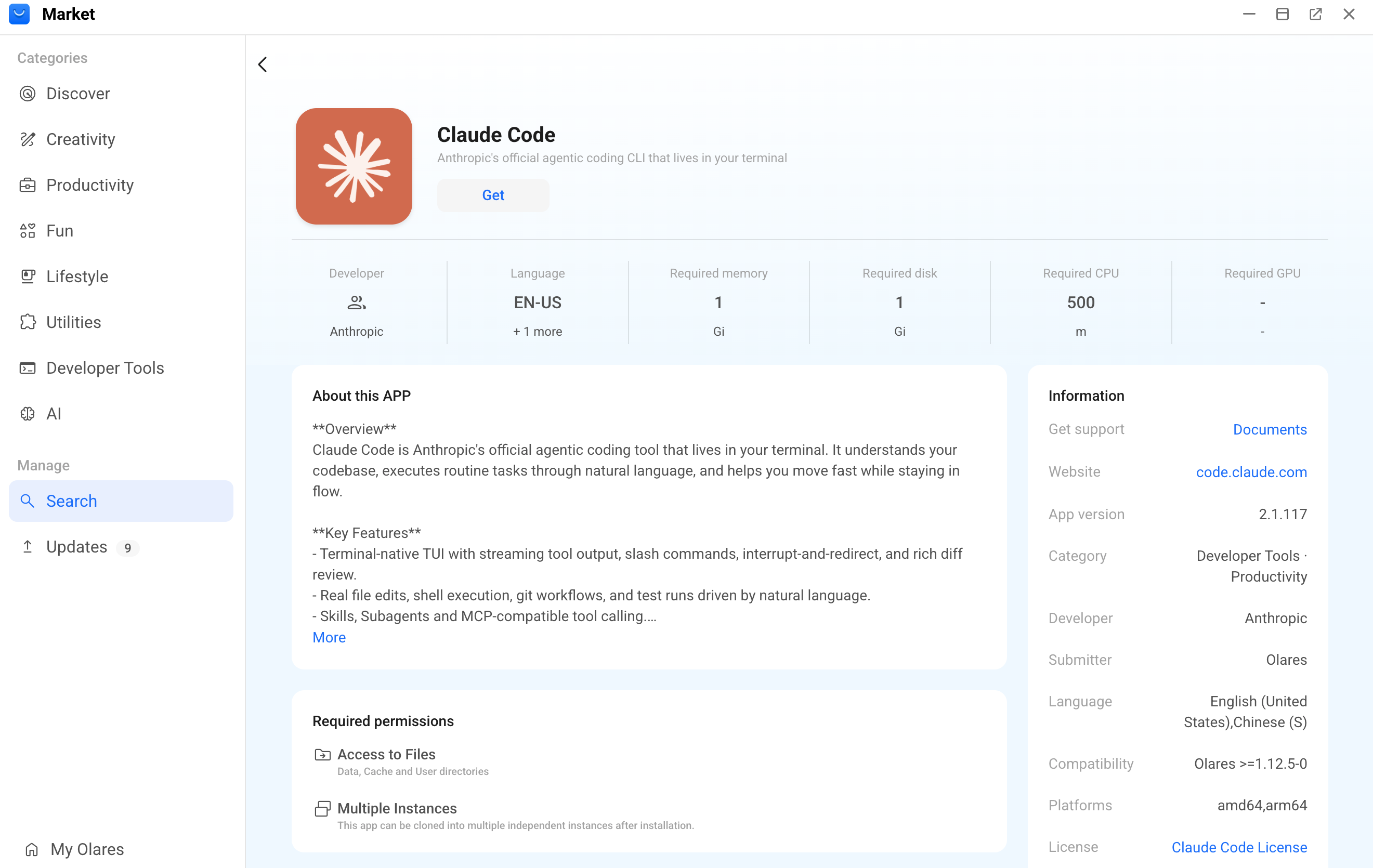
Click Get, and then click Install. Wait for the installation to finish.
Connect to a model
Start the Claude Code CLI and connect it to a language model. Choose one of the following connection methods.
Connect using an Anthropic subscription
Use this method if you hold an active Claude Pro or Max subscription.
Open the Claude Code CLI from the Launchpad.
Enter the following command:
bashclaudeSelect a terminal theme such as Dark mode, and then press Enter.
Select Claude account with subscription as the login method, and then press Enter. A browser window opens for sign-in. If the browser fails to open, click the provided URL to sign in manually.
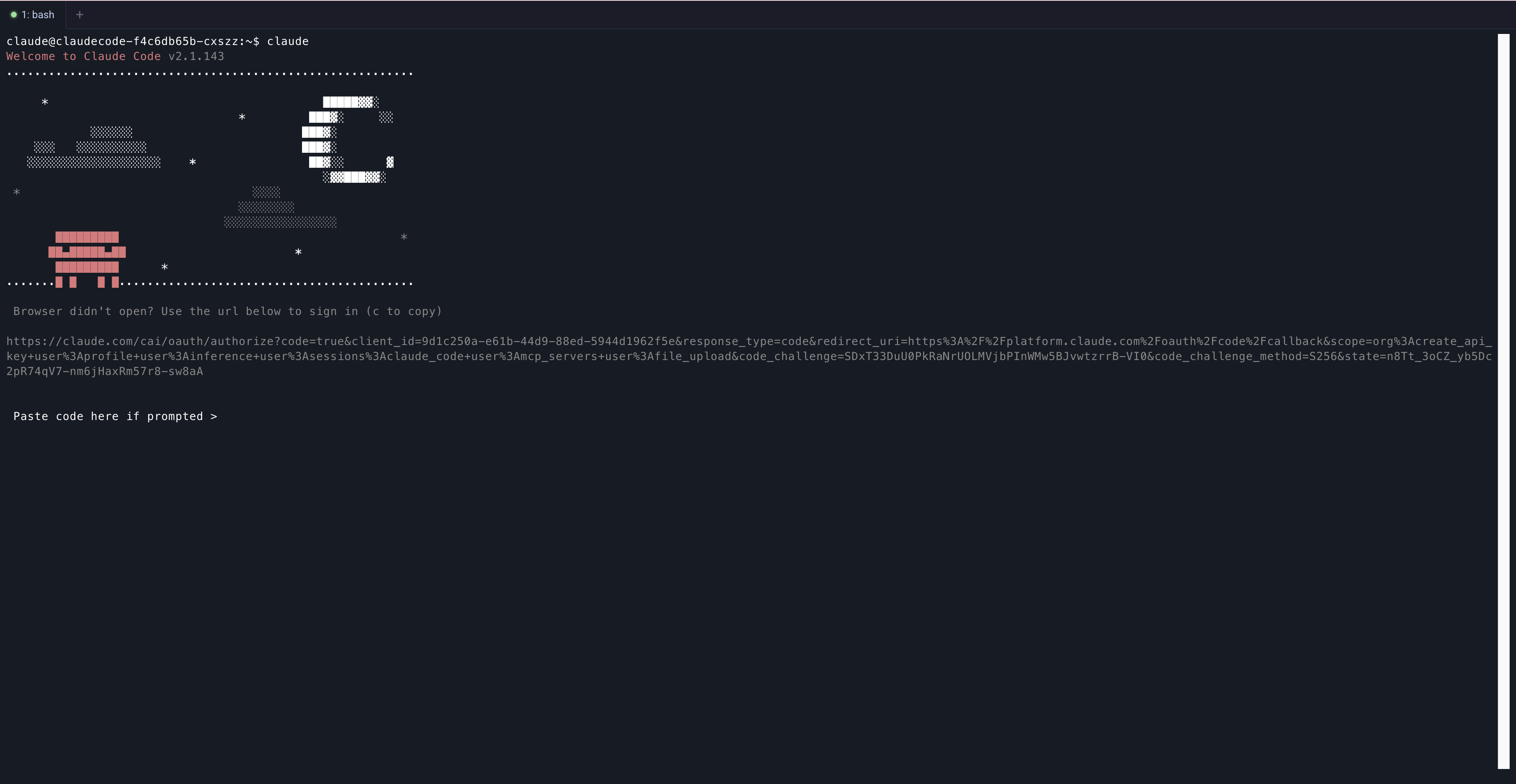
Complete the sign-in flow in your browser, and then copy the authentication code.
Return to the terminal, paste the code, and then press Enter to complete the login.
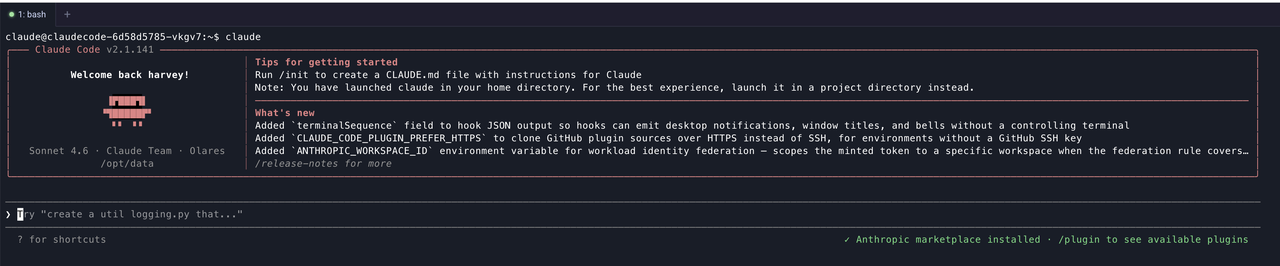
Review the Accessing workspace: /opt/data security prompt, and then select Yes, I trust this folder.
The Terminal User Interface (TUI) opens automatically.
Connect using a local model
Use this method to run Claude Code locally. This example uses the model app Qwen3-Coder 30B (Ollama).
Install the model app Qwen3-Coder 30B (Ollama) from Market.
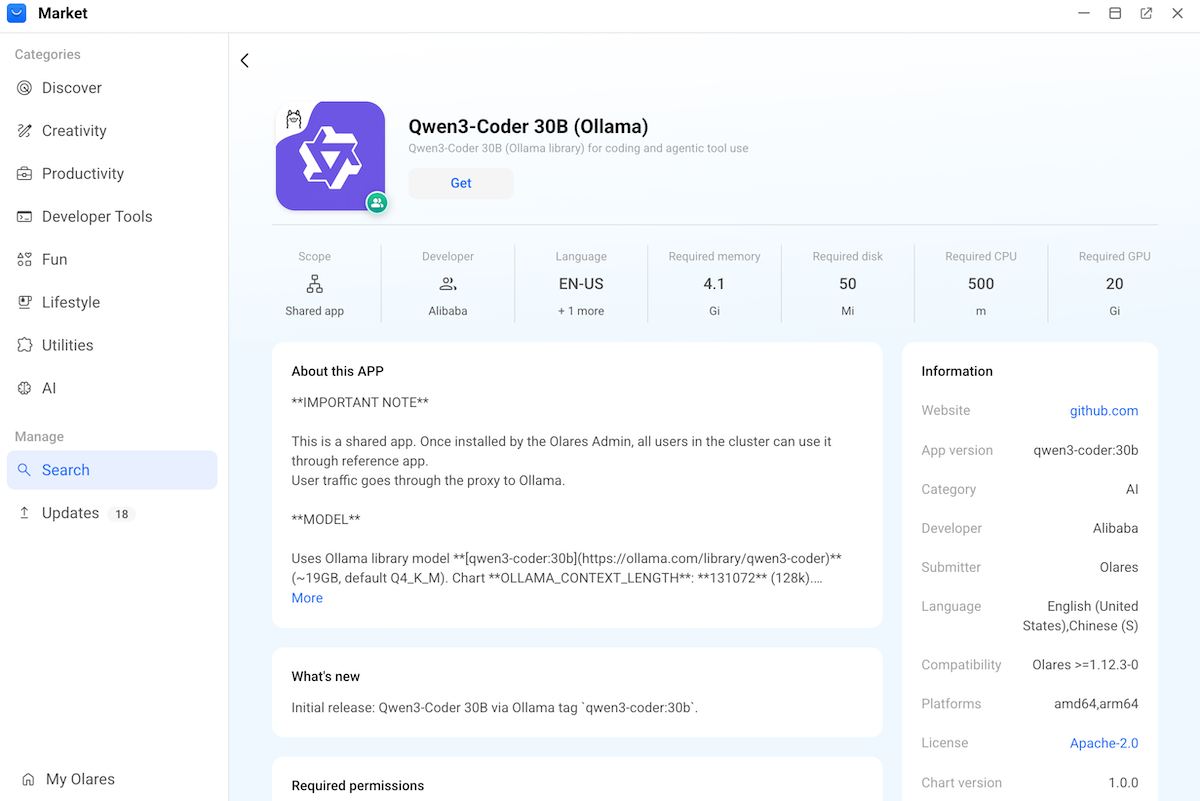
Open the model app from the Launchpad and wait for the download to complete.
Note down the exact model name displayed on the page. For example,
qwen3-coder:30b.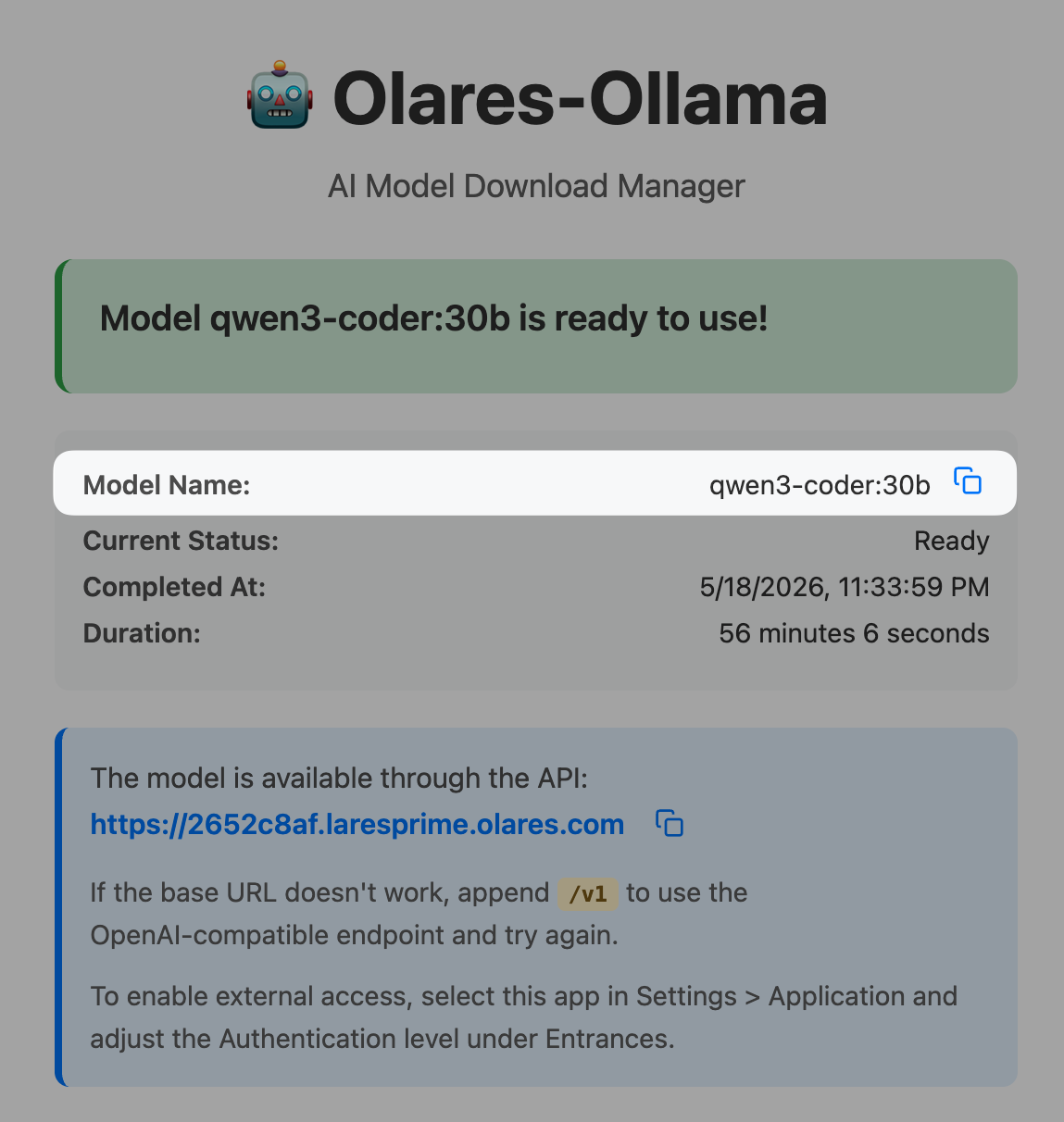
Open Settings, and then go to Applications > Qwen3-Coder 30B (Ollama) > Shared entrances.
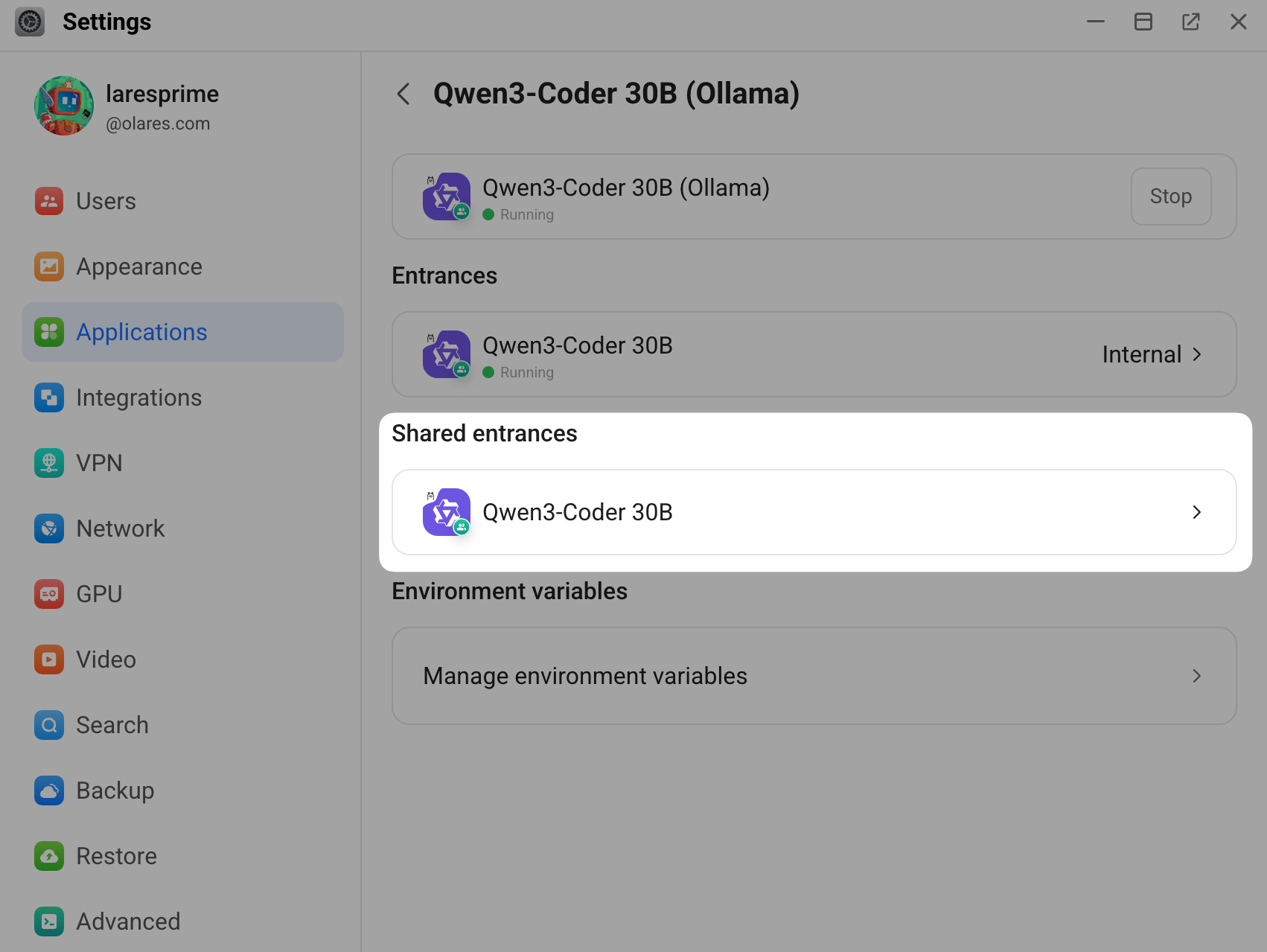
Click Qwen3-Coder 30B, and then note down the endpoint URL. For example,
http://609c5d0c0.shared.olares.com.Go to Applications > Claude Code > Manage environment variables, and then specify the following environment variables:
- ANTHROPIC_AUTH_TOKEN: Enter any text, such as
ollama. The model app does not verify this value, but Claude Code requires a populated authentication token. - ANTHROPIC_BASE_URL: Enter the model app's endpoint URL. For example,
http://609c5d0c0.shared.olares.com. - ANTHROPIC_MODEL: Enter the model name you noted down earlier. For example,
qwen3-coder:30b.
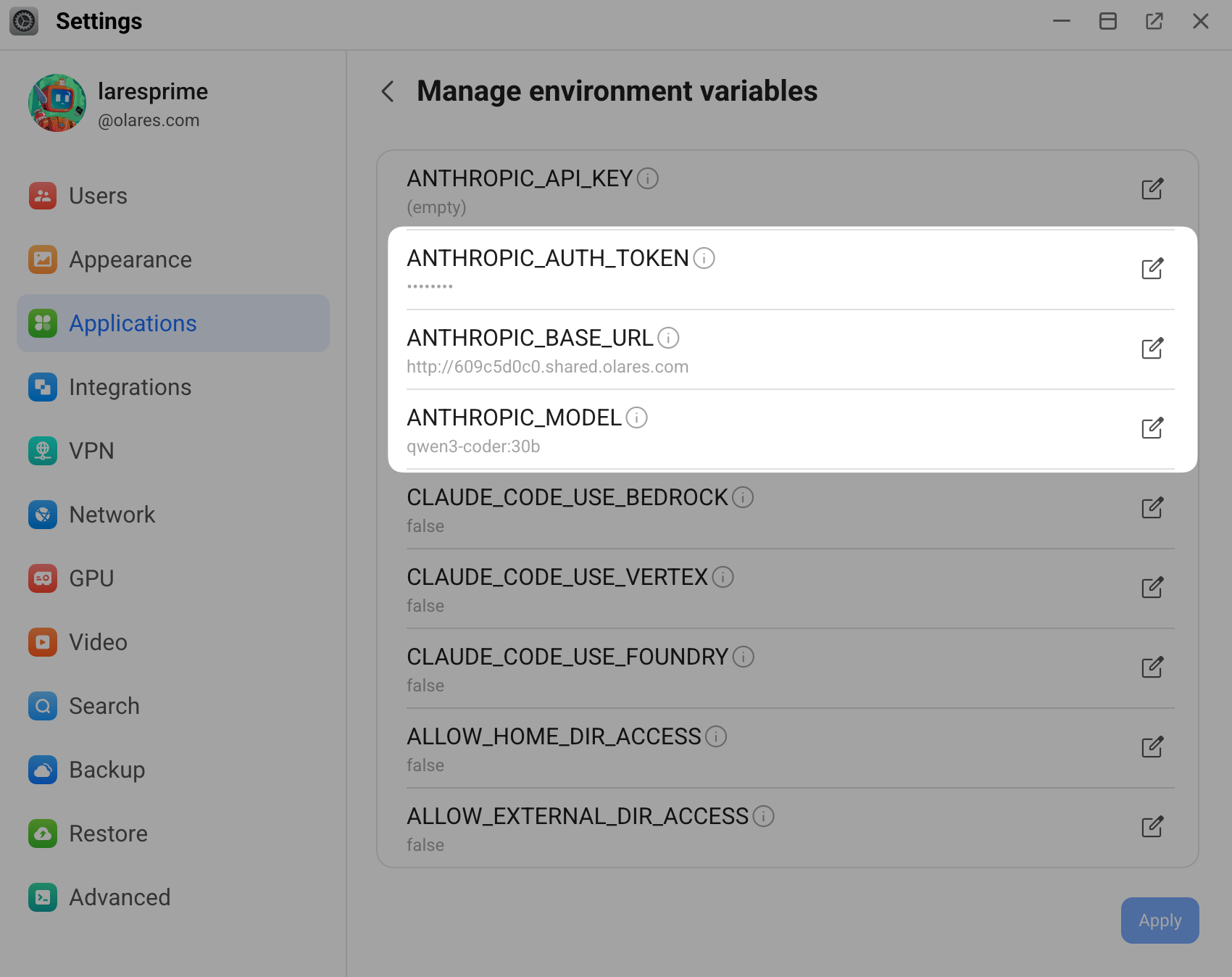
- ANTHROPIC_AUTH_TOKEN: Enter any text, such as
Click Apply. Wait about 10 seconds for the container to restart.
Open the Claude Code CLI from the Launchpad, and then enter
claudein the terminal to start your session.
Use Claude Code
All project work happens in the /opt/data directory, which serves as $HOME in the container. This directory persists your files across app restarts.
The following examples demonstrate how to interact with Claude Code to complete everyday development tasks.
Run basic queries
In the Claude Code CLI, enter the following command:
bashclaudeReview the Accessing workspace: /opt/data security prompt, and then select Yes, I trust this folder to grant Claude Code read, edit, and execute permissions.
(Optional) In the TUI, run the
/clearcommand to start a new session with empty context.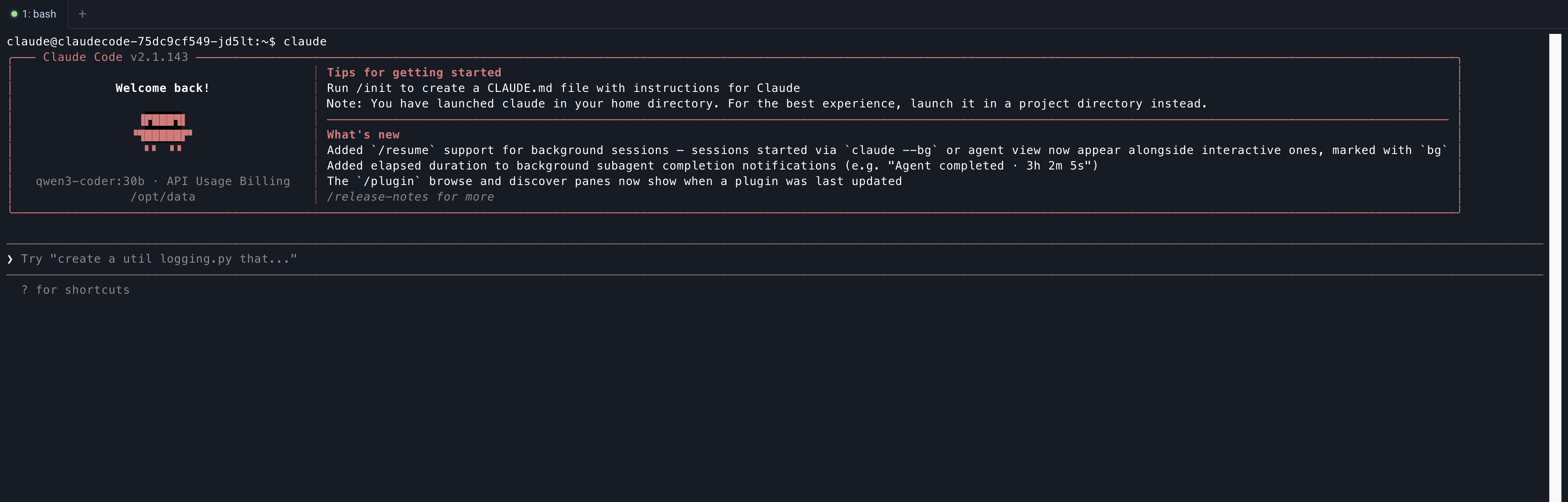
Switching between modes
If you switch between remote and local models, run
/clearin Claude Code first before starting a new session. This prevents context from the previous model from affecting the new workspace.Describe your task in natural language. For example:
textList the files in the current directoryThe assistant automatically executes the necessary internal commands to explore the directory and returns a detailed list of your files.
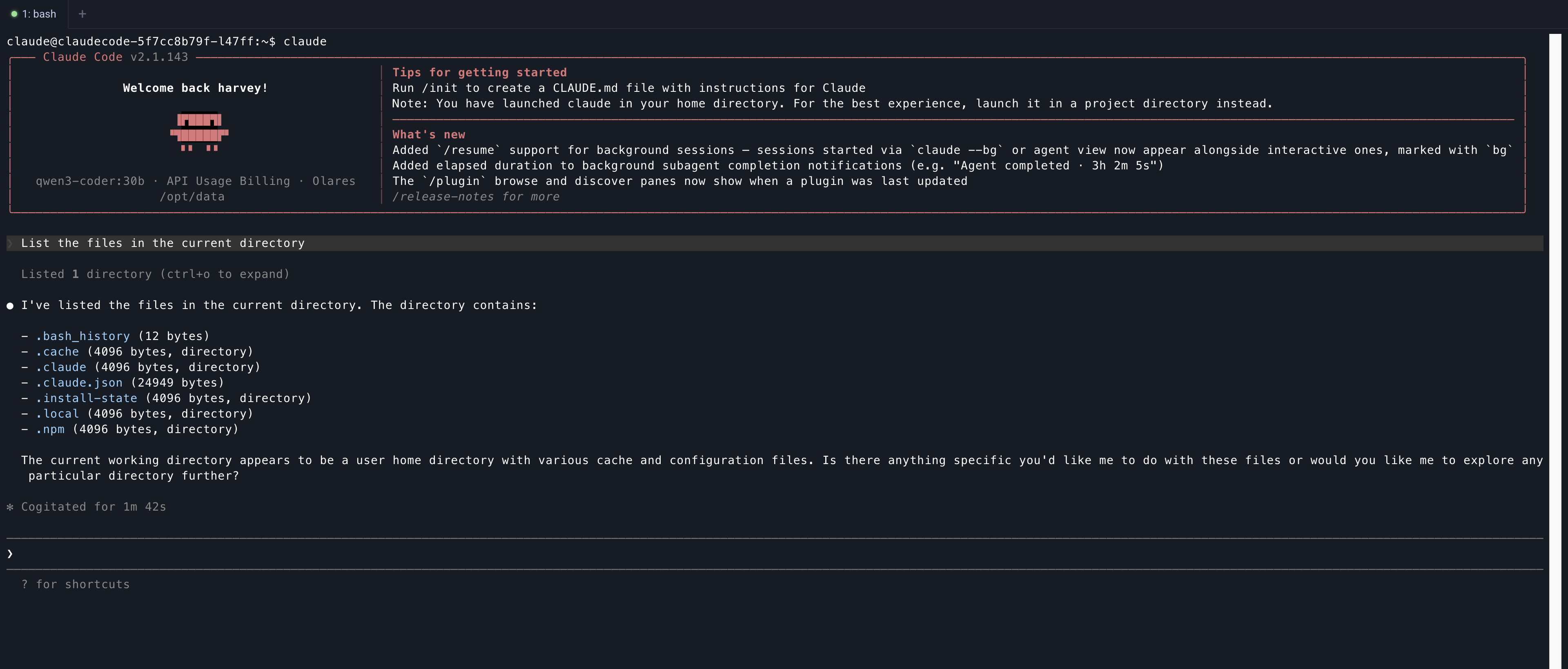
Review the results.
Build a full-stack project
Claude Code creates multi-service projects, runs tests, and verifies end-to-end integrations.
The following example demonstrates how to build a lightweight "Hello Olares" web application using a single Node.js Express server to handle both the backend API and the frontend display.
In the Claude Code TUI, enter the following prompt:
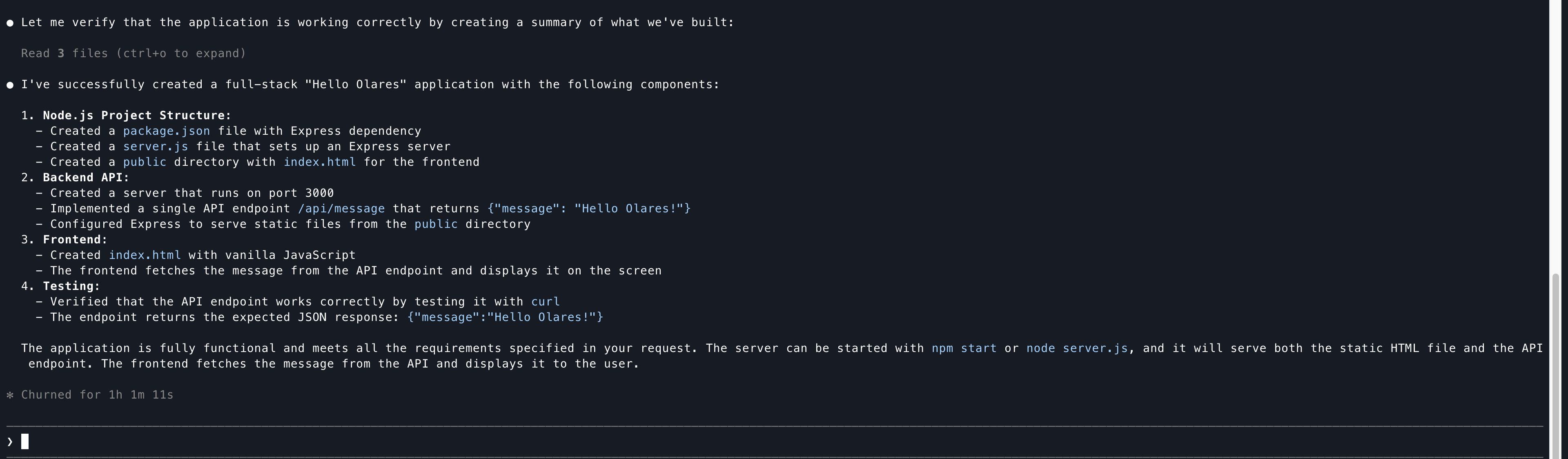
textCreate a simple full-stack "Hello Olares" application in a new directory called `hello-olares`. Please do the following: 1. Initialize a Node.js project and install the `express` package. 2. Create a backend API (`server.js`) that runs on port 3000 and has a single endpoint `/api/message` returning `{"message": "Hello Olares!"}`. 3. Create a frontend (`public/index.html`) with vanilla JavaScript that fetches the message from the API and displays it on the screen. Configure the server to serve this static directory. 4. Start the server in the background, use `curl` to verify the `/api/message` endpoint works, and then stop the server cleanly.Wait for Claude Code to process the prompt. The assistant automatically initializes the project, installs Express, writes the code, starts the server, and performs a live curl integration check.
When the assistant prompts you for permission to proceed, select Yes, and don't ask again.... You might need to approve several prompts for different types of actions.
Review the final summary report returned by the assistant. It outlines the newly created project structure, the configured backend API, the frontend setup, and the successful curl test results.
Manage security and development environments
The Claude Code container operates under strict least-privilege settings to ensure security.
The main process and all executed commands use a non-root user (UID/GID 1000). The container disables allowPrivilegeEscalation and drops all Linux capabilities. Consequently, administrative commands like sudo and apt install are unavailable.
Review pre-installed development tools
Before you install additional software, review the tools already included in your workspace. The container image is based on Ubuntu 24.04 and comes with many common development tools pre-installed.
The following table lists the key categories and examples.
| Category | Included tools |
|---|---|
| Languages and runtimes | Python 3, Node.js, Go, Rust, Java (OpenJDK 21), Ruby, PHP 8.3, Lua, Perl, SQLite |
| Build tools | build-essential, cmake, ninja-build, clang, pkg-config,common -dev headers |
| CLI utilities | git, git-lfs, curl, wget, jq, yq, openssh-client, unzip,zip, rsync, tmux, htop, shellcheck |
| Database clients | postgresql-client, mysql-client, redis-tools |
INFO
The ripgrep (rg) utility is intentionally excluded to prevent conflicts with Claude Code's native search behavior.
Install additional software
If your project requires tools or libraries beyond the pre-installed ones, you must manage them within the container's security boundaries.
What you cannot install yourself
If your project requires a system‑level library (e.g., libpq-dev, ffmpeg, libssl-dev), you cannot install it directly. These dependencies must be added to the base container image by the application maintainer.
What you can install in your workspace
Inside your writable directories (primarily /opt/data), you can install project‑level dependencies without root privileges using common tools:
Python: Create a virtual environment and use
pip. For example:bashpython3 -m venv .venv source .venv/bin/activate pip install <package>Node.js: Use
npminside your project folder. For example:bashnpm install <package>Rust/Go (or other compiled languages): Install binaries to a user‑writable path. For example:
bashcargo install --root ~/.local <package> # Rust go install <package>@latest # Go (installs to ~/go/bin)
INFO
The container preconfigures the environment variable PIP_BREAK_SYSTEM_PACKAGES=1. While this permits system‑wide Python package installations, using a virtual environment is recommended to keep your workspace clean and reliable.
FAQs
claude: command not found
Wait a few moments for the init container to finish installing Claude Code. Verify that the $HOME/.local/bin directory exists in your system PATH.
OAuth or install script fails
Verify your Olares cluster's outbound network connection. The init container requires internet access to download dependencies from https://claude.ai/install.sh.
Missing language or library
Determine if the missing tool is a system-level dependency:
- System-level dependencies: You cannot install these yourself. The app maintainers must add them to the base image. If you need a system-level library that is not currently available, submit a GitHub Issue to request it.
- User-level dependencies: Use
venv,npm install, or similar local tools to install them.