Set up DeerFlow 2.0 for AI-powered research and tasks
DeerFlow is an open-source agent harness by ByteDance, built on LangGraph and LangChain. It orchestrates sub-agents, memory, and sandboxes to handle complex tasks through extensible skills.
DeerFlow 2.0 is a ground-up rewrite of the original DeerFlow. While version 1.0 was a deep research framework, version 2.0 is a general-purpose agent platform.
This guide covers installing DeerFlow 2.0 on Olares and configuring it with a local model, using Qwen3.5 27B Q4_K_M (Ollama) as an example.
Learning objectives
In this guide, you will learn how to:
- Install DeerFlow 2.0 on Olares and configure it with a local model.
- Run tasks such as deep research.
Prerequisites
- A model app installed from Market with the model fully downloaded.
Install DeerFlow 2.0
Open Market and search for "DeerFlow 2.0".
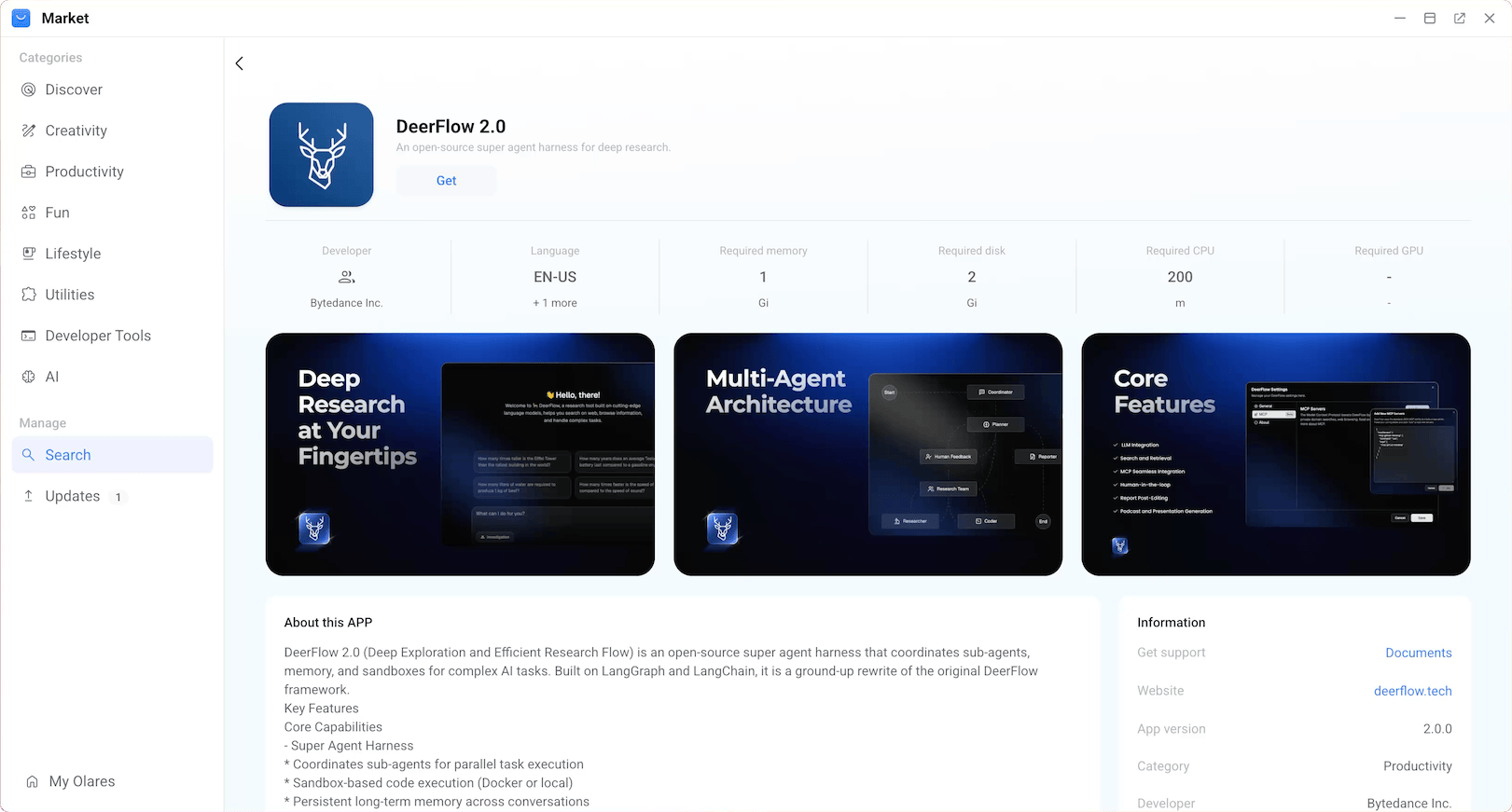
Click Get, then click Install, and wait for the installation to complete.
Configure the model
DeerFlow 2.0 uses a config.yaml file for its core configuration. To connect it to your local model, add a model entry that points to your model app's shared endpoint.
Get the model endpoint and model name
Open the model app from Launchpad. The model name is displayed on the page (e.g.,
qwen3.5:27b-q4_K_M). Note it for later.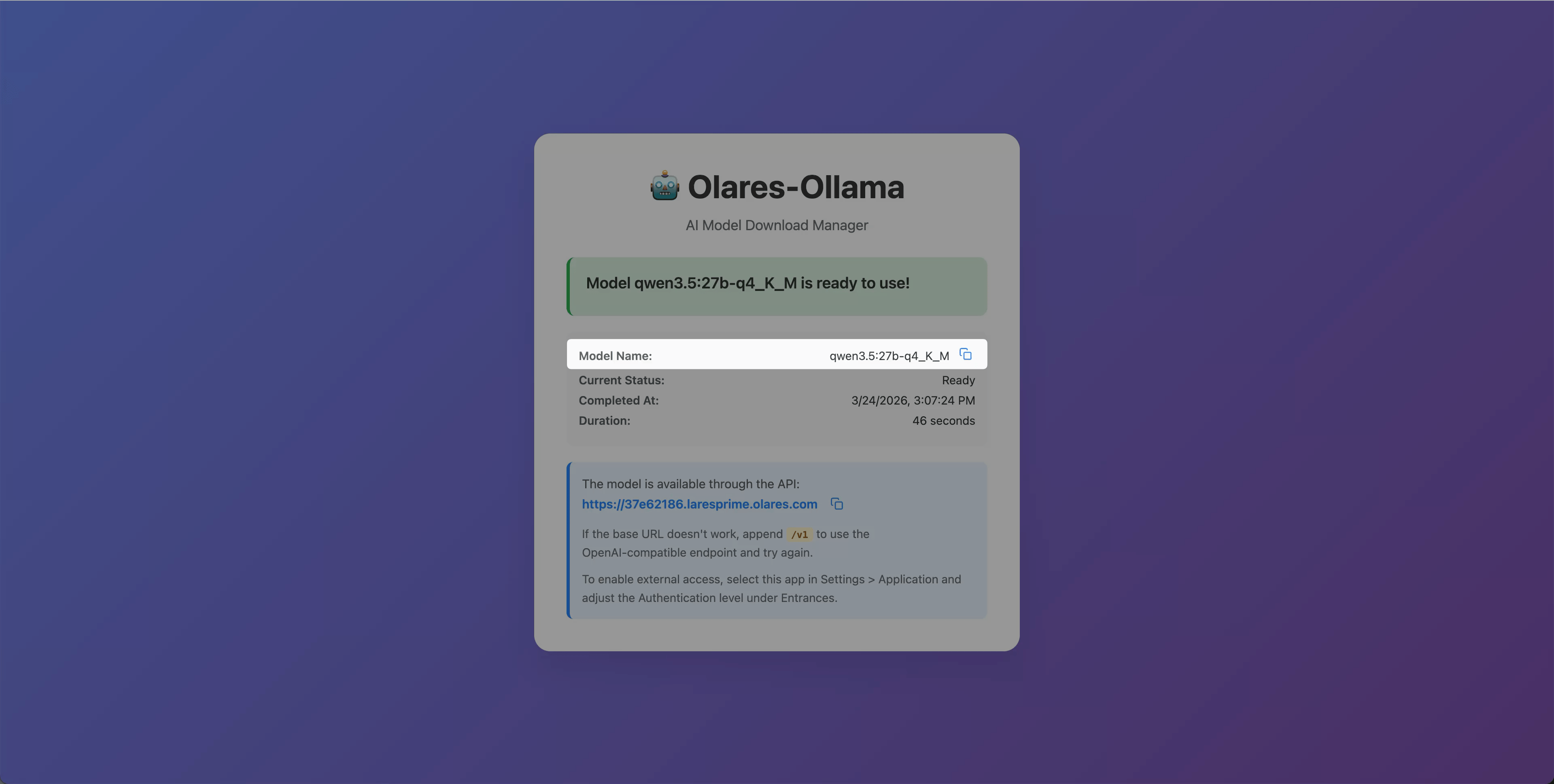
Open Settings, then navigate to Application > your model app (e.g., Qwen3.5 27B Q4_K_M (Ollama)).
Under Shared entrances, select the model app to view the endpoint URL.
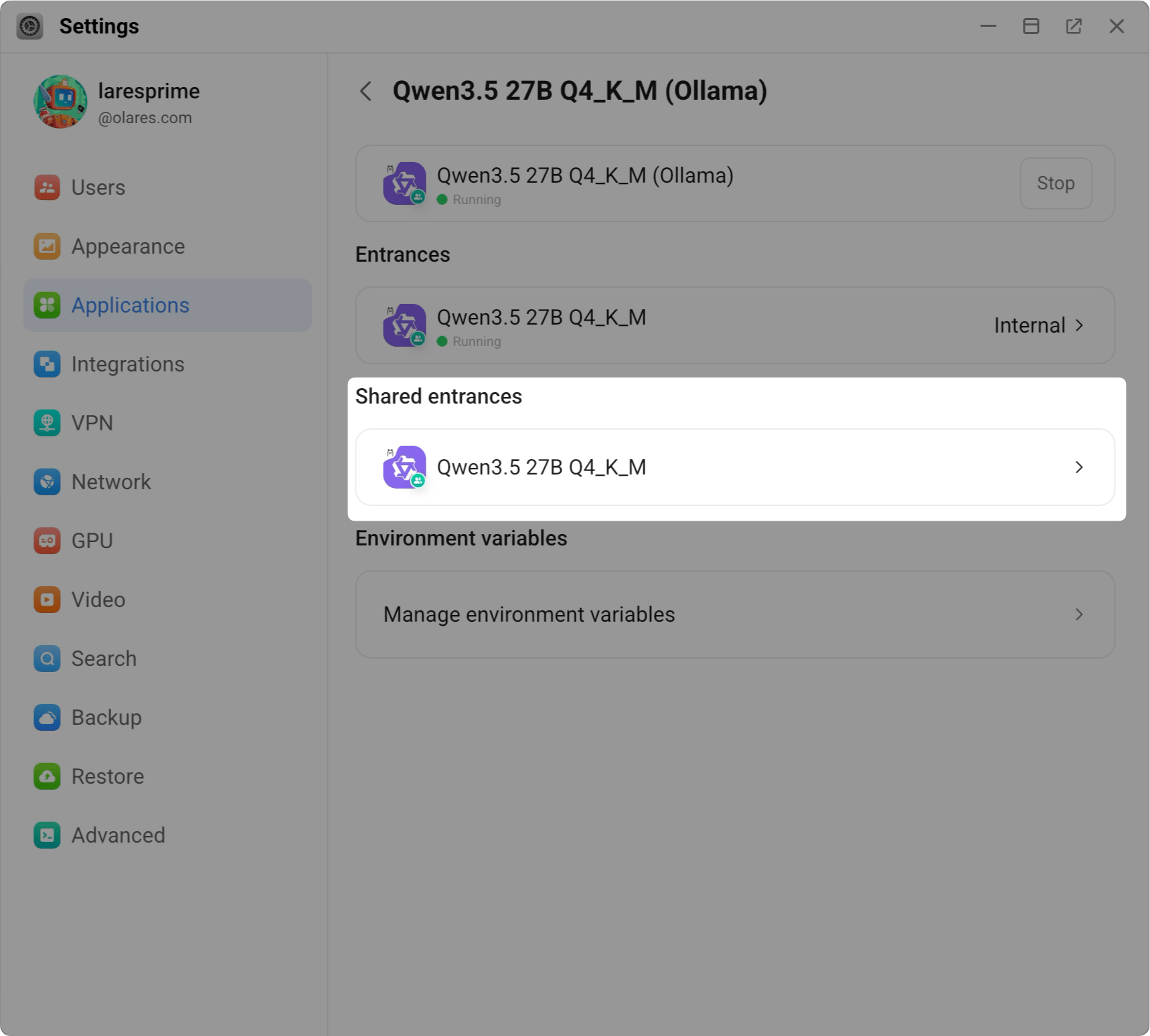
Copy the shared endpoint. For example:
texthttp://94a553e00.shared.olares.com
Edit config.yaml
Open Files and navigate to the DeerFlow 2.0 app data directory:
Application/Data/deerflowv2/config/.Open
config.yaml, and click edit_square in the top-right corner to open the editor.Under the
models:section, add your model configuration using the shared endpoint you copied. For example:yamlmodels: - name: qwen3.5:27b-q4_K_M # Unique identifier for the model display_name: Qwen3.5 27B # Name shown in the UI use: langchain_openai:ChatOpenAI # LangChain class for OpenAI-compatible APIs model: qwen3.5:27b-q4_K_M # Model ID api_key: ollama # Use any non-empty text base_url: http://94a553e00.shared.olares.com/v1 # Shared endpoint with /v1 suffix supports_thinking: true # Set to true if the model supports extended thinking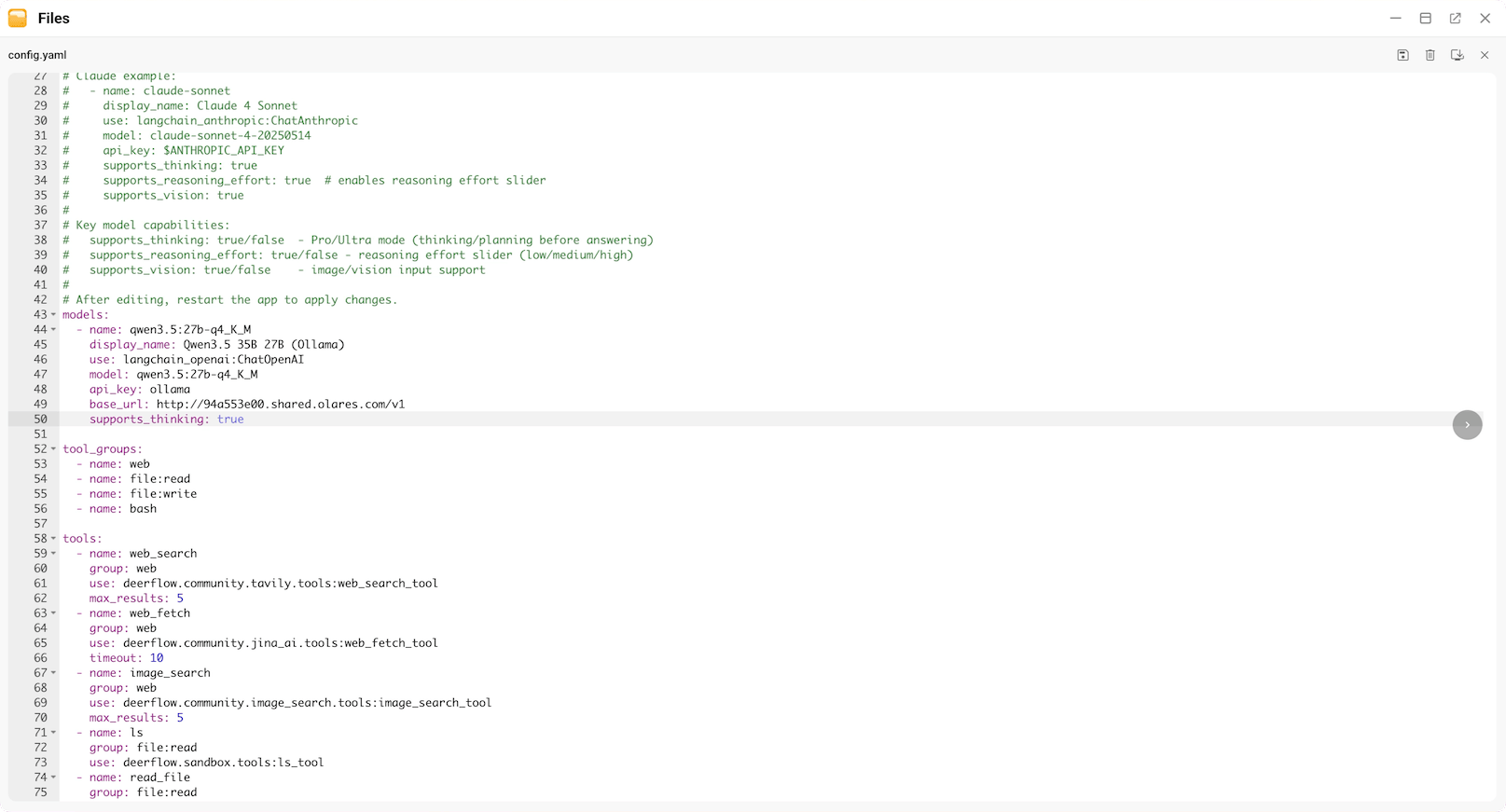
Click save to save the changes.
Restart to apply changes
Open Control Hub and select the DeerFlow 2.0 project.
Under Deployments, locate the backend container and click Restart.
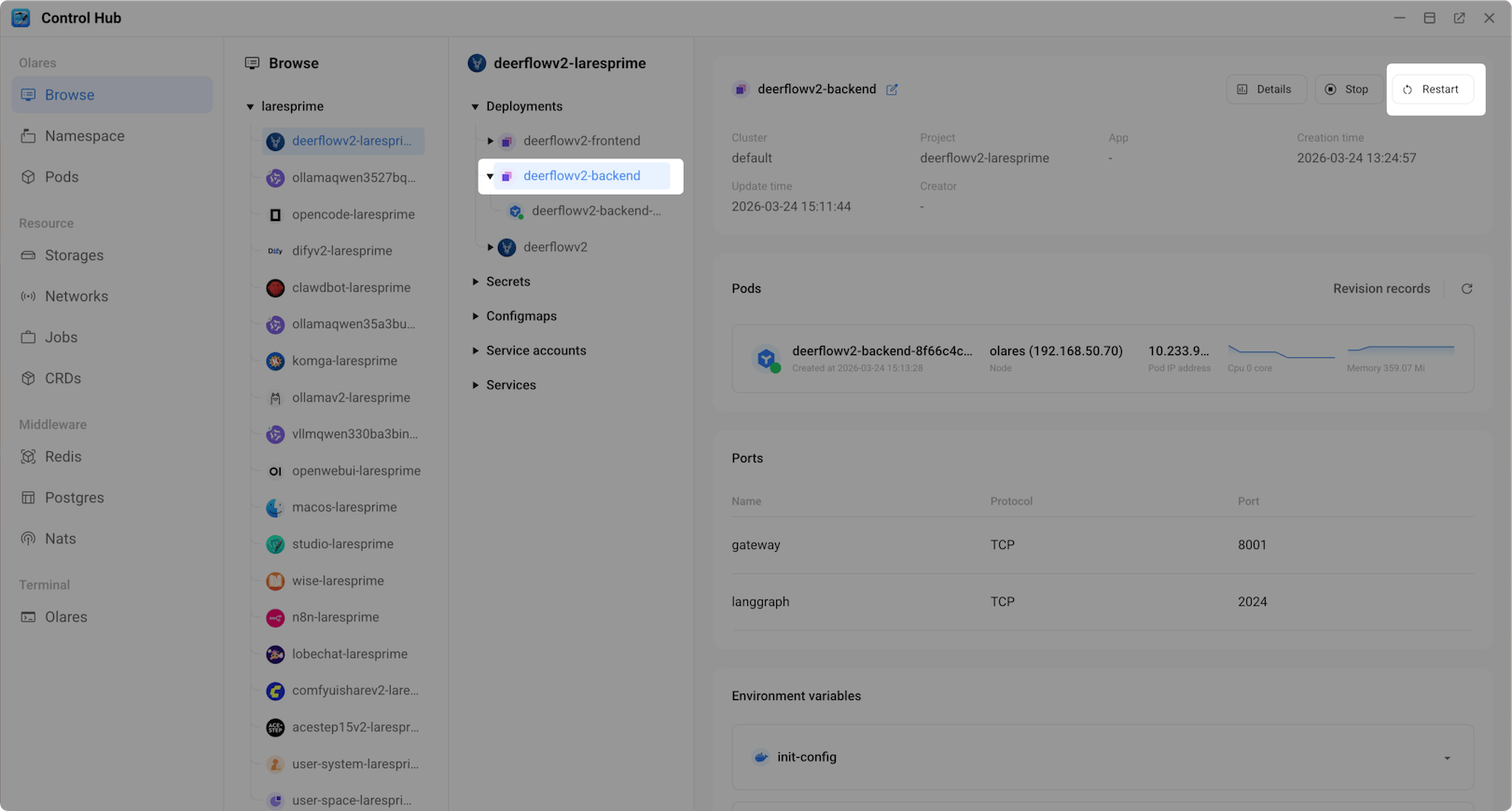
In the confirmation dialog, confirm the restart.
Wait for the status icon to turn green.
Use DeerFlow 2.0
Once the model is configured, you can start using DeerFlow 2.0.
Open DeerFlow 2.0 from Launchpad and click Get Started with 2.0 to access the chat interface.
Select your preferred execution mode.
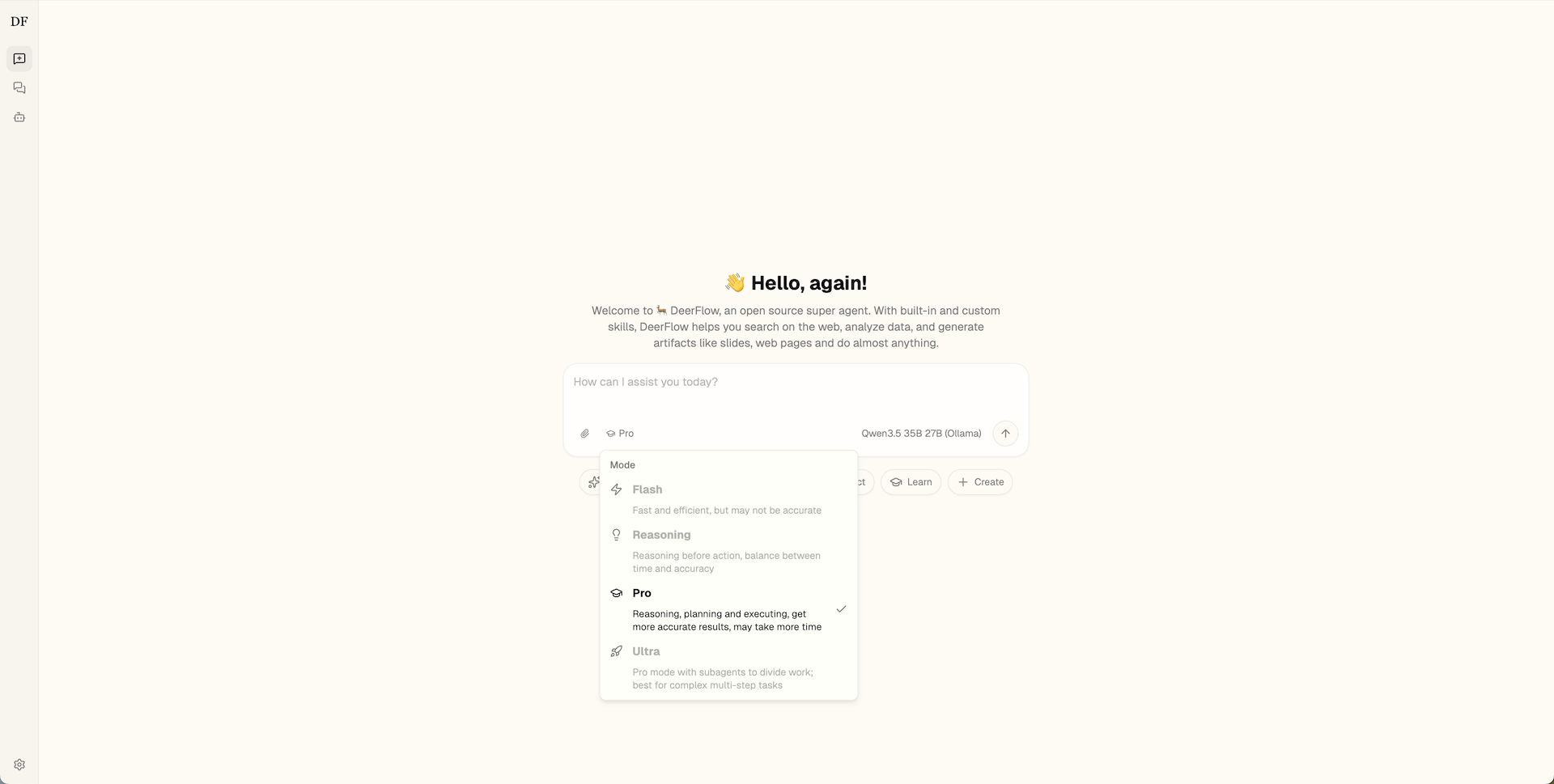
DeerFlow 2.0 offers several execution modes that control how the agent processes your request, from quick single-pass answers to multi-step research with sub-agents.
Enter your prompt in the chat box, or select a suggested topic for inspiration.
For example, you can conduct deep research on a topic:
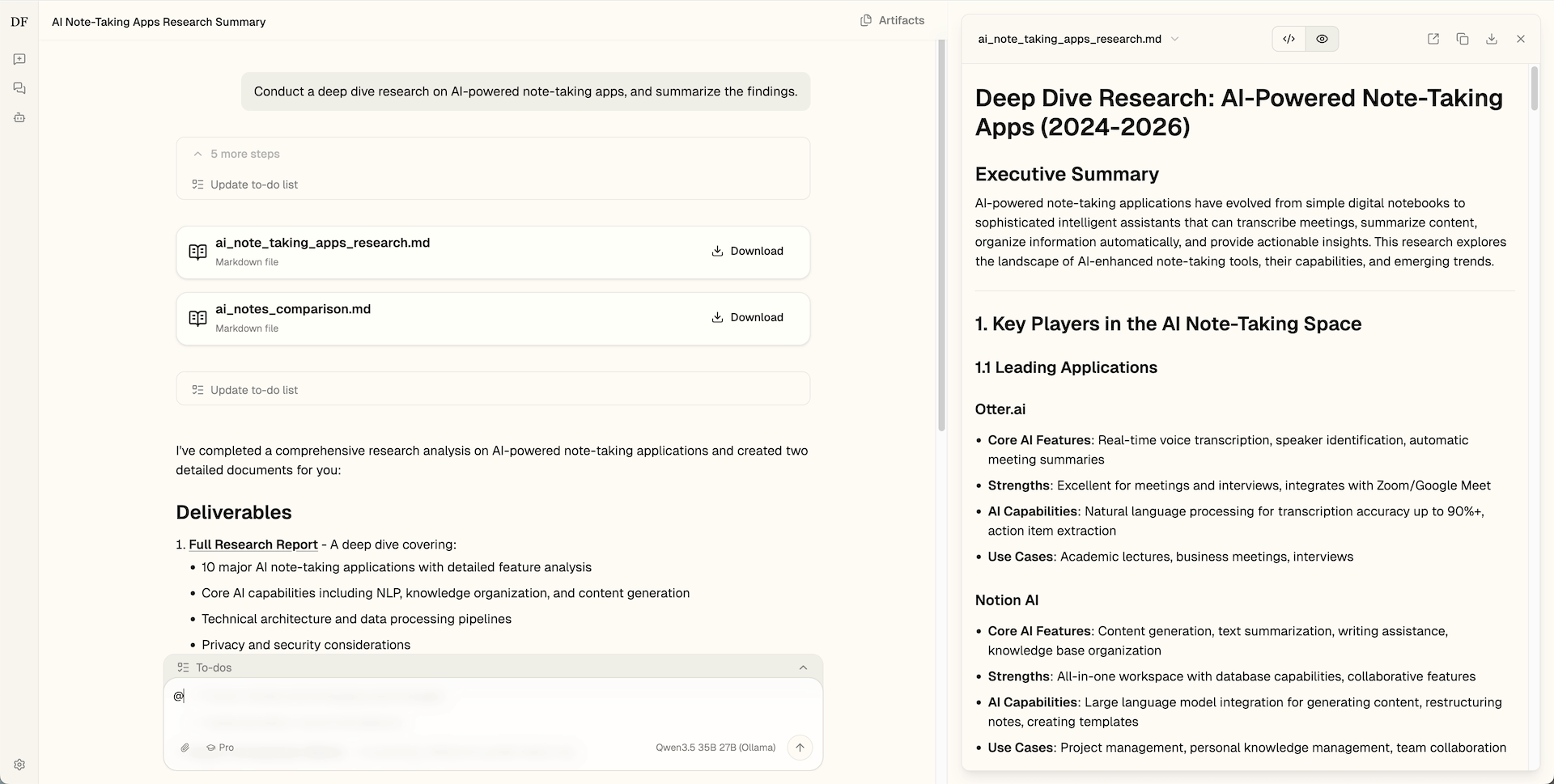
You can also upload attachments and ask DeerFlow to use them as input:
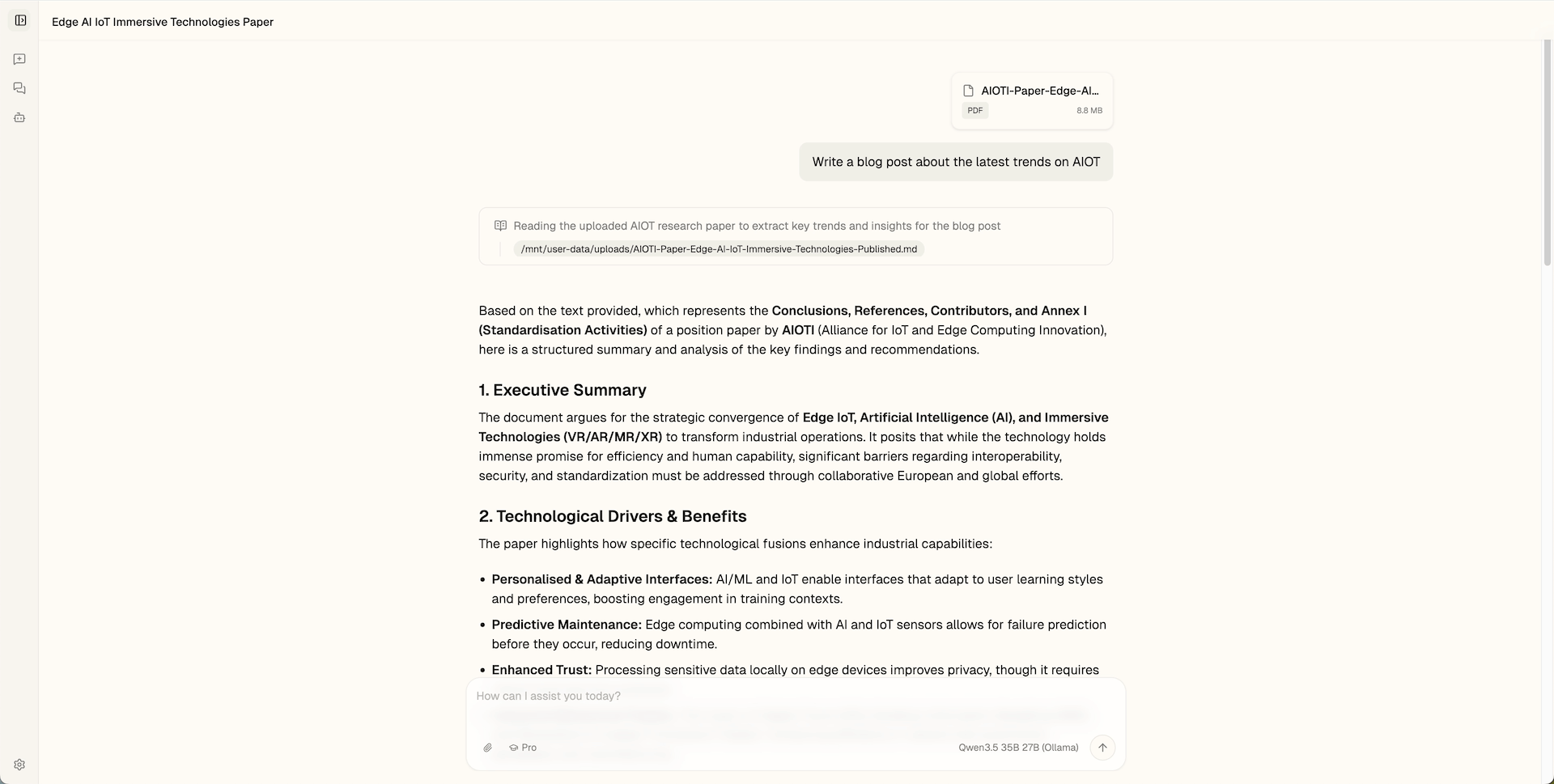
FAQs
DeerFlow 2.0 does not generate a response
If the agent fails to start or hangs:
- Check model compatibility: Ensure the model you selected is properly configured in
config.yaml. Verify the endpoint URL is correct. - Check endpoint configuration: Check that the API endpoint includes the
/v1suffix.
How do I enable follow-up suggestions?
By default, follow-up suggestions are turned off in DeerFlow 2.0 on Olares to reduce unnecessary GPU usage after a response is generated.
To enable it:
Open Control Hub and select the DeerFlow 2.0 project.
Under Deployments, click the deerflowv2-frontend deployment.
Click edit_square to edit the YAML.
Find the
ENABLE_FOLLOWUP_SUGGESTIONSenvironment variable and change its value to'true'.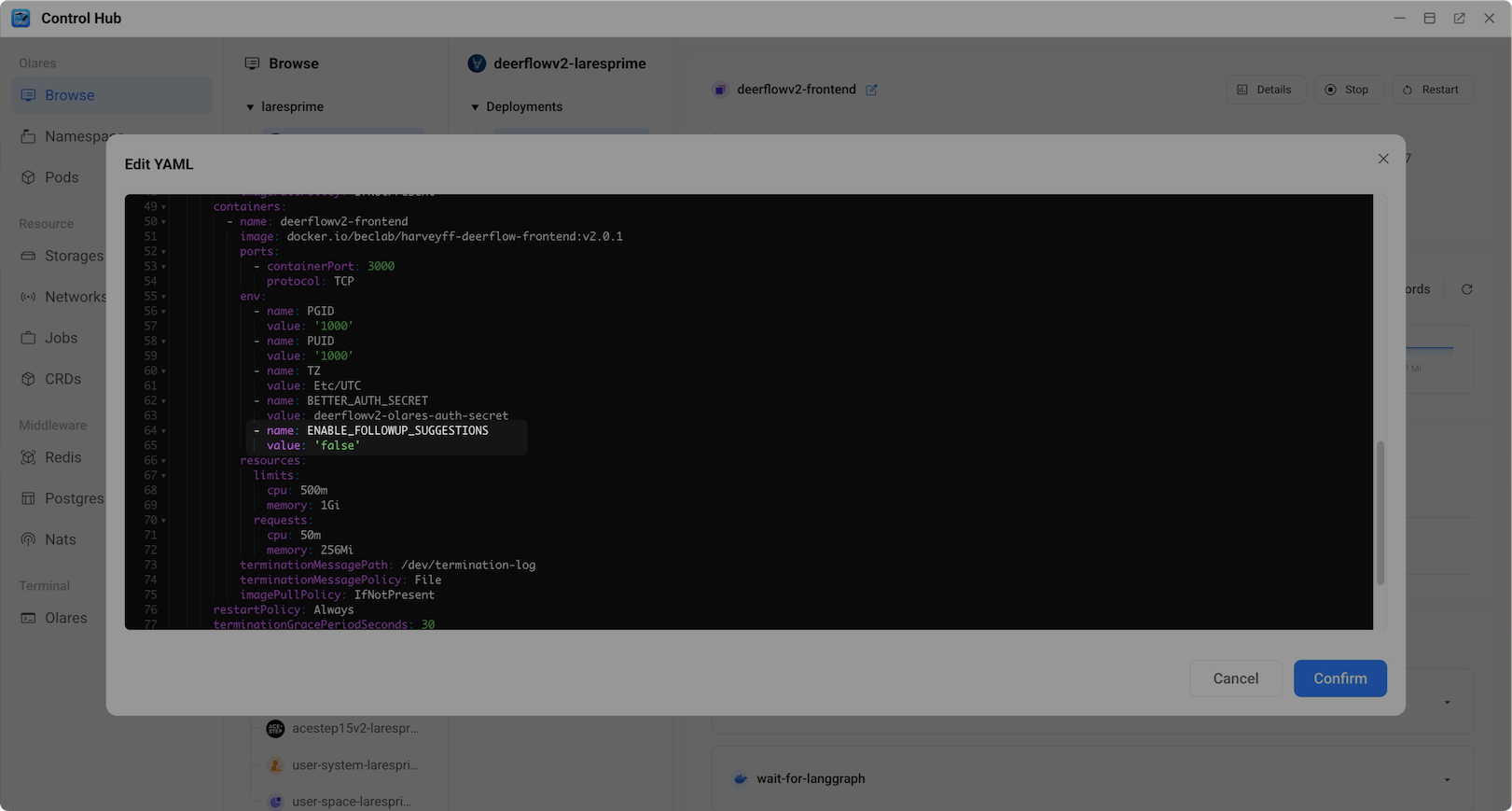
Click Confirm to apply the changes.