Use Cursor to inspect and edit Penpot files with MCP
Penpot is an open-source, web-based design and prototyping tool for UI design, interactive prototypes, component systems, and developer handoff. It uses open standards such as CSS, SVG, and HTML, which makes it a practical bridge between design files and frontend implementation.
On Olares, you can run Penpot as a self-hosted design workspace and connect it to Cursor through Penpot MCP. This guide walks through a complete workflow: open a Penpot file, let Cursor read its structure, ask Cursor to add a card-style component, and check the result in Penpot.
Learning objectives
In this guide, you will learn how to:
- Install Penpot from Market.
- Get the Penpot MCP endpoints from Olares Settings.
- Connect an active Penpot file to the MCP server.
- Configure Cursor to read the connected Penpot file.
- Use Cursor to inspect frames and add a new design element.
- Review the change in Penpot and refine it with follow-up prompts.
Prerequisites
- Cursor installed on your computer.
- A Penpot file created or imported in Penpot.
Install Penpot
Open Market and search for "Penpot".
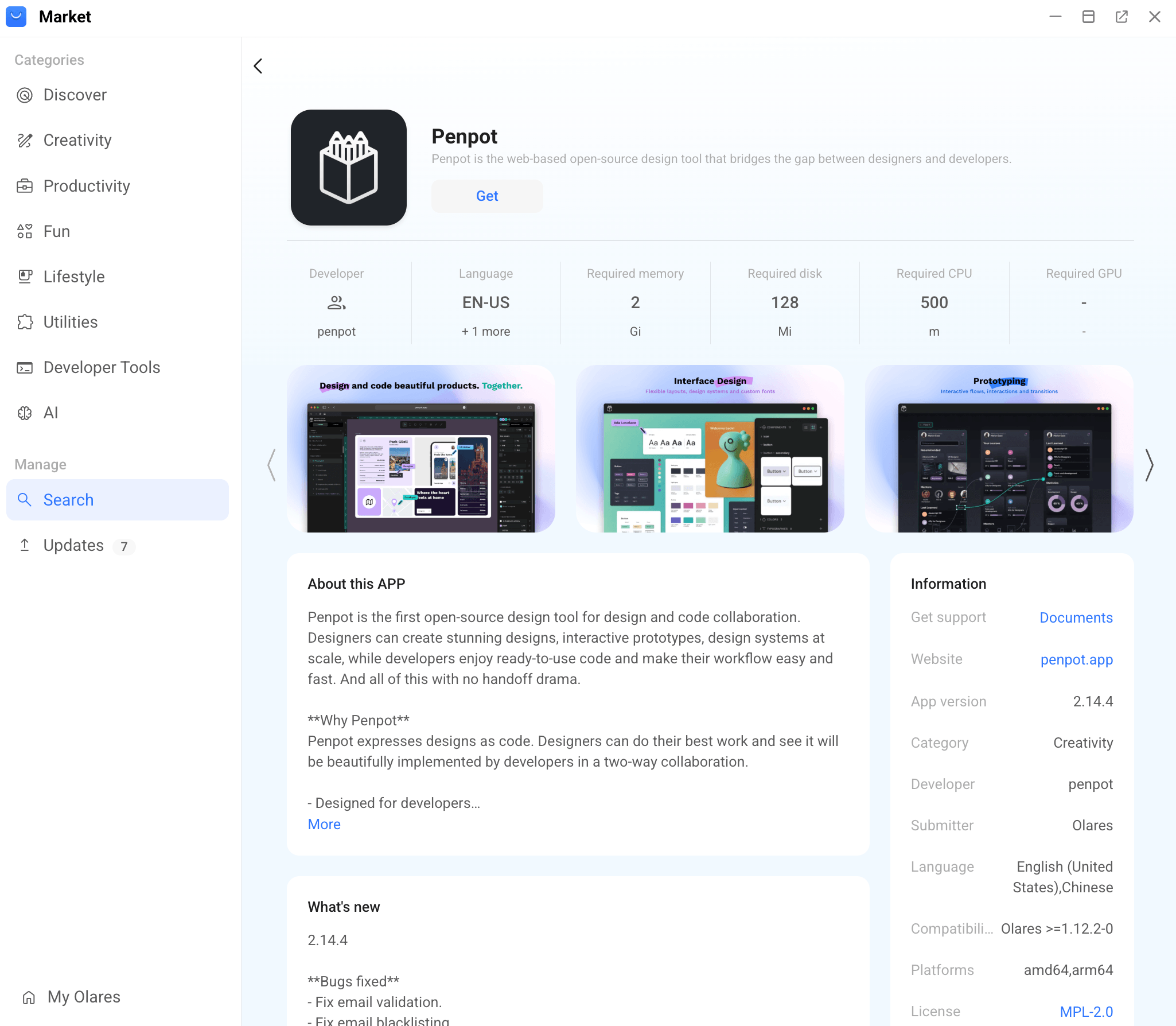
Click Get, then Install, and wait for installation to complete.
Prepare the Penpot workflow
This guide uses a simple task: ask Cursor to inspect a Penpot file and add a card-style component to one frame.
Open Penpot from Launchpad.
Create a new Penpot file or open an existing one.
Select the page and frame you want Cursor to work with.
Keep the file open
Cursor can only read the Penpot file that is currently active and connected. Keep this browser tab open throughout the workflow.
Connect Penpot and Cursor through MCP
Get your Penpot MCP endpoints from Olares, then add them to Penpot and Cursor.
Get the MCP endpoints
Open Settings, then go to Applications > Penpot.
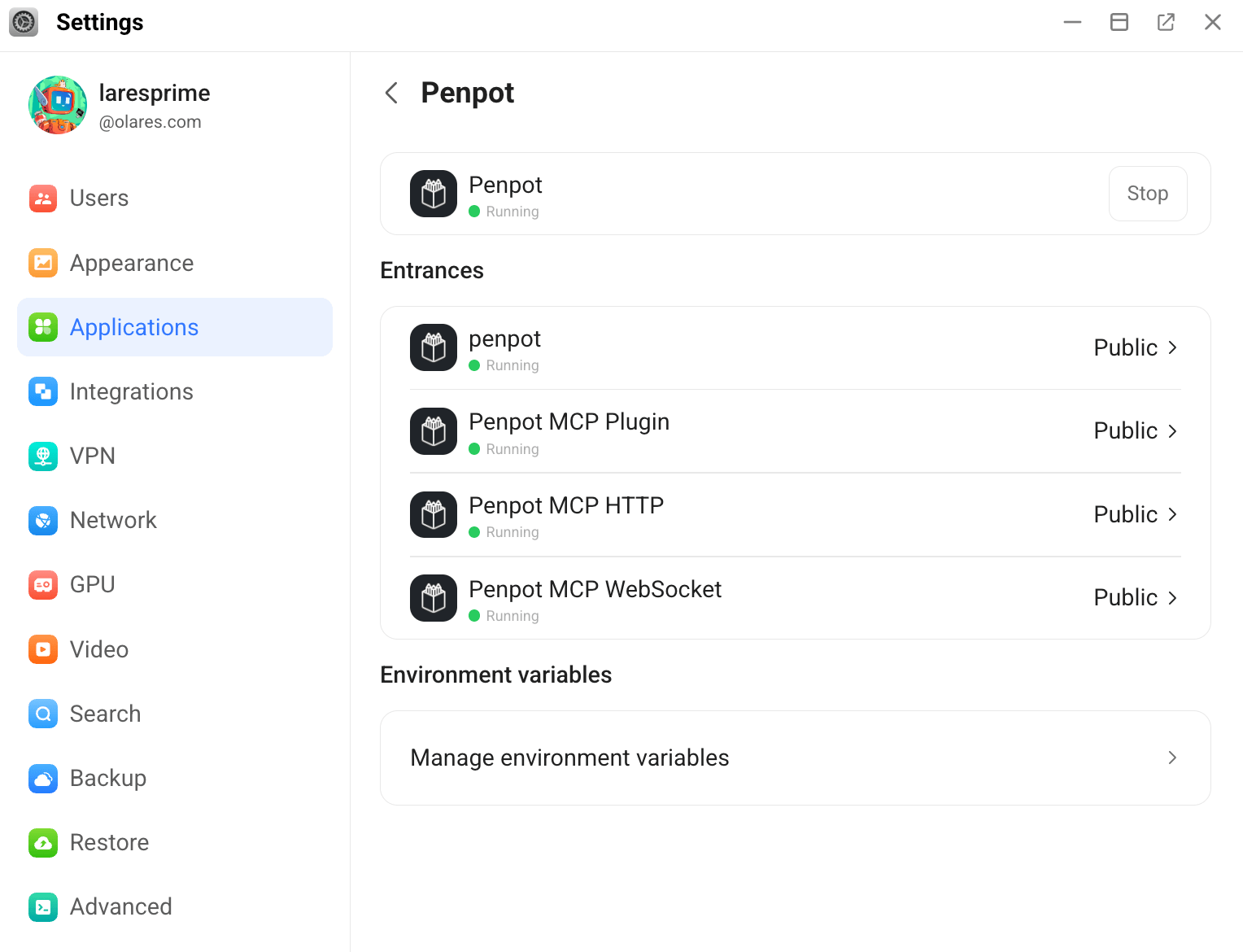
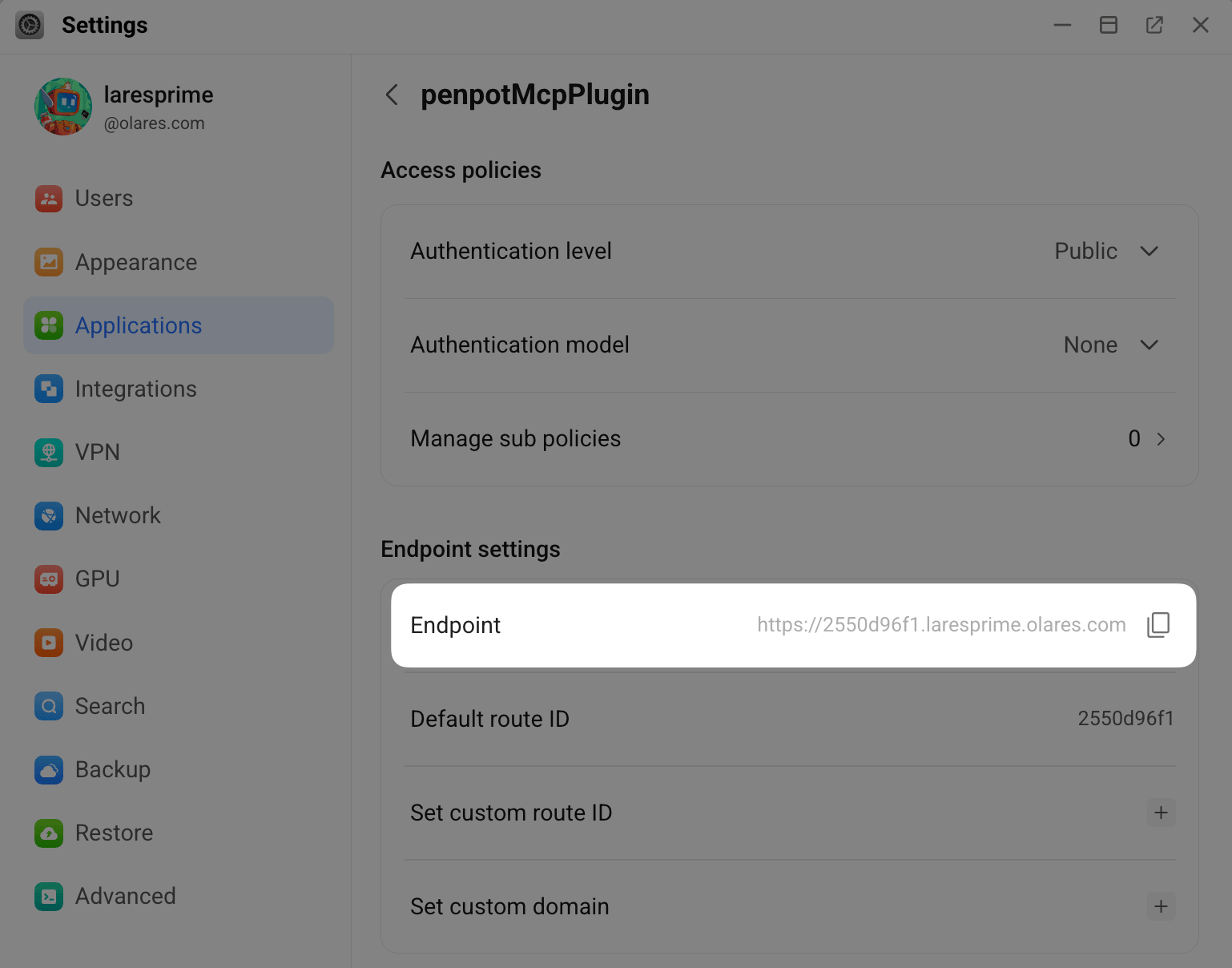
Go to the target entrance, and find the endpoint URLs for Penpot MCP Plugin and Penpot MCP HTTP.
Penpot MCP Plugin: Use this endpoint to install the Penpot plugin.
Penpot MCP HTTP: Use this endpoint to connect Cursor.
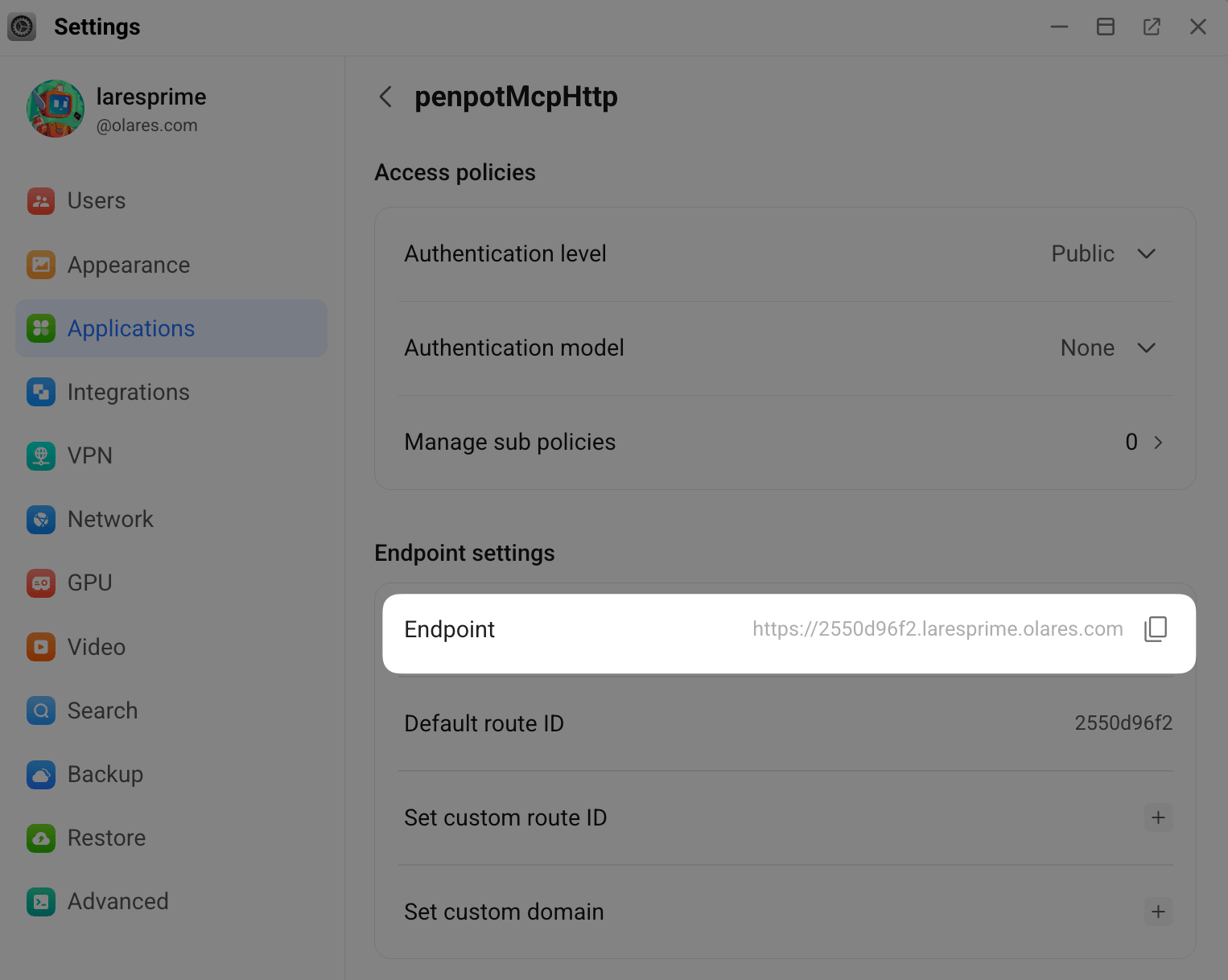
Keep this page open or copy both URLs. You will use them in the next steps.
Install and connect the MCP plugin in Penpot
With the target file open in Penpot:
In the Penpot editor, click more_vert to open the main menu, then select Plugins > Plugin manager.
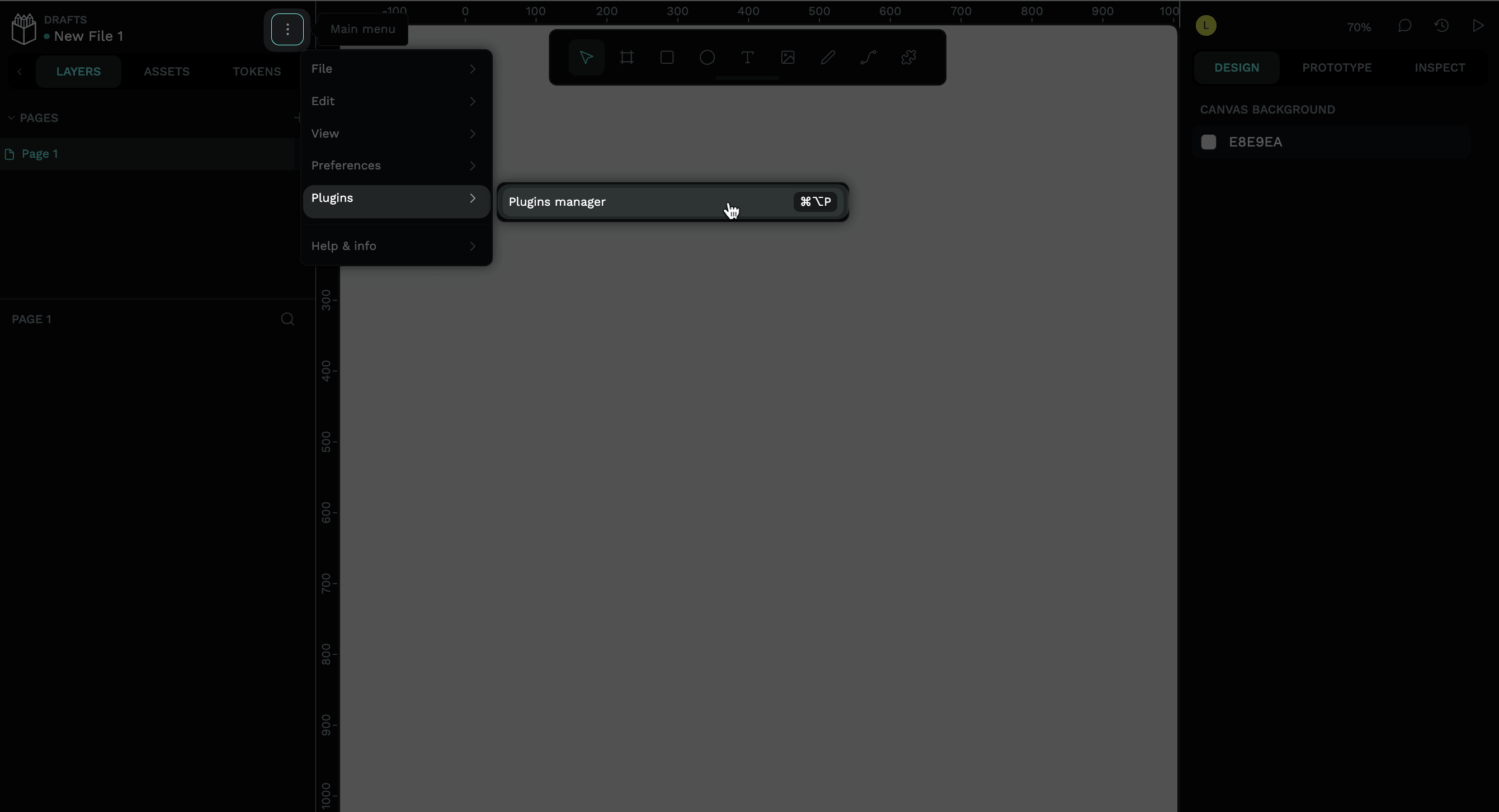
Append
/manifest.jsonto your MCP Plugin endpoint. Enter the URL in the following format, then click Install:text<your-mcp-plugin-endpoint>/manifest.jsonFor example:
texthttps://2550d96f1.laresprime.olares.com/manifest.json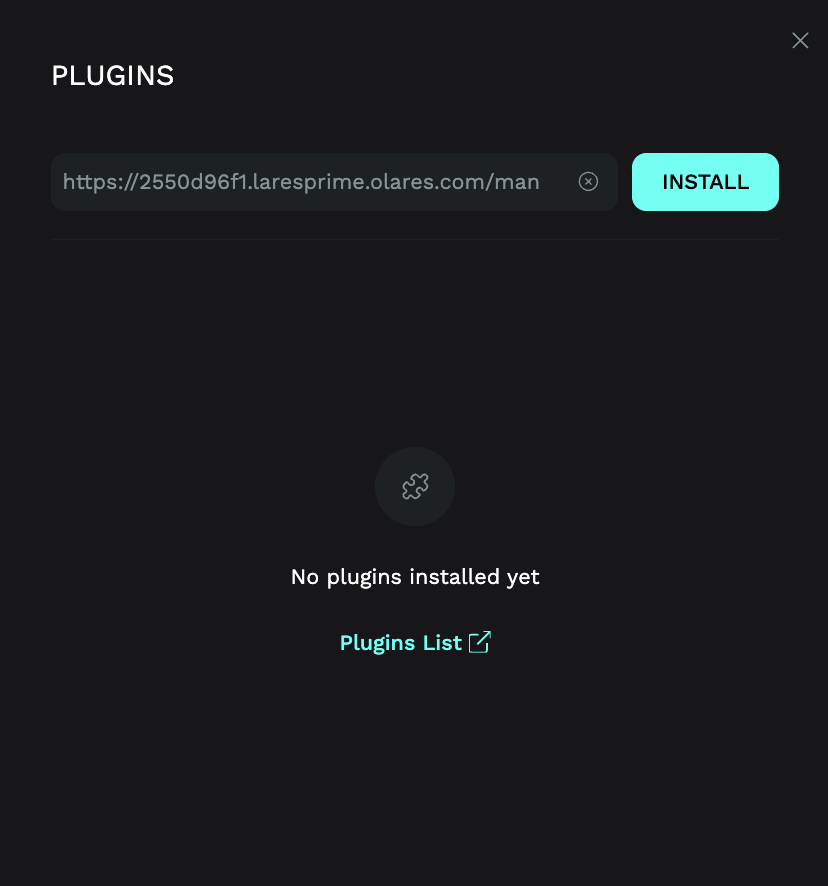
Review the permission prompt, then click Allow.
The plugin now appears in the INSTALLED PLUGINS section.
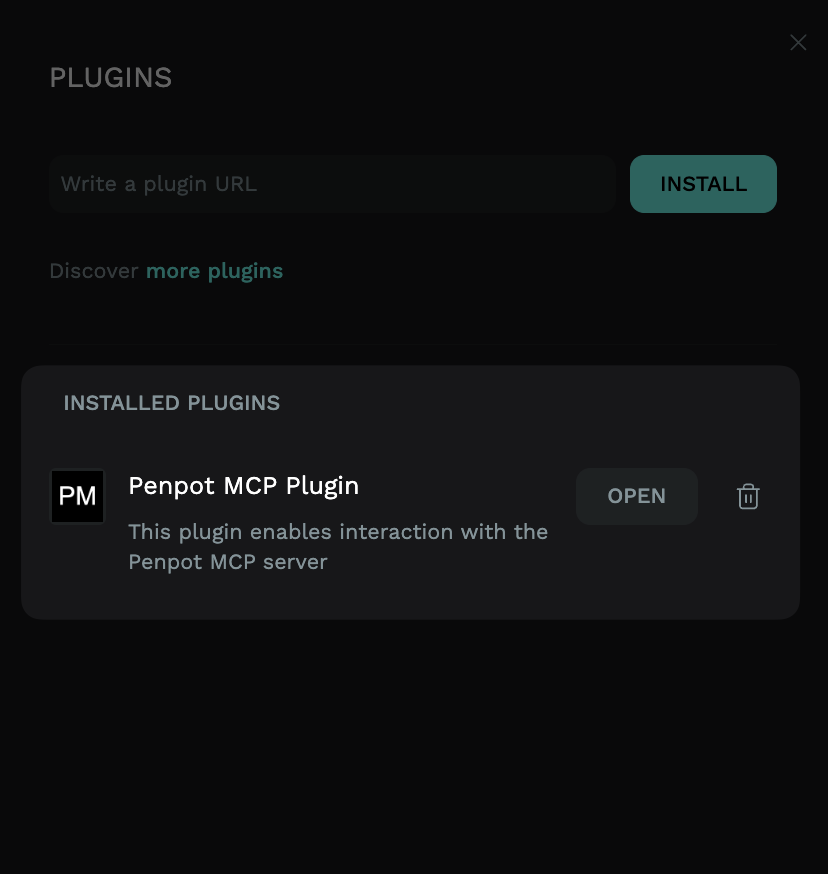
In Plugin manager, click Open next to the MCP plugin.
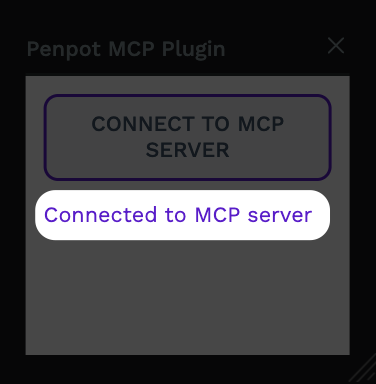
In the plugin panel, click CONNECT TO MCP SERVER.
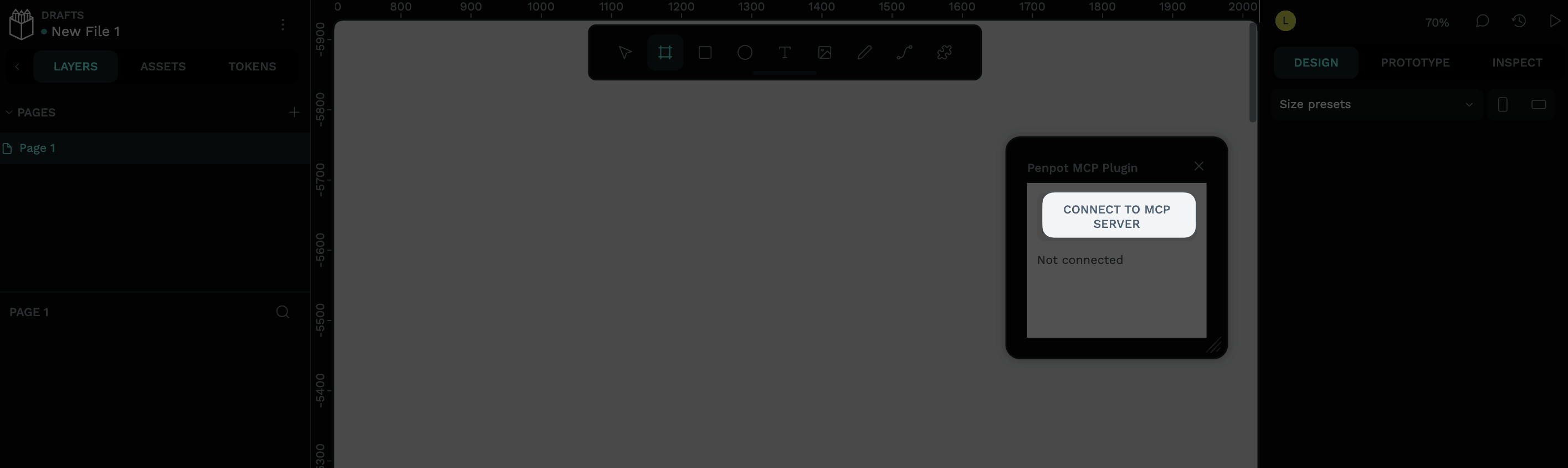
Wait until the status changes to Connected to MCP server.
Configure Cursor as an MCP client
Open Cursor on your computer.
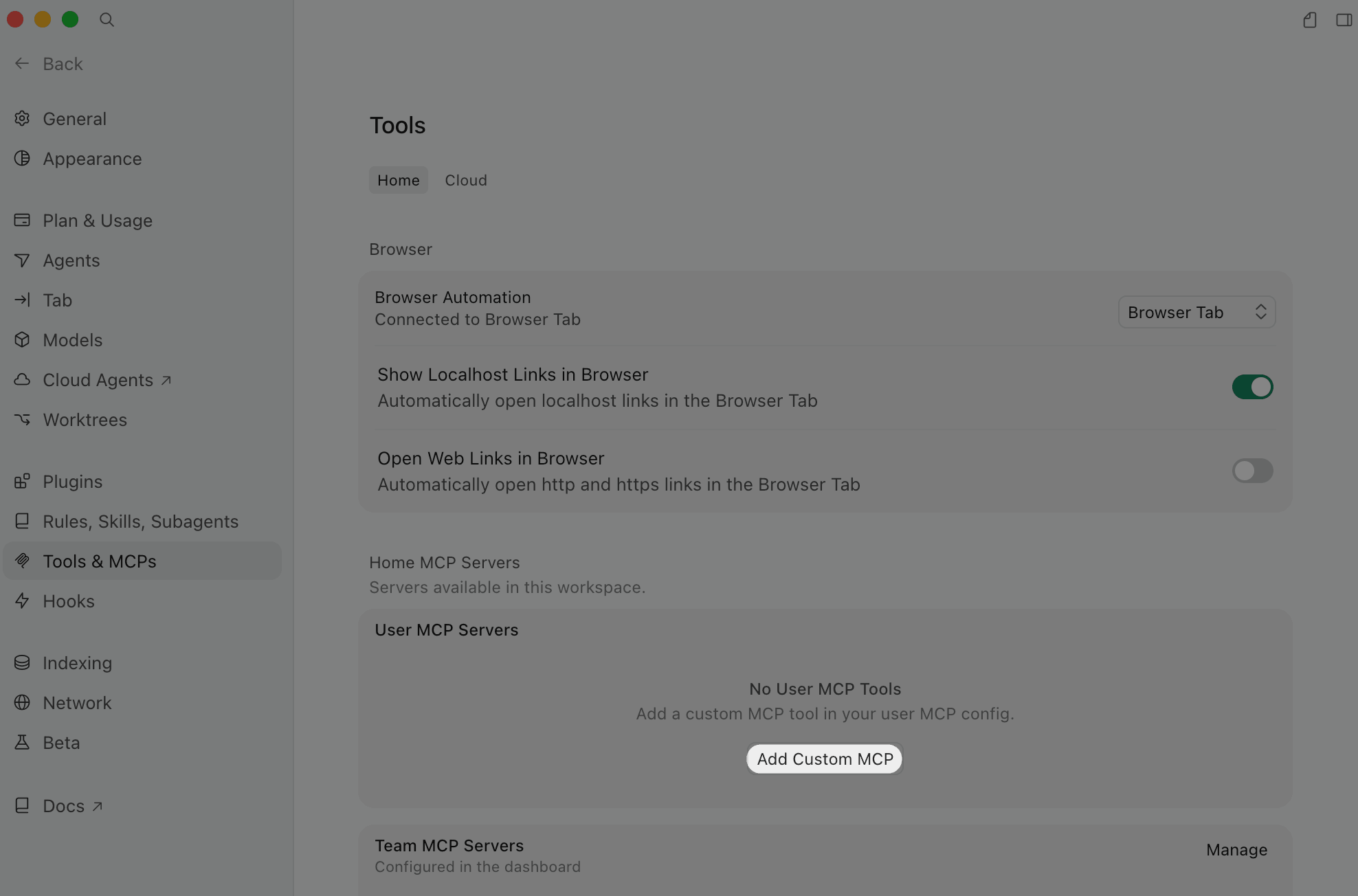
Go to Cursor > Settings > Tools & MCPs, then click Add Custom MCP.
Append
/mcpto your MCP HTTP endpoint. In~/.cursor/mcp.json, add the following configuration:json{ "mcpServers": { "penpot": { "url": "<your-mcp-http-endpoint>/mcp" } } }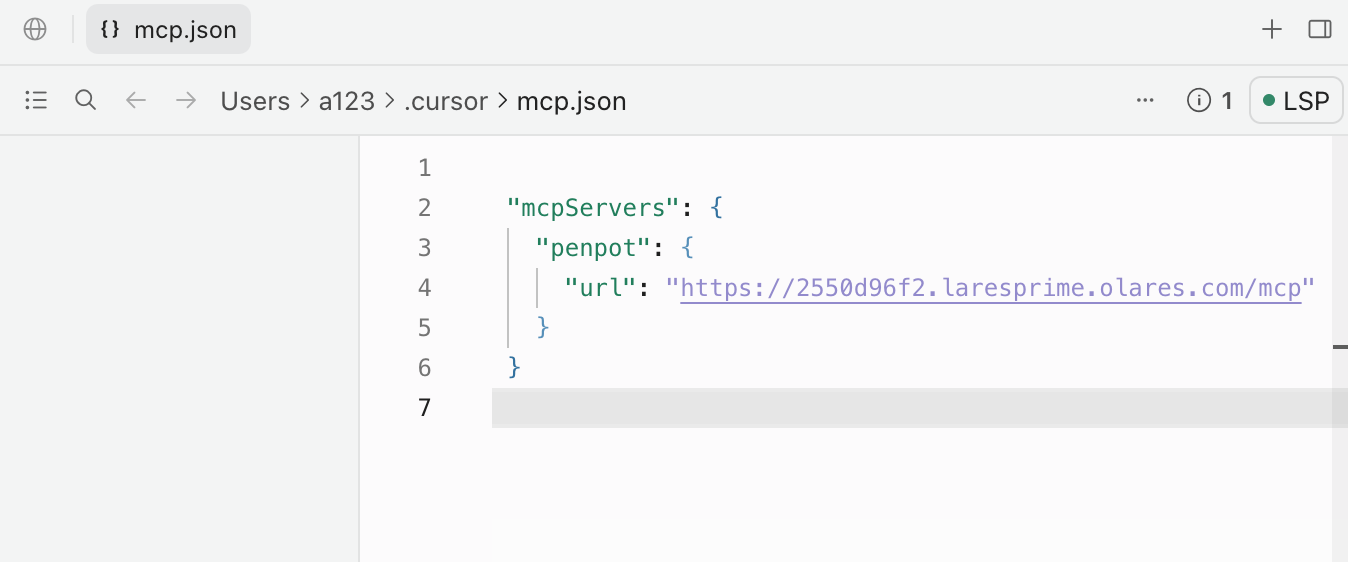
Check your JSON syntax
Ensure you copy the exact format above, including all quotation marks
"and braces{}. Invalid JSON will cause Cursor to fail to load the MCP server.Save the file. On macOS, press
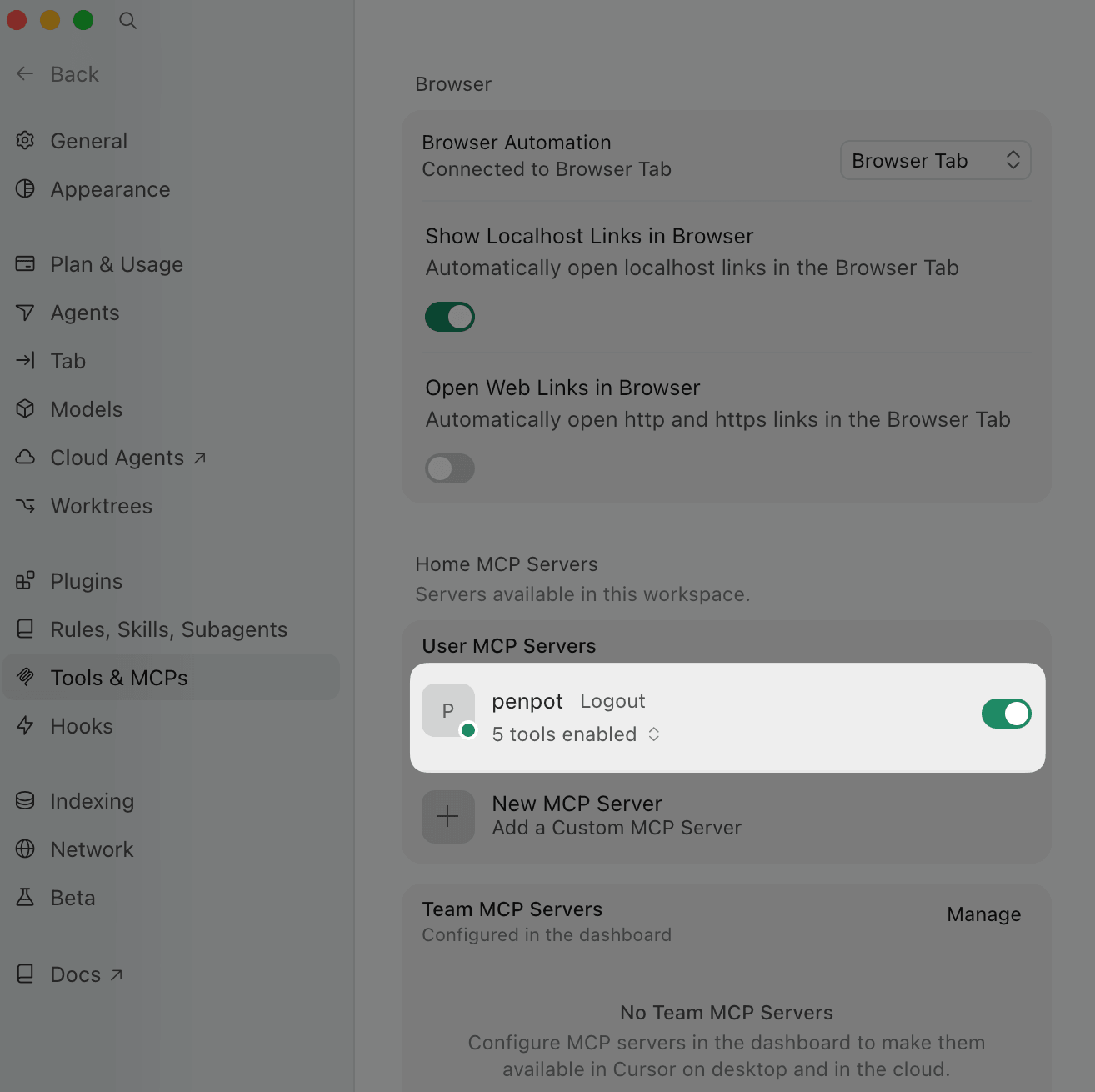
Cmd + S. On Windows, pressCtrl + S.In Tools & MCPs, enable the switch next to penpot. If it does not appear, restart Cursor and reopen Tools & MCPs.
Use Cursor to edit the Penpot file
Inspect the file structure
Start by asking Cursor to read the design structure.
Keep your Penpot file open and ensure the plugin status is Connected to MCP server.
In Cursor, start a new chat and ask:
textList all frames in the current Penpot file.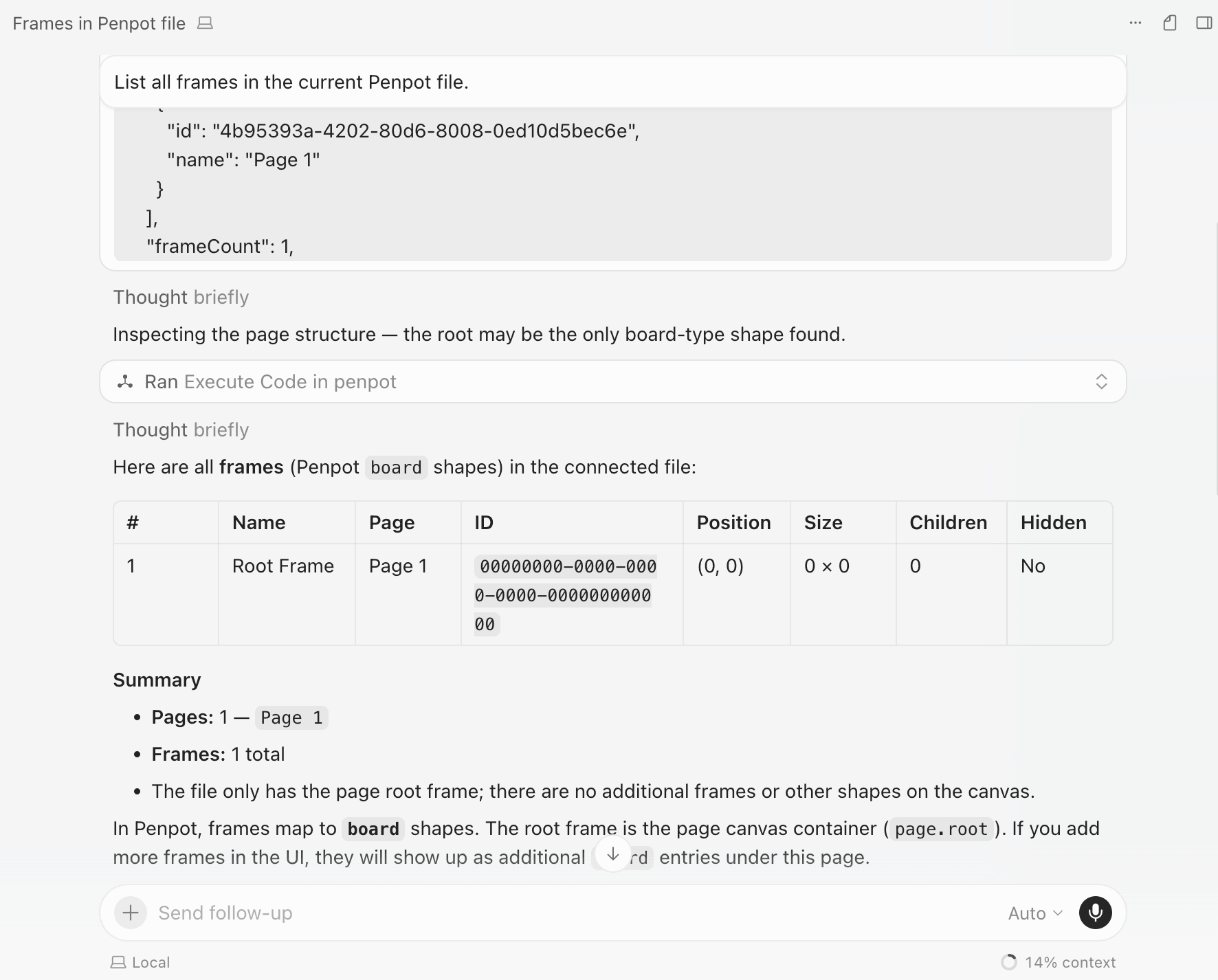
Work one frame at a time
If the file has several frames, name the target frame in your next prompt. This keeps the change focused and makes it easier to review in Penpot.
Add a card-style component
After Cursor reads the file, ask it to make a concrete design change. The following example adds a reusable card-style component to the selected frame.
In Cursor, send a prompt like this. Replace
Homewith the frame you want to modify:textIn the current Penpot file, add a card-style component to the Home frame. The card should include a title, a short description, and one primary button. Match the existing spacing, colors, and typography as closely as possible. Name the main group "Feature card" and explain what you changed.If Cursor asks you to choose from several options, choose the option that best matches your layout.
Wait for Cursor to finish the tool calls.
Return to Penpot and check the active page. The new design element should appear in the target frame.
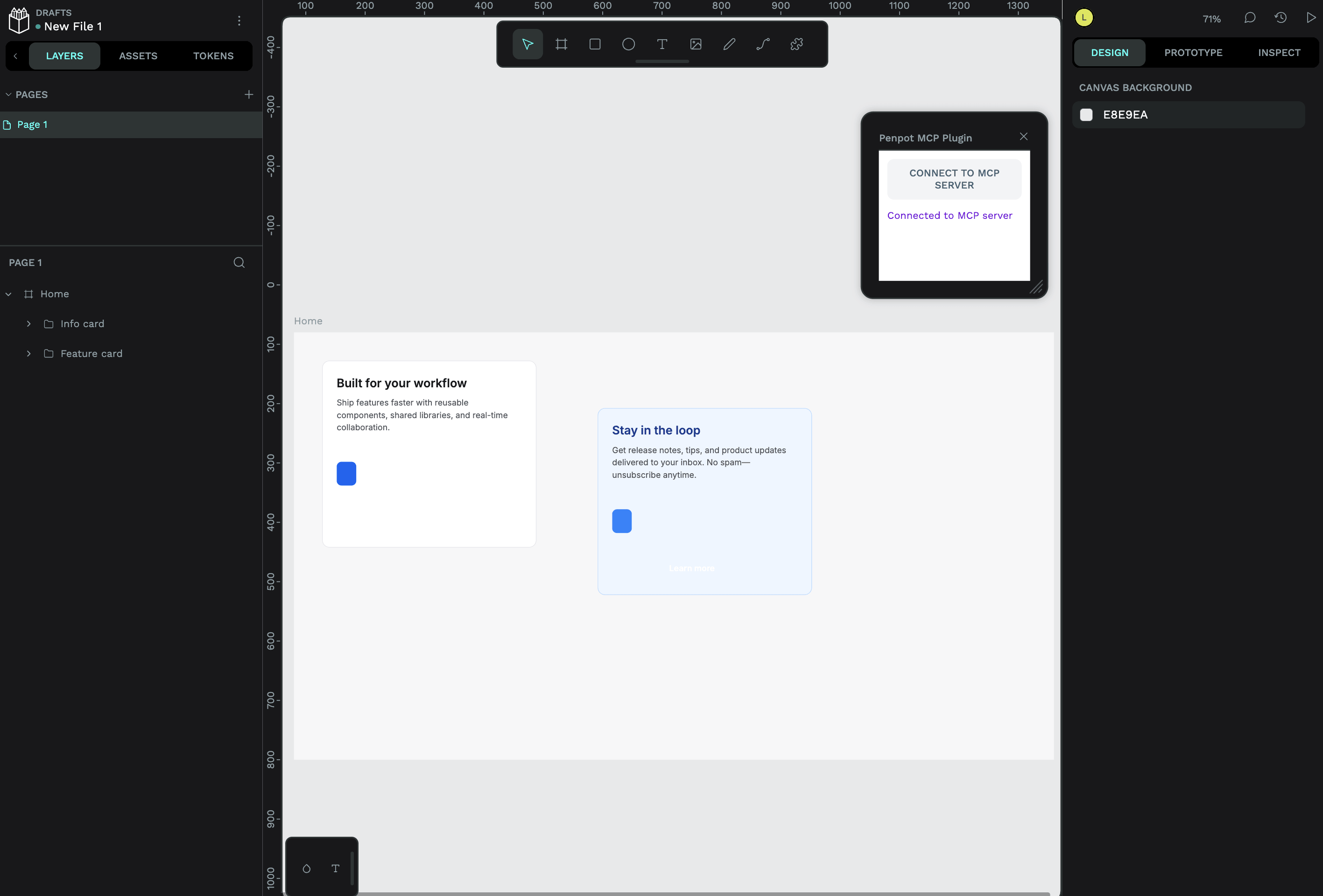
Select the new element in Penpot and check its layer name, position, text, and visual style.
Review and refine the result
Treat Cursor's first edit as a draft. Review the result in Penpot, then ask Cursor for specific adjustments.
Use prompts like:
Move the Feature card 24 px below the hero heading and align it with the left edge of the content column.Make the button label shorter and adjust the card width so it matches the other content blocks.Rename the card layers so they are easy for developers to inspect.The workflow is complete when:
- Cursor can list the frames in the connected Penpot file.
- Cursor can explain which frame or layer it changed.
- The new card appears in the selected Penpot frame.
- The card uses clear layer names and fits the surrounding design.
FAQs
Cursor cannot see my Penpot file
Cause
The MCP plugin is not connected, the Penpot browser tab is closed, or a different file or page is active.
Solution
Open the target Penpot file, open the MCP plugin, click Connect to server, and wait until the status shows Connected to MCP server. Then retry your prompt in Cursor.
How does the Penpot MCP connection work?
Penpot MCP connects Cursor to the Penpot file currently open in your browser.
| Component | Used by | What it does | Manual setup |
|---|---|---|---|
| MCP Plugin | Penpot file | Exposes the active file, page, frames, layers, components, styles, and tokens to the MCP server. | Add it in Penpot. |
| MCP HTTP | Cursor | Receives MCP requests from Cursor and forwards them to the connected Penpot file. | Configure it in Cursor. |
| MCP WebSocket | Plugin and MCP server | Keeps the Penpot file and MCP server connected in real time. | No manual setup needed. |
Cursor only needs the MCP HTTP endpoint with /mcp appended. The MCP WebSocket connection is used internally between the Penpot plugin and the MCP server.
The plugin must stay connected in Penpot while Cursor works with the file.
Learn more
- Penpot Help Center: Official Penpot guides and product documentation.
- Model Context Protocol: Learn how MCP connects AI clients to external tools and data sources.