curl -fsSL https://olares.sh | bash -Root user password
During the installation, you may be prompted to enter your root password.
Errors during installation?
If an error occurs during installation, use the following command to uninstall first:
olares-cli uninstall --allAfter uninstalling, retry the installation by running the original installation command.
Prepare Wizard URL
At the end of the installation process, you will be prompted to enter your domain name and Olares ID.
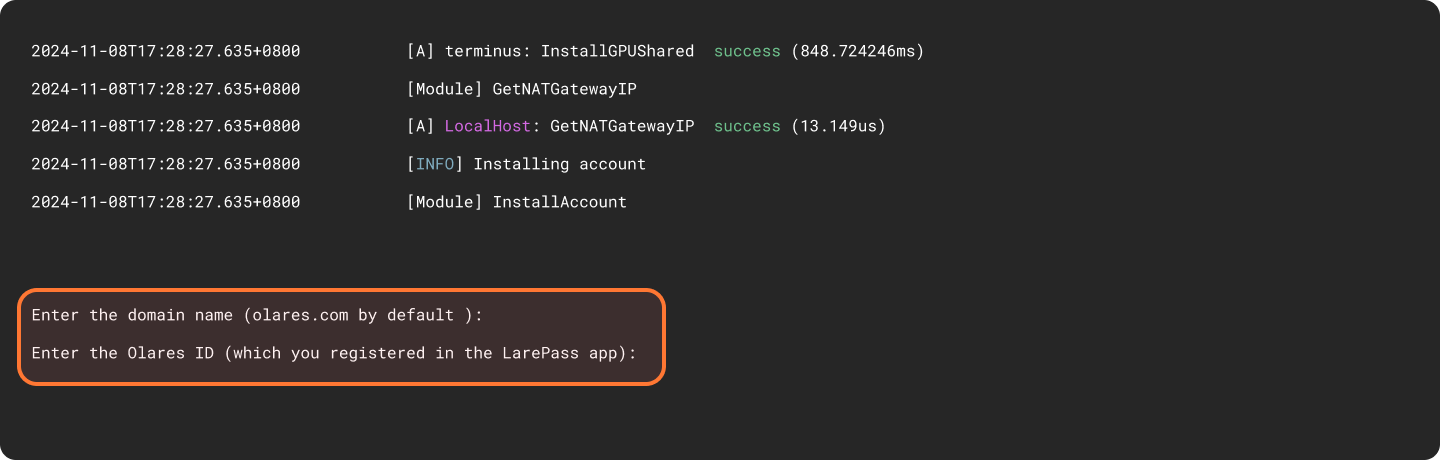
For example, if your full Olares ID is [email protected]:
- Domain name: Press
Enterto use the default domain name or typeolares.com. - Olares ID: Enter the prefix of your Olares ID. In this example, enter
alice123.
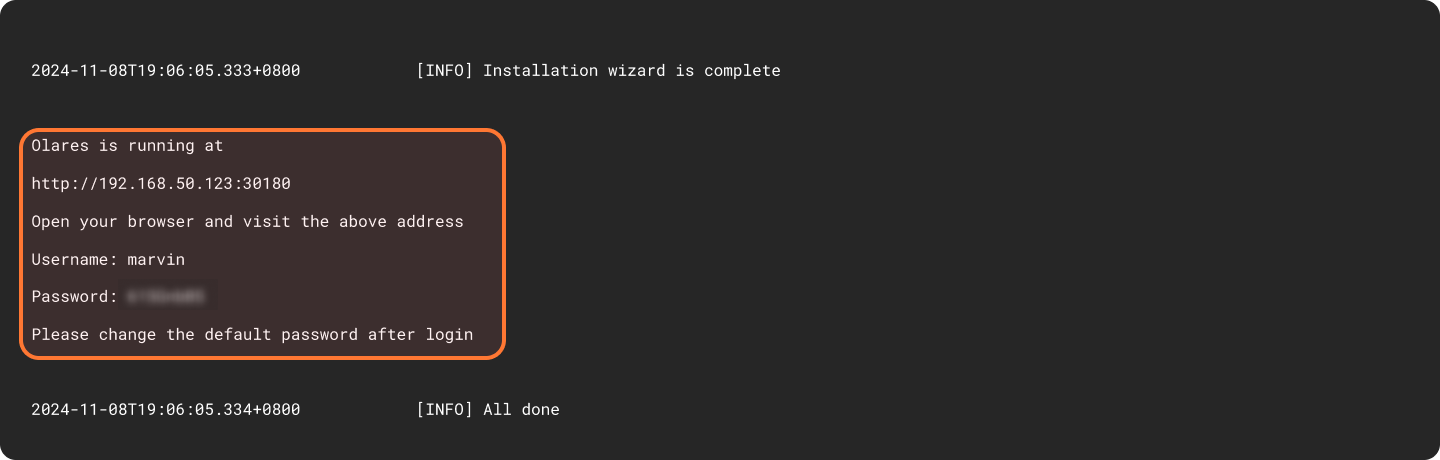
Upon completion of the installation, the initial system information, including the Wizard URL and the initial login password, will appear on the screen. You will need them later in the activation stage.
Next step: Protect your Olares ID
You're almost ready to start using Olares! Before diving in, it's crucial to ensure your Olares ID is securely backed up. Without this step, you won't be able to recover Olares ID if needed.
Having trouble?
If you run into any issues, submit a GitHub Issue and include your platform, installation method, and error details.
System requirements
Make sure your device meets the following requirements.
- CPU: At least 4 cores
- RAM: At least 8GB of available memory
- Storage: At least 150GB of available SSD storage. (The installation will fail if an HDD (mechanical hard drive) is used instead of an SSD.)
- Supported systems:
- Ubuntu 22.04-25.04 LTS
- Debian 12 or 13
Version compatibility
While these specific versions are confirmed to work, the process may still work on other versions. Adjustments may be necessary depending on your environment. If you meet any issues with these platforms, feel free to raise an issue on GitHub.